

Use ZIP when a person on Windows or macOS needs to open selected files, and use tar plus gzip or zstd when a Linux host must back up a directory with its owners, permissions, and links intact. A bare .tar file only packages files and metadata, it doesn't compress them. You're probably staring at a customer upload, a nightly backup that missed its window, or a site export you need to restore without breaking ownership. Picking Zip and Tar formats by habit is how those jobs go wrong.
Table of Contents
- Pick ZIP or TAR Before You Archive
- Gzip Bzip2 XZ and Zstd Tradeoffs
- Commands That Create and Test Archives
- Sparse Files and Production Backups
- Inspect Archives Before You Extract
- How ZIP and TAR Store Files
- Keep the Last Good Copy
Pick ZIP or TAR Before You Archive
Don't start with the extension. Start with who extracts the archive, on what system, and how. If a nontechnical user double-clicks the file, ZIP wins because desktops already understand it. If a cron job streams a web root to backup storage at 2 a.m., tar wins because it preserves the Linux tree as one stream.
Which Archive to Use for the Job
| Job | Use | Why | Main limit |
|---|---|---|---|
| Send a few files to Windows or macOS users | ZIP | Central directory, built into Explorer and common mail clients | Weak Unix owner, mode, and symlink fidelity |
| Unattended Linux directory or site backup | tar.gz or tar.zst | One stream, metadata, and a pipe to remote storage | Extracting one late member reads earlier data |
| Thin VM disk or mostly empty database file | GNU tar with sparse handling plus zstd or gzip | Holes stay out of the stream | Restore test required for real allocation |
| Software release tarball | tar.gz | Readable on nearly every Unix host | Worse ratio than xz |
| Cold archive where ratio matters more than CPU | tar.xz | Strong compression | Slow and memory-heavy to compress and extract |
| Fast backup window on a modern Linux host | tar.zst | High throughput and tunable levels | Older hosts may lack the zstd binary |
| Already compressed media, images, or packages | Plain tar, or ZIP store | Avoid compressing twice | Little or no size win |
ZIP's central directory lets a tool list contents and jump to one member without reading everything before it. That's the right model for email attachments, browser downloads, and handing logs to someone on a desktop. It's the wrong model for restoring a Linux site, because owners, modes, and symlinks don't survive the trip reliably.
Tar flips the trade. It writes members sequentially, so it's natural to pipe into a compressor and on to remote storage, and it's faithful to permissions and ownership. The cost is random access. Pulling the last file out of a large tar.zst means processing the stream up to that point.
Practical rule: If a human opens it, send ZIP. If a script restores it on Linux, send tar.
Version and Platform Caveats That Change the Answer
On Debian 12 and Ubuntu 22.04, GNU tar 1.34 and later handle zstd natively, so tar.zst is a safe default for new backup jobs. On older hosts you may need to check that the zstd binary exists before you rewrite a working gzip job. Don't assume a format you can create today is one a rescue environment can read next year.
Windows 10 and 11 ship tar.exe, which is bsdtar, and it can list ZIP and tar.gz files fine. It's still a poor restore tool for a Linux tree because it doesn't recreate Unix owners the way GNU tar on the target host does. Use it to peek, not to rebuild a server.
In production on multi-tenant hosts, backups fail from wrong suffixes and partial uploads far more often than from a poor compressor choice. A renamed file doesn't change its type. Create the archive with the compressor named explicitly, test it, and only then move it. I would never rename a finished archive to change what it claims to be.
Gzip Bzip2 XZ and Zstd Tradeoffs
Tar is the container. Compression is a separate layer wrapped around it. The GNU tar compression manual documents that GNU tar can create or read archives through gzip, bzip2, lzip, lzma, lzop, zstd, xz, and traditional compress, with -z selecting gzip and -I invoking another compressor program. That separation is the whole point. Tar decides how files and metadata are packed, the compressor decides CPU cost, ratio, and restore speed.
Because tar concatenates many files into one sequential stream before compression, a directory full of small, similar files often compresses better than ZIP's file-by-file model. Redundancy across files, repeated headers in logs, near-identical PHP templates, becomes visible to one compressor. The same design supports streaming to a pipe or remote storage without a random-access output file.
Compressor Choice for a Tar Stream
| Compressor | Typical tar flag | Ratio | Speed | Use when |
|---|---|---|---|---|
| gzip | -z or –gzip | Moderate | Fast | The archive must open almost everywhere |
| bzip2 | -j or –bzip2 | Better than gzip | Slow | You must read an older .tar.bz2 tree |
| xz | -J or –xz | Strongest | Slowest, high memory | A release artifact is built once |
| zstd | –zstd or -I zstd | Strong at higher levels | Fast, especially decompress | Nightly backups on current Linux |
| none | No compressor flag | None | Fastest copy | Payload is already compressed |
Gzip is the compatibility default. Level -6 is the usual setting and there's rarely a reason to change it for routine work. If an archive might land on an unknown Unix host, a rescue image, or a customer's machine, gzip is the boring, correct choice.
Zstd is what I would pick for nightly backups on a current Linux host. A moderate level, -3 or the tar default, restores fast and leaves CPU for the workload. Cranking the level on a job that runs every night buys a smaller file with someone else's backup window.
XZ earns its CPU and memory cost only when you build an artifact once and ship it many times, a source release or a frozen archive. Level -9 on a nightly job is wasted electricity. Bzip2 is slower than gzip for a modest gain and mostly matters when you're reading an older .tar.bz2 tree someone hands you.
Don't compress what's already compressed. JPEGs, video, and packaged artifacts gain almost nothing and cost full CPU. Use plain tar or ZIP's store method there.
Remember the restore shape. A compressed tar is read in order, so extracting one late member from a huge tar.zst isn't comparable to pulling one ZIP member. If your dominant workload is frequent single-file retrieval, neither a bigger compressor nor a faster disk fixes the layout. Choose a different archive structure.
Commands That Create and Test Archives
Assume GNU tar 1.34 or newer, gzip, and optionally zstd and xz on the Linux host. Before you start, confirm three things. You have enough free disk for the output, you can read the source tree, and the destination isn't inside the tree you're archiving. That last mistake makes tar try to pack its own growing output file.
Create and Verify a Linux Backup
Create with an explicit compressor so the result doesn't depend on the filename.
tar –create –gzip –file=/backup/site-$(date +%F).tar.gz /srv/site
List the archive to confirm the members are what you expect.
tar –list –file=/backup/site-2025-01-15.tar.gz
Test the gzip layer separately from the tar structure.
gzip -t /backup/site-2025-01-15.tar.gz
The GNU tar options reference states that –auto-compress (-a) enables automatic compressed-format recognition from the archive suffix during creation, which is why a command ending in .tar.bz2 selects bzip2. That convenience is fine interactively. In an audited script I would name the compressor directly, or disable suffix guessing so a renamed target can't change formats without notice.
tar --create --bzip2 --file=archive.tar.bz2 /srv/site
tar -a -cf archive.tar.bz2 /srv/site
tar --no-auto-compress --create --gzip --file=site.tar.gz /srv/site
Use zstd or xz where the workload calls for it. Newer GNU tar accepts the long flag, and -I works when the compressor is a separate binary.
tar –zstd -cf backup.tar.zst /data
tar -I zstd -cf backup.tar.zst /data
tar –create –xz –file=release.tar.xz /srv/release
Once the archive passes its list and compressor tests, move it off the host. If you're copying it to another server yourself, the workflow for copying a file over SSH covers the transfer step. Verify again after the transfer, not just before it, because a truncated copy looks identical until extraction.
Windows Equivalents and Their Limits
On Windows, list before you touch anything, and use PowerShell only for simple desktop ZIP files.
tar.exe -tf archive.tar.gz
Compress-Archive -Path C:data* -DestinationPath site.zip
Compress-Archive doesn't preserve Linux metadata, owners, or symlinks. It's fine for sending documents. It isn't a server backup tool.
Verification is a list plus a compressor test, never an extract onto the live tree. If listing shows the expected paths and the compressor test exits cleanly, the archive is structurally sound.
Common failures are mundane. A renamed suffix makes tools pick the wrong decompressor. A truncated transfer fails the compressor test at the end of the stream. Permission denied on parts of /var means the backup user can't read everything you think it can, so check tar's exit status in the script. Argument list too long comes from expanding a huge glob in the shell, so let tar read the directory itself instead of passing every filename.
Rollback is simple and nonnegotiable. Keep the previous backup object until the new one passes both the list and the compressor test. Delete the old copy only after the replacement is proven.
Sparse Files and Production Backups
A thin-provisioned VM disk or a preallocated database file can report a huge logical size while using far fewer allocated blocks. The gaps are holes, ranges of zeros that take length but no disk. Ordinary compression encodes those zeros compactly, but tar still reads them. The GNU tar sparse file documentation explains that with –sparse (-S), tar records hole locations rather than archiving every zero byte, using representations that include the actual file size and a map of non-null data chunks.
That distinction matters operationally. Keeping zeros out of the stream entirely cuts read I/O and backup time on images that are mostly empty. Compressing zeros efficiently is not the same as never reading them.
Back Up and Prove the Holes Survived
Run sparse-aware tar against a quiesced or snapshot-consistent image, never a disk a guest is actively writing. An archive of a changing disk is a torn copy, whatever the format.
tar --sparse --zstd -cf vm-images.tar.zst /var/lib/vz/images
After a test restore, compare logical size against allocated space. If the numbers converge, something materialized the holes and your target filesystem just filled up with zeros.
ls -lh /restore/images/vm-disk.raw
du -h /restore/images/vm-disk.raw
stat /restore/images/vm-disk.raw
Don't assume ZIP preserves sparse layout or Unix owners. Tool support varies, so test any archiver before it becomes part of a bare-metal or VM recovery plan. On Proxmox-style hosts, image-level backup stays the primary method for whole guests. Tar is the right extra for config trees, templates, and exported disks, and a sane server to server backup routine keeps those copies off the node that produced them.
In production on multi-tenant nodes, one guest image with unexpected allocated data can blow the backup window for every other tenant. Measure with du before you blame the compressor. When many large images make shared storage the bottleneck, dedicated hardware with local NVMe fits the workload, which is the case for bare metal servers under a Proxmox private cloud rather than a contended shared array.
Inspect Archives Before You Extract
Choosing ZIP or tar doesn't make an upload safe. The risk lives in extraction behavior, in path names, links, and metadata, and tar can carry symlinks, hard links, and permissions that give a hostile archive more ways to touch your filesystem. Microsoft's ZIP and TAR best practices guidance covers the core hazards, including that 7-Zip versions before 25.01 had a symbolic-link flaw affecting ZIP, TAR, 7z, and RAR extraction that could enable arbitrary file writes such as overwriting SSH keys. A separate 2025 disclosure showed a malformed ZIP CRC could stop a scanner while another application still loaded the payload.
Context helps calibrate, not panic. In Glasswall's 2025 analysis of malicious samples, ZIP files accounted for approximately 31% of malicious samples analyzed, compared with 22% for RAR and 8% for 7z. That's a reason to inspect, not a reason to refuse ZIP for ordinary desktop exchange.

The Inspection Checklist
- List before you extract: Read every member name first. Listing doesn't write files, extracting does.
- Reject absolute paths and ../: Any member that escapes the target directory ends the job.
- Treat symlinks and hard links as untrusted: A link extracted early can redirect a later member outside the tree.
- Extract unprivileged into an empty directory: Never unpack a customer archive straight into /home or /etc.
- Scan nested archives: Checking only the outer file misses an archive inside it.
- Patch the extractors: Keep 7-Zip, bsdtar, and Info-ZIP current on every host that touches uploads.
Preview the archive and look at the actual names, owners, and link targets.
tar -tvf upload.tar.gz
unzip -l upload.zip
A member like this one is a refusal, not a warning. Delete the archive and ask for a clean export.
../../.ssh/authorized_keys
If the listing isn't clean, there is no safe extraction command that fixes it. Stop there.
Extract Only After a Clean Listing
Verification means the listing shows only relative paths under the intended prefix. Then extract into an isolated, empty directory as an unprivileged user.
Create the isolated target.
mkdir -p /var/tmp/incoming/jobid
Extract without restoring ownership from an untrusted source.
unzip -d /var/tmp/incoming/jobid upload.zip
tar –extract –file=upload.tar.gz –directory=/var/tmp/incoming/jobid –no-same-ownerConfirm nothing escaped and inventory what landed, links included.
find /var/tmp/incoming/jobid -type l -o -type f
Every path in that output must stay under the job directory. Check where each symlink points before any later process reads through it, because a link to /etc/passwd is harmless on disk and a disclosure the moment a web server serves it. Only after that check do you move content into place, with ownership set deliberately by you.
On a hosting node handling customer backups, this sequence is the difference between processing an upload and handing the uploader write access. It takes a minute. The alternative takes an incident report.
How ZIP and TAR Store Files
Say you need one config file from the middle of last night's backup. With tar you're reading the stream from the start until you reach it. With ZIP the tool jumps almost straight there. That restore difference comes directly from how each format lays out its bytes.
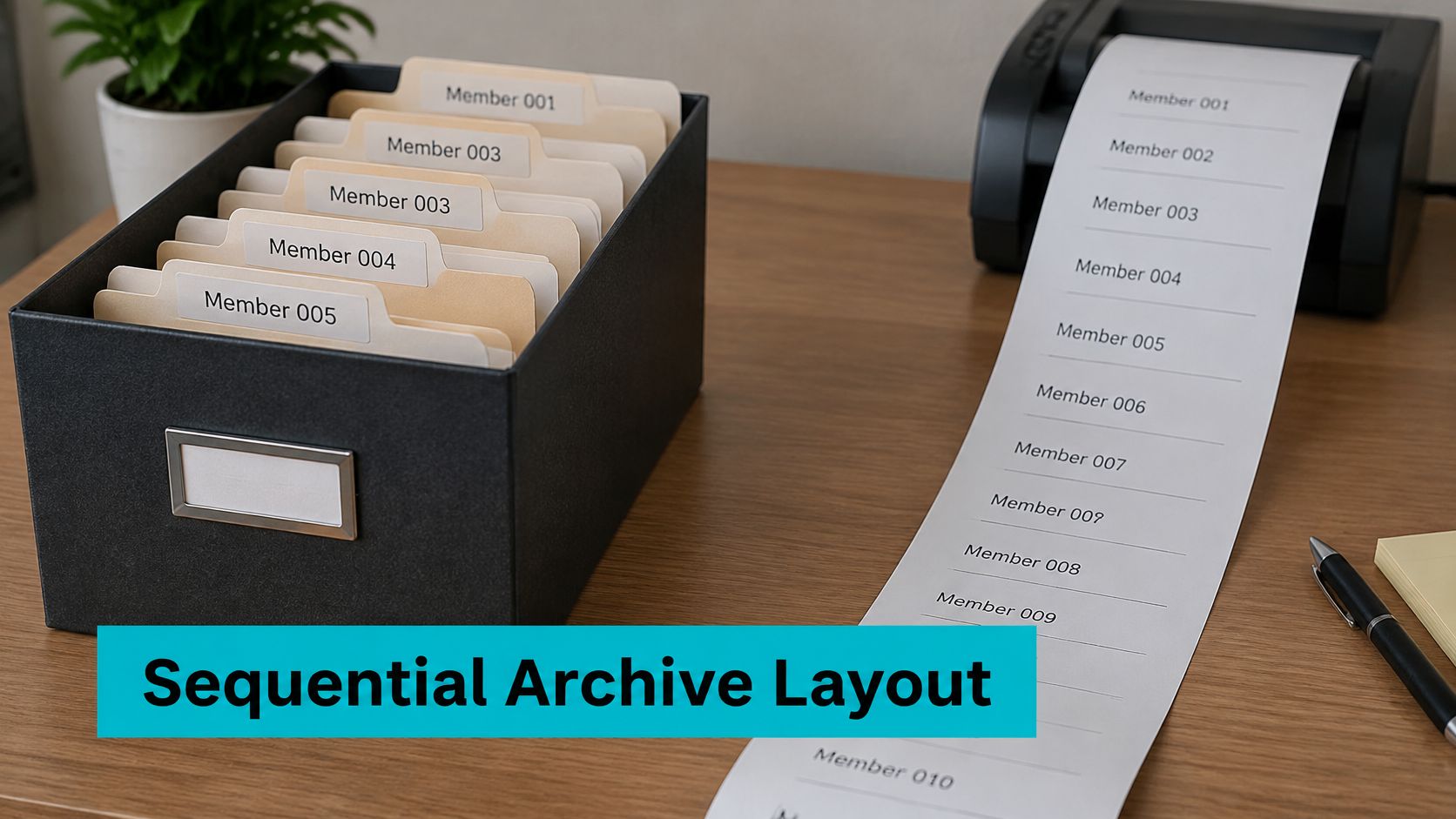
A tar archive is one sequential stream of members, each carrying its name, mode, owner, and modification time, with GNU and pax extensions adding symlinks, hard links, and long names. A bare .tar packages those bytes without compressing them. Gzip, bzip2, xz, or zstd wrap the whole stream afterward, which is why one tree becomes .tar.gz, .tar.bz2, .tar.xz, or .tar.zst depending on the wrapper you chose.
The layout is old because the problem is old. The Debian tar format manual page records that the tar command first appeared in Seventh Edition Unix, released in January 1979, replacing the earlier tp program, and that the name comes from writing files sequentially to magnetic tape. Early implementations disagreed on encoding and metadata, so IEEE Standard 1003.1-1988 defined the ustar format for interoperability and longer filenames, and POSIX.1-2001 added the pax extended format for additional attributes.
ZIP took the opposite shape for a disk-based era. A history of the ZIP format notes that Phil Katz released PKZIP in 1989, compressing files individually and storing a central directory so software can list contents and extract selected files without processing every preceding file. Early PKZIP used methods including Shrink, Reduce, and Implode, and DEFLATE was later documented independently in RFC 1951 and spread into gzip, PNG, and HTTP compression. Publishing the specification through PKWARE's APPNOTE let other developers build compatible tools, which is why ZIP ended up everywhere.
So the containers answer different questions. Tar is the container for a faithful Linux tree and for a stream piped to backup storage. ZIP is the container when someone fetches one file from the middle on whatever machine they own. Neither layout tells you whether the paths inside are safe to write. That's a separate check, and it belongs to whoever extracts.
Keep the Last Good Copy
Every decision in this article collapses into one operator habit. Don't delete the previous backup until the new one has passed its tests. A backup job that exits isn't proof. Proof is a listing that matches the source and a compressor test that reads the whole stream without error.
Match the test to the file you made.
tar --list --file=/backup/site-2025-01-15.tar.gz
gzip -t /backup/site-2025-01-15.tar.gz
xz -t release.tar.xz
zstd -t backup.tar.zst
For a VM or database image, add the allocation check. Compare the logical size from ls -l with allocated blocks from du -h on a test restore, and keep the older image until those two numbers still show the holes intact. A restore you've never performed is a hope, so work through how to restore from a backup before you need it at 3 a.m.
One copy in one building is also a hope. When the primary copy sits in a Tampa facility, keep a second copy outside that facility, because a hurricane or grid event takes out a single site even when every archive in it is perfectly valid. The format can't help you if the only copy is underwater.
If you'd rather not run unattended backup jobs and restore tests yourself, ARPHost managed operations can run them for you. Virtual workloads fit VPS hosting under managed services, and image-heavy I/O belongs on dedicated hardware. No format choice substitutes for a tested restore and a copy somewhere else.
If your backup jobs, customer uploads, or VM images need infrastructure that's run and restore-tested by people who work on the hardware daily, ARPHost, LLC offers VPS, bare metal, Proxmox private clouds, colocation, and fully managed IT from Tampa, Florida. Visit the site to talk through your archive and backup workflow with the team.

Leave a Reply
You must be logged in to post a comment.