

You need the site live today. Marketing wants the homepage up, sales needs a contact form, and someone has already bought the domain. That’s exactly why the WordPress one click install became the default path for so many teams. It removes the slow part of the job. No manual database creation, no unpacking archives, no editing configuration files before breakfast.
That speed is useful. It’s also where a lot of people stop too early.
A fast install gives you a running WordPress instance. It does not give you a production-ready website. The difference matters. A site that launches quickly but ships with weak credentials, sloppy HTTPS handling, unnecessary plugins, and no scaling path will cost more time later than the installer saved upfront. The right way to use one-click deployment is to treat it as the first step in a controlled build, not the whole build.
Why a One-Click Install is Just the Beginning
Many who seek a WordPress install method are under pressure. A small business owner needs a brochure site online. An agency needs a staging site before a client call. A sysadmin needs a clean app stack without spending part of the day on repetitive setup.
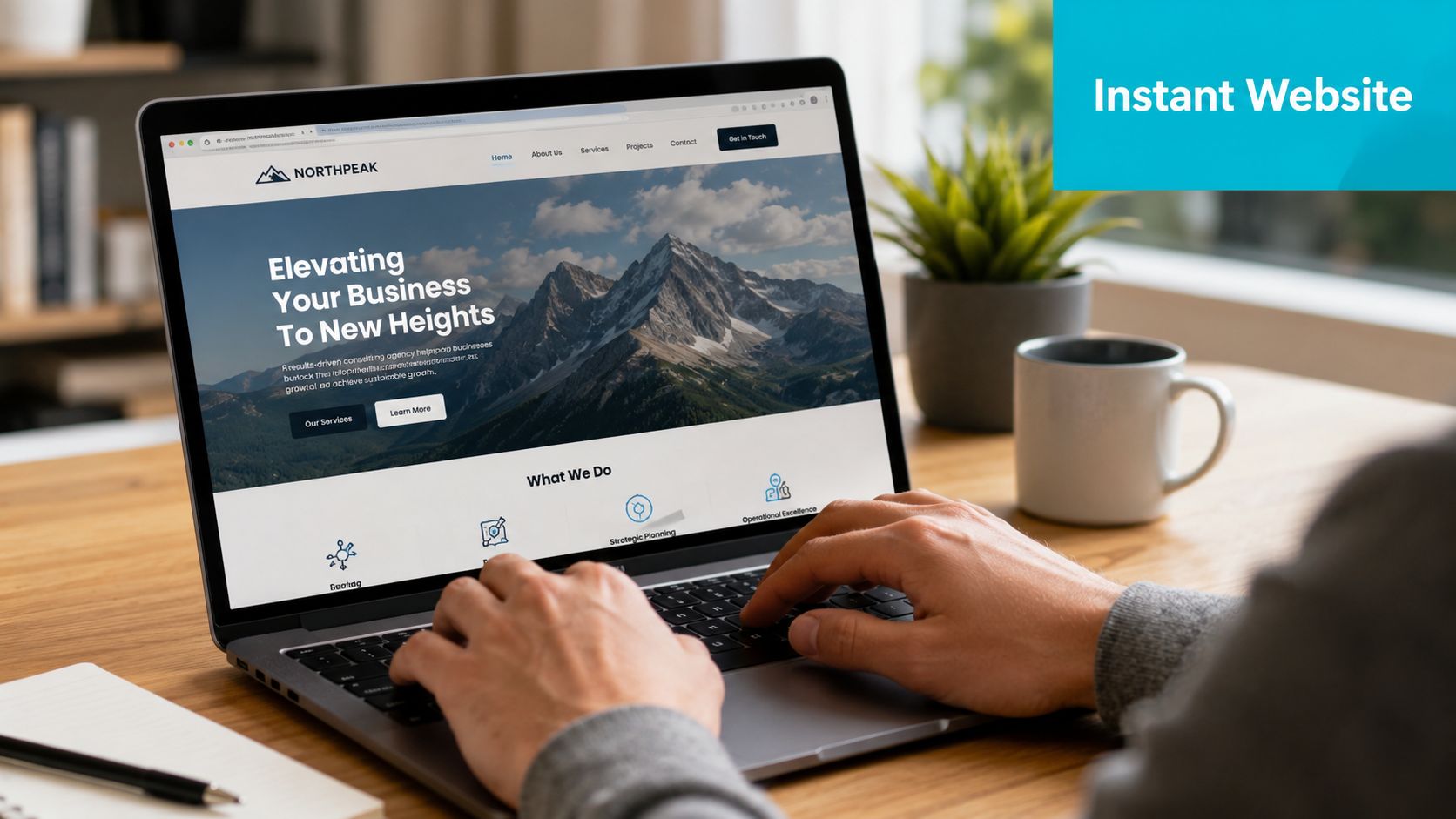
That pressure is why this workflow won. As of 2026, WordPress powers approximately 43% of all websites globally, with one-click install features serving as the primary deployment method for roughly 70% of new WordPress instances on commercial hosting platforms, according to WordPress.org support discussion data.
Fast deployment solves the first problem
The installer handles the work previously done manually. You choose the app, pick the domain, enter credentials, and let the host build the database and file structure. For a new project, that’s the difference between waiting and publishing.
In practice, that speed is what makes WordPress viable for small teams. A founder can get a site online without touching a shell. A developer can spin up a test instance quickly. An IT manager can standardize website rollouts instead of reinventing them each time.
Practical rule: A quick launch is valuable only when the environment underneath it is stable enough to keep the site online after launch day.
The hosting layer decides whether the shortcut helps
Here’s the trade-off. One-click installers are excellent at provisioning. They are uneven at everything that comes after. Some create a clean baseline. Others add extras you didn’t ask for. Some sit on solid infrastructure with sensible defaults. Others leave you to clean up security and performance issues immediately.
That’s where professional hosting separates itself from generic app deployment. The installer should sit on top of a platform that already handles resource isolation, patching discipline, backups, and a clear upgrade path. If the site starts on shared hosting and later needs secure managed VPS hosting, a private cloud, or bare metal, the move shouldn’t require a redesign of the whole stack.
A one-click install is useful because it compresses setup time. It becomes strategic when it sits inside a hosting environment built for long-term operations.
Pre-Installation Checks for a Flawless Launch
The easiest way to break a fresh WordPress build is to click Install before checking the few settings that matter. The term one click is marketing shorthand, not a literal description of the workflow.
What one click really means
Across auto-installers, the process usually means a short sequence of confirmations. Although marketed as “one-click,” the WordPress auto-installer process typically requires 3 to 5 distinct user interactions, and Cloudoora’s write-up on one-click WordPress installs also notes that SSL should be enabled before installation to avoid large numbers of redirect and authentication issues later.
That’s normal. What matters is not whether it takes one click or four. What matters is whether you make the right decisions during those clicks.
A simple pre-flight checklist catches most avoidable problems:
- Confirm the final domain first. Install to the final hostname you intend to keep. Avoid temporary naming that you’ll have to replace later.
- Decide on the target path. If WordPress should run at the root, install it there. Don’t bury it in a folder unless that’s intentional.
- Create strong admin credentials. Auto-generated usernames and passwords are fine if you store them safely. Weak custom credentials are not.
- Check what the installer adds. Some panels preload themes or extras you may not want.
SSL comes before WordPress
The biggest mistake is installing on plain HTTP and planning to “fix HTTPS later.” That’s backwards.
If the certificate is ready before installation, WordPress writes its initial configuration around the secure URL from the start. That reduces mixed-content problems, login redirect loops, and bad internal references. If you’re launching a blog or business site on managed hosting, get the certificate active first, then run the installer. Teams deploying a new blog can use a practical hosting workflow like this guide to hosting a WordPress blog and keep the install aligned with the final domain and security settings.
Install once on the correct domain, with HTTPS already active. Cleanup is always slower than clean setup.
Check the environment, not just the app
Before you click Install, verify the boring items people skip:
| Check | Why it matters |
|---|---|
| PHP and database stack | Old defaults create upgrade work immediately |
| Storage plan | Media-heavy sites outgrow tiny plans fast |
| Backup access | Reinstalls are risky without a rollback path |
| Plugin restrictions | Some hosts limit what you can run after install |
The installer is the shortest part of the job. The checks before it are what keep the launch clean.
Deploying WordPress with Popular Control Panels
The mechanics vary by panel, but the pattern stays the same. You choose WordPress, pick the domain, define admin access, and let the host provision the application.
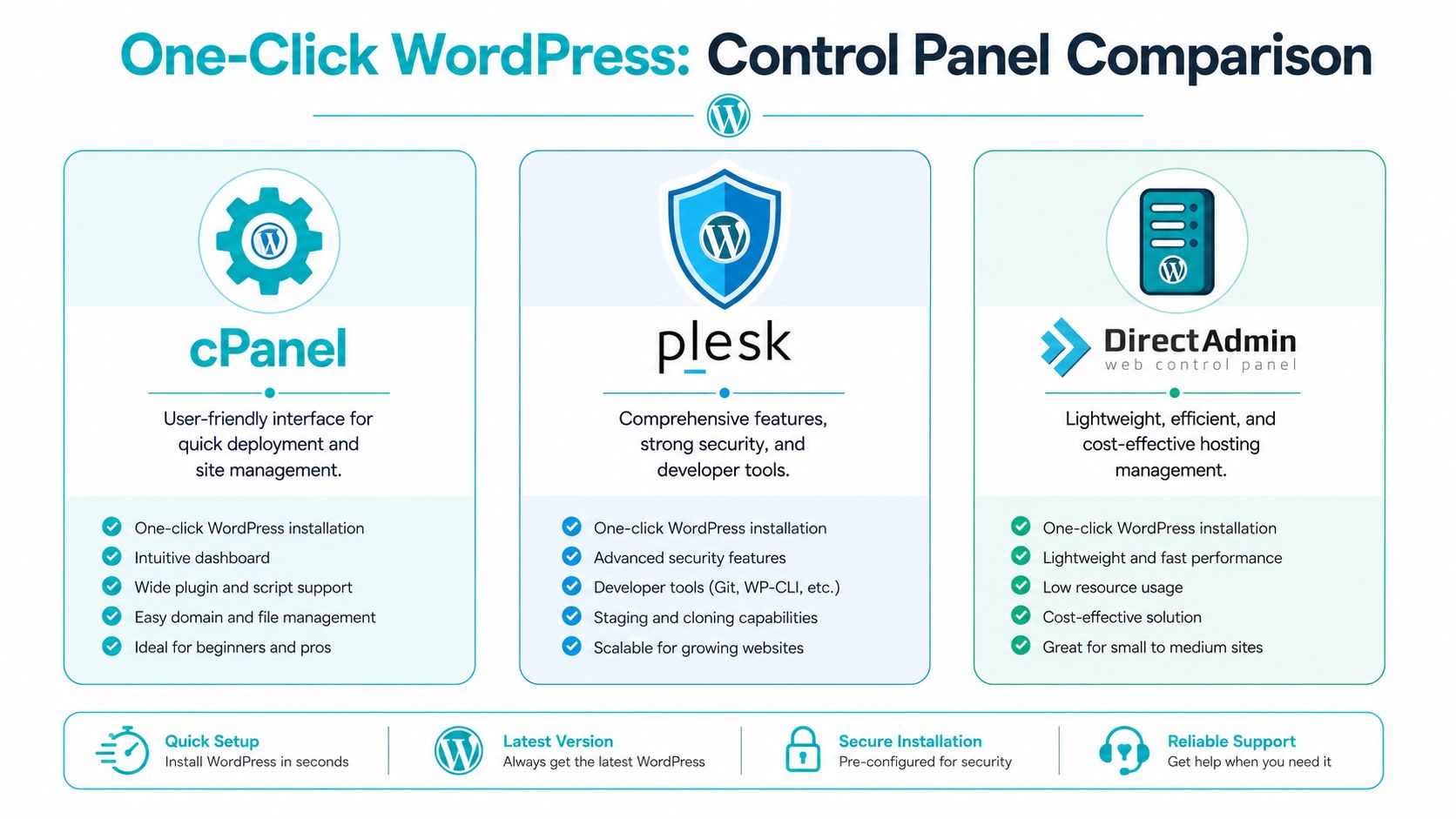
A useful reality check: the WordPress one-click install process generally involves 3 to 4 distinct interactions across major hosting platforms, including selecting the installer, choosing a domain, and entering credentials, as shown in this walkthrough of hosting-platform WordPress installs.
cPanel with Softaculous
cPanel paired with Softaculous is what many admins encounter first. It’s familiar, fast, and good enough for straightforward deployments.
A clean Softaculous workflow looks like this:
- Open the application installer and choose WordPress.
- Select the production domain.
- Leave the directory field empty if the site belongs at the root.
- Set the admin username, password, and email.
- Review any optional plugin or theme bundle before confirming.
- Run the install and test
/wp-adminimmediately.
Where people go wrong is step 5. Softaculous can be convenient, but convenience often arrives with extras. If the panel offers “goodies,” demos, or bundled plugins, decline anything you don’t need. A lean install is easier to audit and maintain.
Plesk
Plesk usually feels more structured than cPanel. That makes it attractive for teams managing multiple sites, client instances, or mixed application stacks.
The Plesk approach is simple:
- Pick the subscription or domain carefully. In multi-tenant environments, this prevents placing the app in the wrong webspace.
- Use the WordPress toolkit or application installer. It centralizes setup and later maintenance.
- Verify update behavior after install. Plesk often exposes maintenance controls more clearly than budget panels do.
Plesk tends to suit agencies and internal IT teams because the post-install controls are easier to manage consistently.
Installatron and similar auto-installers
Installatron follows the same basic model. The value is not novelty. The value is repeatability.
Use it when you want a routine process and don’t need deep customization at deployment time. Avoid it when the project has unusual path requirements, custom ownership expectations, or a strict plugin baseline that the installer may not respect.
A good auto-installer saves time by doing predictable work. If it adds surprises, it stops being an efficiency tool.
Instant applications and pre-optimized hosting
Some hosting platforms remove even more friction by tying the application installer to a hosting package built specifically for web apps. That’s a better fit for teams that don’t want to spend time checking every panel option by hand.
In those cases, the ideal setup is a prebuilt WordPress environment with HTTPS readiness, sensible resource allocation, and no unnecessary add-ons. That model is often better than a generic shared panel because the deployment path and the runtime environment were designed together.
For businesses comparing panels, the right question isn’t “Which button installs WordPress fastest?” It’s “Which control plane gives me the cleanest install and the least rework after launch?”
Advanced Deployment WordPress on a Proxmox Private Cloud
Shared hosting is fine for many brochure sites. It stops being the right answer when you need isolation, predictable resources, cleaner lifecycle control, or an environment you can scale on your terms.
For that class of deployment, WordPress inside an LXC container on Proxmox is a strong pattern. It gives you application convenience without giving up infrastructure control.
Why LXC changes the conversation
A containerized WordPress deployment on Proxmox is not the same as clicking Install in a generic shared-hosting panel. You still get speed, but you also get clean boundaries between workloads, direct control over allocated resources, and a better path for backups and migrations.
The verified practical advantage is straightforward. WordPress can be installed on a Proxmox LXC container using a one-click template approach, eliminating manual steps and reducing deployment time to under 5 minutes, and the installation should target the top-level domain to avoid routing and Nginx configuration problems, as shown in this Proxmox WordPress LXC deployment walkthrough.
That top-level domain detail matters more than many tutorials admit. Path-based installs inside these environments often create messy redirects and HTTPS behavior that operators then have to unwind later.
A practical container workflow
If you’re deploying WordPress this way, the clean sequence looks like this:
- Build the LXC from a WordPress-ready template.
- Assign storage and credentials during container creation.
- Start the container and retrieve the generated application details.
- Point the intended top-level domain at the service.
- Confirm HTTPS behavior before exposing the site publicly.
- Log in, update the site, and begin hardening.
This is also where infrastructure selection starts to matter. A private cloud built on dedicated hardware gives WordPress room to grow without inheriting noisy-neighbor issues from crowded shared environments. If you need clustered virtualization or isolated tenant workloads, a Proxmox-based environment is often the cleaner long-term choice than repeatedly upsizing conventional hosting tiers. Teams evaluating that model can review Proxmox private cloud options as one way to map WordPress workloads onto dedicated virtualization infrastructure.
Hardware shapes the result
Not every WordPress site needs dedicated hardware. Some absolutely do.
A content-heavy publication, a membership site, an internal portal with plugins that consume memory aggressively, or a multi-site environment all benefit from more predictable compute and storage. That’s where bare metal becomes relevant. A Dual Intel Xeon E5-2690 V3 system fits well for Proxmox clusters and multi-tenant container nodes. An AMD EPYC 4584PX with 192GB DDR5 RAM is a sensible fit for denser virtualization or memory-hungry workloads. A Ryzen 9600X can be a clean single-tenant option for development or high-clock web applications.
Here’s the quick comparison:
| Deployment model | Best fit | Limitation |
|---|---|---|
| Shared one-click hosting | Small, simple sites | Limited control and isolation |
| VPS-based install | Growing business sites | More admin responsibility |
| Proxmox LXC on dedicated hardware | Performance-sensitive or multi-tenant environments | Requires stronger ops discipline |
Later in the build, this video is worth watching for the container approach in action:
Where this fits operationally
Containerized WordPress is the right move when the website is no longer just a website. It’s a production workload that needs backup strategy, upgrade control, consistent routing, and room to scale without changing hosting models every few months.
That’s the point where a WordPress one click install stops being a beginner shortcut and becomes part of a real deployment pipeline.
Essential Post-Installation Security Hardening
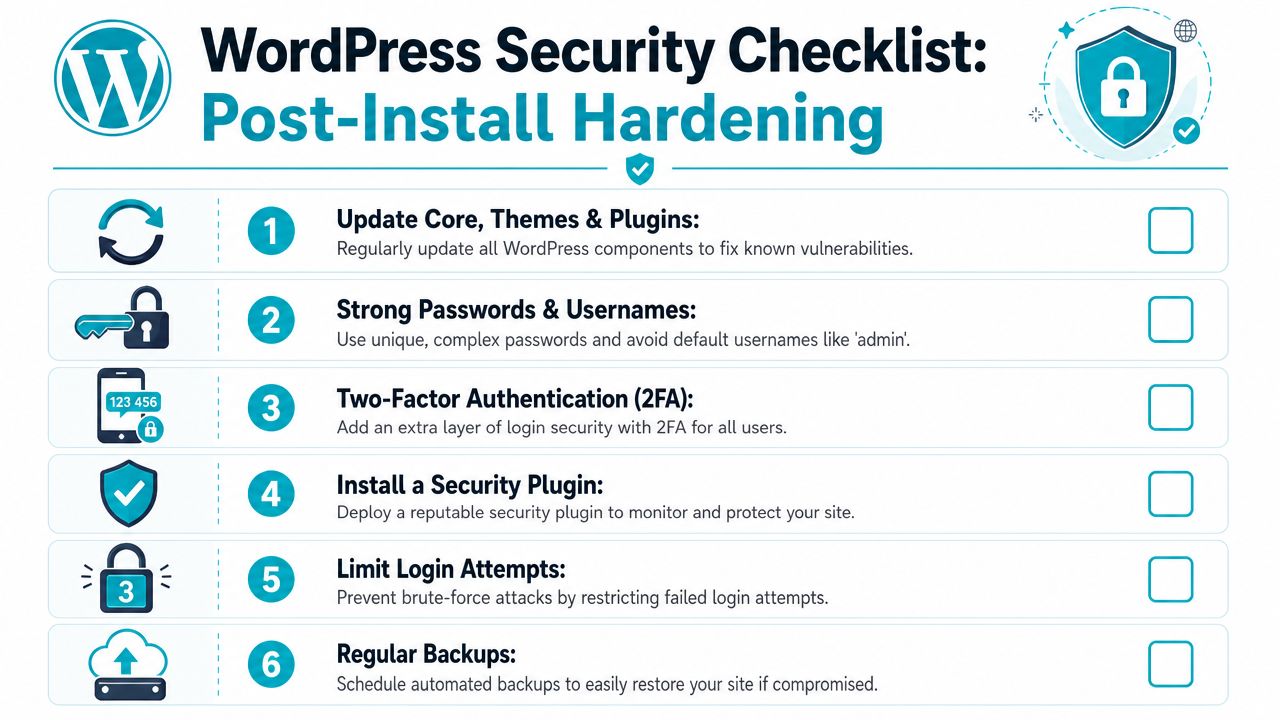
A fresh install is exposed by default. It might not be compromised in the first hour, but it’s not ready to trust either. Hardening starts immediately after first login.
Fix the obvious weaknesses first
Start with the account and content layer. That’s where the easiest wins are.
- Replace weak defaults. If the installer gave you a generic admin pattern, change it. Don’t keep “admin” style usernames if you can avoid them.
- Use a unique password immediately. Password reuse turns one external breach into your problem.
- Delete placeholder content. Sample posts, pages, and comments advertise that the site was just deployed and often stay forgotten.
- Update everything before building. Core, themes, and plugins should be current before the site starts accumulating traffic or editors.
These steps aren’t glamorous, but they remove the low-effort attack paths that hit neglected WordPress sites first.
Add protection and recovery controls
Once the obvious cleanup is done, add guardrails.
A good baseline includes a reputable security plugin, login attempt controls, backups, and user access review.
Security hardening is not a plugin choice. It’s a sequence of decisions about access, updates, backups, and exposure.
A practical post-install stack usually includes:
| Hardening task | Why it matters |
|---|---|
| Security plugin | Detects common abuse patterns and suspicious changes |
| Backup scheduling | Gives you a restore point before updates or incidents |
| User review | Removes stale accounts and excess privileges |
| Theme and plugin audit | Cuts unused code that expands the attack surface |
Managed protection versus manual cleanup
Manual hardening works when someone owns it. Many small businesses don’t have that person in-house, so the security posture ends up inconsistent.
That’s where platform-level controls help. ARPHost, LLC offers hosting and managed infrastructure options that include security-focused operational support, and teams that want a broader operating baseline can use this server hardening checklist to align WordPress deployment with host-level security practices. That’s often more reliable than depending on an installer plus a handful of unreviewed plugins.
The key distinction is simple. A one-click install gets WordPress online. Hardening is what makes it safe enough to keep online.
Troubleshooting Migration and Scaling Your Site
The most stressful WordPress problems usually appear right after a rushed install or during the first migration. One of the worst is the message that an installation already exists. People see the remove button, assume the installer knows what it’s doing, and click through too quickly.
That’s dangerous. The most frequently unaddressed question is how to recover from “Installation Already Exists” errors without losing data, and Softaculous can force removal of the directory, database, and user with irreversible consequences if you have not backed them up first, as demonstrated in this video covering safe handling of existing WordPress installs.
A safer recovery workflow
When you hit that error, stop and preserve the current state first.
- Export the database before touching the installer.
- Archive the site files, including uploads and custom themes.
- Verify that the backup is readable.
- Only then decide whether to remove, migrate, or overwrite.
- If you’re reinstalling, keep the old backup until the replacement site is fully validated.
This is one place where a lot of “easy setup” guides fail users. They explain deletion. They don’t explain safe rollback.
Scaling without rebuilding from scratch
A healthy WordPress stack should have a growth path. Small sites often start on simple hosting, but growth changes the requirements quickly. More traffic, more plugins, more media, or more editors all push the stack toward stronger isolation and better backup discipline.
For businesses, the practical progression is usually:
- Start on a VPS when you need control. That’s the point where shared plans become restrictive.
- Move to dedicated hardware for demanding workloads. An AMD EPYC 4584PX with 192GB RAM is a sensible fit for dense or memory-heavy WordPress environments.
- Hand off operations when internal time is more expensive than managed support. Backup validation, monitoring, patching, and incident response are ongoing jobs.
Why ARPHost excels here
The hosting decision matters most when the site stops being a side project and becomes business infrastructure.
A useful path is to start small on a VPS tier, then move into bare metal or a Proxmox-based private cloud as the workload grows. The same provider can also cover adjacent needs such as colocation, backup services, and fully managed IT services for servers, which matters when WordPress sits beside email, databases, internal applications, or voice systems rather than living alone.
If you’re weighing long-term infrastructure choices, compare not just the installer, but the migration path, support depth, and whether the platform can carry you from first deploy to production operations without forcing a platform reset.
If you want a WordPress environment that can start simple and still support VPS, bare metal, Proxmox private cloud, colocation, or managed operations later, ARPHost, LLC is one option to evaluate. You can review VPS hosting plans, browse bare metal servers, explore secure VPS bundles, or request a managed services quote based on how much of the stack you want to run yourself.