

Swap memory is a reserved area on your storage drive that the operating system uses when physical RAM is full. It acts as overflow space, moving inactive data out of memory to prevent critical services from crashing. While the term "swap memory" describes the function, paging data between RAM and disk, the actual storage location is called swap space. This space can be provided in two ways: a dedicated swap partition carved out of the disk, or a swap file, which is a regular file on your filesystem.
Understanding the distinction matters because it affects how you manage server capacity. A swap file offers the flexibility to resize instantly, making it ideal for VPS environments, while a partition is a static block reserved at installation. Below, we break down exactly what is swap memory, why your server needs it, and how to configure it correctly for 2026 workloads.
How We Evaluated Swap Memory Best Practices
The recommendations in this article are based on three operational criteria derived from modern Linux kernel behavior and hosting infrastructure reality:
- Reversibility and Safety: We prioritize configurations that can be undone without downtime. Swap files pass this test; partitions generally do not. If a misconfigured swap setting causes I/O thrashing, it can be disabled or deleted immediately.
- Hardware Abstraction: In virtualized environments (KVM, Docker, containers), the guest OS does not always have direct, low-level access to block devices. Relying on partitions often leads to permission errors or requires host-level intervention. Swap files live within the mounted filesystem, bypassing these virtualization constraints.
- Performance Reality: We discounted the historical belief that partitions are significantly faster than files. Modern ext4 and XFS filesystems, combined with NVMe storage, have minimized the metadata overhead difference to negligible levels for standard workloads.
These criteria lead us to recommend swap files as the default standard for 99% of server deployments, reserving partitions only for specific bare-metal database scenarios where legacy tooling mandates them.
Understanding Swap Memory: An Essential Server Resource
swap memory is not a type of physical hardware; it is a memory management technique used by the OS kernel. When an application requests more RAM than is physically available, the kernel invokes a process called paging. It identifies "cold" pages, data that hasn't been accessed recently, and writes them to the swap space on the disk. When those pages are needed again, the kernel reads them back into RAM, potentially evicting other data to make room.
This mechanism serves a singular, critical purpose: prevention of the Out-Of-Memory (OOM) Killer. Without swap space, if a server hits its RAM limit, the Linux kernel triggers the OOM killer, a brute-force process that immediately terminates the largest or most memory-intensive processes. This could take down your web server, database, or SSH daemon without warning. Swap provides a buffer, allowing the system to remain responsive and grant administrators time to investigate and fix memory leaks before a crash occurs.
While the analogy of a "desk versus a filing cabinet" is common, it is more about commit limits. The operating system must track how much memory it has promised applications. If the promise exceeds physical RAM, the excess is deferred to swap. For instance, Windows calculates a commit limit based on RAM plus page files, a concept rooted in the same paging architecture Linux uses for swap Microsoft RAM Virtual Memory Documentation.
Swap has been fundamental to multitasking since the early days of Unix. Since Linux kernel 0.01 in 1991, swap allowed developers to run multitasking environments on hardware with as little as 4MB of RAM. Today, with servers running complex stacks on terabytes of data, that safety net remains indispensable.
What Is a Swap File? Purpose and Differences From Swap Memory
A swap file is a single file located on your server's filesystem (typically at /swapfile) that the kernel treats as virtual memory. Unlike a swap partition, which requires a dedicated section of a disk, a swap file shares its space with your operating system and applications.
The Purpose of a Swap File
The primary purpose of a swap file is to extend the usable memory of your server without requiring hardware upgrades or complex disk repartitioning. It acts as an elastic boundary for your RAM. When you deploy a new application or experience a traffic spike, the swap file absorbs the pressure, keeping your services online.
Swap File vs. Swap Partition vs. Swap Memory
It is important to distinguish between the three terms, as they are often conflated:
| Concept | Definition | Nature |
|---|---|---|
| Swap Memory | The abstract function of moving pages between RAM and disk. | A software mechanism/concept. |
| Swap Space | The total reserved capacity used for swapping. | The aggregate resource (can be file + partition). |
| Swap File | A specific file on the filesystem used as swap space. | A concrete implementation method. |
| Swap Partition | A dedicated block device section used as swap space. | A concrete implementation method. |
Swap memory is the function; swap space is the capacity; a swap file or partition is the container. You can have swap memory enabled using only a swap file, only a partition, or a combination of both.
Why Choose a Swap File?
The swap file is the dominant choice for modern cloud and VPS hosting for three reasons:
- Flexibility: You can create, resize, or remove a swap file on a running system. If you provisioned a 2GB swap file but later need 8GB, you can extend it. With a partition, you would need to resize the partition table, which often requires rebooting and carries data loss risks.
- Virtualization Compatibility: As noted in our evaluation criteria, many hypervisors do not expose raw block devices to the guest OS. A swap file works wherever you have write access to the root filesystem.
- Simplicity: No specialized tools like
fdiskorpartedare needed. Standard file utilities (fallocateordd) suffice.
A swap file is tightly coupled to the OS commitment model. Just as Windows defines its commit limit by combining physical memory and page files Microsoft Introduction to Page File, Linux calculates available memory based on RAM plus active swap space. This ensures applications are scheduled based on realistic memory availability rather than just physical RAM.
Swap Partitions vs. Swap Files: Which One Should You Use?
When configuring a server, you must decide where the swap space lives. While the swap file is the modern standard, the swap partition remains a valid option in specific contexts. Understanding the trade-offs helps you choose the right architecture for your infrastructure.
The Case for Swap Partitions
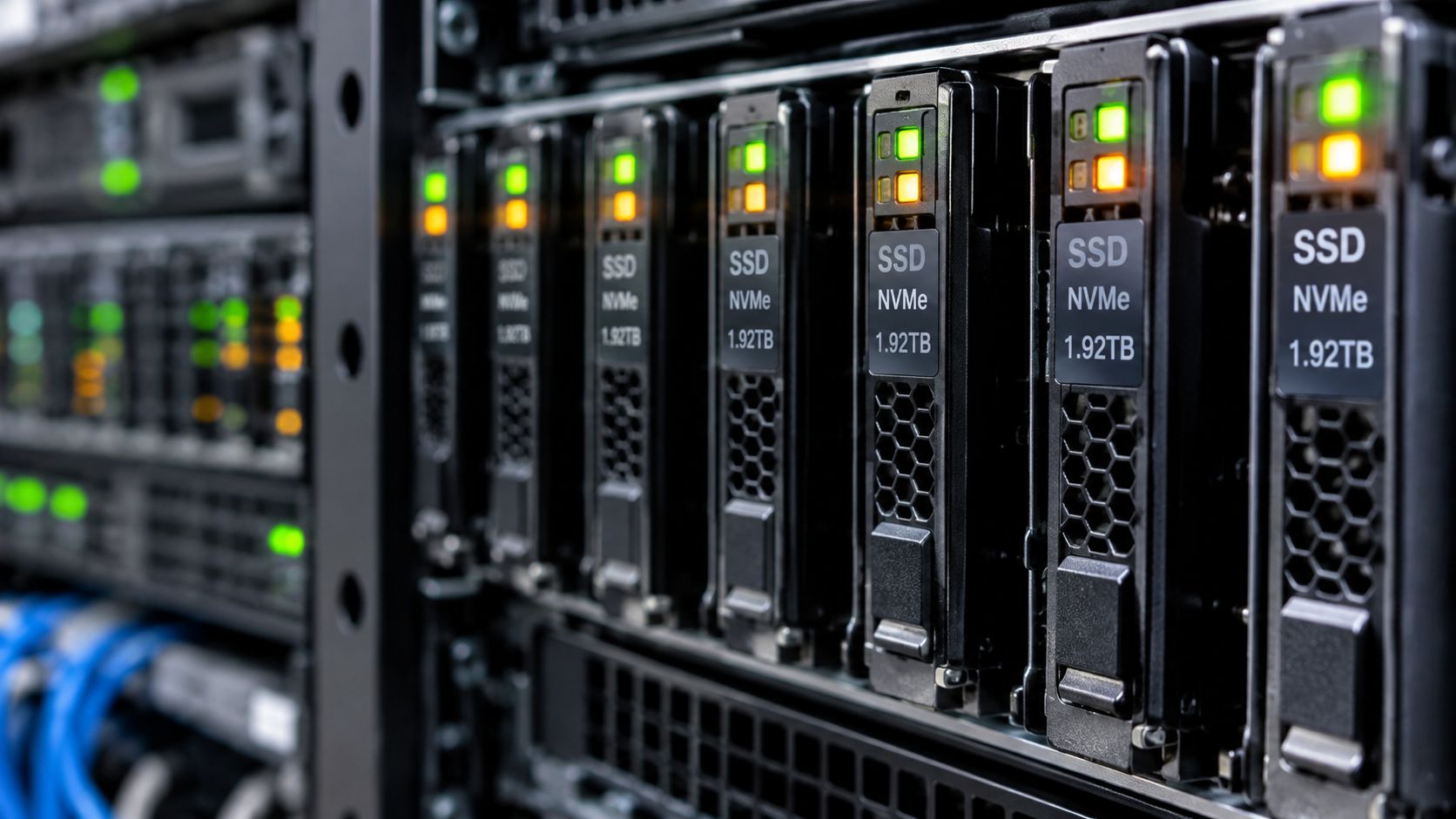
A swap partition is a distinct section of a hard drive or SSD, formatted specifically for swap and mounted outside the normal filesystem hierarchy. Historically, this was preferred because it eliminated filesystem overhead. In the early days of spinning disks, the kernel could read and write to a raw partition faster than navigating the metadata of an ext4 or XFS file.
Today, that performance gap is largely obsolete on SSDs and NVMe drives. However, partitions still offer isolation. Because a partition is separate from your root filesystem, a full disk caused by log rotation or a rogue application cannot fill up your swap space. If your root filesystem fills to 100%, you lose the ability to write to the swap file, potentially causing a system hang. A partition avoids this "noisy neighbor" effect within the same disk.
Partitions are also the traditional choice for bare metal servers with static workloads. If you are provisioning ARPHost's Bare Metal Servers and plan to keep the disk layout unchanged for years, a partition is a stable, low-maintenance choice. Proper disk partitioning in Linux requires careful planning to ensure that swap partitions are allocated efficiently without fragmenting the storage layout.
The Case for Swap Files
For VPS hosting and dynamic cloud environments, the swap file is superior. Resizing is trivial. You can also place swap files on different mounts if needed, though this is rare. The flexibility to adjust swap size via simple commands like fallocate or truncate aligns perfectly with the elastic nature of virtualized infrastructure like ARPHost's High-Availability VPS hosting. Whether you need to expand your resources quickly or optimize for specific workloads, using a swap file allows for smooth adjustments without the complexity of repartitioning.
Decision Matrix
| Feature | Swap Partition | Swap File |
|---|---|---|
| Setup Complexity | High (requires partitioning tools) | Low (standard file creation) |
| Resizing | Difficult/Risky (requires external tools) | Easy (grow/shrink on fly) |
| Performance | Marginally better on HDD (negligible on SSD) | Comparable on modern SSDs |
| Risk of Disk Full | Low (isolated space) | Medium (shares space with OS) |
| Best Use Case | Static bare metal, legacy DBs | VPS, Cloud, Dynamic workloads |
In summary: use a swap partition if you are on bare metal with a static, unchanging disk layout and want maximum isolation. Use a swap file for any virtualized environment, shared hosting, or situations where you anticipate needing to adjust memory resources later.
How to Configure Swap Memory on a Linux Server
Configuring swap on Linux is straightforward. We will focus on creating a swap file, as it is the most versatile method for modern servers, including those on Secure VPS Hosting plans.
Prerequisites: Check Current Status
Before creating anything, check if swap is already active and how much RAM you have. Run:
free -h
swapon --show
If Swap: shows 0B under Total, you have no swap configured. If it shows existing space, you may need to disable it first (sudo swapoff -a) before creating a new configuration.
Method 1: The Fast Way (fallocate)
The fallocate command pre-allocates space for the file instantly without writing zeros, making it much faster than dd for large files. This is the recommended method for most Ext4 and XFS filesystems.
- Create the file: Let's create a 4GB swap file.
sudo fallocate -l 4G /swapfile - Set permissions: Swap files must not be readable by other users, or the system will refuse to use them.
sudo chmod 600 /swapfile - Format for swap:
sudo mkswap /swapfile - Activate it:
sudo swapon /swapfile
Method 2: The Fallback (dd)
If fallocate hangs or fails—common on some Btrfs or older filesystems—use dd. It is slower because it writes zeros to every block, but it is universally compatible.
sudo dd if=/dev/zero of=/swapfile bs=1M count=4096
sudo chmod 600 /swapfile
sudo mkswap /swapfile
sudo swapon /swapfile
Making Swap Persistent
The commands above enable swap for the current session only. To ensure it survives a reboot, add an entry to /etc/fstab.

- Backup your fstab:
sudo cp /etc/fstab /etc/fstab.bak - Append the swap file entry:
echo '/swapfile none swap sw 0 0' | sudo tee -a /etc/fstab - Verify:
cat /etc/fstabshould show the line at the bottom.
How to Remove a Swap File
If you need to decrease swap or troubleshoot issues, you can remove the swap file safely:
- Disable swap:
sudo swapoff /swapfile - Remove the entry from
/etc/fstab(edit the file and delete the line containing/swapfile). - Delete the file:
sudo rm /swapfile
Fine-Tuning with Swappiness
Once swap is active, you can control how aggressively the kernel uses it using the swappiness parameter (vm.swappiness). It ranges from 0 (avoid swap unless absolutely necessary) to 100 (aggressively swap idle pages).
- Default (60): Good for general-purpose servers.
- Low (10-20): Ideal for databases (like MySQL) where keeping data in RAM is critical for performance. On a Bare Metal Server running heavy SQL, setting this lower reduces disk I/O latency.
- High (80-100): Can be useful for desktop-like environments or systems with massive amounts of RAM where you want to free up RAM for file caching by swapping out infrequent background processes.
Check current value: cat /proc/sys/vm/swappiness
Set temporarily: sudo sysctl vm.swappiness=10
Set permanently: Add vm.swappiness=10 to /etc/sysctl.conf.
Monitoring Swap and Preventing Performance Bottlenecks
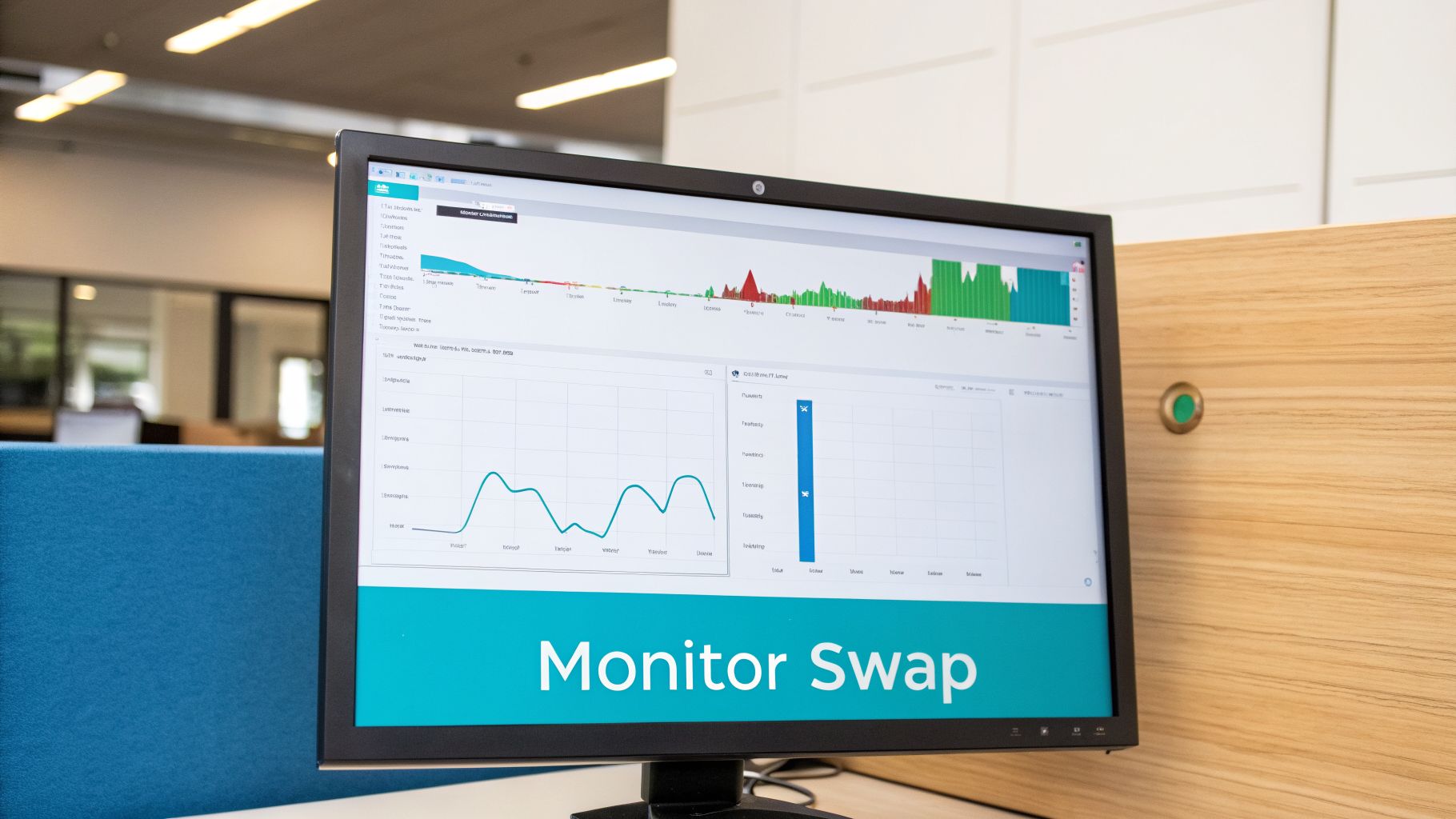
Having swap is a safety net; relying on it constantly is a failure mode. When a server spends more time moving data between RAM and disk than executing instructions, it enters thrashing. During thrashing, CPU usage hits 100% on I/O waits, and the system becomes unresponsive.
Key Monitoring Commands
free -h: Quick overview of total vs. used swap. Ifusedis consistently high, you have a memory leak or undersized RAM.vmstat 1: Shows real-time swap activity. Watch thesi(swap in) andso(swap out) columns. Consistent non-zero numbers indicate active swapping, which degrades performance.toporhtop: Identify which specific processes are consuming the most memory. Sorting by%MEMoften reveals the culprit behind high swap usage.
Interpreting the Data
A small amount of swap usage is normal. Linux proactively swaps out idle pages to free RAM for disk caches, which improves overall system speed. However, if you see high si/so activity in vmstat, your application needs more physical RAM, not just more swap.
To dive deeper into diagnostics, consult our guide on server performance monitoring tools for advanced metrics and alerting strategies.
Advanced Swap Optimization Techniques
For high-demand environments, standard swap configuration might not be enough. Advanced techniques like zswap and zram can significantly reduce disk I/O and improve responsiveness.
Zswap and Zram: In-Memory Compression
Instead of writing swapped pages directly to the slow disk, these tools compress data and hold it in RAM.
- Zram: Creates a compressed block device in RAM. All swapping happens in memory. This is extremely fast but consumes RAM for the compression overhead. It is ideal for systems with fast CPUs and limited disk I/O.
- Zswap: Acts as a compressed cache in front of the disk-based swap. Hot (frequently accessed) swapped pages stay in compressed RAM; cold (rarely accessed) pages are written to the actual swap file on disk.
For most ARPHost VPS and Cloud instances, enabling zswap provides the best balance. It reduces wear on SSDs and speeds up page reclamation without consuming excessive RAM.
Enable zswap by adding zswap.enabled=1 to your kernel boot parameters (GRUB). You can tune the compression ratio and max pool size via /sys/kernel/debug/zswap/.
SSD Endurance and Swap
A common myth is that swap destroys SSDs. While writing to disk does consume write cycles, modern enterprise NVMe drives (like those in ARPHost's Dedicated Proxmox Private Clouds) have Terabytes Written (TBW) ratings far exceeding typical server swap traffic. The stability gain from preventing OOM crashes vastly outweighs the negligible wear on the drive.
How ARPHost Optimizes Memory for Your Applications
Theory is useful, but production reliability depends on infrastructure. At ARPHost, we design our environments to support resilient memory management out of the box.
Hardware Foundations
- KVM VPS Plans: Our KVM-based VPS plans utilize high-speed CEPH storage. This distributed block storage ensures that swap I/O operations remain fast even under heavy load, minimizing the performance hit when paging occurs.
- Bare Metal & Private Clouds: For customers requiring absolute control, our Bare Metal Servers offer direct NVMe access. This allows for custom swap configurations, including multiple swap files across different drives, optimizing I/O parallelism.
Managed Optimization
Our Fully Managed IT Services include proactive memory tuning. We don't just set up swap; we monitor it. If we detect a server consistently hitting high swap usage, we analyze the workload and may recommend:
- Increasing RAM allocation.
- Tuning
swappinessfor the specific application (e.g., lowering it for Redis or MySQL). On a secure managed VPS hosting environment, we can dynamically adjust these parameters to match changing traffic patterns without interrupting service. - Identifying and fixing memory leaks in code.
This approach ensures that swap remains a safety net, not a crutch. For businesses looking to optimize further, our guide on improving application performance outlines additional strategies that complement these swap configurations.
| Service Tier | Swap Support | Key Benefit |
|---|---|---|
| Secure VPS Hosting | Pre-configured Swap Files | Instant elasticity; no partition management required. |
| Bare Metal Servers | Custom Partitions/Files | Maximum I/O throughput; direct hardware control. |
| Proxmox Private Cloud | VM-Level Swap Config | Isolated swap per tenant; no noisy neighbor issues. |
| Managed IT Services | Automated Tuning | Proactive swappiness adjustment and leak detection. |
Frequently Asked Questions About Swap Memory
What is the difference between a swap file and a page file?
They are functionally identical concepts used by different operating systems. Swap files are the Linux/Unix term for virtual memory files, while page files (like pagefile.sys) are the Windows equivalent. Both serve the same purpose: extending RAM capacity using disk storage. The underlying paging mechanism is similar across both ecosystems. You can find many useful commands for managing these systems at free command linux.
How much swap do I need?
The old rule of "2x RAM" is obsolete. For modern servers:
- < 4GB RAM: Use 1.5x RAM (e.g., 6GB swap).
- 4GB – 16GB RAM: Use 1x RAM (e.g., 8GB swap).
- > 16GB RAM: 4GB – 8GB is usually sufficient, unless you need hibernation support.
Can I run a server without swap?
Yes, but it is risky. Without swap, any momentary spike in memory usage can trigger the OOM killer, terminating your critical services instantly. Swap provides a grace period, allowing the system to handle brief spikes gracefully. For production servers, zero swap is rarely advisable.
Does swap slow down my server?
Yes, swapping is significantly slower than RAM access (milliseconds vs. nanoseconds). However, it is faster than a hard crash. The goal is to minimize swapping by having adequate RAM, using swap only as a buffer for peak loads.
How do I fix a server that is stuck in a swap loop?
If your server is unresponsive due to heavy swapping, you may need to access it via a rescue console or IPMI/KVM. Once logged in, disable swap (sudo swapoff -a), identify the memory-hogging process (top), and kill it. Then, investigate why the process consumed so much memory before re-enabling swap.
For expert assistance with your server's memory configuration, explore our managed VPS plan options or contact our support team at Fully Managed IT Services. We ensure your infrastructure is tuned for stability and performance.
| Attribute | Physical RAM (DRAM) | Swap Memory (on SSD/HDD) |
|---|---|---|
| Primary Role | Active data processing and execution | Inactive data overflow and storage |
| Speed | Extremely fast (nanoseconds) | Significantly slower (milliseconds) |
| Volatility | Volatile (data is lost on power off) | Non-volatile (data persists on power off) |
| Cost | High (per GB) | Low (part of existing storage) |
| Location | On the motherboard (separate chips) | On the primary storage drive (SSD/HDD) |
| Analogy | A workshop bench for immediate work | A nearby storage shelf for less-used tools |
/swapfile none swap sw 0 0
cat /proc/sys/vm/swappiness
sudo sysctl vm.swappiness=10
| Hosting Solution | Best For | Key Swap-Related Benefit |
|---|---|---|
| Secure VPS Hosting | General websites, applications, and development environments. | Fast CEPH storage provides a reliable and performant foundation for swap. |
| Bare Metal Servers | I/O-intensive databases and high-performance applications. | Full root access to customize swap on dedicated high-speed NVMe SSDs. |
| Proxmox Private Cloud | Complex, multi-VM environments requiring resource isolation. | Total control over hypervisor and VM swap settings on dedicated hardware. |
| Fully Managed IT Services | Businesses wanting a hands-off, fully optimized infrastructure. | Proactive monitoring, workload-specific swappiness tuning, and thrashing prevention. |