


Swap memory is one of those server resources that works quietly in the background, but it’s an absolute lifesaver when you need it. Think of it as an overflow space for your server's physical Random Access Memory (RAM). When your applications fill up all the available memory, the operating system moves the least-used data to this reserved area on your storage drive—the swap space—to prevent critical services from crashing due to out-of-memory errors.
Understanding Swap Memory: An Essential Server Resource
Let's use a simple analogy. Imagine your server’s physical RAM is a busy workshop bench. Every tool and project you're actively working on sits on this bench for immediate access. But what happens when the bench is full and you need to start a new task? Instead of giving up, you wisely move the tools you aren’t using right now to a nearby storage shelf. That shelf is your swap memory.
This process is called "swapping" or "paging." The operating system is smart enough to identify "cold" memory pages—blocks of data from applications that are just idling in the background—and write them to the swap space on your hard drive or SSD. When that data is needed again, the OS just swaps it back into RAM, usually after moving something else out to make room.
Why Swap Is a Critical Safety Net for Business Infrastructure
For anyone managing a server with dynamic workloads, understanding swap isn't just a good idea; it's non-negotiable for business continuity. Its main job is to provide stability and prevent total system failure when memory runs low.
- Prevents Out-of-Memory (OOM) Crashes: Without swap, a server that runs out of RAM has only one last, brutal option: the OOM Killer. This mechanism starts terminating processes—like your web server or database—to free up memory. Swap gives you a buffer to avoid this drastic, service-interrupting action.
- Handles Unexpected Traffic Spikes: A sudden flood of website visitors or a resource-heavy background job can make memory usage shoot through the roof. Swap acts as a temporary relief valve, keeping your essential services online until the load subsides.
- Enables Hibernation: On some systems, swap is used to enable hibernation. The entire state of the RAM is written to the swap space, allowing the machine to power off completely and then quickly resume right where it left off.
Swap memory isn’t a new concept; it has been a cornerstone of operating system design since the early days of Unix. When Linux was born in 1991, swap was baked in from kernel version 0.01, which allowed developers to run a true multitasking environment on modest hardware with just 4MB of RAM. If you're curious, you can explore a deeper dive into swap memory and its history for more context. This long history highlights just how fundamental it is to modern computing, from laptops to sprawling cloud environments.
To put it simply, for businesses running applications on ARPHost's secure VPS hosting, a properly configured swap space is often the difference between a resilient server and one that suffers from mysterious downtime. It’s the unsung hero that keeps things running when memory gets tight.
Swap Memory At a Glance
To quickly clarify the difference between the two types of memory, think of it this way: RAM is for speed, while swap is for capacity. One is your active workspace, and the other is your backup storage.
This table breaks down the key attributes:
| Attribute | Physical RAM (DRAM) | Swap Memory (on SSD/HDD) |
|---|---|---|
| Primary Role | Active data processing and execution | Inactive data overflow and storage |
| Speed | Extremely fast (nanoseconds) | Significantly slower (milliseconds) |
| Volatility | Volatile (data is lost on power off) | Non-volatile (data persists on power off) |
| Cost | High (per GB) | Low (part of existing storage) |
| Location | On the motherboard (separate chips) | On the primary storage drive (SSD/HDD) |
| Analogy | A workshop bench for immediate work | A nearby storage shelf for less-used tools |
Ultimately, while you always want to have enough RAM for your primary workloads, swap provides an indispensable safety net that ensures your server remains stable and available, even under unexpected pressure.
Swap Partitions vs. Swap Files: Which One Should You Use?
When you’re setting up swap, you’ll hit your first major fork in the road: do you use a traditional swap partition or a more modern swap file? Each has its place, but your choice will directly impact how you manage server resources. Getting this right from the start is crucial for keeping your server stable and performant.
A swap partition is the old-school way of doing things. You carve out an entire section of your disk and dedicate it exclusively to swapping. The classic thinking was that this isolation gave you a slight performance edge, since the OS didn't have to deal with filesystem layers to access it. It's a "set-it-and-forget-it" approach, which makes it a solid choice for physical hardware where the disk layout is static, like ARPHost's Bare Metal Servers.
On the other hand, a swap file is exactly what it sounds like—a file that lives inside your main filesystem, just like any other. Its biggest selling point is sheer flexibility. Need more swap? Just make the file bigger. Don't need it anymore? Delete it. All of this can be done on the fly, without the high-stakes, nerve-wracking process of re-partitioning a live disk.
This adaptability makes the swap file a much better fit for dynamic environments where your resource needs can change at a moment's notice. This flowchart breaks down the basic decision-making process for when you’d even need swap in the first place.
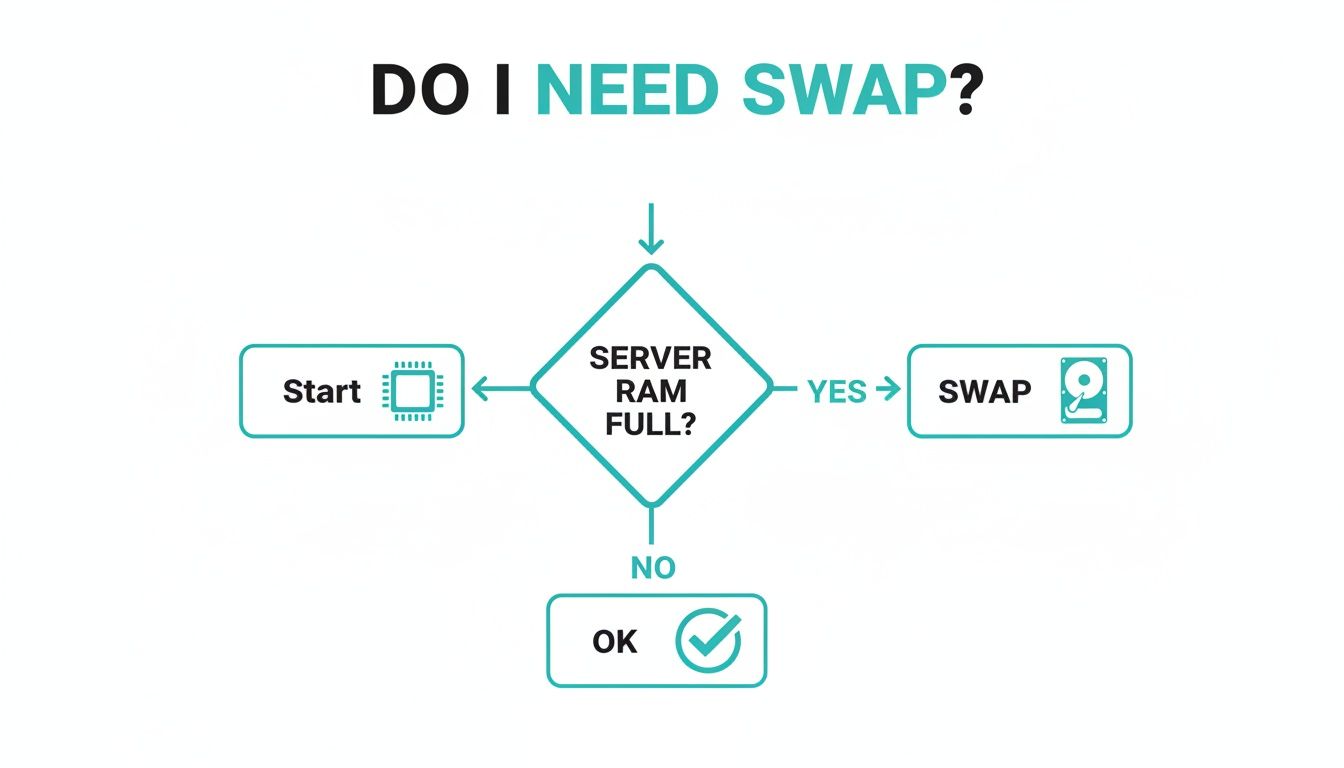
The flowchart drives home a key point: swap memory acts as your system's safety net, kicking in to prevent crashes when you've run out of physical RAM.
The Modern Choice for Cloud and VPS
For virtualized platforms, the debate is pretty much over: the swap file is the hands-down winner. On a typical cloud or VPS server, you don't get the low-level control needed to manage disk partitions. Even if you did, resizing a partition is a complex task that almost always requires downtime. A swap file neatly sidesteps all those headaches.
Expert Insight: In virtualized hosting, flexibility is everything. The power to spin up 4GB of swap during an unexpected traffic spike—and then remove it just as easily without a reboot—is exactly the kind of agility you need to manage modern applications.
This holds especially true for environments like ARPHost's High-Availability VPS hosting. Our KVM-based infrastructure is designed for scalability, and using a swap file is a perfect match for that philosophy. You can adjust your swap space with a few simple commands whenever your application's memory footprint changes.
Performance and Practicality
Back in the day, you could argue that swap partitions had a minor speed advantage. But with today’s advanced filesystems and lightning-fast SSDs, that performance gap has shrunk to a point where it's negligible for nearly all real-world applications. The tiny bit of filesystem overhead from a swap file on an NVMe drive is a small price to pay for the massive practical benefits.
When you're making the call, think about these factors:
- Ease of Management: Swap files are just plain easier to handle. Adding more swap is a matter of running a few commands. Extending a swap partition? That often involves specialized tools and a whole lot of careful planning. Our guide on disk partitioning in Linux can give you a better sense of the complexities involved.
- Deployment Speed: You can create and activate a swap file on a new server in minutes. Partitions require more foresight and are typically set up during the initial OS installation, locking you into that configuration.
- Hosting Environment: If you’re running a bare metal server with a predictable workload, a swap partition is a perfectly fine and durable choice. But for any VPS, private cloud, or hosting environment where you need to be nimble, the swap file is the clear best practice.
Ultimately, while both methods give your OS the virtual memory it needs, the swap file's incredible flexibility makes it the go-to choice for almost every modern server deployment.
How to Configure Swap Memory on a Linux Server
Alright, enough with the theory. Let's roll up our sleeves and put this knowledge to work. We're going to walk through setting up swap memory on a Linux server from scratch.
While swap partitions have their place, we'll focus on the swap file method. It's far more flexible, doesn't require re-partitioning your drive, and is the perfect fit for most modern hosting environments, including ARPHost's Secure VPS Hosting plans.
The whole process boils down to a few quick command-line steps. We'll create a file, lock down its permissions, format it for swap, and then tell the system to actually use it. For this walkthrough, we'll set up a 4GB swap file, a solid starting point for many servers.
Step-by-Step Swap File Creation
Make sure you're logged in with sudo privileges, and let's get this done.
Carve Out the Disk Space
Thefallocatecommand is your best friend here. It instantly reserves a block of disk space without writing zeros to the whole thing, making it incredibly fast. This command creates a 4GB file namedswapfilein the root directory (/).sudo fallocate -l 4G /swapfileLock It Down
Security first. A swap file can contain sensitive data from your RAM, so you absolutely must restrict its permissions. Only the root user should be able to read or write to it.sudo chmod 600 /swapfileFormat the File for Swap
Now, we tell the system this isn't just any old file. Themkswapcommand formats it as a Linux swap area, preparing it to act as virtual memory.sudo mkswap /swapfileYou'll see a confirmation message, including a unique UUID for the new swap space.
Activate the Swap
With the file ready to go, a quickswaponcommand tells the kernel to start using it immediately.sudo swapon /swapfileWant to double-check your work? Run
swapon --showorfree -h. You should see your brand new 4GB swap file listed and active.
Making Your Swap Persistent
The commands above get swap working for your current session, but it won't survive a reboot. To make it permanent, you need to add an entry to the /etc/fstab file—Linux's master list of filesystems to mount at boot.
Open /etc/fstab with a text editor like nano or vim and add this line to the very end:
/swapfile none swap sw 0 0
This simple line ensures your server automatically activates the swap file every time it starts up. It’s a critical step for keeping your production server stable through reboots, whether planned or unexpected.
Here’s a look at what you can expect to see after formatting and activating your new swap file.

The output from mkswap and the successful activation with swapon give you the visual confirmation that the system is ready to use its new virtual memory.
Fine-Tuning Performance with Swappiness
With swap in place, you can now fine-tune how your server uses it with a setting called swappiness. It's a number between 0 and 100 that controls the kernel’s eagerness to swap.
Swappiness Explained: Think of it as a slider for how aggressively the kernel uses swap. A low value (like 10) tells the kernel: "Don't you dare use swap unless you're about to crash from an out-of-memory error." A high value (like 100) says: "Go for it. Swap out any memory that looks inactive to free up RAM for file caching."
The default is typically 60, which works fine for general use. But for specialized workloads, tuning this is a game-changer.
- Database Servers: On a Bare Metal Server running something like MySQL, you want your database to live in RAM. A very low swappiness of 1 or 10 is ideal here to prevent performance-killing disk I/O.
- Web Servers & General Use: For a typical secure managed VPS hosting setup, the default of 60 is usually fine. A slightly lower value like 40 can also be a good balance.
- I/O-Heavy Systems: If your server is constantly reading and writing files, a higher swappiness might actually improve performance by prioritizing the file system cache in RAM.
To see your current swappiness value, just run:
cat /proc/sys/vm/swappiness
To change it for your current session (great for testing), use sysctl:
sudo sysctl vm.swappiness=10
Once you find a value you like, make it permanent by adding vm.swappiness=10 (or your chosen value) to your /etc/sysctl.conf file. Mastering these settings gives you direct control over your server's memory behavior, ensuring it’s perfectly tuned for your needs.
Monitoring Swap and Preventing Performance Bottlenecks
Having swap space is a great safety net, but if your server starts leaning on it too heavily, you’re heading for trouble. Staying on top of your memory usage is the only way to catch performance issues before they bring your applications to a grinding halt.
When left unchecked, excessive swapping leads to a nightmare scenario known as thrashing. This is where your server gets so bogged down moving data between RAM and the disk that it has no CPU cycles left for actual work. Your application response times will plummet, and eventually, the whole system can become unresponsive. More often than not, the culprit is a memory-leaking application that slowly eats all available RAM before turning to swap.
Essential Commands for Swap Monitoring
To keep your server healthy, you need to know how to check if it's swapping, and by how much. Fortunately, Linux gives you a handful of powerful command-line tools to get a clear picture.
free -h: This is your go-to command for a quick, human-readable summary of memory and swap usage. The-hflag is a lifesaver, showing you thetotal,used, andfreeswap in gigabytes or megabytes.swapon --show: Use this to list all active swap devices—both partitions and files. It’s perfect for confirming your swap is actually enabled and seeing how much of it is in use.vmstat 1: Runningvmstatwith an interval (like1for every second) gives you a live look at system performance. The two columns you care about aresi(swap in) andso(swap out). If you see constant, non-zero numbers here, your system is actively swapping.
To really get a handle on memory diagnostics, you'll want to Master the Linux free command, as it’s your first line of defense.
Interpreting the Output and Taking Action
Don't panic if you see a tiny amount of swap being used. The Linux kernel is smart and sometimes proactively moves idle application data to swap just to free up RAM for more important tasks like file caching. This is normal.
However, it's time to dig deeper if you notice these red flags:
- Consistently High Swap Usage: If the
usedvalue fromfree -his hanging out above 50% of your total swap, it’s a clear sign of persistent memory pressure. - Constant Swap Activity: If
vmstatshows a continuous stream of numbers in thesiandsocolumns, your server is thrashing. This is a critical issue that needs your immediate attention.
When you spot these warning signs, your next move is to find the root cause, which is almost always a single misbehaving application. For a complete list of diagnostic tools to help you hunt it down, our guide on server performance monitoring tools has you covered.
Why ARPHost Excels Here: Proactive Swap Management
Proactive monitoring is at the heart of our Fully Managed IT Services. Our 24/7 expert team doesn’t just sit around waiting for alerts. We actively watch memory and swap usage on your servers, catching signs of memory leaks or excessive swapping and intervening before they can impact your business. We leverage enterprise-grade monitoring tools to correlate swap activity with CPU and I/O performance, giving us a complete picture of your server's health. This allows us to fine-tune swappiness settings and swap configurations tailored to your specific application, ensuring peak performance and stability. We keep your infrastructure running smoothly, so you don't have to.
Advanced Swap Optimization Techniques
Once you've got the basics of swap down, it's time to get into the really fun stuff—the advanced tuning that can turn a good server into a great one. These are the tricks sysadmins use to squeeze every last drop of performance and resilience out of high-demand systems, especially in performance-critical hosting environments.
First, let's tackle a common myth: using SSDs for swap will burn them out. While that was a legitimate worry with older consumer-grade drives, it's ancient history for modern hardware. The enterprise-grade NVMe SSDs we use in ARPHost's Bare Metal Servers are built for insane write endurance. The stability you gain by preventing out-of-memory crashes is infinitely more valuable than the tiny, negligible impact on a modern SSD's lifespan. Frankly, the speed of NVMe makes it the only sensible place for a swap file.
Harnessing In-Memory Swap with Zswap and Zram
For a serious performance kick, you can turn to incredible in-memory tools like zswap and zram. The idea here is simple: instead of immediately writing to a relatively slow disk, you use a chunk of your super-fast RAM as a compressed swap space.
zram: This tool creates a virtual, compressed block device right inside your system's RAM. When the OS needs to swap, pages get compressed and stuffed into this RAM disk. It's a fantastic solution for systems with sluggish storage or no swap partition at all.zswap: Think of this as a super-fast caching layer that sits in front of your regular disk-based swap. When a page needs swapping,zswapcompresses it and holds it in a RAM pool. Only when that pool fills up does it evict the oldest, least-used data to the actual swap file on disk.
So what's the key difference? zswap needs a backing swap file on a disk to fall back on, while zram doesn't. For most servers running on fast NVMe storage, zswap hits the sweet spot. It gives you an ultra-responsive first line of defense in RAM, drastically cutting down on disk I/O, but still keeps the disk swap available as a safety net for when memory pressure gets really intense. Your system just feels snappier because "swapped" data is often being served directly from compressed RAM.
Best Practices for Advanced Configuration
Putting these tools to work means thinking about your memory in tiers, from fastest to slowest. The goal is to make sure the OS always uses the fastest resource available first.
Expert Takeaway: Using
zswapis like giving your swap file its own high-speed cache. It intelligently keeps the "hot" swapped pages in compressed RAM for near-instant access, only pushing the "cold," stale pages to the much slower disk. This is how you minimize those performance-killing I/O waits.
Follow these best practices for a rock-solid setup:
- Place Swap on Your Fastest Drive: No exceptions. Your primary swap file belongs on your fastest storage, which should be an NVMe SSD. The speed of this backing store is absolutely critical for
zswap's performance under heavy load. - Enable
zswap: On most up-to-date Linux kernels, you can turn onzswapby simply addingzswap.enabled=1to your kernel boot parameters. You can also fine-tune things like the compression algorithm (zswap.compressor) or the maximum RAM it can use (zswap.max_pool_percent). - Use Multiple Swap Files: For really complex workloads, you can set up multiple swap files and assign them different priorities. For instance, put a primary swap file on a fast NVMe drive with a high priority, and a larger, secondary swap file on a slower, bulk-storage disk with a low priority. The system will always fill the high-priority swap first.
By applying these advanced methods, you're building a far more robust and responsive server. If you're looking to get even more out of your hardware, our guide on improving application performance covers other strategies that pair perfectly with these swap optimizations. These are exactly the kinds of expert tunings that ensure mission-critical services on an ARPHost Proxmox Private Cloud maintain peak performance, no matter what you throw at them.
How ARPHost Optimizes Memory for Your Applications
Knowing what swap is and making it work for you in a live production environment are two very different things. This is where the textbook theory crashes into the messy reality of managed hosting, and where the right partner can turn swap from a sluggish last resort into a finely tuned performance asset.
At ARPHost, we don’t just hand you a server and wish you luck. We provide an environment where every component, including memory management, is optimized for your specific workload.
A Foundation Built for Performance
Let's be blunt: swap is only as good as the disk it lives on. When your server is under pressure and needs to page memory, slow storage is the last thing you want. That's why we build our infrastructure on hardware that’s ready for the job from day one.
- High-Availability VPS Hosting: Our KVM-based VPS plans, starting at an unbeatable $5.99/month, run on a fast, redundant CEPH storage backend. This setup gives your swap operations a robust and resilient platform, ensuring quick access and stability even when memory demand spikes.
- Bare Metal and Private Clouds: Need total control? Our Bare Metal Servers and Dedicated Proxmox Private Clouds are armed with high-performance NVMe SSDs. This gives you direct access to create completely custom swap configurations on dedicated hardware, killing the "noisy neighbor" problem and delivering raw I/O throughput.
This hardware-first approach ensures that when your system dips into swap, it does so with the smallest possible performance hit.
Expert Management That Stops Problems Before They Start
The real game-changer in a managed solution is proactive expertise. It’s not about just setting a swap file and forgetting it; it's about constant, intelligent optimization. This philosophy is the heart of our Fully Managed IT Services.
Our team takes the headache of memory management completely off your plate. We don't wait for things to break. We proactively monitor swap usage, fine-tune
swappinessfor your application's unique behavior, and implement advanced tools likezswapto prevent memory thrashing before it ever brings your site to its knees.
This hands-on management turns swap into a proactive tool. By ensuring your server's memory is perfectly calibrated for its job—whether it’s a high-traffic e-commerce store or a data-hungry database—we let you focus on growing your business, not staring at memory charts.
We've designed our hosting solutions to meet different memory and management needs. This table breaks down how each ARPHost service aligns with specific swap performance requirements.
Scaling This with ARPHost: Solutions for Optimal Swap Performance
| Hosting Solution | Best For | Key Swap-Related Benefit |
|---|---|---|
| Secure VPS Hosting | General websites, applications, and development environments. | Fast CEPH storage provides a reliable and performant foundation for swap. |
| Bare Metal Servers | I/O-intensive databases and high-performance applications. | Full root access to customize swap on dedicated high-speed NVMe SSDs. |
| Proxmox Private Cloud | Complex, multi-VM environments requiring resource isolation. | Total control over hypervisor and VM swap settings on dedicated hardware. |
| Fully Managed IT Services | Businesses wanting a hands-off, fully optimized infrastructure. | Proactive monitoring, workload-specific swappiness tuning, and thrashing prevention. |
Choosing ARPHost means you get more than just powerful hardware. You get a dedicated partner committed to making sure every piece of your infrastructure, including swap memory, is working in perfect harmony to support your goals.
Request a managed services quote today and let our experts build a high-performance, worry-free environment for you.
Frequently Asked Questions About Swap Memory
After getting into the weeds on how swap works, a few practical questions always come up. Let's tackle the most common ones that sysadmins and developers run into, so you can see how swap plays out in the real world.
How Much Swap Do I Really Need?
Forget the old “2x RAM” rule of thumb—it’s completely obsolete for modern servers. Today, the right amount of swap depends entirely on your workload. That said, here’s a solid baseline for most situations:
- Systems with < 4GB RAM: Aim for 1.5 times your RAM amount for swap.
- Systems with 4-16GB RAM: A 1:1 ratio is a good start (e.g., 8GB RAM gets 8GB swap).
- Systems with > 16GB RAM: You can usually start with a modest 4-8GB of swap and just keep an eye on usage.
The big exception here is hibernation. If your system needs to hibernate, you’ll need a swap space that's at least as large as your physical RAM. On an ARPHost managed VPS plan, we take the guesswork out of it by analyzing your specific application's needs and provisioning the perfect swap size from day one.
Will Using Swap Memory Damage My SSD?
This is a fair question, rooted in the early days of SSD technology, but it’s a non-issue for today's enterprise-grade drives. Modern SSDs, like the ones we use across ARPHost’s infrastructure, are built for extremely high write endurance, measured in Terabytes Written (TBW).
For the vast majority of server workloads, the amount of data swapped to disk is tiny and poses zero threat of premature failure. The stability you gain by preventing out-of-memory crashes is infinitely more valuable than the negligible impact on your SSD’s lifespan. Plus, using tools like zswap can slash disk writes even further by compressing data in RAM first.
Can I Run a Server Without Any Swap Space?
Technically, you can. But for almost any production server, it’s a terrible idea. A server without swap has no safety net.
When a server with no swap runs out of physical RAM, the Out-of-Memory (OOM) Killer jumps into action. This aggressive process starts force-quitting applications—often your web server or database—to free up memory. The result is immediate service interruptions and downtime.
Swap is the crucial buffer that handles unexpected memory spikes and keeps your critical services online. The only time you might skip it is for highly specialized, short-lived computing tasks where any disk latency is unacceptable and processes are expected to be terminated. For any other business-critical application, swap is essential for reliability.
At ARPHost, we don't just hand you infrastructure; we provide peace of mind. Our experts make sure every part of your server, including swap memory, is perfectly configured for performance and stability. Check out our Fully Managed IT Services to see how we can optimize your entire environment for you.