


A kernel panic is a critical system error where the operating system's core, the kernel, hits a problem so severe it can't safely recover. It’s the system's last resort—a protective measure designed to halt all operations and prevent catastrophic data corruption or hardware damage.
Decoding the Kernel Panic

Think of the kernel as the central nervous system of your server. It’s in charge of everything, from memory access and CPU scheduling to every interaction with your hardware. When it gets conflicting, nonsensical, or downright dangerous instructions it can’t resolve, it triggers a "panic" as a built-in failsafe.
This abrupt halt is the Unix-like equivalent of the infamous Windows Blue Screen of Death (BSOD). And while it’s definitely disruptive, a kernel panic isn't the problem itself. It's a symptom, a snapshot of the system's state at the exact moment of failure, which is crucial for figuring out what went wrong.
To get a better sense of the core concepts, here's a quick summary.
Kernel Panic At a Glance
| Aspect | Explanation |
|---|---|
| What It Is | A critical, non-recoverable error state triggered by the operating system's kernel. |
| Primary Function | A protective failsafe to prevent data corruption or hardware damage by halting the system. |
| Common Indicators | The system becomes unresponsive, often displaying a screen with diagnostic text before rebooting. |
This table covers the basics, but the real challenge lies in understanding the impact and knowing how to respond.
Why It Matters for Your Business
For any business running on a VPS hosting plan or a bare metal server, a kernel panic translates directly to downtime. This is more than a technical headache; it’s a direct hit to your productivity, customer trust, and ultimately, your revenue.
Kernel panics are a major factor in system instability, accounting for roughly 15-20% of all boot failures in virtual machines. The most common triggers we see are:
- Memory corruption (about 25% of cases)
- Buggy or incompatible drivers (around 22% of cases)
- Faulty RAM modules (18% of cases)
For a small business, unplanned downtime can be devastating. Some estimates put the cost at an average of $5,600 per minute. You can dig into how these errors disrupt boot processes by reading the full research on kernel panic boot error statistics.
A kernel panic is an intentional, self-preservation action by the operating system. Its primary purpose is to stop the system in a controlled manner to avoid writing corrupted data to disk, which could lead to irreversible damage to the filesystem or applications.
Understanding what is kernel panic is the first step toward building a more resilient infrastructure. While the diagnostic screen can look like a cryptic mess, it contains all the clues needed to track down the root cause, whether it's a hardware fault or a software conflict.
The key to managing this risk isn't just knowing how to react—it's having a proactive strategy in place. This is where a managed hosting environment becomes invaluable. With services like ARPHost's fully managed IT services, our team can often identify and resolve potential issues long before they escalate into a system-halting panic.
Request a managed services quote at arphost.com/managed-services/ and let our experts fortify your server's stability.
Common Causes of Kernel Panics in Server Environments
A kernel panic is never a random event. It’s the system’s last-ditch effort to stop itself when something has gone catastrophically wrong, and it’s a direct result of a critical failure that has pushed the OS past its breaking point.
In a server environment, the triggers almost always fall into two buckets: hardware faults or software glitches. Figuring out which one is to blame is the first real step in getting your server back online, because the fix for a bad stick of RAM is very different from patching a buggy driver.
Hardware-Related Failures
The physical guts of your server are its foundation. When a component starts to fail or just behaves erratically, it can feed bad information to the kernel, forcing it to halt everything to prevent data corruption. These are often the toughest issues to diagnose, especially without physical access to the machine.
Here are the usual hardware suspects:
- Faulty RAM: This is the big one. A single defective memory module can silently corrupt data in transit, leading to all sorts of unpredictable behavior that eventually ends in a panic.
- Failing Storage Drives: Bad sectors on an SSD or a failing HDD controller can stop the kernel from reading critical files. When it can't access what it needs, it will often trigger a "not syncing" error and give up.
- CPU Issues: Overheating is a common culprit here. A CPU that’s running too hot or, much more rarely, has a manufacturing defect can produce calculation errors the kernel simply can't recover from.
- Motherboard or Component Failure: A flaky network card, a power supply unit (PSU) delivering unstable voltage, or even a damaged trace on the motherboard can all trigger fatal system errors.
In the world of hosting, mismatches between hardware and software can be a major source of instability. In fact, faulty RAM and memory access violations account for up to 40% of all kernel panics. Even something as simple as improperly seated RAM can be behind 28% of panics in bare metal setups. The good news? Proactive logging and monitoring can help you spot 75% of these hardware faults before they cause a total meltdown, as highlighted in these kernel panic error insights on fdcservers.net.
Why ARPHost Excels Here
At ARPHost, our Bare Metal Servers undergo rigorous hardware stress tests before they ever go live. We build with enterprise-grade components to slash the risk of premature failure, giving you a solid foundation from day one.
Software and Configuration Issues
While hardware is the foundation, the software running on top is a far more common and dynamic source of kernel panics. All it takes is a single line of bad code in a critical driver to bring an entire server to its knees.
Software-related panics often boil down to:
- Buggy Drivers or Kernel Modules: This is a huge one. A poorly written third-party driver, especially for a network card or storage controller, might try to perform an illegal operation, causing an immediate panic.
- Filesystem Corruption: If the filesystem gets scrambled—maybe from an improper shutdown or a software bug—the kernel might not be able to mount or access essential system files. With no path forward, its only option is to panic.
- Software Bugs: A bug deep within the kernel itself or in a low-level application can cause a memory leak, slowly consuming all available resources until the system starves. A lack of RAM or swap space is a classic trigger for this, which you can learn more about in our guide on what swap memory is.
- Misconfigurations: An incorrect setting in a virtual environment, like a Dedicated Proxmox Private Cloud, can create serious conflicts. For instance, misconfiguring a virtual network device or passing through an incompatible PCI device can easily crash the host's kernel.
These issues are exactly why managed services are so valuable. With ARPHost's Fully Managed IT Services, our experts handle the tricky stuff like kernel updates and driver installations, thoroughly testing them to ensure stability and compatibility. It’s a proactive approach that stops most software-induced panics before they ever affect your operations.
Ready for a hosting environment built for stability? Explore our Secure Web Hosting Bundles at https://arphost.com/vps-web-hosting-security-bundles/ to get started on a secure, professionally managed platform.
How to Diagnose a Kernel Panic Step by Step
A kernel panic is every sysadmin’s nightmare. Your server drops off the network, your monitor fills with a wall of cryptic text, and the clock starts ticking. The race to find the root cause is on. This is your hands-on playbook for figuring out what went wrong, from digging through logs to analyzing a full memory dump.
The very first move is to get your hands on the server's logs. Even after a hard reboot, modern Linux systems are smart enough to preserve critical information from the moment of the crash. These logs are your breadcrumbs, leading you straight to the faulty component.
Step 1: Locating and Reading Critical System Logs
Your investigation starts at the command line. Whether you're running on one of ARPHost's high-availability VPS instances or a bare metal server, you’ve got the root access needed to play detective.
Three tools will be your best friends here:
dmesg: A direct window into the kernel ring buffer. It shows you everything the kernel was thinking, from boot to the moment of the crash.journalctl: On modern systems (CentOS 7+, Ubuntu 16.04+, Debian 8+), this is your one-stop shop for persistent, indexed logs./var/log/directory: Don't forget the classics like/var/log/syslogor/var/log/messageson older systems.
A great starting point is to pull the logs from the previous boot session using journalctl. It’s the perfect tool for post-crash forensics.
# View all logs from the previous boot, starting from the end
journalctl -b -1 -e
This command jumps you right to the end of the log from the last boot (-b -1), showing you the final, frantic messages before the system went down. Keep an eye out for keywords like "Kernel panic", "Oops", or "Call Trace". These are the signposts marking the scene of the crime.
Step 2: Deciphering the Call Trace and Common Errors
The call trace is the single most important piece of evidence you'll find. It’s a flight recorder for your CPU, showing the sequence of functions that were running at the moment of the crash. Reading it from the bottom up reveals the path to failure. For instance, a trace pointing to a driver like r8125 (Realtek NIC) or nvme is a massive clue.
Here are some of the most common error strings and what they usually mean.
| Error Message String | Likely Cause | First Diagnostic Step |
|---|---|---|
| "Unable to handle kernel NULL pointer dereference" | A driver or kernel module tried to access an invalid memory address. | Check the call trace for the responsible module and consider updating or disabling it. |
| "BUG: soft lockup – CPU#X stuck for 22s!" | A CPU core is stuck in a kernel-level loop, often due to a driver bug or hardware issue. | Isolate the process or driver mentioned in the log; check for recent kernel or driver updates. |
| "Kernel panic – not syncing: VFS: Unable to mount root fs" | The kernel couldn't find or mount the root filesystem. | Check bootloader configuration (GRUB), storage controller drivers, and physical disk connections. |
| "Out of memory: Kill process…" | The system ran out of physical RAM and swap space, forcing the OOM Killer to act. | Analyze memory usage patterns with sar or htop; identify memory-hungry applications. |
| "ataX: hard resetting link" | A storage device (SATA/PATA drive) is failing or not responding correctly. | Run disk health checks (like smartctl -a /dev/sda) and inspect physical drive connections. |
Looking for these patterns will save you a ton of time. They act as a shortcut, pointing you toward either a software glitch or a hardware fault.
Expert Tip: An "Oops" message is a non-fatal kernel error, but it's a huge warning sign. Think of it as the kernel stumbling but catching itself. If you find "Oops" entries in your logs, investigate them immediately—they often precede a full-blown panic.
This simple flowchart breaks down the two main paths your investigation will take.
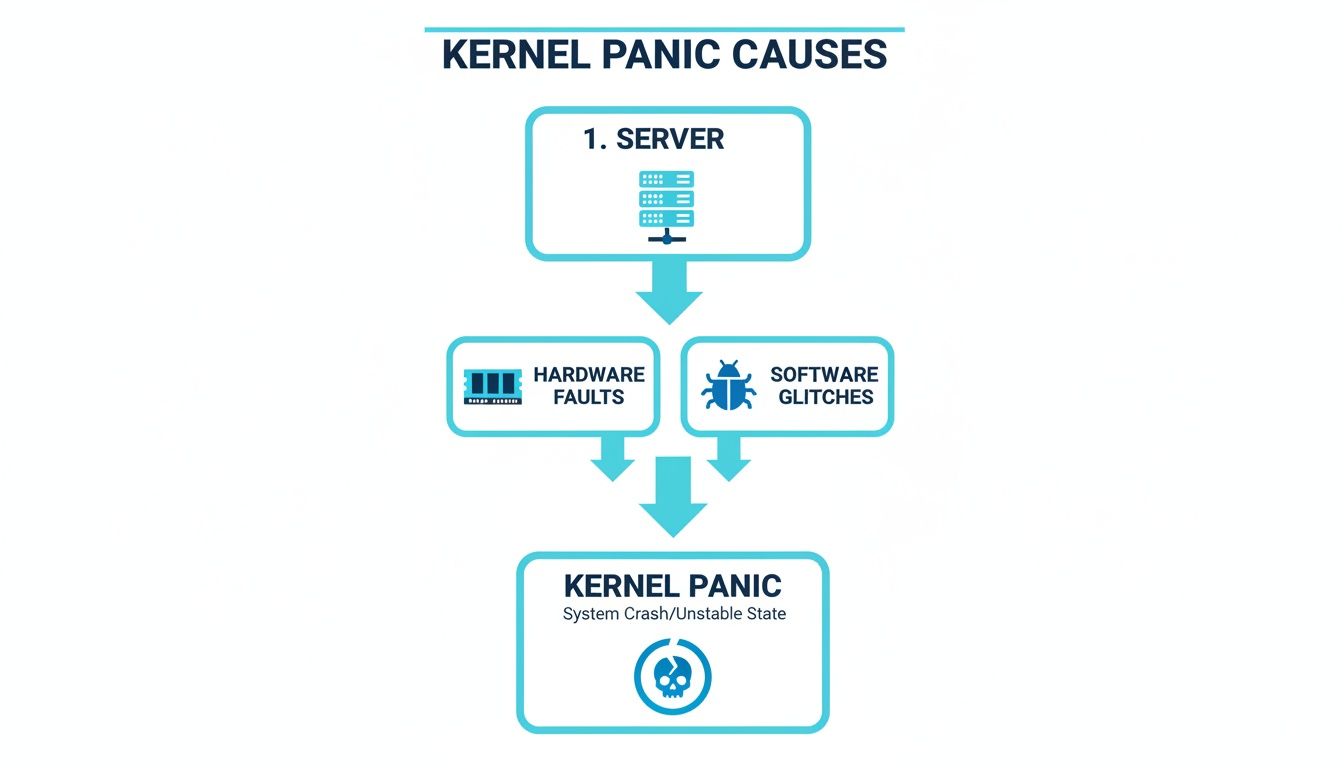
Ultimately, you're trying to determine if a physical component failed or if a software bug is to blame. Your logs are the key to figuring out which path to follow.
Step 3: Advanced Diagnosis with Kdump and Crash
For the most stubborn problems, logs alone won't cut it. You need a complete snapshot of the server's memory at the instant of the crash. This is where kdump comes in. It’s a kernel crash-dumping mechanism that, when a panic occurs, boots into a tiny "capture kernel" to copy the entire contents of RAM to a vmcore file on disk.
You can then perform a full autopsy on this memory dump using a utility called crash. This tool lets you inspect the state of every process and kernel data structure, which is the deepest level of post-mortem analysis. With the full root access of an ARPHost Bare Metal Server, you have the power to configure these advanced tools yourself.
And if you're ever unsure about the exact OS environment you're troubleshooting, our guide on how to check the Linux version is a great resource to have handy.
Of course, not everyone has the time to become a crash dump forensics expert. For businesses that need a surefire solution, ARPHost's Fully Managed IT Services handle this entire process for you. Our 24/7 monitoring systems capture crash data automatically, and our engineers analyze it to find the cause and deploy a permanent fix—often before you even know a problem occurred.
How to Fix and Prevent Kernel Panics
When a kernel panic hits, that initial feeling of dread is quickly replaced by a single, urgent question: "How do I get this server back online?" The immediate fire-fight is crucial, but the real win comes from building a system that doesn't catch fire in the first place. Let's walk through the action plan for both getting your server running right now and making it tough enough to prevent future panics.
Your first instinct is to reboot. But if a recent software update is the culprit, you’re likely staring at a reboot loop.
Immediate Recovery Steps
When a server refuses to boot, you aren't out of options. The most reliable fix is to sidestep the problem by booting into a kernel that you know works.
- Reboot Into an Older Kernel: As the server starts, access the GRUB bootloader menu. Find the "Advanced options" and select a previous kernel version. This tells the system to ignore the new, problematic kernel.
- Enter Recovery Mode: Most Linux distros include a recovery mode in the GRUB menu. Booting this way drops you into a root shell with a read-only filesystem. To make changes, remount it as read-write:
mount -o remount,rw / - Run a Filesystem Check: With the filesystem remounted, you can run
fsckon your partitions to find and fix corruption. This is a lifesaver for those "Unable to mount root fs" panics.
These manual steps are must-have skills, but in a real-world business scenario, every second the server is down, you're losing money. A server that has to wait for a human to log in and fix it is a major liability.
Why ARPHost Excels Here
All our VPS hosting plans, starting at just $5.99/month, give you full root and console access directly through our client portal. This guarantees you can always get to your server’s bootloader to perform these emergency maneuvers, even when it's totally unresponsive.
Building a Proactive Prevention Strategy
The best way to deal with a kernel panic is to stop it from ever happening. This means shifting from a reactive "fix-it" mode to a proactive mindset focused on solid server management.
One of the most powerful changes you can make is telling the server to automatically reboot after a panic. This simple tweak can shrink hours of downtime into a few minutes. Just edit your /etc/sysctl.conf file and add this line:
# Automatically reboot 10 seconds after a kernel panic
kernel.panic = 10
This command instructs the kernel to wait 10 seconds before rebooting—just enough time for kdump to save diagnostic data, but short enough to get your applications back online fast. It's a non-negotiable setting for any production server, especially one hosted on an ARPHost Bare Metal Server or within a Dedicated Proxmox Private Cloud.
A strong prevention strategy also includes:
- Implement Proactive Hardware Monitoring: Use tools like
smartmontoolsfor checking disk health andlm-sensorsfor monitoring temperatures. - Manage Updates Safely: Never run a full system update on a live production server without testing it first in a staging environment.
- Establish Bulletproof Backups: Regular, automated, and tested backups are your ultimate safety net.
ARPHost's Fully Managed IT Services are designed for exactly this scenario. Our team handles everything from proactive hardware monitoring and safe patch management to automated backups and disaster recovery. We become your dedicated IT defense, stopping kernel panics before they become a problem.
Ready to build a truly resilient infrastructure? Explore our high-availability VPS hosting plans at https://arphost.com/high-availability-kvm-vps/ and see how our managed solutions can protect your operations.
How ARPHost Prevents Kernel Panics with Managed Services

A kernel panic isn't just some technical hiccup—it's a direct hit to your business. Every minute your server is down means lost productivity, angry customers, and a drain on your revenue. Knowing how to fix a panic is one thing, but the real win is stopping it from ever happening in the first place.
This is exactly where ARPHost flips the script from reactive firefighting to proactive prevention. Our Fully Managed IT Services act as your expert defense team, obsessed with stability and reliability so you can get back to running your business. We don't just fix problems; we get ahead of them.
Proactive 24/7 Monitoring
The best defense is a good offense, and that starts with vigilance. Many kernel panics, especially the hardware-related ones, broadcast warning signs long before the system actually crashes. A failing disk drive starts logging I/O errors. An overworked CPU shows creeping temperature spikes.
Our 24/7 monitoring systems are built to catch these faint signals. We keep a close eye on the critical health metrics across your entire infrastructure, including:
- Hardware Health: We watch SMART data from SSDs and HDDs to predict drive failures before they happen.
- Resource Utilization: CPU, RAM, and disk space are tracked constantly to flag resource exhaustion before the kernel starts to starve.
- System Logs: Our systems automatically scan logs for "Oops" messages and other quiet, non-fatal errors that are often the prelude to a full-blown panic.
When we spot these anomalies, our engineers jump in. We can swap out a faulty drive or tune a resource-hogging application, neutralizing the threat before it ever causes a catastrophic failure.
Expert Patch Management and Staging
Software updates are a classic double-edged sword. They deliver critical security fixes, but they're also a primary cause of software-triggered kernel panics. One buggy kernel update or an incompatible driver can easily bring a production server to its knees.
Our managed services take that risk off the table with a rock-solid patch management process. We never deploy updates blindly. Instead, every patch is first applied and put through its paces in a controlled staging environment that mirrors your production setup. Only after we’ve confirmed its stability and compatibility is it scheduled for deployment on your live servers, guaranteeing zero disruption.
By taking a managed approach, you turn what could be a frantic, middle-of-the-night emergency into a scheduled, zero-risk maintenance window. Understanding how managed IT reduces downtime and security risk is key to seeing the value here. It’s all about preventing problems, not just being good at cleaning up the mess.
A Resilient Foundation: From Bare Metal to Private Cloud
Prevention starts with the hardware itself. We build our infrastructure on enterprise-grade components to minimize the risk of failure.
- Bare Metal Servers: We use meticulously tested, high-quality hardware to give your most critical applications a solid, reliable base.
- Dedicated Proxmox Private Clouds: Your dedicated private cloud runs on a cluster of these robust servers, delivering a powerful one-two punch of performance and reliability.
- High-Availability VPS Hosting: Our HA plans are built on CEPH distributed storage. If a physical node has an issue, your virtual machine automatically migrates to a healthy node with zero data loss, giving you seamless redundancy.
With ARPHost, you’re not just renting a server; you’re investing in a stable, professionally managed ecosystem.
Ready for some peace of mind? Request a managed services quote at https://arphost.com/managed-it-services-for-businesses/ and let our experts take server stability off your to-do list for good.
Frequently Asked Questions About Kernel Panics
Even when you know what a kernel panic is, things can get confusing when you're staring at a crashed server. Let's tackle some of the most common questions that pop up in the real world.
Can a Kernel Panic Cause Permanent Hardware Damage?
No, and in fact, it’s designed to do the exact opposite. Think of a kernel panic as the emergency brake for your operating system. It’s a deliberate, last-ditch effort to halt all activity to prevent a nasty software bug or hardware fault from corrupting your filesystem or frying a component.
The panic itself is a safety feature. It stops the system before a bad driver can scribble garbage all over your SSD or a memory error can wreck your database. The real danger is whatever caused the panic in the first place, which is why a fast diagnosis is so critical.
How Do I Know If My VPS Had a Kernel Panic If I Missed the Error Screen?
This happens all the time. Your website was down, or you came back to find your server had rebooted itself. If you missed the actual error screen, your server logs are your best friend and the first place you need to check.
After logging back into your secure VPS hosting environment, a couple of commands will help you look for clues from the previous boot session:
journalctl -b -1 -eis your go-to on modern Linux systems. This command shows you the logs from the last boot (-b -1) and helpfully jumps you straight to the end (-e), which is usually right where the crash messages are.- You can also check classic log files like
/var/log/syslogor/var/log/messagesand search for any lines containing "Kernel panic" or "Oops."
Frankly, this is where ARPHost's managed services really shine. Our 24/7 monitoring systems would have spotted the unexpected reboot, logged the event, and alerted our engineers to start digging in—often before you even knew there was a problem.
Is a Kernel Panic the Same as a Windows Blue Screen of Death (BSOD)?
Yes, they’re basically the same idea for different operating systems. A kernel panic (on Linux, macOS, and other Unix-like systems) and a Blue Screen of Death (on Microsoft Windows) are both fatal system errors that the OS can't recover from safely.
Key Insight: Both a panic and a BSOD slam the brakes on all system operations and dump critical diagnostic data onto the screen. That wall of text—full of error codes and memory addresses—is designed to help sysadmins and developers track down the root cause, whether it's faulty hardware, a driver conflict, or a bug deep in the OS.
The colors and codes are different, but the mission is identical: stop everything to prevent more damage and leave clues for the cleanup crew.
How Can I Prevent Panics After a Software Update?
A bungled software or kernel update is one of the most frequent culprits behind a kernel panic. The best way to prevent this is simple: never remove the old, working kernel version when you upgrade.
Keeping the previous kernel gives you an essential escape hatch. If the new kernel panics on boot, you can just reboot, hit the GRUB bootloader menu, and select the older, known-good version. This gets your server back online instantly, letting you troubleshoot the bad update without the pressure of downtime.
Of course, a solid, automated backup solution is non-negotiable. With the reliable backups included in ARPHost's secure web hosting bundles, which feature the Webuzo control panel for easy management, you have an ironclad safety net. If a faulty update creates a major headache, you can simply restore your entire server to its pre-update state.
At ARPHost, we believe a stable server is the foundation of any successful online project. Our managed solutions are built to get ahead of problems like kernel panics, ensuring your infrastructure is always up and running when you need it.
Ready to switch to a hosting partner that has your back? Start with our $5.99/month VPS at https://arphost.com/vps-hosting/ and experience the peace of mind that comes with expert management.