When a business is small, people get away with improvised IT. Files live in shared cloud folders. One employee knows the printer trick that nobody documented. Passwords are reused because there’s no central login policy. A line-of-business app runs on the front desk PC because that’s where it was first installed.
That works until it doesn’t.
The point where leaders start asking what is a windows server usually comes right after growth creates friction. New hires need access on day one. Departing staff need to lose access immediately. Teams want shared storage, reliable remote access, better backups, and one place to manage user accounts. A desktop operating system isn’t built to be that control point. A server operating system is.
Beyond the Desktop When Your Business Needs a Server
A Windows Server is Microsoft’s operating system for machines that provide services to other computers, users, and applications. Instead of focusing on one person sitting in front of one screen, it’s designed to handle shared business functions such as identity management, file sharing, application hosting, networking services, and virtualization.
That difference matters more than most new IT managers expect. A server isn’t just “a more powerful Windows PC.” It becomes the central system that other devices depend on. User logins, shared folders, print queues, app databases, internal web services, and virtual machines can all tie back to it.
What changes when you move to a server OS
A desktop machine is built around local use. A server is built around availability, control, and multi-user service delivery.
In practical terms, that means you can:
- Centralize logins: Users sign in with managed accounts instead of scattered local credentials.
- Control access consistently: Permissions follow policy instead of personal habit.
- Host business workloads properly: File shares, IIS sites, databases, and line-of-business tools run on infrastructure meant for them.
- Scale with fewer workarounds: You stop relying on “that one machine” under someone’s desk.
Practical rule: If multiple people depend on the same files, app, or authentication system every day, you’re already in server territory.
Windows Server has been around long enough to earn its place in business infrastructure. It began in 1993 as Windows NT Server, adopted the Windows Server brand name in 2003, and has moved through major releases including 2008, 2016, and 2022. Its long support model has also mattered to administrators. Microsoft has traditionally supported Windows Server for 10 years, split into five years of mainstream support and five years of extended support, which is one reason organizations use it for long-lived infrastructure according to the Windows Server platform history.
Who actually needs one
Not every company needs a full Windows Server deployment on day one. But many need it sooner than they think.
It’s usually the right move when you need:
- Shared business resources that must stay available beyond one employee device.
- Central account management for users, groups, and permissions.
- Reliable application hosting for Windows-based software.
- A clean path to virtualization and future growth.
If you’re inheriting a messy environment, think of Windows Server as the point where IT stops being tribal knowledge and starts being managed infrastructure.
Core Features and Server Roles Explained
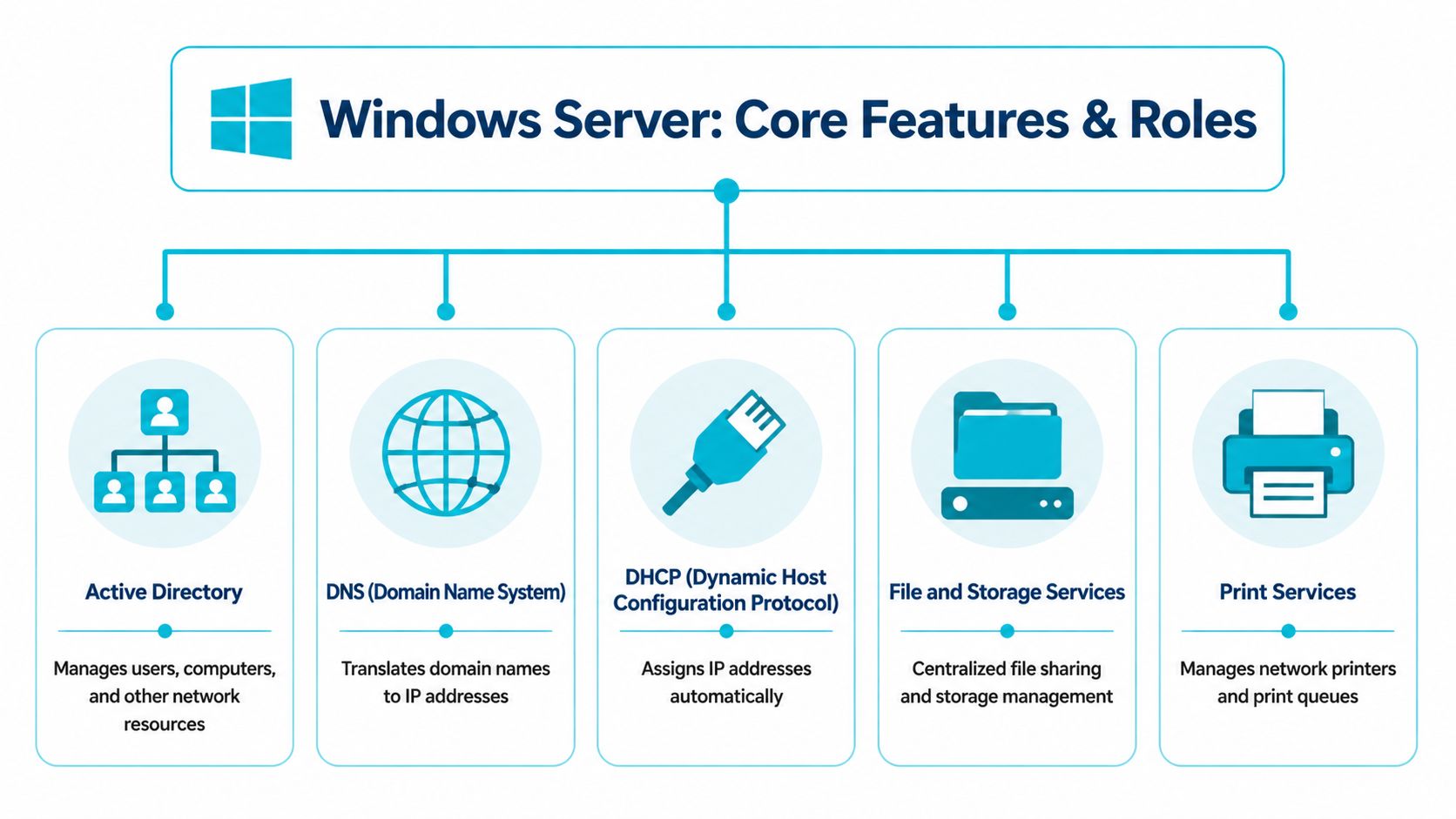
The easiest way to understand Windows Server is to think in terms of roles. A role is a packaged server function you install and manage for a specific job. You don’t deploy Windows Server just to “have a server.” You deploy it to run services cleanly and predictably.
Active Directory and identity control
Active Directory Domain Services is the role often associated with Windows Server, and for good reason. It’s the directory system that manages users, computers, groups, and policies across the network.
If you’re new to it, think of Active Directory as the company’s identity ledger. Instead of creating a separate local account on every PC, you define the user once and manage access centrally. You can also apply group policies to enforce settings, restrict risky behavior, and standardize devices.
For administrators planning a domain rollout, this kind of Active Directory installation guide is the right place to start before touching production systems.
DNS, DHCP, and the services nobody notices until they break
Two roles keep most business networks usable.
DNS translates names into network destinations. Users type names. Systems need addresses. If DNS is misconfigured, people experience it as “the server is down” even when it isn’t.
DHCP assigns network settings automatically to devices that join the network. Without it, every device needs manual configuration, which gets messy fast and produces the kind of errors that waste half a day at a time.
These roles are unglamorous, but they’re foundational. Good server administration usually means making critical services boring.
Stable infrastructure should feel uneventful to users. If people constantly notice it, something is wrong.
File services, print services, and Hyper-V
File and Storage Services give you centralized shares, controlled permissions, and a proper place for departmental data. That beats storing important documents across laptops, local desktops, and ad hoc cloud folders with inconsistent ownership.
Print Services matter less than they used to, but in offices with shared printers they still prevent chaos. Central queues and driver management are far easier than letting every workstation improvise.
Then there’s Hyper-V, Windows Server’s built-in virtualization role. Through this role, Windows Server becomes much more than a single OS instance, the OS supports up to 24TB of RAM and 64 physical processors, while Hyper-V allows virtual machines to access up to 240TB of RAM and 2,048 virtual processors. That’s why businesses can consolidate major workloads onto fewer physical systems without giving up isolation between services.
Why roles beat all-in-one improvisation
A healthy Windows environment doesn’t put every task on one box just because it can. The server roles model helps you decide what each system should do, how it should be secured, and when a workload needs its own VM.
That’s the practical difference between infrastructure and accumulation.
Common Business Use Cases for Windows Server
The strongest Windows Server deployments aren’t built around theory. They’re built around recurring business problems.

Central file sharing that people can trust
A design firm grows from a handful of staff to multiple teams. At first, people pass files around through email attachments and personal sync folders. Then version confusion starts. Someone edits the wrong copy. Someone else loses access because a folder owner is on vacation. Nobody is sure which files are authoritative.
A Windows file server fixes that by creating a single controlled source of shared data. Permissions can map to departments. Access can be removed when someone leaves. Backup policies become more straightforward because data lives in the right place instead of everywhere.
This is one of the cleanest first use cases because the business benefit is immediate. Less confusion, fewer accidental deletions, and less dependence on individual workstations.
Unified logins and security policy
A second common case is identity management. A company with separate local accounts on every machine quickly hits an admin wall. Password resets become manual. Offboarding becomes risky. Workstations drift into different settings because nobody is enforcing a common baseline.
That’s where a domain-backed Windows Server environment changes day-to-day operations. Staff use managed accounts. Admins assign permissions through groups. Security settings can be applied at scale instead of one device at a time.
For a lot of teams, this is the moment IT starts feeling controlled rather than reactive.
Hosting internal apps, web services, and email workloads
Many businesses still rely on Windows-based applications that need a proper server home. That could be an internal accounting system, a custom app, IIS-hosted intranet tools, or a service that integrates tightly with the rest of a Microsoft environment.
Email is another example where companies often start with a vague idea and then realize they need a real deployment plan, especially around storage, security, and maintenance. A practical reference for that planning stage is this email server setup resource.
A short overview helps if you’re evaluating what that workload looks like in practice:
Virtualization and workload separation
One of the biggest mistakes smaller businesses make is stacking too many jobs onto one system without boundaries. The file server also runs the line-of-business app. The same machine also hosts a web application. Then one bad update or resource spike affects everything at once.
Hyper-V gives you a cleaner approach. You can run separate workloads in separate virtual machines while keeping management centralized. That means:
- Isolation for roles: A problem in one VM is less likely to spill into another service.
- Simpler maintenance windows: You can patch or reboot individual workloads without touching all of them.
- Cleaner growth path: New services can be added without rebuilding the entire environment.
The right use case for Windows Server usually appears when one shared business function becomes too important to leave on a normal desktop.
Windows Server vs Windows Desktop What is the Difference
People often compare Windows Server to Windows 11 as if the choice is mostly about hardware. It isn’t. The difference is operating model.
One user device versus shared infrastructure
A desktop edition of Windows is meant to serve the person sitting at it. It launches productivity apps, supports local peripherals, and prioritizes interactive use. A server edition is meant to provide services to many users, devices, and applications across the network.
That affects every design decision. On a desktop OS, local convenience wins more often. On a server OS, centralized administration and long-term stability matter more.
Server roles versus endpoint features
Windows Desktop includes features for end users. Windows Server includes role-based capabilities for infrastructure. That means domain services, managed file sharing, centralized print services, Hyper-V, and the broader administration model built around server workloads.
You can force a powerful workstation to imitate some of this. That doesn’t make it a good server. It just means you’ve built a fragile dependency on something that wasn’t designed for the job.
Resource handling and deployment style
Server editions are built for heavier workloads, larger memory footprints, and sustained service hosting. Desktop editions are built for general-purpose computing.
The interface options reflect that difference too. Many server deployments benefit from a reduced-interface approach, especially when administrators want fewer moving parts and less overhead. Even when a full GUI is used, the mindset is different. You don’t install random software on a production server because it’s convenient.
Licensing and business planning
Licensing is also structured differently. Desktop licensing follows user-device expectations. Server licensing is tied more directly to business deployment choices, especially around user counts, device counts, and virtualization.
That changes how you budget. You aren’t just buying an operating system. You’re planning a platform that may carry identity, storage, applications, and virtualized services for years.
Here’s the practical test. If the machine’s failure would affect multiple employees or core business systems, treat it like a server and build it like one.
Choosing Your Windows Server Edition and Deployment Model
Choosing Windows Server isn’t one decision. It’s two. First, you choose the edition. Then you choose where and how it runs.
Picking the right edition
For smaller organizations, the first fork in the road is often Essentials versus Standard. Microsoft’s overview notes that licensing options can be pay-as-you-go, perpetual, or subscription-based, and that Essentials is capped at 25 users and 50 devices, while Standard’s core-based licensing can be the more economical path for growing businesses that expect to virtualize according to the Windows Server overview.
That single fact shapes a lot of good decisions.
If you’re a smaller office with straightforward needs, Essentials can be a sensible entry point. If you expect growth, multiple workloads, or more serious virtualization, Standard usually makes more architectural sense. Datacenter belongs in environments where dense virtualization and advanced infrastructure features justify it.
Windows Server 2026 Editions at a Glance
| Feature | Essentials | Standard | Datacenter |
|---|---|---|---|
| Best fit | Small businesses with simpler environments | Growing businesses and general production use | Heavily virtualized and advanced enterprise environments |
| User and device scope | Capped at 25 users / 50 devices | Broader business use | Broadest enterprise use |
| Licensing style | Entry-oriented | Core-based | Core-based |
| Virtualization suitability | Limited | Strong choice for businesses planning to virtualize | Best for dense virtualization and advanced data center workloads |
| Typical use | Basic identity, file sharing, light infrastructure | Mixed workloads, app hosting, domain services, VMs | Large-scale consolidation, private cloud style deployments |
Deployment models that actually work
Edition choice is only half the story. The wrong hosting model can make the right OS feel unreliable.
On-premises bare metal
This gives you direct control over hardware, networking, and local dependencies. It’s still the right answer when compliance, latency, plant-floor systems, or local integration make cloud hosting a poor fit.
The trade-off is operational burden. You’re responsible for hardware lifecycle, power events, remote access planning, and recovery design. If your team is thin, on-prem can become a distraction factory.
Cloud infrastructure
Running Windows Server in virtual infrastructure gives you faster deployment, easier scaling, and less physical overhead. It’s a strong fit for app hosting, remote-access workloads, development environments, and general business services that don’t require local hardware presence.
The trade-off is that you need discipline. Poorly sized virtual machines, loose storage design, or unclear ownership boundaries can turn cloud into sprawl just as fast as on-prem can turn into clutter.
Fully managed hosting
This is the model I recommend to businesses that need Windows Server capabilities but don’t want to become a server operations shop. You still define requirements and approve changes, but patching, monitoring, backup routines, and infrastructure upkeep move to specialists.
Operational reality: The best server platform is the one your team can maintain consistently, not the one that looked impressive in a planning meeting.
A simple decision path
Use this checklist:
- Choose Essentials if your environment is small and unlikely to outgrow basic limits soon.
- Choose Standard if you need a realistic path for business growth and virtualization.
- Choose Datacenter if infrastructure density and advanced virtualization are central to the design.
- Choose on-prem when hardware locality is a hard requirement.
- Choose hosted virtual infrastructure when flexibility matters more than owning the box.
- Choose managed service when uptime and security matter, but internal bandwidth is limited.
Good Windows Server planning is less about buying the biggest edition and more about matching the operating system to the environment that will support it well.
Essential Security and Administration for Your Server
A Windows Server that’s installed but not maintained is just future downtime waiting for a date.
The non-negotiable admin work
Routine administration is what keeps a stable deployment from drifting into incident response. The basics aren’t glamorous, but they’re the difference between controlled infrastructure and repeated outages.
That means you need a working practice for:
- Patching: Apply security and reliability updates on a defined schedule with rollback awareness.
- Access control: Use least privilege. Don’t hand out local or domain admin rights because it’s faster.
- Firewall review: Confirm only necessary services are exposed.
- Backup validation: A backup job that completes isn’t the same as a restore you’ve tested.
- Log monitoring: Event Viewer and service logs tell you what’s degrading before users do.
A lot of new IT managers focus on deployment day and underestimate the calendar that follows. The server doesn’t become valuable because it exists. It becomes valuable because it stays secure and recoverable.

Hardening before trouble starts
If you want a straightforward baseline, work from a formal checklist rather than memory. A good place to begin is this server hardening checklist, especially if you’re inheriting systems built by multiple hands over time.
The practical sequence usually looks like this:
- Remove what you don’t need. Unused roles, stale accounts, and old services increase exposure.
- Constrain administrative access. Separate routine accounts from privileged ones.
- Review backup and restore paths. Recovery should be documented, not assumed.
- Monitor changes. Unexpected service installs or privilege changes shouldn’t go unnoticed.
If recovery planning is weak, it’s also smart to know where specialist help exists.
Future-ready operations
Modern Windows Server releases also support more advanced infrastructure patterns than many SMBs realize. For example, modern Windows Server GPU partitioning capabilities allow live migration for AI and ML workloads across VMs without downtime, which matters in environments running intensive compute jobs that still need high availability.
Most organizations won’t start there. But the lesson is useful anyway. Build your administration practices now so the environment can support more demanding workloads later.
A secure server isn’t the one with the most settings enabled. It’s the one you understand, monitor, back up, and can restore under pressure.
Build Your Business on a Solid Foundation with ARPHost
A Windows Server deployment succeeds or fails on the platform under it. I have seen well-configured servers become ongoing support problems because the host was short on IOPS, backups were inconsistent, or nobody owned patching after go-live.
The better planning question is simple. What kind of environment will keep this workload stable six months from now, not just on launch day? That choice affects resource isolation, recovery options, licensing flexibility, and whether your team spends its time on business systems or on preventable infrastructure issues.
ARPHost fits teams that need room to choose the right model for the job. The available options include managed VPS hosting, bare metal servers, private cloud deployments, colocation, and managed IT support. That matters in practice because a single domain controller, an ERP application, and a multi-user Remote Desktop host have very different performance and management requirements.
For lighter workloads, VPS hosting can be a sensible starting point if usage is steady and the resource profile is well understood. For heavier application stacks, stricter isolation, or cases where noisy-neighbor risk is unacceptable, private cloud and managed infrastructure are usually the safer call.
That is the part many buyers miss. Windows Server is the engine for the business, but the hosting layer determines how reliably that engine runs under real load.
If your internal IT team is small, handing routine maintenance to a provider can also reduce risk. Patching, monitoring, backup checks, and incident response are not hard in theory. They are hard to do consistently when the same people are also supporting users, vendors, printers, and every other operational request that lands during the week.