

You've got a command in a chat window, an SSH prompt waiting, and Ctrl+V does nothing. In GNOME Terminal, use Ctrl+Shift+V. You can also right-click and choose Paste. On systems where X11 primary-selection paste is enabled, middle-click inserts the text you most recently highlighted. Ubuntu also documents Shift+Insert as an alternative. GNOME's terminal documentation lists these paste methods.
That shortcut is only one part of the operation. The terminal emulator receives the paste, the desktop provides the selected text, and the shell's line editor decides how to handle the incoming characters. Knowing which layer is involved makes it much easier to diagnose a paste that fails, inserts the wrong text, or behaves differently over SSH.
Table of Contents
- The Two Ways to Paste in a Linux Terminal Right Now
- Why Two Pastes Can Give You Two Different Strings
- Shortcuts and Modes Across Popular Terminal Emulators
- Copying and Pasting from the Shell with xclip, wl-copy, and Friends
- Sharing Long Terminal Output Without Losing Formatting
- Pasting Without Accidentally Executing a Dangerous Command
- Troubleshooting the Most Common Paste Failures
The Two Ways to Paste in a Linux Terminal Right Now
If Ctrl+V doesn't paste, try Ctrl+Shift+V in GNOME Terminal, including the default Ubuntu GNOME desktop. To use the terminal menu, right-click inside the window and select Paste. Shift+Insert is another documented option. These actions paste the ordinary clipboard contents, the text you explicitly copied.
Middle-click is different. On X11, it can paste the PRIMARY selection, usually the text you last highlighted with the mouse. That selection may not match what you copied with Ctrl+C. If middle-click inserts an old hostname or an incomplete command, the terminal may be working exactly as configured, but using a different selection than you expected.
The simplest first test is to copy a short, harmless word from a graphical application and paste it into the terminal with Ctrl+Shift+V. If that works, the terminal's clipboard shortcut is functioning. If it doesn't, check the terminal's Edit menu or Preferences, since shortcut mappings can be customized and differ between emulators. GNOME documents Ctrl+Shift+V as its paste shortcut, not a universal Linux-wide mapping.
Practical rule: Treat the terminal menu as the local authority. A shortcut in a guide may describe GNOME Terminal, not the emulator open on your screen.
For a paste Linux terminal problem, think in layers: the terminal emulator handles its key binding, the desktop or display system supplies clipboard data, and the shell's line editor receives the pasted characters. A failure at one layer can look like a failure at another. Start by trying the menu or known emulator shortcut before changing shell settings.
Why Two Pastes Can Give You Two Different Strings
On X11, two selection mechanisms can carry text. CLIPBOARD holds text copied through an explicit copy action, while PRIMARY is commonly set by highlighting text. Ctrl+Shift+V typically uses CLIPBOARD; middle-click may use PRIMARY. So "middle-click pasted the wrong command" can mean the highlighted text and the explicitly copied text are different. GNOME Terminal's FAQ describes this distinction and notes that primary-selection middle-click paste has been disabled by default in GNOME versions since 3.9.
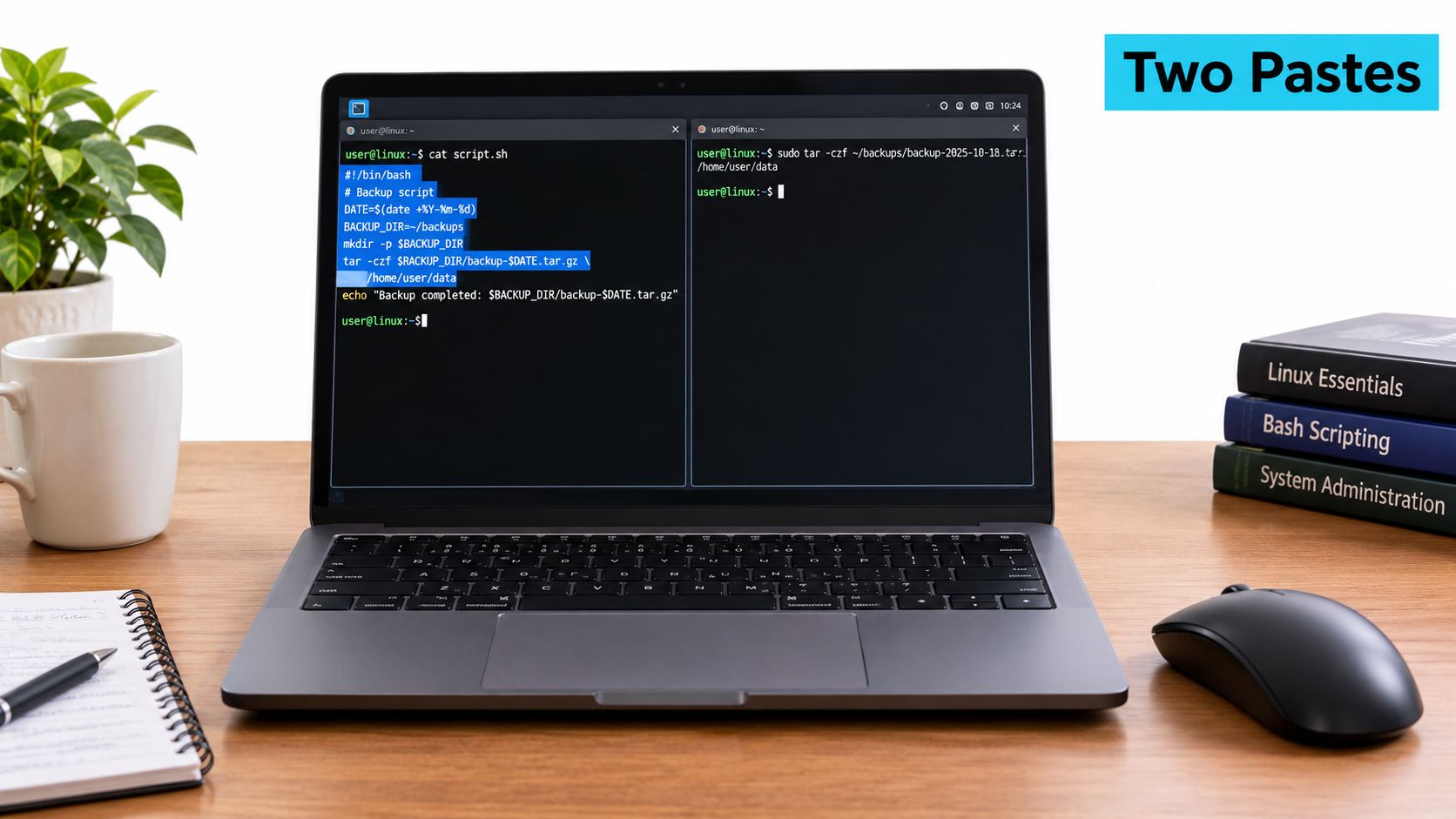
On an X11 desktop with xclip installed, you can put a string on the explicit clipboard and print it back:
printf '%s' 'copied command' | xclip -selection clipboard
xclip -selection clipboard -o
The primary selection is separate. Highlight text in an application, then try middle-clicking in the terminal. The pasted result can differ from the clipboard output above because the two selections aren't necessarily synchronized. Some GNOME configurations don't enable primary-selection paste by default, so a middle-click that does nothing isn't proof that the terminal is broken.
Wayland doesn't expose X11's selection model in exactly the same way to applications. Clipboard access depends on the desktop session and compatible tools, while the terminal still supplies its own shortcut. A command using an X11 clipboard tool may fail or be irrelevant in a Wayland session. Check the session before troubleshooting:
echo "$XDG_SESSION_TYPE"
When the result is x11, investigate X11 clipboard tools and selection behavior. When it is wayland, use Wayland-compatible clipboard tools instead. The important distinction is not just the mouse button: it's which selection the desktop or tool is reading.
Shortcuts and Modes Across Popular Terminal Emulators
There isn't one shortcut table that applies to every Linux terminal. GNOME Terminal documents Ctrl+Shift+V, right-click Paste, middle-button paste where supported, and Shift+Insert. Other emulators can use different bindings, and users can customize them. Check the emulator's menu or preferences rather than assuming a shortcut from another desktop applies.
| Terminal | Paste shortcut | Middle-click paste | Bracketed paste |
|---|---|---|---|
| GNOME Terminal | Ctrl+Shift+V; Shift+Insert is also documented | Depends on desktop settings and selection support | Depends on terminal and shell support |
| Konsole | Check the configured menu shortcut | Depends on desktop settings | Depends on terminal and shell support |
| xterm | Check X resources and configured translations | Commonly uses X11 PRIMARY | Depends on terminal and shell support |
| Alacritty | Check the configured key bindings | Depends on desktop and selection configuration | Depends on terminal and shell support |
| tmux or screen | Use the outer terminal's paste shortcut; multiplexer bindings may also apply | Depends on the outer terminal and configuration | Depends on terminal, multiplexer, and shell support |
Multiplexers add another layer. In a tmux session, the local terminal emulator still receives the physical shortcut, but tmux can affect how input reaches the program running in the pane. If paste works in a normal shell but fails inside tmux, compare the two environments before changing the terminal's global key map.
Bracketed paste is also not a keyboard shortcut. It's a protocol in which the terminal marks the beginning and end of pasted text so a compatible line editor can treat the content as one block. Support must line up across the terminal and the application receiving input. If you're editing a configuration file rather than trying to paste into a prompt, this Linux file-editing guide covers the separate editor workflow.
Copying and Pasting from the Shell with xclip, wl-copy, and Friends
A desktop shortcut doesn't help when you need to move text through a script or inspect clipboard contents from a shell. First identify the display session:
echo "$XDG_SESSION_TYPE"
For x11, xclip can copy standard input and print the clipboard:
printf '%s' 'hello world' | xclip -selection clipboard
xclip -selection clipboard -o
On X11, xsel is another option:
printf '%s' 'hello world' | xsel --clipboard --input
xsel --clipboard --output
These tools need access to the graphical session. On a headless server reached over SSH, there may be no local display or clipboard for them to access. A terminal opened over SSH doesn't automatically share the desktop clipboard with the remote host.
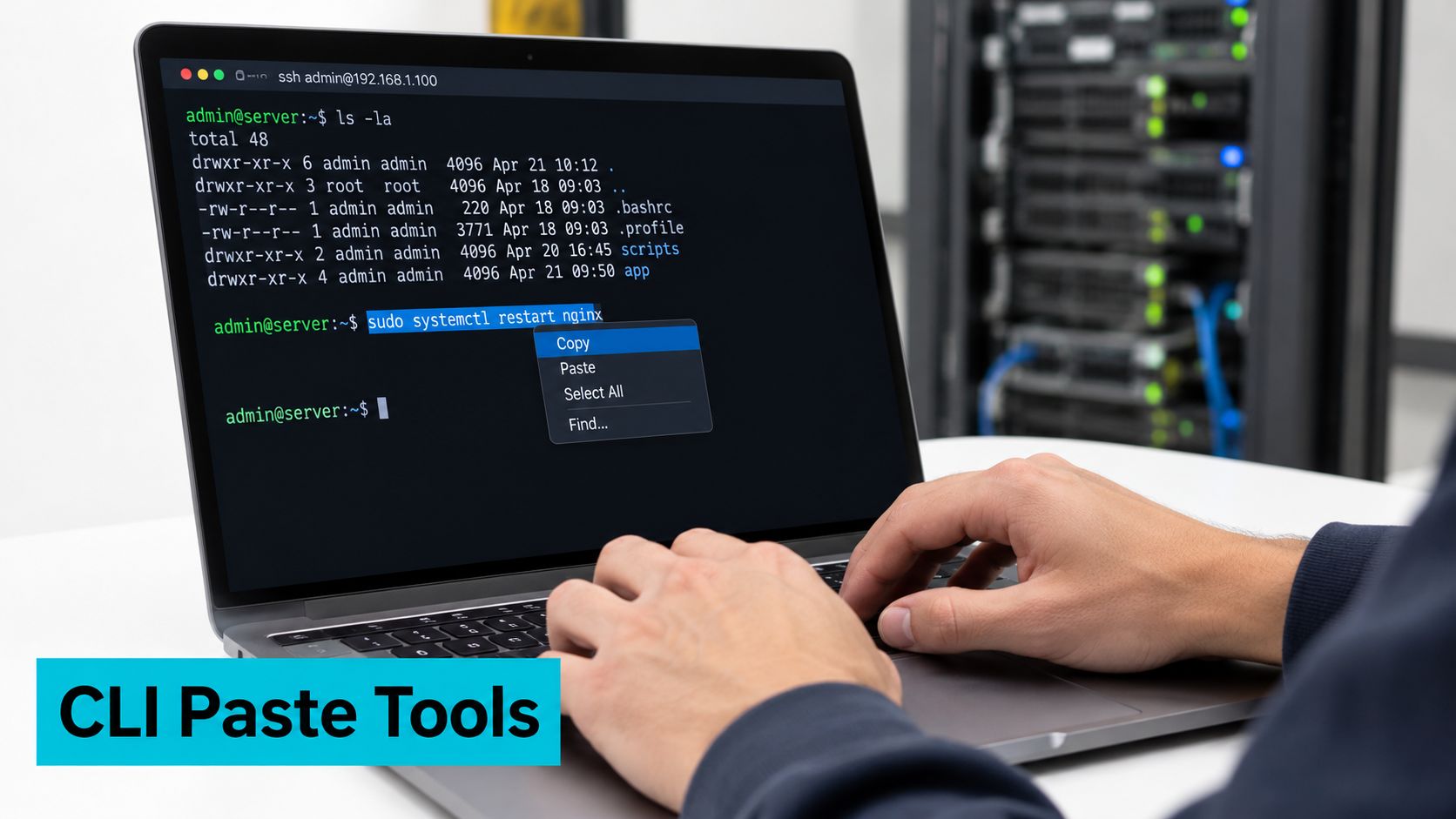
For a Wayland desktop, use wl-clipboard, which provides wl-copy and wl-paste. The clipboard-tool reference distinguishes these Wayland tools from xclip for X11.
printf '%s' 'hello world' | wl-copy
wl-paste
Running wl-paste in an X11 session is a protocol mismatch, not a terminal paste defect. Likewise, xclip needs an available X server. In either case, check the session and the tool before changing terminal shortcuts.
For moving text to a file, standard shell redirection works without involving the desktop clipboard:
printf '%sn' 'hello world' > clipboard.txt
cat clipboard.txt
If you're creating a file as part of a remote workflow, this guide to creating a file in Linux covers common methods. Tools from other environments, such as macOS clipboard commands or mobile clipboard utilities, aren't interchangeable with X11 and Wayland tools unless that environment has installed and configured them.
Sharing Long Terminal Output Without Losing Formatting
A long log pasted directly into a chat or ticket can lose indentation, overwhelm the conversation, or expose secrets. Start by narrowing the output to what the recipient needs. For example, capture recent service messages rather than sending an entire log:
journalctl -u nginx --no-pager | tail -n 80
Before sharing, inspect the output for credentials, session tokens, private keys, and customer data. Redact sensitive values locally. Don't upload raw logs to an external paste service unless your organization permits it and you understand who can access the result.
For output you need to review before sending, write it to a file:
journalctl -u nginx --no-pager | tail -n 80 > service.log
less service.log
That preserves line breaks and makes inspection easier. This Linux file-opening guide covers ways to review the file before sharing. If you use an approved paste service or a gist-style tool, read its own documentation for the upload command and visibility controls. Don't assume an uploaded log is private just because you haven't posted the URL publicly.
A reliable sharing sequence is simple: reduce the output, review the exact file, remove secrets, upload only through an approved service, then open the returned URL in a private browser window to confirm the content and access settings. If the recipient needs a small excerpt, send the excerpt rather than the whole file. Terminal color codes can also appear as control characters in copied output, so use a plain-text capture when the recipient needs readable logs instead of terminal styling.
Pasting Without Accidentally Executing a Dangerous Command
Pasting isn't a security check. A terminal can deliver pasted bytes through the same input path used for typed characters, and a multiline block can contain several commands. Bracketed paste helps compatible shells and line editors recognize a paste as one block, but it doesn't inspect the command or make it trustworthy.
For Bash using GNU Readline, enable bracketed paste for the current terminal session with:
printf 'e[?2004h'
To enable the Readline option in future sessions, add this line to ~/.inputrc:
set enable-bracketed-paste on
GNU Readline then inserts pasted text into the editing buffer as one string rather than processing each pasted character as a keyboard command. The GNU Readline initialization documentation documents enable-bracketed-paste. The terminal and line editor must support the protocol for the protection to work as intended.
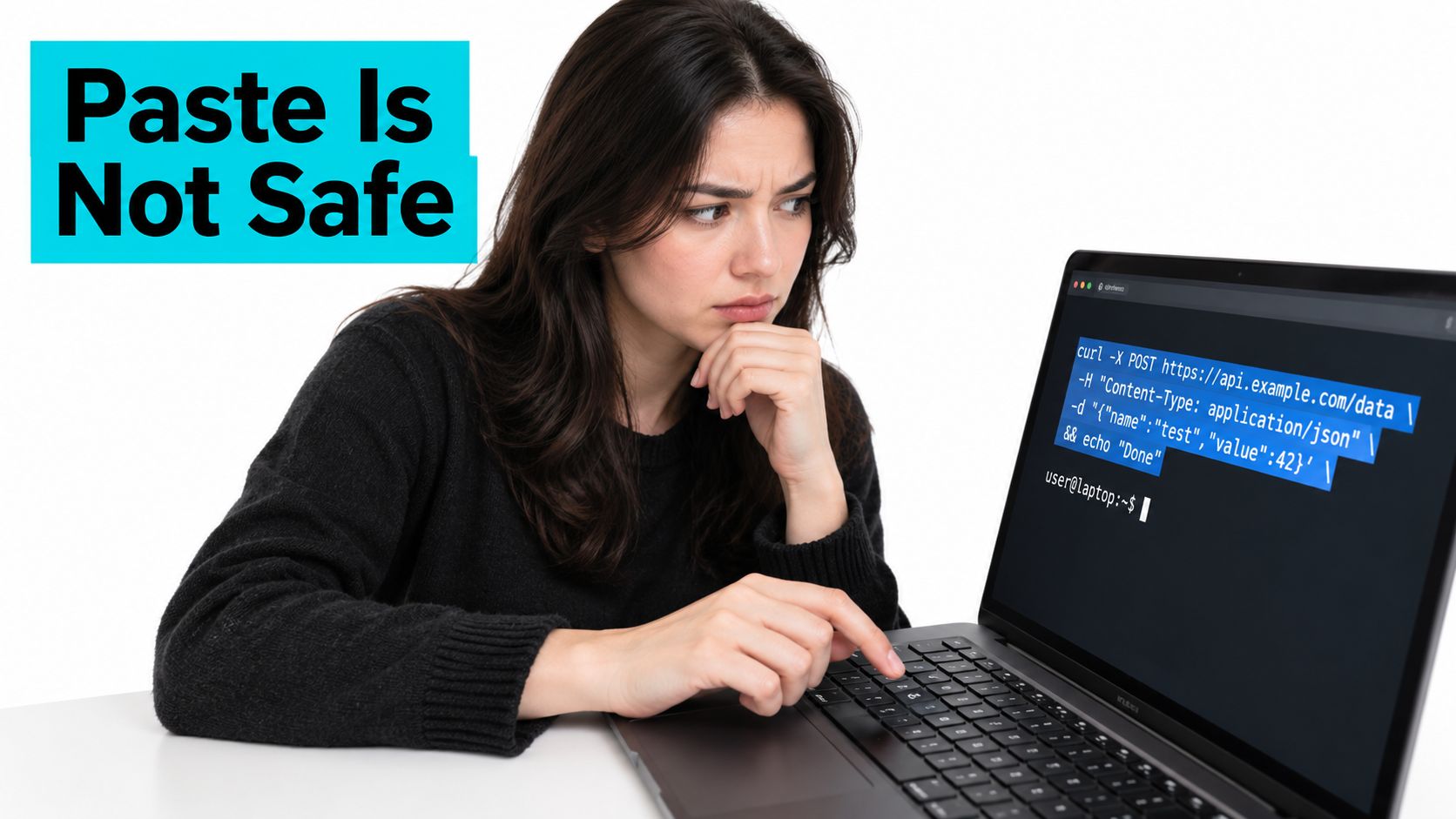
Before pressing Enter on an unfamiliar command, inspect the prompt and the whole pasted buffer. Confirm the working directory with pwd and verify that the SSH session is on the intended host. Look for sudo, pipes (|), redirections (>), command substitutions ($()), semicolons, and embedded newlines. A block can look routine while containing an extra destructive command between lines.
For a complex command, review it in an editor or save it to a file before running it:
cat > /tmp/command-review.sh <<'EOF'
printf '%sn' 'Review this command before running it'
EOF
cat /tmp/command-review.sh
This example creates a harmless script for inspection; it doesn't execute it. Bracketed paste reduces accidental handling of pasted control characters, but it doesn't reveal every hidden character or neutralize dangerous shell syntax. If you can't explain what a command does, don't run it on a production host.
Troubleshooting the Most Common Paste Failures
When paste fails, identify which layer is involved before changing settings. Try the terminal menu first, then compare behavior in a local shell and the remote or multiplexed session. That separates a shortcut problem from a display-session, Readline, or multiplexer problem.
| Symptom | Likely layer | What to check |
|---|---|---|
| Ctrl+V inserts nothing | Terminal emulator | Try Ctrl+Shift+V or the terminal's Paste menu |
| Middle-click pasted the wrong string | Selection model | Use explicit clipboard paste and check which text is highlighted |
^[[200~ appears in the prompt | Terminal and line editor protocol | Check bracketed-paste support in the terminal, shell, and any multiplexer |
| Paste works locally but not in tmux over SSH | Multiplexer or remote shell | Compare a normal shell with the tmux pane and inspect their configurations |
| Clipboard command cannot connect | Display protocol or session | Check XDG_SESSION_TYPE and whether an accessible display is available |
Literal ^[[200~ markers usually mean the receiver is displaying bracketed-paste markers as text instead of handling them. Check whether the terminal and the receiving shell or line editor both support bracketed paste. If the issue only appears inside a multiplexer, test outside that session before changing the terminal's global bindings.
If Ctrl+V fails but the menu or Ctrl+Shift+V works, the terminal's binding is the likely cause. If middle-click pastes an unexpected string, use the explicit clipboard shortcut and avoid relying on PRIMARY for commands. If command-line clipboard tools fail, check the display session before reinstalling packages. On a headless SSH connection, local desktop clipboard access isn't automatically available to the remote process.
In production, this is an ordinary handoff problem: an operator copies a runbook command, pastes it into a VPS console, and assumes the same clipboard and shell behavior as their laptop. VPS, bare-metal, and Proxmox consoles still depend on the same terminal, display, shell, and multiplexer layers. Knowing which layer failed makes incident notes and remote sessions more predictable.
ARPHost, LLC provides VPS hosting, bare metal servers, Proxmox private clouds, colocation, and managed IT infrastructure. If your team needs help operating remote infrastructure and its access workflows, visit ARPHost, LLC.

Leave a Reply
You must be logged in to post a comment.