You're usually not looking up the password Linux command because you forgot passwd. You're looking it up because something happened. A user left, an admin key was rotated, a contractor account needs an expiration date, or a provisioning script is about to push credentials across several systems.
That's where basic command syntax stops being enough.
On a production Linux host, password handling is part of account lifecycle management, incident response, and automation hygiene. The command you choose matters. So does the flag. passwd -e and passwd -d might both look like account-control actions, but they produce very different outcomes. The same goes for interactive resets versus bulk updates, and plaintext passwords versus hashes in scripts.
This guide takes the practical route. It focuses on what works on hosted Linux systems, what tends to go wrong under pressure, and how to handle credentials safely on everything from a single VPS to a private cloud.
Why Mastering Linux Password Commands Is Non-Negotiable
Admins often say they need “the Linux password command” when the underlying task is broader. They may need to rotate a password, expire it, lock an account, or enforce a policy that keeps weak credentials off the system in the first place. That difference matters because changing a password is only one small part of securing user access.
A good example is Linux PAM policy behavior. Passwords shorter than six characters are rejected even if minlen is configured lower, which shows the gap between a simple password change and actual policy enforcement in Linux authentication stacks, as discussed in Network World's Linux password complexity overview. If you only focus on the command prompt, you miss the policy layer that determines whether your process is secure or just convenient.
Where admins get tripped up
Most mistakes happen in one of these situations:
- Routine maintenance: A junior admin resets a user password but doesn't verify whether the account should have been locked instead.
- Offboarding: Someone removes access inconsistently across hosts and leaves a stale local account behind.
- Automation: A script handles passwords in plaintext because it's faster to write.
- Recovery work: Root access exists, but no one has a documented workflow for expiring credentials safely after the reset.
Practical rule: Treat passwords as one control in a larger identity workflow, not as a standalone admin task.
That mindset also changes how you document your environment. Password rotation procedures should sit beside SSH policy, MFA decisions, sudo rules, and shell history handling.
The command is only part of the risk
On managed servers, I care less about whether someone knows passwd and more about whether they understand the security consequences of using the wrong workflow. An interactive change on a single shell is one thing. A password embedded in a deployment script is another.
For that reason, operational discipline matters as much as syntax:
- Confirm who you are before changing anything. Run
whoamiand verify the target user. - Choose the least risky action. Expire, lock, reset, or delete only when you mean exactly that.
- Preserve auditability. Temporary shortcuts become permanent exposure fast.
- Clean up admin traces. Shell history and admin procedures need attention too. ARPHost has a useful walkthrough on clearing history in Linux when you need to review how command records behave on shared systems.
If you're responsible for Linux systems in production, this is not optional. Password management sits directly in the path of account compromise, failed offboarding, and weak provisioning.
The Core Utility passwd for Interactive User Management
The passwd command is still the center of gravity for Linux password administration. It started as a Unix-style account utility, but modern usage goes far beyond “change my password.” It can lock and enable accounts, delete a password, show password status, and apply aging controls such as minimum and maximum password age, warning periods, and inactivity periods, as documented in the PhoenixNAP guide to the passwd command in Linux.

The normal interactive workflow
For your own account, the basic command is simple:
passwd
Linux prompts for the current password, then the new one. That's fine for self-service changes on a shell you trust.
For another user, use privilege separation instead of logging in directly as that user:
whoami
sudo passwd alice
That pattern is reliable because it confirms your current context and then uses higher privileges only for the account operation. If you need a root-specific reset path, ARPHost also documents the process in its guide to changing the root password in Linux.
Administrative flags that matter in the real world
The useful passwd options are the ones that change account state quickly:
| Action | Command | Operational use |
|---|---|---|
| Lock account | sudo passwd -l alice | Stop password-based access during an incident |
| Unlock account | sudo passwd -u alice | Restore access after validation |
| Delete password | sudo passwd -d alice | Remove password authentication entirely |
| Show status | sudo passwd -S alice | Review password state and policy summary |
Those aren't interchangeable. That's where junior admins often get into trouble.
Locking an account and deleting its password are different actions with different failure modes.
What works under pressure
When I need to force a user to rotate credentials at next login, I use:
sudo passwd -e alice
That expires the current password immediately and makes the user change it on the next successful login. It's a controlled action. The credential still exists, but it must be changed.
When I need to halt password access quickly without changing the rest of the account state, I use:
sudo passwd -l alice
That's useful during triage, especially when you still need the home directory, group memberships, and audit trail intact.
What doesn't work well is using passwd -d casually:
sudo passwd -d alice
Deleting the password creates a passwordless account. In some environments, admins do this intentionally for key-only SSH access. That can be valid, but only if login methods are otherwise restricted. If they aren't, you may have widened access instead of tightening it.
Aging controls belong in your toolkit
passwd also supports policy enforcement controls such as:
sudo passwd -n 1 alice
sudo passwd -x 90 alice
sudo passwd -w 7 alice
sudo passwd -i 14 alice
These options handle minimum age, maximum age, warning period, and inactivity period. They're not cosmetic settings. They're part of lifecycle control for user accounts on long-lived Linux systems.
If your environment still treats passwd as only an interactive password changer, you're leaving useful security controls on the table.
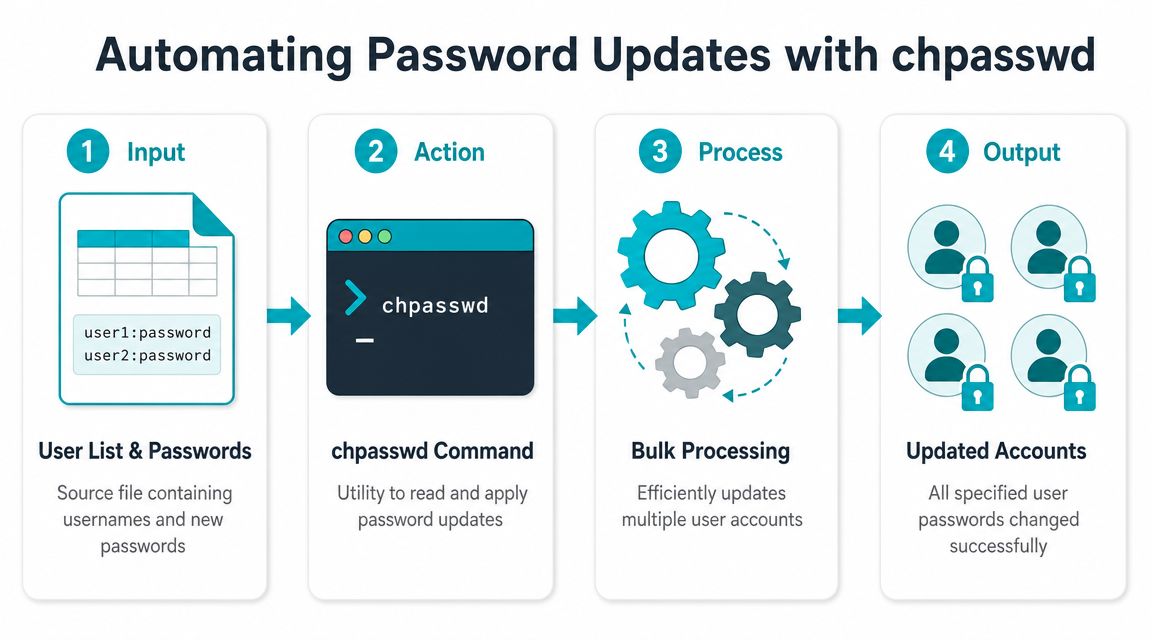
Automating Password Updates with chpasswd
Bulk password work changes the problem. When you're onboarding multiple users or repairing a broken batch of credentials, interactive passwd doesn't scale well. It's slow, repetitive, and hard to standardize across several systems.
That's where chpasswd becomes useful.
The fast bulk method
A common pattern is to prepare input as username:password pairs:
cat > users.txt <<'EOF'
alice:TempPassOne
bob:TempPassTwo
carol:TempPassThree
EOF
Then apply the updates:
sudo chpasswd < users.txt
That's efficient. It also introduces risk immediately.
The danger isn't just whether the command appears in ps. The more serious issue is how scripts and processes handle secrets in memory and through supporting mechanisms. Even when a tool avoids obvious exposure in process listings, credentials can still leak through environment variables or /proc/<pid>/mem if an attacker has sufficient privileges.
Why bulk password automation goes wrong
The weak pattern looks like this:
- Plaintext in files: Temporary user lists get left on disk.
- Secrets in shell history: Admins test commands interactively and forget cleanup.
- Environment variable leakage: A helper script exports credentials for convenience.
- Overuse of one-time passwords: Temporary values stay in place longer than planned.
Operational advice: The right question isn't “Can I script this?” It's “Can I script this without placing plaintext passwords on the command line or in a reusable file?”
Here's a safer way to think about chpasswd:
| Scenario | passwd | chpasswd |
|---|---|---|
| Single admin reset | Better fit | Overkill |
| Bulk onboarding | Too slow | Good fit |
| Emergency mass rotation | Hard to standardize | Useful if inputs are handled safely |
| Sensitive production automation | Interactive only | Use with caution, preferably with hashes |
A lot of teams reach for chpasswd first because it looks clean in a shell script. That's usually the wrong instinct if the script handles raw passwords.
A short video walkthrough can help if you want to see the command behavior in context:
A safer short-term pattern
If you must use plaintext temporarily for a controlled task, reduce the blast radius:
- Create the file on a trusted admin host.
- Apply it immediately with
sudo chpasswd. - Remove the file right after use.
- Force a change on next login for temporary credentials where appropriate.
- Move to hashed provisioning for repeatable workflows.
That last point matters most. chpasswd is useful, but plaintext-based automation shouldn't be your steady-state design.
Enforcing Password Policies with chage
Strong administration isn't just about changing passwords. It's about controlling when credentials can be changed, how long they remain valid, and when dormant accounts lose access.
That's why chage belongs in every Linux admin's standard toolset.
The core controls you actually use
For a normal user lifecycle policy, the commands usually look like this:
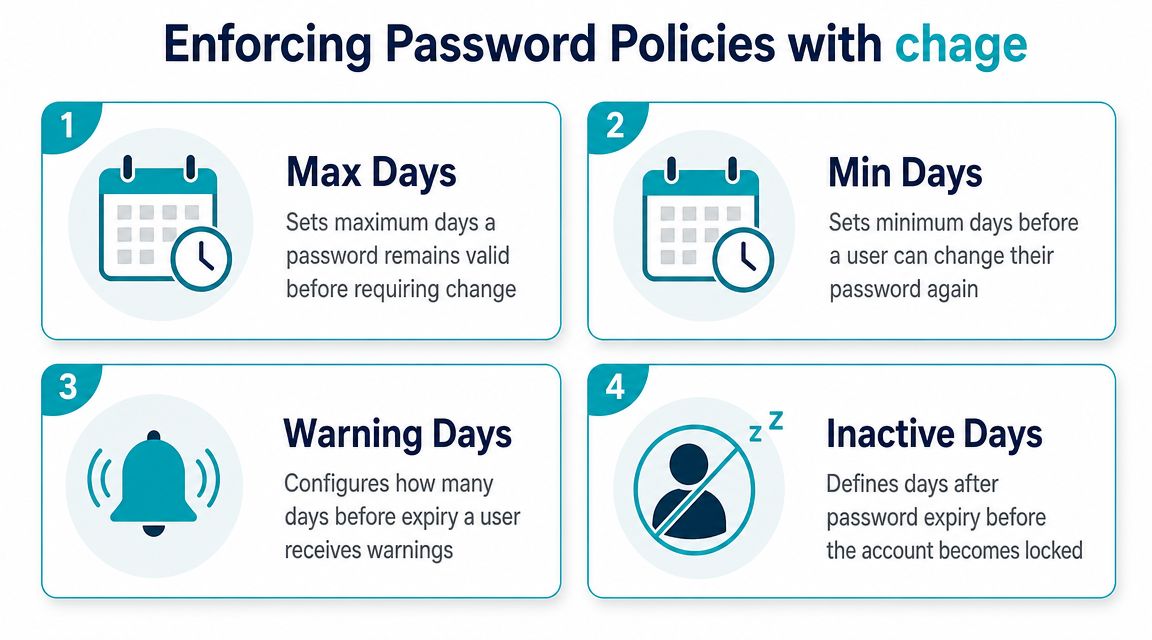
sudo chage -M 90 alice
sudo chage -m 1 alice
sudo chage -W 7 alice
sudo chage -I 14 alice
These set maximum password age, minimum days between changes, warning days before expiry, and inactivity days after expiry.
To review current settings:
sudo chage -l alice
That gives you a readable summary and helps verify that policy changes landed as expected.
When policy beats ad hoc changes
chage is better than repeated manual resets in several common cases:
- New user onboarding: Set consistent aging rules at account creation.
- Temporary staff access: Put an expiration boundary around short-term accounts.
- Compliance-driven operations: Show that password lifecycle settings are deliberate rather than improvised.
- Server fleets: Apply a standard that's easy to audit.
For contractor or project-based access, account expiration is especially useful:
sudo chage -E 2026-12-31 contractor1
That sets a hard account expiration date. It's cleaner than relying on someone to remember manual cleanup later.
Don't confuse expiry with removal
A lot of account mistakes happen because admins blur the meaning of password actions. The distinction between expiring a password and deleting it is critical. passwd -e forces a password change on next login, while passwd -d removes the password and creates a passwordless account. That difference has direct security consequences during offboarding and incident handling, as noted in the Linux hardening walkthrough on secure passwd usage.
A disabled user workflow should be intentional. Expire credentials when you need rotation. Lock access when you need containment. Don't delete a password unless you fully understand the authentication paths that remain.
That's also why password policy can't live alone. If you're reviewing account controls seriously, pair chage with a broader hardening checklist. ARPHost's server hardening checklist is a practical starting point for tying local account policy to SSH, patching, and general host security.
A solid production baseline
If I were setting a simple, maintainable standard for a hosted Linux environment, I'd want:
- A minimum interval between changes so users can't cycle through values instantly.
- A maximum age so long-lived credentials don't persist indefinitely.
- A warning period that gives time to rotate without service disruption.
- An inactivity window that locks stale accounts after expiry.
That creates predictable behavior. Predictability matters more than cleverness when you're managing access on production systems.
Securely Generating Hashes for Scripts and Provisioning
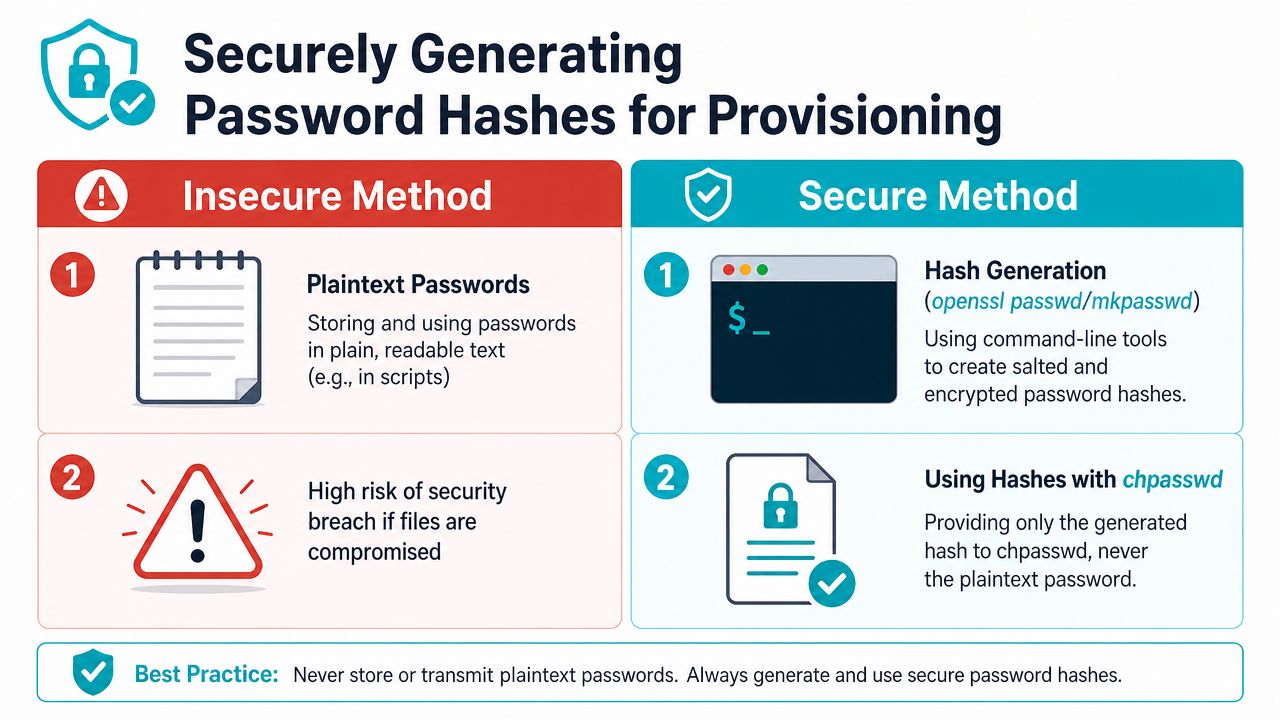
If you automate user creation or password updates, plaintext credentials are the weak link. The professional answer is to stop feeding raw passwords into scripts whenever you can and move to hashed inputs instead.
That doesn't make every workflow magically safe, but it removes one of the easiest ways for secrets to leak during provisioning.
Why hashes are the better automation boundary
Some platforms expose password-hash inputs specifically to avoid command-line plaintext handling. Check Point's set expert password documentation supports a password_hash input, notes that the password isn't visible in terminal history, and recommends generating hashes with standard Linux tools. It also warns that hash format compatibility can differ between systems, which is why the safer method is to generate the hash on a trusted admin host, transfer only the hash string into the provisioning workflow, and test with a non-production account first, according to the Check Point CLI reference for hashed password handling.
That's the right model for Linux automation in general.
A practical workflow
On a trusted admin system, generate a hash with a local utility appropriate for your environment. Then place only the hash into your automation pipeline.
A provisioning flow might look like this conceptually:
- Generate the hash on an admin workstation
- Store only the hash in the secure deployment input
- Use tooling that accepts encrypted or hashed password values
- Validate on a test account before broad rollout
The point isn't the specific utility name. The point is the security boundary. Your script should know the hash, not the plaintext.
Field note: Hash-based automation is repeatable and easier to control than plaintext-based automation, but portability isn't guaranteed. Always test against the target distro or appliance before pushing the same hash workflow across multiple platforms.
What this changes operationally
Using hashes improves several things at once:
- Less plaintext exposure: Fewer places where a human-readable password can leak.
- Cleaner automation: Provisioning logic becomes more repeatable.
- Lower command-line risk: You avoid the worst habit of all, which is passing secrets directly as arguments.
- Better separation of duties: One system can generate secrets while another consumes only derived values.
It doesn't solve every policy question. You still need sane account aging, SSH restrictions where applicable, and a process for forced rotation after initial provisioning. Broader end-user guidance like SES Computers' password advice can help frame the usability side, but on servers the main issue is still operational handling, not just how often someone changes a password.
Where admins still slip
The usual mistakes are predictable:
| Bad pattern | Better pattern |
|---|---|
| Put plaintext password in script | Generate hash on trusted admin host |
| Reuse the same provisioning secret | Create per-account values and rotate deliberately |
| Assume one hash works everywhere | Test for format compatibility first |
| Skip validation | Trial on a non-production user |
If your provisioning model still depends on readable passwords inside deployment files, you've built convenience ahead of security. That's fine in a lab. It's not fine on business systems.
Why ARPHost Excels at Secure Server Management
Good password hygiene depends on more than command knowledge. It depends on where those commands run, how consistently policies are applied, and whether the infrastructure around them supports disciplined operations.
On a single VPS, that usually means having root control, predictable access patterns, and enough visibility to audit local accounts properly. In a private cloud or multi-node environment, the challenge shifts toward consistency. Password aging, account expiration, offboarding steps, and provisioning practices need to work the same way every time or they start to drift.
That's where infrastructure choice matters. A business running Linux workloads across virtual machines, dedicated servers, or clustered environments needs a platform that supports standardization without taking away administrative control. ARPHost, LLC offers that range through VPS hosting, bare metal servers, Proxmox private clouds, colocation, and fully managed IT services, which makes it a practical option when you need either direct root-level administration or a provider-managed operational layer.
What that means in practice
A hosted environment supports password operations well when it gives you:
- Root-level control where needed: So
passwd,chage, account locking, and SSH policy can be managed directly. - Stable provisioning paths: So automation scripts and account templates don't become one-off workarounds.
- Managed support when required: So user lifecycle enforcement, patching, and monitoring don't depend on one internal admin being available at the right moment.
- Room to grow: So the same credential policies can move from one server to a fleet without being rewritten from scratch.
The business benefit of doing this right
Poor password operations don't usually fail loudly at first. They fail subtly through leftover accounts, weak onboarding habits, and scripts that expose credentials in places no one checked. The fix is disciplined process backed by infrastructure that doesn't fight you.
If you're running everything yourself, the commands in this guide give you a solid operational baseline. If you need help applying those controls across hosted systems, the right provider should make that standardization easier, not more opaque.
If you need infrastructure where these Linux account controls can be applied cleanly, ARPHost, LLC provides VPS hosting, bare metal servers, private cloud options, colocation, instant applications, and fully managed IT services for teams that want either direct root control or operational help with server security and administration.