

Let's be honest: setting up the Windows Time service (NTP Windows Server) is one of those things that’s easy to overlook. You set up a domain, get the servers running, and figure time will just… work. But in any serious IT environment, accurate time isn't just a nice-to-have; it's the glue holding your entire network together.
Get it wrong, and you're in for a world of pain. We're talking about strange, hard-to-diagnose problems that can bring your operations to a screeching halt.
Why Accurate Time on Your Windows Server Is Non-Negotiable
Time drift isn't a minor annoyance. Even a few minutes of skew between servers can cause a domino effect of failures across your infrastructure.
The most immediate and painful consequence hits Active Directory. The Kerberos authentication protocol, which is the gatekeeper for network access, uses timestamps to thwart replay attacks. If a user's machine is more than five minutes out of sync with the domain controller (the default), authentication simply fails. Suddenly, users are locked out of everything—applications, file shares, you name it.
The Business Impact of Time Skew
Beyond just logging in, inaccurate time completely messes with your data's integrity. Think about it: how can you possibly reconstruct a security breach or a system crash when your event logs show conflicting timestamps? Your timeline of events becomes useless.
This problem snakes its way into every part of your business operations:
- Transaction Logs: In financial or e-commerce systems, precise timestamps are everything. They're what make transactions auditable and reliable.
- Scheduled Tasks: Your automated jobs, from nightly backups to critical report generation, can either fail to run or execute in the wrong order if the server's clock is off.
- File Replication: Technologies like Distributed File System (DFS) rely on timestamps to figure out which file is the newest version during replication. Inaccurate time leads to sync conflicts and potential data loss.
Understanding the Windows Time Service (W2Time)
The service at the heart of all this is the Windows Time service, also known as W32Time. In an Active Directory domain, it cleverly creates a time hierarchy for you. By default, all your workstations and member servers sync up with a domain controller. Those domain controllers then look to the server holding the PDC Emulator FSMO role, which acts as the master clock for the entire domain.
It’s a neat system, but it also means everything hinges on that one PDC Emulator. If it isn't configured to get time from a reliable external source, your whole network could be drifting together into inaccuracy. That's why best practice is to point your PDC Emulator to a trusted external NTP source, like the public pool.ntp.org servers. This anchors your entire domain to a globally recognized time standard.
Now, let's talk about the components that make this all work. Understanding these roles is key to troubleshooting when things go wrong.
Here's a quick breakdown of the core concepts you'll be working with:
| Component/Role | Description | Importance in Your Network |
|---|---|---|
| NTP Client | A machine configured to request time from an NTP server. In a domain, this is the default for most computers. | Keeps your workstations and member servers in sync with the domain controllers, preventing authentication and application errors. |
| NTP Server | A machine that provides time information to NTP clients. Domain controllers automatically function as NTP servers. | Acts as the internal time source for your network, ensuring all devices share a consistent clock. |
| PDC Emulator Role | The Domain Controller with the Primary Domain Controller (PDC) Emulator FSMO role. | The top of the internal time hierarchy. This is the authoritative time source for the entire Active Directory domain. |
| External NTP Source | A highly accurate, public time server (e.g., pool.ntp.org). | Anchors your entire network to a globally recognized standard. The PDC Emulator should always sync from one or more of these. |
| Time Hierarchy | The layered structure where clients sync from local servers, which in turn sync from more authoritative servers. | Creates a logical and efficient flow of time data, reducing external traffic and ensuring internal consistency. |
| W32Time Service | The Windows service (w32time.exe) that manages the entire time synchronization process on a Windows machine. | This is the engine that does all the work. If this service isn't running or is misconfigured, time sync will fail. |
Think of it like a chain of command: your PDC Emulator gets the "orders" from an external source, the other domain controllers follow the PDC's lead, and all the clients and servers fall in line behind them.
For a long time, sysadmins were rightfully skeptical about the precision of W32Time, especially for environments needing high accuracy. But that changed with Windows Server 2016. Microsoft rolled out significant improvements, making the NTP implementation much more robust. The update frequency increased, and clients could poll sources more often, slashing time drift to as little as 5 milliseconds. It also scaled way better, allowing domain controllers to serve hundreds of NTP requests per second. You can dig into the specifics in Microsoft's official documentation on Windows Server 2016 time service improvements.
At ARPHost, we know that getting these foundational details right is crucial. Whether you're running an application on a secure web hosting bundle or managing a complex environment on our Bare Metal Servers, our managed services ensure that critical configurations like NTP are handled correctly from the start. It’s about preventing problems before they ever have a chance to affect your business.
Configuring Your Authoritative Time Server with External Sources
A stable time hierarchy starts right at the top. For any Windows Server environment, this means getting your authoritative time server—usually the one holding the Primary Domain Controller (PDC) Emulator role—to sync up with reliable, external NTP sources. This one move anchors your entire Active Directory domain to an accurate global standard, stopping the slow, collective time drift that causes so many headaches down the line.
The main tool for this job is the built-in w32tm command-line utility. It might look a bit intimidating at first, but it gives you precise control over the Windows Time service. The goal here is simple: tell your PDC Emulator to stop looking at its own internal clock and instead turn to trusted public NTP servers.
Setting Up External NTP Peers
First thing's first, you need to define your external time sources. It's a critical best practice to use more than one source. Seriously, don't skip this. If one NTP server goes offline or just becomes unreachable, your server will automatically fail over to another, keeping your time sync uninterrupted.
A go-to choice for most of us is the pool.ntp.org project. It gives you access to a huge collection of public time servers, and you can even get specific with regional pools like us.pool.ntp.org or europe.pool.ntp.org to cut down on network latency.
Let's get your server configured to use a list of these peers. Fire up an elevated Command Prompt or PowerShell on your PDC Emulator and run this command:
w32tm /config /manualpeerlist:"0.pool.ntp.org,0x1 1.pool.ntp.org,0x1 2.pool.ntp.org,0x1 3.pool.ntp.org,0x1" /syncfromflags:manual /reliable:yes /update
That one command is doing a lot of heavy lifting. Here’s the breakdown:
- /manualpeerlist: This is where you feed it your external NTP servers in a space-separated list.
- ,0x1: This little flag on each server is a common trick. It forces the Windows Time service to use a specific, fixed polling interval instead of trying to dynamically adjust it, leading to more frequent and reliable checks.
- /syncfromflags:manual: This tells the service to only use the servers you just specified in your manual list.
- /reliable:yes: This is the crucial flag. It makes your server announce itself to the rest of the domain as a trustworthy time source. Other clients and DCs will then prioritize syncing with it.
- /update: This applies all your new settings to the Windows Time service.
Pro Tip: After running that command, I always recommend restarting the Windows Time service just to make sure the new settings are loaded cleanly. Just run
net stop w32timeand thennet start w32time.
This diagram shows exactly how a proper time sync should flow through an Active Directory environment.
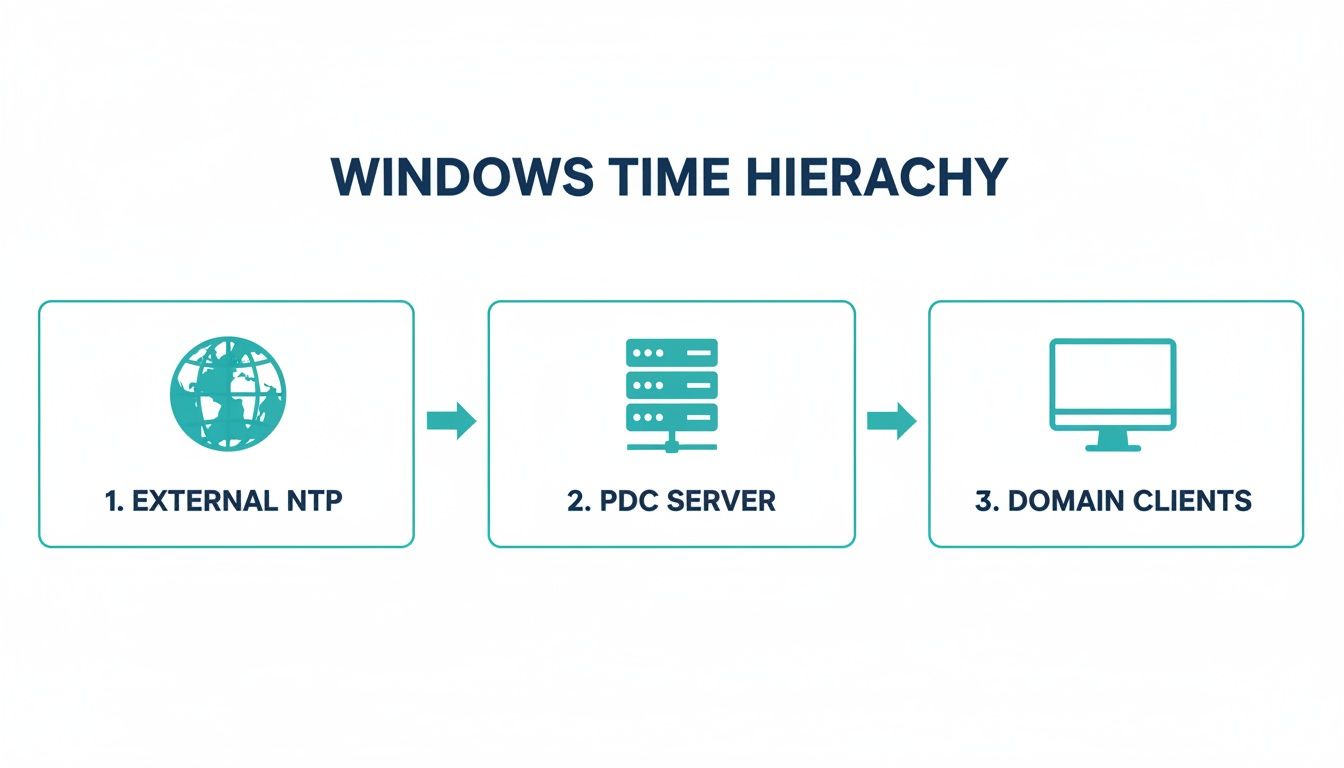
As you can see, the external source is the ultimate authority, feeding accurate time down the hierarchy to every single machine on your network.
Verifying Configuration and Firewall Rules
Okay, you've applied the configuration. Before you celebrate, you have to make sure it's actually working. A common roadblock I see all the time is the firewall. NTP traffic uses UDP port 123, and your network's edge firewall must allow outbound traffic on this port from your PDC Emulator to the internet. If that port is blocked, your sync attempts are going nowhere.
For organizations using ARPHost's managed IT services, this is something we handle proactively. Our team ensures critical services like NTP can communicate correctly, securing your infrastructure whether it's on our high-performance Bare Metal Servers or inside a Dedicated Proxmox Private Cloud. It takes the guesswork out of the equation.
Once you’re sure the firewall rules are correct, you can check the sync status right from the command line:
w32tm /query /status
In the output, look for the "Source" line. It should now show one of the pool.ntp.org servers you configured. If it does, congratulations—your server is now successfully pulling time from an external source and serving as the authoritative clock for your entire domain.
Automating NTP Configuration Across Your Domain with Group Policy
Let's be real—manually configuring time settings on every machine is a surefire way to create inconsistencies and burn through valuable admin hours. The true power of a Windows domain lies in automation, and for time sync, Group Policy Objects (GPOs) are your best friend. With a GPO, you can set a uniform NTP Windows Server configuration once and have it enforced across your entire network.
Think of it as "set it and forget it." When a new machine joins the domain, it automatically grabs and applies the correct time settings. This is true whether it's a new desktop in the office or a VM spun up on an ARPHost Proxmox private cloud. The result? No more configuration drift and a whole lot less manual work.
Navigating to the Windows Time Service GPO Settings
First things first, fire up the Group Policy Management console. You can either create a new GPO from scratch or edit an existing one that targets the computers you want to manage.
Once you’re editing your GPO, you'll have to dig a bit to find the time service settings. The path you're looking for is:
Computer Configuration > Administrative Templates > System > Windows Time Service > Time Providers
In that folder, you'll see three policies that are critical for getting this right:
- Enable Windows NTP Client
- Configure Windows NTP Client
- Enable Windows NTP Server
Let's break down how to configure each one for a typical domain environment.
Defining Your Internal NTP Hierarchy
First up, enable the "Enable Windows NTP Client" policy. This is a simple but important step. It explicitly turns on the W32Time client service. While it’s usually on by default, enforcing it with a GPO guarantees it stays that way.
Next comes the most crucial part: the "Configure Windows NTP Client" policy. This is where you tell your domain-joined machines where to look for the correct time.
Key Insight: While domain clients can automatically find a domain controller using the
NT5DSmode, explicitly pointing them to your PDC Emulator offers more direct control and predictability. It’s the difference between letting them find any time source versus telling them to sync with the authoritative one.
Enable this policy. In the settings window, you'll see a field for NtpServer. For every machine except your PDC Emulator, you'll want to enter the FQDN of your PDC, followed by the ,0x9 flag (for example, pdc.yourdomain.local,0x9).
Then, you'll set the Type to NTP. This is where the magic happens. You have two main choices for the Type dropdown:
- NTP (Network Time Protocol): This forces the client to use the specific server you listed in the
NtpServerfield. We use this to point clients directly at the PDC and to point the PDC at external sources. - NT5DS (Windows Domain Service): This tells the client to use the Active Directory hierarchy to find a domain controller in its local site. This is the default behavior and often works fine, but the explicit NTP method is more robust.
Finally, enable the "Enable Windows NTP Server" policy. You'll apply this to your domain controllers. This policy is straightforward—it just tells the W32Time service to listen for and respond to time requests from clients on your network.
Getting your domain controllers configured correctly is foundational. For a deeper dive into that initial setup, check out our guide on Active Directory installation and configuration. This is exactly the kind of core infrastructure that ARPHost's fully managed IT services build and maintain, ensuring your network is solid from the ground up.
Mastering W32tm Command-Line Utilities for Diagnosis and Control
Once your time sources are configured and your Group Policies are humming along, it's time to get your hands dirty with the command line. Meet w32tm—your go-to utility for everything related to the Windows Time service. This is the tool I pull out to confirm an NTP Windows Server setup is actually working, hunt down sync issues, and give things a manual nudge when needed.

Think of it like this: GPOs set the rules for the whole domain, but w32tm is what you use for a spot-check on an individual server. It's absolutely essential when you're trying to figure out why an application on your VPS hosting plan is acting up or making sure a virtual PBX phone system has perfectly aligned timestamps for its call logs.
Checking the Current Sync Status
The first command every admin should have in their back pocket is w32tm /query /status. It’s the quickest way to get a full health report of the time service on any given machine.
This command spits out a ton of useful info, but here’s what you really need to watch for:
- Stratum: This tells you how many hops the server is from a primary reference clock. If your PDC is syncing with a public Stratum 1 source, it should report as Stratum 2.
- Source: This is the big one. It tells you exactly which NTP server you're currently synchronized with.
- Last Successful Sync Time: Just what it sounds like. If this date is old, you’ve got a problem.
Here’s what a healthy output looks like on a domain controller that's doing its job:
Leap Indicator: 0(no warning)
Stratum: 2 (secondary reference - syncd by (S)NTP)
Precision: -23 (119.209ns per tick)
Root Delay: 0.0312520s
Root Dispersion: 0.0143871s
ReferenceId: 0x56494253 (source IP: 86.73.66.83)
Last Successful Sync Time: 3/15/2024 10:30:15 AM
Source: 1.pool.ntp.org
Poll Interval: 10 (1024s)
Pay close attention to that Source line. If you see "Local CMOS Clock," red flags should go up immediately. It means the server has given up on its configured peers and is relying on its own internal hardware clock—which is a guaranteed path to time drift.
Visualizing Time Offset with Stripchart
For a live, moving picture of your time sync, w32tm /stripchart is an awesome diagnostic tool. It gives you a simple, text-based graph showing the time difference between your server and any other NTP source in real-time. It’s perfect for spotting network latency spikes or a clock that's consistently drifting.
Just point it at the server you want to check against:
w32tm /stripchart /computer:2.pool.ntp.org
The output will keep updating, showing the offset in seconds. On a good day, you'll see a tiny, stable number like +00.001s. If you're seeing wild swings or the dreaded error: 0x80072746, it's almost always a network or firewall issue blocking communication.
I’ve seen this countless times, especially on unmanaged servers in certain hosting environments. You’ll pull your hair out trying to fix sync issues, only to find a stubborn registry key is blocking all NTP communication, leading to those frustrating 'Request timed out' errors in
stripchart. It’s a classic example of why proactive management is key, and it's a standard practice in ARPHost’s fully managed IT services. You can get some deeper insights into Windows Server time sync challenges and how to fix them.
To help you get started, I've put together a quick-reference table of the w32tm commands I use most often.
Essential W32tm Command Comparison
This table breaks down the most useful w32tm commands you'll need for everyday diagnostics and configuration. Keep it handy!
| Command | Purpose | When to Use It |
|---|---|---|
w32tm /query /status | Gives you a detailed snapshot of the current time service status. | Your first step for a quick health check on any server. |
w32tm /query /peers | Shows all configured NTP peers and whether they are active or pending. | When you need to see which sources are configured and if they're reachable. |
w32tm /stripchart /computer:<peer> | Displays a live, text-based graph of the time offset against a peer. | To diagnose network latency or see how much a server's clock is drifting. |
w32tm /resync /rediscover | Forces the server to immediately resync with its configured time source. | After you've made a config change or need to fix a significant time skew fast. |
w32tm /config /update | Tells the time service to read and apply any pending changes from the registry. | Right after running other /config commands or editing GPOs to make them stick. |
Learning to wield these commands moves you from just setting policies to actively managing your network's time integrity.
When a problem pops up, you'll be able to jump in and find the root cause instead of just guessing. Whether you're running a small e-commerce site on secure web hosting bundles or managing a large-scale dedicated Proxmox private cloud, this kind of hands-on control is what keeps your environment stable and secure.
Of course, if you'd rather not live in the command line, ARPHost's managed services team has the expertise to keep your entire infrastructure perfectly tuned. Request a managed services quote at https://arphost.com/managed-services/ to let us handle the complex stuff like NTP monitoring for you.
Troubleshooting Common NTP Windows Server Errors
When time sync goes sideways on a Windows Server, things get messy fast. Applications start crashing, Kerberos authentication breaks, and your event logs become a jumble of useless, out-of-order entries. It's a sysadmin's nightmare.

Even with what looks like a perfect configuration, you can still run into unreachable peers, a time service that refuses to start, or that frustrating, slow time drift. Let's walk through how to diagnose and fix these all-too-common problems.
Diagnosing the "Peer is Unreachable" Error
This is probably the most frequent error you'll see. You run w32tm /query /peers and find your configured time source is "unreachable." The first place I always look is the firewall.
NTP absolutely needs UDP port 123 to function. You have to make sure outbound traffic on this port is allowed, not just on the server's local Windows Firewall but also on your network's edge firewall. Network admins often block this by default, so it's a quick and easy thing to check first.
If the port is open, the next suspect is DNS. Can your server actually resolve the NTP peer's hostname, like 0.pool.ntp.org? A quick nslookup or even a ping will tell you. If it fails, you've got a DNS issue to sort out on your server or network.
Expert Insight: If you're running in a virtual environment, your hypervisor might be fighting you. On platforms like Proxmox VE or VMware, it is critical to disable host-to-guest time synchronization for your PDC Emulator. If you don't, the VM gets time from two sources—the hypervisor and your external NTP peer—creating a constant tug-of-war that causes unpredictable time jumps. On ARPHost's Dedicated Proxmox Private Cloud environments, we disable host-to-guest sync by default on authoritative servers to ensure a clean, reliable time hierarchy.
When the Windows Time Service Fails to Start
Sometimes, the problem is much simpler: the W32Time service just won't start. You might see Event ID 7024 in the System log, which is a generic "service-specific error" that isn't very helpful on its own.
This usually points to a corrupted service state or a bad registry key. The quickest fix I've found is to just rip it out and start fresh. Open an elevated Command Prompt and run this sequence:
net stop w32time
w32tm /unregister
w32tm /register
net start w32time
This completely resets the time service to its default state. Just remember, you'll need to re-apply your custom NTP configuration afterward. In complex environments, having the right tools to spot these issues is a game-changer. ARPHost uses a whole suite of server performance monitoring tools to catch and fix these problems before they escalate.
Tackling Persistent Time Drift
The most maddening issue is a server that slowly drifts out of sync, even when it looks like everything is configured correctly. This almost always happens because the server has given up on its external peers and fallen back to its own internal clock.
You can confirm this by running w32tm /query /status and looking at the Source line. If it says "Local CMOS Clock," you know it's not talking to your NTP source. This brings you right back to the first troubleshooting step: check your firewall and DNS again. Something is blocking communication.
Once you've confirmed the network path is clear, you can give the service a hard kick by forcing a full resync. This command tells the server to dump its current time data and immediately find its peers again.
w32tm /resync /rediscover
Running this after fixing a network issue almost always gets synchronization going again. For businesses running on ARPHost's managed VPS hosting, these troubleshooting steps are second nature to our 24/7 support team. We handle these NTP quirks proactively, ensuring your servers stay stable and reliable without you ever having to see an error.
How Managed Hosting Simplifies NTP and Server Stability
Keeping your server environment in perfect time sync is one of those thankless jobs—nobody notices until it breaks. Manually wrestling with an NTP Windows Server configuration can quickly turn into a time sink, with your IT staff digging through firewall rules, obscure registry keys, and chasing elusive sync errors that throw everything from Kerberos authentication to database transactions out of whack.
When you hand off this complexity to an expert team, you're not just buying a service; you're buying stability. It’s a fundamental shift from a reactive, break-fix mindset to a proactive one where problems are simply prevented from happening in the first place.
The ARPHost Managed Advantage
Our managed services for VPS hosting and bare metal servers come with proactive monitoring baked in, and that includes critical services like NTP. We make sure time accuracy is locked down across your entire server fleet, giving your applications the solid foundation they need. For more intensive workloads that demand dedicated resources and granular control, it's also worth looking into the advantages of Dedicated Server Hosting.
Why ARPHost Excels Here: For businesses running on our dedicated Proxmox private clouds, we ensure the underlying hypervisor cluster and all guest VMs maintain perfectly synchronized time. This isn't just a nice-to-have; it's absolutely critical for high-availability and live migrations, where even a slight time drift can corrupt data or cause a VM to fail during a node switch. Our team handles these critical settings as part of our managed private cloud offerings, which start at just $299/month.
Ultimately, a managed solution gives your team its most valuable resource back: time. Instead of putting out fires, they can focus on innovation and deploying new services, confident that the foundational infrastructure is not just running, but actively managed for peak performance and reliability. You get peace of mind and a far more resilient network.
Want to reclaim your team’s time and stop worrying about infrastructure? See how our fully managed IT services for small businesses can stabilize your environment and help you focus on growth.
Frequently Asked Questions About NTP on Windows Server
Even the best-laid plans run into snags. When you're managing a service as sensitive as time synchronization, a few common questions always pop up. Let's get them answered so you can keep your network ticking perfectly.
Which External NTP Source Should I Use?
Stick with the gold standard: pool.ntp.org. Never, ever point your entire domain to a single, hardcoded IP address. It’s a recipe for disaster.
The pool.ntp.org project gives you a massive, redundant collection of public servers. For even better performance, narrow it down to your region—think us.pool.ntp.org for the United States or europe.pool.ntp.org for Europe. A solid setup will point to at least 3-4 different servers from the pool. This ensures that if one server goes offline, your time sync won't even hiccup.
Can I Use NTP on a Non-Domain-Joined Server?
You absolutely can. For any standalone server that isn't part of an Active Directory domain, you'll just treat it like your PDC emulator. Configure it as a standard NTP client pointing directly to your chosen external sources.
The same w32tm commands you'd use to set up the manual peer list on a PDC apply here. It will act as a client out-of-the-box, but you can easily configure it to serve time to other non-domain devices, which is a common setup for isolated networks we manage in ARPHost's colocation services.
How Can I Verify My NTP Configuration?
The quickest way to see if your configuration is working is to pop open a command prompt and run w32tm /query /status. This command is your go-to reality check. It tells you which source you're actually synced with, the time of the last successful sync, and your server's stratum level.
If you want to see the magic happen in real time, use the w32tm /stripchart /computer:ntp_peer_address command. This gives you a live feed of the time offset between your server and its peer, which is incredibly useful for troubleshooting drift.
The global NTP Server market, which underpins all this critical Windows Server timekeeping, was valued at USD 163.19 million in 2024 and is on track to hit USD 258.14 million by 2032. This just goes to show how vital reliable time sync is. You can dig into more data on the NTP server market's growth and trends.
At ARPHost, we engineer resilient infrastructure so you can stop worrying about the nuts and bolts. Our experts live and breathe server configuration, from NTP sync to security hardening, so you can focus on what matters.
Get started with our high-performance VPS hosting plans from just $5.99/month at https://arphost.com/vps-hosting/