

The surprising part about managed VPS with cPanel is that the panel itself is often the easy part. The hard part is the operational contract behind it, who patches the node, who owns the application stack, and who gets paged when a plugin starts chewing through mail, memory, or entry processes. If you buy it as a SKU and not as an operating model, you'll miss the cost drift, the RAM floor, and the patch window that decide whether the server runs cleanly.
A managed VPS with cPanel is a control-plane layer on top of rented infrastructure, not a promise that every problem is outsourced. That distinction matters the first time a site slows down at 2 a.m, a backup restore is needed, or a cPanel update lands while your traffic is still live.
Table of Contents
- What Managed VPS With cPanel Actually Means
- Real Costs, RAM Baselines, and Performance Sizing
- What Your Provider Handles Versus What You Still Own
- Reading Resource Usage the Way cPanel Surfaces It
- Verifying Backups and Restores Before You Sign
- Security Is Patch Timing, Not Feature Counts
- Choosing a Provider With a Checklist That Holds Up
What Managed VPS With cPanel Actually Means
A managed VPS with cPanel is usually a virtual machine on KVM or Hyper-V, running a Linux distribution such as CentOS Stream, AlmaLinux, Rocky, or Ubuntu LTS, with cPanel/WHM providing the administrative interface. The hosting provider owns the physical node, network, hypervisor, hardware replacement, base OS hardening, and the maintenance that happens below WHM. You own the layer above that boundary, including cPanel accounts, websites, application code, databases, DNS records, email authentication, and account-level access control.
That split is the whole story. Managed doesn't mean you stop caring about the server, it means you stop caring about the infrastructure layer below the control panel. If you're coming from self-managed VPS hosting, you're giving up kernel patching, firewall tuning, and the “fix it yourself at shell prompt” routine. If you're coming from shared hosting, you're gaining ownership of the runtime and the account structure, not just a login to a single website.
The practical win is that cPanel and WHM let providers package administration, email, backups, and isolation into a familiar workflow. That's why cPanel became the default mental model for agencies and resellers, even as its footprint in the wider hosting market narrowed to a more specialized role (market footprint context). The same legacy also explains why many operators still want GUI-based account control instead of raw infrastructure access, especially when they're juggling WordPress, client mailboxes, and multiple domains on one box (installed-base context).
Practical rule: If you'd blame the hypervisor, the provider owns it. If you'd open WHM or a site admin panel, you still own it.
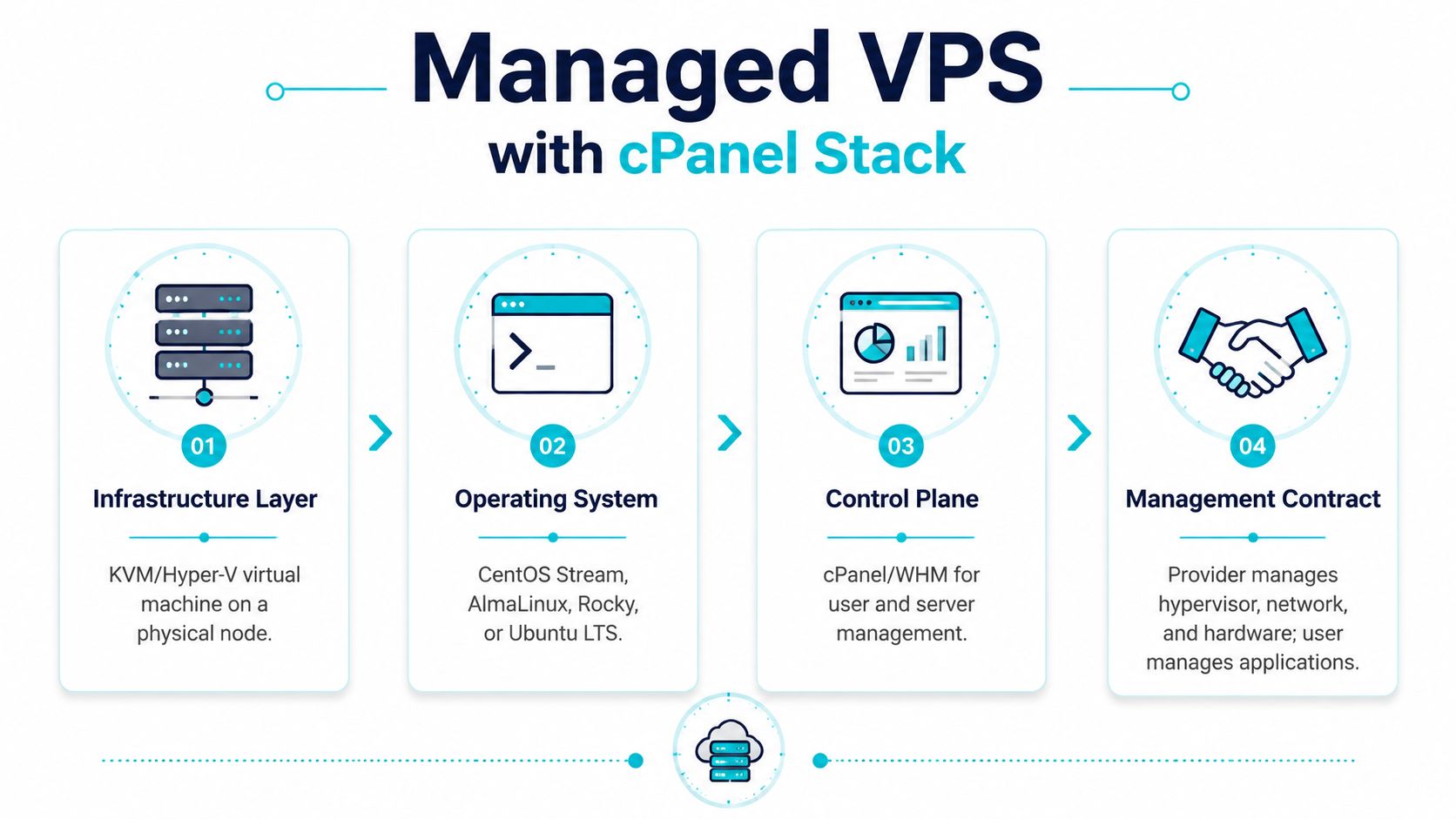
The ownership boundary is easier to remember when you draw it as four layers.
| Layer | Who Owns It | What That Usually Means |
|---|---|---|
| Infrastructure | Provider | Hardware, network, hypervisor, node health |
| Operating System | Provider | Base patching, kernel maintenance, host hardening |
| Control Plane | Shared | cPanel/WHM availability, access, upgrades |
| Applications | You | Sites, plugins, mail settings, databases, content |
For a cleaner onboarding checklist, compare your duties against managed versus unmanaged VPS hosting. That's the boundary that decides where your attention should go on day one.
Real Costs, RAM Baselines, and Performance Sizing
The biggest mistake with cPanel VPS budgeting is treating the server spec as the full bill. It isn't. The cPanel license is part of the operating cost, and 2026 pricing pressure has made that more obvious, with reported tier hikes of roughly 6% to 15% On top of that, CloudLinux or other security layers add their own overhead, and the base VPS needs enough headroom to keep panel services from crowding out the sites you're hosting.
Size for the panel first, then the workload
A 2 GB VPS can run cPanel, but that's the floor for stable operation, not the comfort zone, and it gets tight fast once mail, log rotation, and security scanning start doing background work (resource baseline). 4 GB or more is a better fit for hosting multiple sites with active mail flow. Once you're dealing with store traffic, database writes, or many concurrent PHP workers, 8 GB is where the machine starts feeling sane instead of fragile.
CPU matters as much as memory. I'd treat 4 vCPU as the minimum that keeps cPanel overhead from crowding out the application layer, especially when several sites are sharing the same worker pool. Storage does too, and the floor to watch for now is not “does it have SSD,” it's whether the provider has downgraded the stack to slower shared storage under a shiny label. For mixed workloads, latency on I/O is what usually turns a decent VPS into a complaint generator.
| Workload Tier | Sites / Accounts | RAM | vCPU | Est. Monthly (USD) |
|---|---|---|---|---|
| Light multi-site | Fewer than 10 low-traffic sites | 2 GB minimum | 2 to 4 | VPS + cPanel license + panel overhead |
| Typical production | 20 to 50 sites with mail activity | 4 GB preferred | 4 | VPS + cPanel license + security layer |
| Busy operational stack | 50+ active accounts or store traffic | 8 GB comfort zone | 4+ | VPS scaled for CPU and storage headroom |
A managed cPanel VPS is easiest to justify when the cost gets spread across multiple sites or client accounts. The per-site math still needs to include the license and the management layer, so if you're comparing options, start with VPS hosting pricing details rather than a headline server spec.
What this looks like in production is simple. A server that looks generous on paper can still feel cramped once the control panel, mailbox processes, and backup jobs all start competing with your PHP workers.
What Your Provider Handles Versus What You Still Own
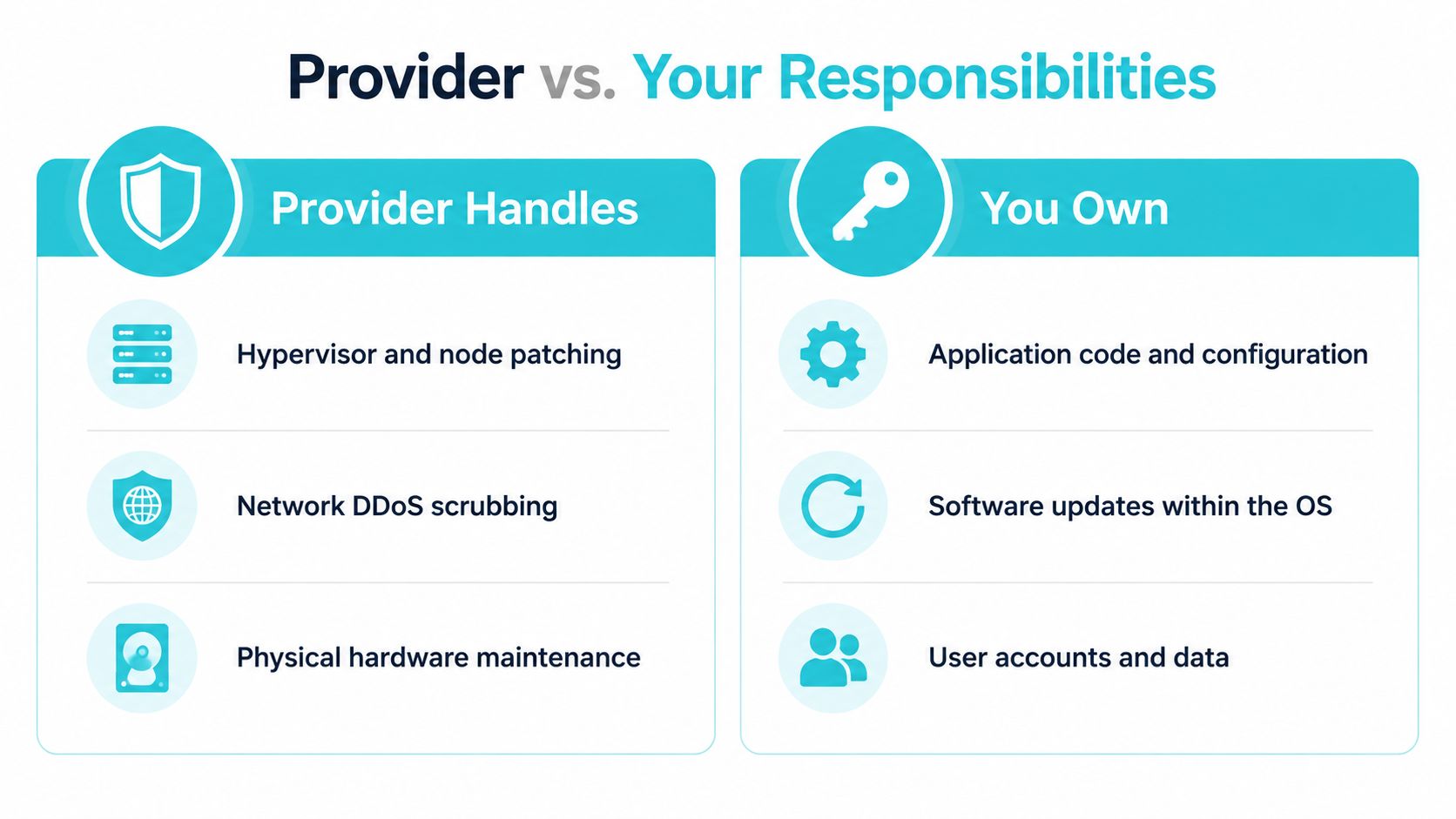
The cleanest way to think about a managed cPanel VPS is as a shared-responsibility contract with very sharp edges. The provider handles the node, the network, the physical hardware, and the operating system layer. You handle the software and data that live inside the accounts.
Provider-side work that should be explicit
The provider should be responsible for hypervisor and node patching, network DDoS scrubbing, hardware failure replacement, base OS security updates, cPanel and WHM upgrades, kernel care, initial firewall rules, and monitoring of the host itself. If that list is vague in the contract, the service is probably vaguer than it should be. The operational value comes from taking the noisy infrastructure tasks off your plate.
Customer-side work that still causes incidents
You still own WordPress core, plugin, and theme patching, website code, database performance, SPF, DKIM, DMARC, SSL renewals, DNS record accuracy, and the backup policy for the data you care about. Provider snapshots are infrastructure safety nets, not a substitute for application-aware recovery. A compromised plugin can still trigger outbound abuse, mail queue spam, or file changes that the provider can't safely guess their way through.
A managed platform can keep the server alive while the application still burns. That's normal. The mistake is assuming the provider's firewall reaches inside your plugin stack.
That distinction is why I'd read managed server support pricing before signing anything. You're not buying a vague sense of safety, you're buying a defined response surface.
A real incident usually starts with a plugin update that didn't happen, then a mail sender that starts behaving badly, then a ticket asking why port 25 got noisy. The host can isolate or rate-limit, but it can't safely rewrite your application logic for you.
Reading Resource Usage the Way cPanel Surfaces It
At 2 a.m, the wrong instinct is to stare at top and assume the biggest CPU number tells you the root cause. cPanel's Resource Usage view tells a better story, because it shows the account's limits, the hit counters, and the place where CloudLinux is throttling the user. On a managed VPS, that matters more than a raw process list.
The first thing I check is whether the account is hitting Entry Processes, I/O, or memory caps. A PHP site can look “up” in the web server and still be blocked at the account level. cPanel's metrics and performance views expose CPU usage, memory, I/O rate, entry processes, and bandwidth, and CloudLinux-based servers update those resources every five seconds (resource metrics).

Read the cap before you rewrite the app
If the site is sluggish, I start with the Resource Usage graph, then check the account's LVE limits from the command line:
lvectl limits id -u username
Expected output is the sort of thing you want to see when diagnosing a limit problem, not a mystery:
ID=12345
CPU=100%
MEM=1024M
IO=10240KB/s
EP=20
NPROC=100
Then I compare that to the account's recent activity. A slow request paired with repeated EP hits usually points at concurrency pressure, not a broken web server. If the graph shows the account pinned while the node still has headroom, the app is more likely to be the issue than the host.
After that, Process Manager can help identify whether one script or one cron job is spinning. If you're on a CloudLinux-backed cPanel build, lvestats is often the cleaner source of truth for what the account did under load. The key is not to tune Apache or LiteSpeed first. Confirm the cap type, then decide whether you're looking at code, concurrency, or plain undersizing.
A short live view helps the mental model stick.
What this looks like in production is a support ticket with “site is down,” followed by a Resource Usage graph that shows the account kept hitting its limit long before the node was stressed.
Verifying Backups and Restores Before You Sign
Backups are only real if you can restore them cleanly. In cPanel, the restore path is explicit: the backup system has to be enabled in WHM, the destination has to exist, and the archive has to be there before any restore can happen (WHM restore flow). I always test that on a trial account before trusting a new provider with anything important.
Test the full path, not just the checkbox
Start by confirming the provider can generate a backup for one account, then pull that archive off the box to a local system.
rsync -avz root@server.example:/backup/cpbackup/username.tar.gz /tmp/
If your environment uses the cPanel restore utility, the root-level command is deterministic:
/usr/local/cpanel/scripts/restorepkg /tmp/username.tar.gz
cPanel documents restorepkg as a root-only tool that restores an account from a backup file, either by full path or by username (restorepkg script). That's the right tool when WHM is unavailable or when you need a single-account recovery during an incident.
If you need to verify a single directory instead of the whole account, cPanel's file-and-directory restore flow maps public_html to /home/user/public_html and restores by path, which is the safer choice when only one application tree is damaged (file and directory restore).
Contract check: Ask for the retention window in writing, the off-node storage location, and a quarterly restore drill. If backups live on the same node, they're not backups.
The difference between theory and production shows up fast. On a multi-tenant VPS, a restore that works from a fresh archive is useful. A backup job that never leaves the host is just documentation.
Security Is Patch Timing, Not Feature Counts
Security buyers ask the wrong question when they focus on the tool list. The key question is how fast the provider applies upstream cPanel fixes after disclosure, and who decides the maintenance window. cPanel's own security posture has emphasized regular updates across cPanel, WHM, and upstream components, but that only helps when patch timing is disciplined and predictable (security messaging context).
In 2026, reporting around a critical cPanel vulnerability showed why this matters. Once active exploitation is already in the wild, a patch that lands days later is still a patch, but it's not the same as a contained event. A firewall product doesn't fix unauthenticated exposure on a service you have to keep open, and no scanner changes the fact that the node can be vulnerable until the provider updates it.
What to ask before you commit
| Capability | Unmanaged | Standard Managed | Premium Managed |
|---|---|---|---|
| Host patching | You do it | Provider does it on a schedule | Provider does it with tighter response |
| cPanel update timing | You decide | Provider decides in a window | Provider commits to faster rollout |
| Firewall tooling | You install it | Included, but not a substitute for patches | Included with active response |
| Emergency response | Ad hoc | Ticket-based | Pager or escalation path |
The best checklist questions are blunt. Ask for the patch SLA in hours, the maintenance window policy, how reboots are handled, and whether the provider uses automatic cPanel updates or manual approval. If the answers are slow or vague, the security posture is probably slow and vague too.
Firewall brands help with exposure reduction, but they're not the same as patch discipline. The risk is less about whether the panel has security features and more about whether the provider updates when the issue is still manageable.
Choosing a Provider With a Checklist That Holds Up
A good managed cPanel VPS provider makes its operating behavior measurable. A bad one wraps everything in “fully managed” and leaves you guessing. I'd score providers on support speed, backup discipline, patch lag, and what happens when a restore is needed.
Use the SLA as evidence, not marketing
A provider worth trusting should be able to name its targets clearly, not hide behind best-effort language. For core issues, I want a pager-style escalation path, a fast ticket response, and a restore target that makes sense for a VPS running real sites. If a provider can't describe its response window, its recovery window, and its patch cadence without hedging, move on.
Here's the kind of comparison that's useful during procurement.
| Criterion | Budget Tier | Mid-Market Specialist | Premium Managed |
|---|---|---|---|
| Support channels | Mostly tickets | Ticket and chat | Ticket, chat, phone, escalation |
| Monitoring depth | Node-level basics | Node and service-level | Node, service, and account awareness |
| Update lag | Longer and less predictable | Scheduled and documented | Tighter and more aggressive |
| Backup cadence | Irregular or opaque | Routine and documented | Routine with restore testing |
| Restore confidence | “Best effort” | Verified test restores | Regular drill-based validation |
Match the tier to the workload
A budget reseller-style provider fits low-risk sites where downtime is annoying but not existential. A mid-market specialist fits agencies, ecommerce operators, and MSPs that need predictable ticket handling and sane backup behavior. A premium managed provider fits shops that need tighter patching, clearer escalation, and restore discipline that's been tested under pressure.
If the provider can't show you a restore result, they're selling faith, not recovery.
One practical option in this space is ARPHost, LLC, which operates managed infrastructure and VPS services from Tampa and can fit into a broader operations plan when you need someone else to run the host layer. I'd still compare the support contract, patch windows, and restore policy the same way I would with any other provider.
For anything that's outgrowing a small in-house team, the decision often shifts from “which VPS” to “who can own the maintenance burden.” That's where managed services becomes the right conversation, not just another hosting checkout page.
If you want a managed VPS with cPanel that's sized and operated like a real production dependency, not a checkbox product, talk to ARPHost, LLC. Their team can help you map the control-plane boundary, validate backup and restore behavior, and choose infrastructure that matches the way you run servers.