You've just logged into a fresh Linux server. The web root is empty, the application user isn't set up yet, and you need a clean place for code, logs, uploads, and backups before anyone else starts deploying files into random locations.
That's where mkdir stops being a beginner command and becomes an operations tool. If you know how to make directory in Linux the right way, you build systems that are easier to secure, easier to automate, and less likely to break when someone reruns a script at 2 a.m.
Why Organized Directories Matter on Linux Servers
On a Linux server, the filesystem is your working map. If that map is messy, every routine task gets harder. Log review takes longer, backups become inconsistent, and permission mistakes spread because files land wherever the current shell happened to be.
That matters most on a new VPS or dedicated host. A web app usually needs separate places for application code, writable cache, logs, and data that survives deployments. If you don't create those locations deliberately, teams start improvising.
Structure reduces operational risk
A clean directory tree helps in a few concrete ways:
- Permissions stay predictable. It's much easier to lock down a dedicated uploads directory than to secure a mixed folder full of code and writable content.
- Backups stay sane. When app data lives in known paths, backup jobs are simpler to define and easier to verify.
- Automation works reliably. Provisioning scripts depend on paths being stable. Random ad hoc folder creation is what breaks repeatability.
- Troubleshooting gets faster. When logs, temp files, and application data each have a clear home, you don't waste time hunting.
Practical rule: Create the directory layout before you deploy the application. Don't let the app decide your filesystem structure by accident.
Linux treats directories as part of one rooted hierarchy under /. That's why path discipline matters from the start.
A common managed hosting example
If you're provisioning a server for a website, I'd usually separate at least these categories:
| Purpose | Example path | Why it helps |
|---|---|---|
| Application code | /var/www/myapp | Keeps deployable code in one place |
| Writable runtime data | /var/www/myapp/storage | Easier to permission correctly |
| Logs | /var/log/myapp | Simplifies review and rotation |
| Backups or exports | /srv/backups/myapp | Keeps operational data outside the app tree |
If you're still building your baseline, ARPHost has a useful walkthrough on setting up a Linux server that fits well with this workflow.
Creating Your First Directories with mkdir
The basic command is simple:
mkdir new_project
That creates one directory in your current working directory.
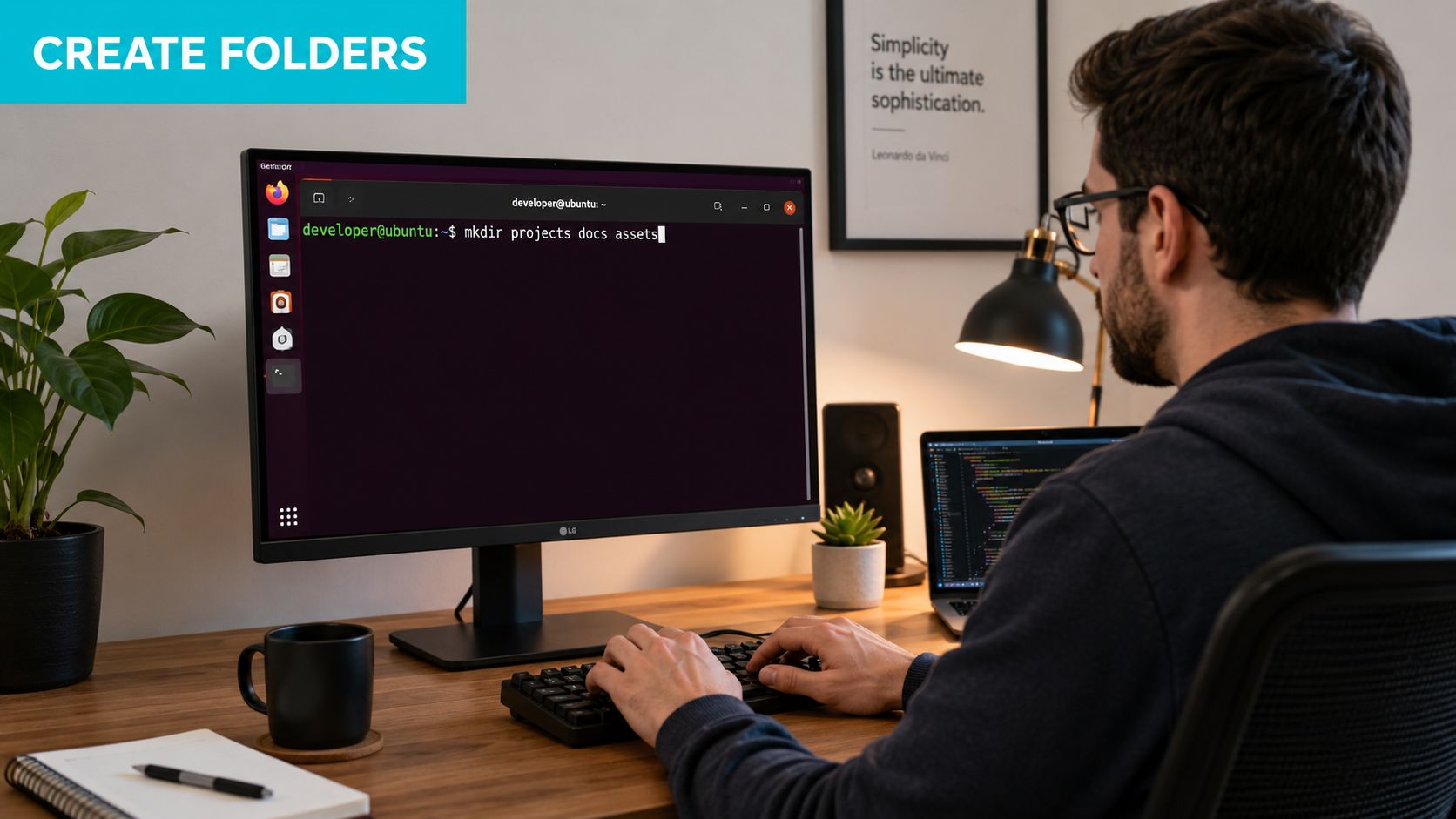
What trips people up isn't the command itself. It's where the directory gets created.
According to the Iowa State Linux guide, mkdir can use a relative path like mkdir thesis or an absolute path like mkdir /work/ccresearch/jedicker/simulation1; in both cases the directory is created at the specified location, and relative paths are resolved from the current working directory in Linux's single rooted hierarchy under /
A relative path depends on where you are. An absolute path says exactly where the directory will exist, every time.
Relative vs absolute paths
Use a relative path when you're working interactively and you know your location:
pwd
mkdir assets
mkdir logs
Use an absolute path when you care about certainty, especially in scripts:
mkdir /var/www/my-site
mkdir /opt/myapp
If you're learning how to make directory in Linux for admin work, this is one of the first habits to build. Interactive shell work tolerates assumptions. Automation doesn't.
Creating several directories at once
mkdir also accepts multiple names in one command:
mkdir public private assets
That's useful when you're building a small layout quickly inside the same parent directory.
For a cleaner project skeleton, brace expansion is faster:
mkdir project/{src,docs,tests}
That creates src, docs, and tests under project, assuming the parent already exists or is created another way.
A short walkthrough helps if you want to see the command flow in action:
What works in practice
Use these patterns depending on context:
- Interactive shell work:
mkdir notesis fine. - Application deployment:
mkdir /var/www/appnameis safer. - Multi-folder setup:
mkdir shared releases currentis concise. - Developer scaffolding:
mkdir project/{bin,conf,logs}keeps setup fast.
What doesn't work well is relying on memory about your current directory. That's how files end up under the wrong home, the wrong release folder, or the wrong user path.
Building Deep Directory Trees with mkdir -p
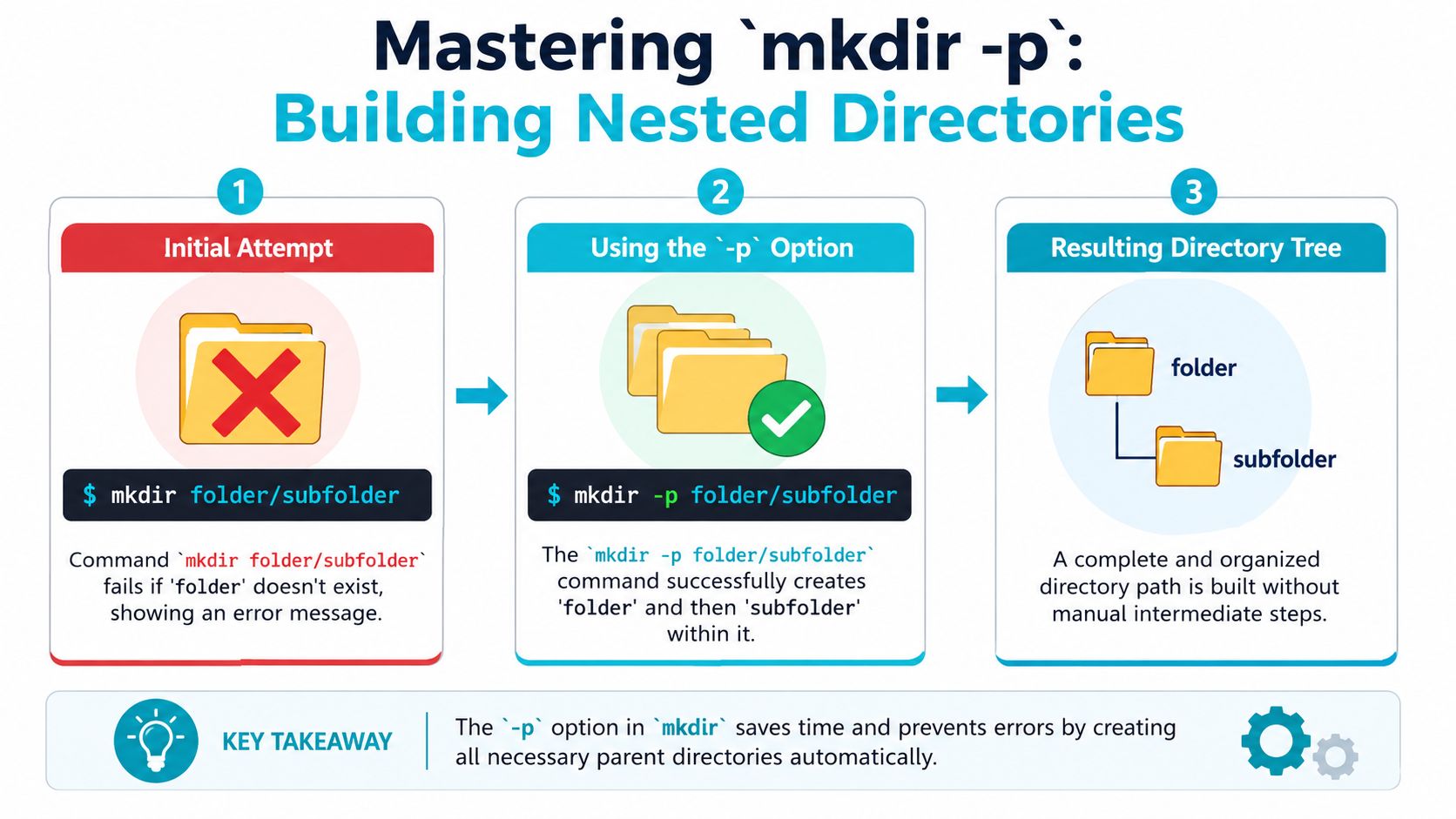
Most one-line mkdir examples are too basic for real server work. The moment you need /opt/app/releases/current/logs and the parent path doesn't exist, plain mkdir starts failing in ways that are annoying in a shell and dangerous in a script.
That's why mkdir -p is the default choice for operations work.
Why -p belongs in almost every script
The -p option tells mkdir to create parent directories as needed. It also avoids throwing an error if the directory already exists. That combination is what makes it useful in provisioning and deployment.
mkdir -p /opt/app/v1/logs
mkdir -p /srv/myapp/shared/uploads
mkdir -p /var/lib/myservice/cache
When a command can be run repeatedly without causing unnecessary failure, you get idempotency. That's one of the habits that separates a hand-built server from a manageable one.
If a setup script might run twice, write it so the second run is boring.
Better patterns for automated environments
Network World notes that mkdir -p can build complex tree structures, and combining it with brace expansion like mkdir -p app/{logs,cache,tmp} is a safe and repeatable approach for automated provisioning in CI/CD, app deployment, and disposable environments (Network World on directory structures).
That makes commands like these practical:
mkdir -p app/{logs,cache,tmp}
mkdir -p /srv/releases/{incoming,current,archive}
mkdir -p /var/www/site/{public,shared,storage}
Where this matters most
On virtual machines, containers, and short-lived build environments, you don't want setup logic that depends on manual prep. Use mkdir -p when:
- Deploying application releases: create release, shared, and temp paths in one pass.
- Preparing mounted storage: make target mount directories before attaching storage.
- Bootstrapping containers: ensure writable directories exist before the app starts.
- Rerunning failed automation: avoid brittle scripts that stop because a folder already exists.
Plain mkdir still has a place for one-off shell work. For managed environments, scripted deployments, or team handoffs, mkdir -p is the safer standard.
Securing Directories with Permissions and Ownership
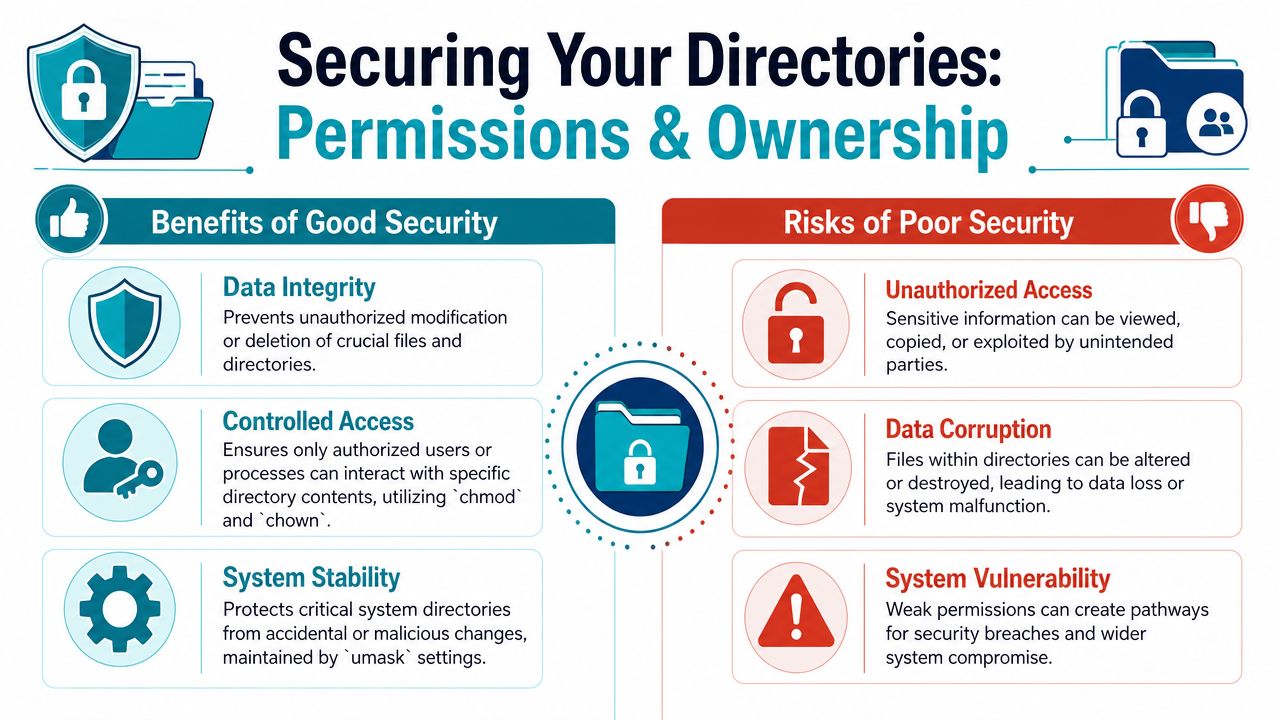
Creating the folder is only the first half. The next question is who can enter it, write to it, and inherit control over the files inside it.
That's where junior admins often make a mistake. They create the directory first, then fix permissions later. On a single-user lab box, that's usually survivable. On a shared Linux server, it's sloppy.
Set mode at creation time
A better pattern is:
mkdir -m 755 /srv/www/app
Red Hat and IBM document mkdir -m MODE path as an effective way to set directory permissions at creation time rather than relying on the current umask, with examples such as mkdir -m 755 /home/demo/sub1/Test (Red Hat on creating and deleting directories).
That matters because umask changes what default permissions get applied when a new directory is created. If you assume the system default is what you want, you'll eventually get surprised.
A quick comparison:
| Method | Command | Operational result |
|---|---|---|
| Rely on defaults | mkdir /srv/app | Permissions depend on current umask |
| Explicit mode | mkdir -m 755 /srv/app | Permissions are predictable immediately |
| Fix after creation | mkdir /srv/app && chmod 755 /srv/app | Works, but adds an extra step |
Ownership matters just as much
Permissions alone don't solve access. Ownership controls which user and group are responsible for the directory.
A common pattern is:
sudo mkdir -m 755 /var/www/myapp
sudo chown appuser:appgroup /var/www/myapp
Use sudo when you're creating directories under system-controlled paths such as /var, /srv, or /opt. Don't use it casually in a home directory where your normal user already has the correct rights.
After creation, verify what you produced:
ls -ld /var/www/myapp
That check catches two common errors:
- Wrong owner: the application can't write where it needs to.
- Too-open permissions: another user or process can write where it shouldn't.
Security habit: Don't create writable application paths as root and forget to hand them off to the service account.
Practical permission choices
Use permission modes based on purpose, not guesswork:
- Code directories: usually readable and traversable, but not broadly writable.
- Log or cache directories: writable by the service account that owns the process.
- Shared admin locations: create with an explicit group model, then verify with
ls -ld. - Sensitive data folders: start restrictive, then open only what's required.
For Linux-specific hardening steps around permissions and services, this server hardening checklist is also worth keeping nearby.
Advanced mkdir for Scripts and Remote Management
Once you stop typing commands manually and start writing setup logic, mkdir becomes part of a larger chain. The actual goal isn't just to create a folder. It's to create the right folder, on the right host, with the right mode, and then continue only if that step succeeded.
A reliable shell pattern
A common interactive pattern is:
mkdir -p /srv/myapp/releases && cd /srv/myapp/releases
That && matters. It prevents the shell from changing into a path that wasn't created successfully.
For repeatable setup, I prefer a small script:
#!/bin/bash
set -e

base="/srv/myapp"

mkdir -p "$base"/{current,releases,shared}
mkdir -p "$base"/shared/{logs,tmp,uploads}
mkdir -m 755 -p "$base"/shared/logs
You can expand that with chown, deployment hooks, or service preparation as needed.

Running directory commands over SSH
Remote administration is where path discipline pays off. If you're managing a VPS, bare metal server, or private cloud guest from your workstation, use SSH with explicit commands:
ssh admin@server 'mkdir -p /srv/myapp/shared/uploads'
ssh admin@server 'sudo mkdir -m 755 /var/www/myapp'
Absolute paths are safer here because you can't assume the remote login shell starts where you expect.
If you later need to reorganize what you created, this guide on moving a directory in Linux fits naturally into the same workflow.
Troubleshooting the usual failures
When mkdir fails, it's usually one of a few things:
- Permission denied: You're creating a path your current user doesn't control. Use the correct account or
sudo. - No such file or directory: You used plain
mkdirfor a nested path. Switch tomkdir -p. - Wrong location: You used a relative path from the wrong directory. Check
pwdand prefer absolute paths in scripts. - Name mismatch by case: Linux treats
Dir,dir, andDIRas different names. Be exact.
What works is boring, explicit command design. What fails is shorthand, assumptions, and copying commands into production without checking path, owner, and mode.
Scaling Your Setup with ARPHost
Good directory creation habits are simple. Use absolute paths when location matters. Use mkdir -p in scripts so reruns don't fail for avoidable reasons. Use -m when permissions must be set predictably at creation time. Verify ownership before an application starts writing data.
Those habits become more important as the environment gets larger. A single website can survive some filesystem mess. A team-managed server fleet can't. Once multiple admins, deployments, backups, and service accounts are involved, directory layout turns into an operational standard.
This is also where infrastructure choice matters. On a self-managed VPS, you control every path and permission directly. On shared hosting, much of that structure is predefined. On virtualized estates and private cloud nodes, repeatable provisioning matters even more because the same setup may be applied to many guests or rebuilt often.
One practical option is ARPHost, LLC, which offers VPS hosting, secure web hosting bundles, bare metal servers, dedicated Proxmox private clouds starting at $299/month, and fully managed IT services. If you want root-level control for your own automation, that fits the VPS and bare metal side. If you want the server baseline handled for you, managed hosting and managed services reduce the amount of day-one filesystem and security work your team has to perform manually.
For readers who want specific next steps, these pages are the logical follow-ons:
- Start with VPS hosting from $5.99/month
- Explore secure VPS bundles
- View Proxmox private cloud plans
- Request a managed services quote
If you need a Linux environment where you can apply these mkdir practices cleanly, from single VPS deployments to Proxmox private cloud builds, ARPHost, LLC is a practical place to start.