


If you need to restart a service in Linux, the command you'll most likely use on a modern system is sudo systemctl restart <service_name>. This simple command tells the systemd init system to stop the service and then immediately fire it back up. On older distributions, you might find yourself using sudo service <service_name> restart instead.
Understanding Linux Service Management Fundamentals

Before executing any commands, a professional system administrator understands what’s happening at the core of the operating system. Linux servers are powered by a host of background processes, often called services or daemons. These are the critical components running everything from your Nginx web server to the SSH daemon or a PostgreSQL database engine.
The master process that manages all these services is the init system. It is the first process launched by the kernel at boot, always holding Process ID 1 (PID 1), and its primary job is to initialize the system and manage services throughout its lifecycle.
The Evolution of Init Systems
Over the years, the methodology for managing Linux services has evolved significantly, with each init system introducing a different philosophy and toolset.
Initially, the classic SysVinit (System V init) was the industry standard. It relied on a sequential execution of shell scripts, typically stored in directories like /etc/init.d/. While functional, SysVinit's synchronous, one-by-one approach to starting services resulted in slow boot times and lacked sophisticated dependency management, a reality for legacy platforms like RHEL 6.
Later, Canonical introduced Upstart for Ubuntu. This was a more modern, event-based system designed to improve boot performance by starting services in parallel as soon as their dependencies were met. It was a notable improvement but failed to achieve universal adoption across the broader Linux ecosystem.
Today, systemd is the dominant init system. It’s the standard on virtually every major distribution, from Debian and Ubuntu to CentOS 7+ and Fedora. It is engineered for efficiency, featuring aggressive parallelization, socket activation to start services on-demand, and a powerful, unified management command—systemctl. It brings a logical, dependency-aware approach to service management that is essential for modern, complex environments.
Knowing which init system your server is running is the first, most crucial step. Trying to run a
systemctlcommand on an old SysVinit box will just throw an error and waste your time. This foundational knowledge is what separates a novice from a pro, whether you're managing a single bare metal server or a complex Proxmox private cloud.
Why This Matters for Service Restarts
This is not merely a history lesson; it has direct, practical consequences for daily operations. The command to linux restart service is not a one-size-fits-all solution. The syntax you use, and the options available, are dictated entirely by whether you’re interacting with systemd, SysVinit, or Upstart.
For example, systemd provides far more granular control. You can often just reload a service's configuration without a full restart, which is a critical feature for maintaining uptime on a live production server. A firm grasp of these fundamentals is essential for keeping services running smoothly across any modern IT infrastructure.
And of course, managing services often goes hand-in-hand with managing their configuration files. If you need a refresher on that, our guide on how to edit a file in Linux is a great place to start.
Mastering Service Control With systemd
If you're working on any modern Linux system today—whether it's a bare-metal server, a cloud instance, or a Proxmox VM—you're working with systemd. It has become the de facto standard, making systemctl the command you'll use day in and day out for managing services.
While it's easy to just run systemctl restart <service>, a seasoned sysadmin knows that a full stop-and-start is often a blunt instrument. It can cause needless interruptions in a production environment, and the systemctl toolkit provides far more precise methods for service management.
Given Linux’s dominance in the server world, these skills are non-negotiable. Linux powers roughly 77% of all web servers across the globe, and that figure jumps to an incredible 96.3% for the top one million servers. It's also the OS of choice for every single one of the world's TOP500 supercomputers. This breakdown of Linux statistics shows just how critical this platform is.
Beyond the Basic Restart Command
Consider a common scenario: you've just adjusted a virtual host file in Nginx or modified a setting in Apache. Does that require a full restart that drops all active connections? In an enterprise environment, the answer is no. This is precisely why the reload command exists.
sudo systemctl reload nginx
When you execute this command, you are not killing the service. Instead, you are signaling the main Nginx process to re-read its configuration files and apply the changes gracefully. It spawns new worker processes with the updated configuration while allowing the old ones to finish serving their current requests before they are terminated. The result is zero downtime.
Best Practice: Always default to
reloadinstead ofrestartwhen you've only made configuration changes. It is a fundamental practice for maintaining high availability in any production environment, from a single web server to a load-balanced cluster.
Conditional and Flexible Restarts
When building automation pipelines or deployment scripts, you need commands that are idempotent and intelligent. Blindly restarting services can have unintended consequences. systemctl includes several variations built for these exact scenarios.
try-restart: Ideal for automation. It only restarts the service if it's already running. If the service was intentionally stopped, this command does nothing, preventing you from accidentally bringing a service online during a maintenance window.reload-or-restart: This is the go-to for scripts managing a mix of services. It first attempts a gracefulreload. If the service doesn't support that action, it safely falls back to a fullrestart. It's the most robust and flexible option for applying changes.
To keep these straight, here is a quick reference table.
Essential systemctl Commands for Service Management
This table breaks down the most common systemctl commands you'll use for service management, helping you choose the right tool for the right situation.
| Command | Function | Best Use Case |
|---|---|---|
restart | Stops and then starts the service. | When a full cycle is necessary, like after a package update. |
reload | Gracefully applies configuration changes without downtime. | After editing a service's configuration file (e.g., nginx.conf). |
try-restart | Restarts the service only if it is currently running. | In scripts where you want to avoid starting a stopped service. |
reload-or-restart | Attempts a reload; if not supported, performs a restart. | The safest default for applying changes in automated workflows. |
status | Shows the current state and recent logs of a service. | The first step in verifying a restart or troubleshooting a failure. |
Using the right command not only prevents unnecessary downtime but also makes your automation scripts more robust and predictable.
Verifying Service Health After a Restart
Initiating a restart is only half the task. You must verify that the service came back online correctly. Your primary tool for this is systemctl status.
systemctl status sshd
This command provides an immediate, comprehensive snapshot of the service's health. You'll instantly see if it's active (running) or failed, view its main Process ID (PID), and—most importantly—see the last few log entries directly in the output. This is often where a syntax error in a configuration file will reveal itself.
For a deeper analysis, journalctl is indispensable. It allows you to query the systemd journal specifically for a single service, cutting through system-wide noise.
sudo journalctl -u apache2 --since "10 minutes ago"
This command shows every log entry the apache2 service has generated in the last ten minutes. It is an incredibly focused way to diagnose what happened during the restart process and catch any errors without manually parsing large log files. Mastering this verification step is a core competency for any professional system administrator.
Handling Services on Legacy Systems
While systemd manages most modern servers, encountering older systems is common in enterprise environments. You might be tasked with managing a fleet of legacy bare-metal servers or migrating a client from an outdated setup to a modern Proxmox VE cluster.
Proficiency with SysVinit and Upstart is a practical, necessary skill. These older init systems have their own distinct commands, philosophies, and operational quirks.
Managing Services with SysVinit
On an older server running a distribution like CentOS 6 or Debian 7, you will use the service command. This command acts as a wrapper for the init scripts located in the /etc/init.d/ directory.
To perform a linux restart service action on a SysVinit system, the syntax is straightforward:
sudo service httpd restart
Behind the scenes, this command locates the httpd script in /etc/init.d/ and executes it with the restart argument. You can also invoke the script directly, a technique often seen in legacy deployment scripts or used for troubleshooting issues with the service wrapper itself.
sudo /etc/init.d/httpd restart
Both commands achieve the same result. The service command is preferable for interactive use, but knowing the direct script path is essential for debugging and scripting.
Key SysVinit Commands
SysVinit’s command set is simpler than systemctl, but it covers all the necessary basics for service management.
service <name> start: Starts the service.service <name> stop: Stops the service.service <name> restart: Stops and then immediately starts the service.service <name> status: Checks if the service is running, typically by checking for its PID file.
A key limitation is that SysVinit scripts often lack a standardized reload function. This means a full, disruptive restart is typically the only way to apply configuration changes.
Handling Services with Upstart
Upstart served as the transitional init system between SysVinit and systemd, appearing on distributions like Ubuntu 14.04. It introduced an event-based model that was a significant improvement over SysVinit, but its command structure is unique.
To restart a service on an Upstart system, the command is direct:
sudo restart networking
Starting and stopping services also have their own dedicated commands, which can be unfamiliar if you are accustomed to a single utility like systemctl or service.
When tasked with a server migration or takeover project, the first step is to identify the init system. Running
ps -p 1 -o comm=is the most effective method. It will outputinitfor SysVinit/Upstart orsystemdfor modern systems. This single command prevents confusion and ensures you use the correct toolset from the start.
To check on a service, you’d use the status command:
sudo status apache2
This provides a quick summary of the service's state and its process ID. Although these systems are aging, mastering their commands ensures you can maintain their stability or, more importantly, execute a controlled migration to a modern platform without unexpected failures.
A Practical Checklist for Safe Service Restarts
Restarting a service in a live production environment requires a methodical approach. A single misstep on a bare metal server or private cloud VM can trigger a cascade of failures, leading to significant downtime. A battle-tested checklist is essential for minimizing risk and ensuring a successful outcome.
The first step, before any action is taken, is to identify the init system. This decision tree simplifies the process.
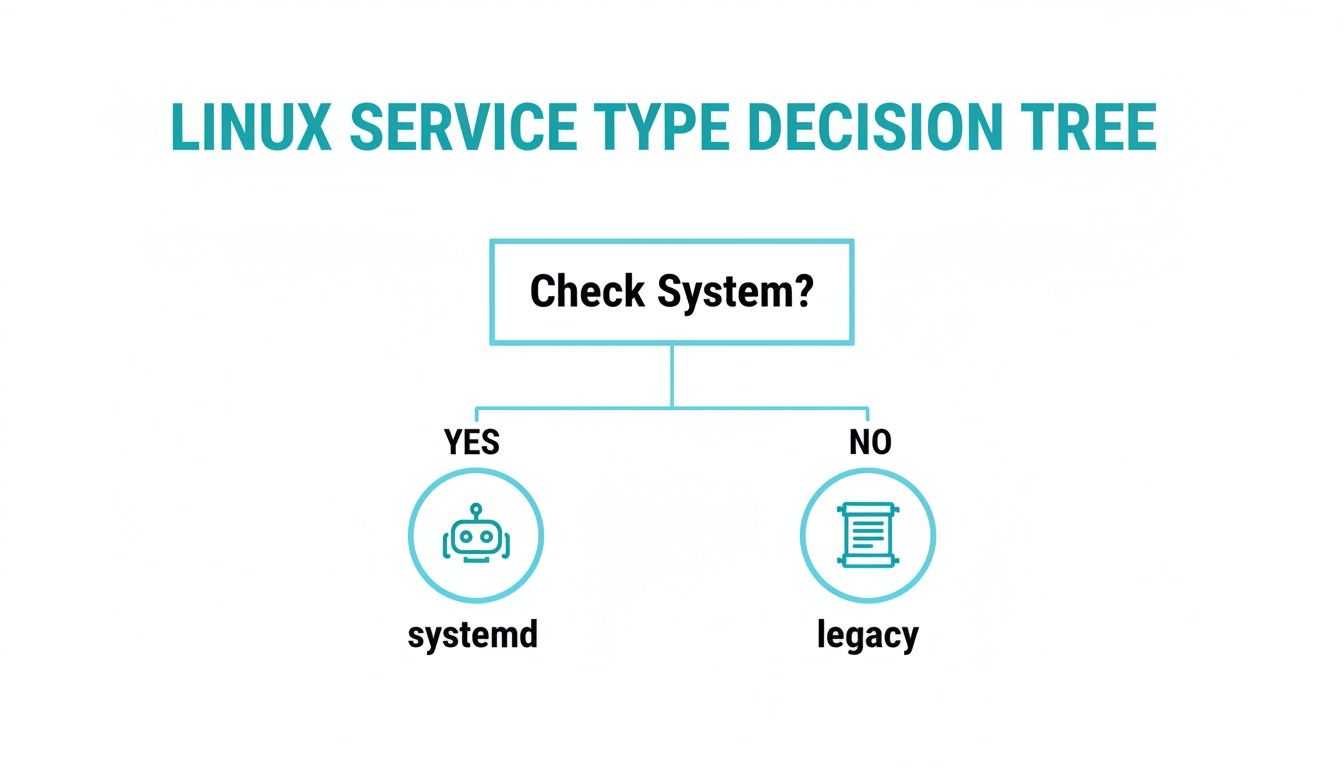
This initial check directs you to the correct toolset, whether it's modern systemd or a legacy system. Getting this right is the first step toward a smooth operation.
Pre-Restart Sanity Checks
Before executing systemctl restart, pause and perform critical pre-flight checks. This discipline is what separates a smooth operation from a self-inflicted outage.
If you have modified a configuration file, always validate its syntax first. This step is non-negotiable. Most major services provide a built-in test flag for this purpose. For an Nginx web server, this command is indispensable:
sudo nginx -t
This command parses your configuration files and reports any syntax or logical errors without affecting the running process. If this test fails, a restart attempt would also fail, taking your application offline. It is far better to catch the error here.
Next, assess the current state of the service. Are users actively connected? Restarting a database or SSH service can corrupt data transfers or terminate critical administrative sessions. Tools like who, ss, or netstat can provide a snapshot of current activity before you execute a disruptive linux restart service command.
Post-Restart Validation
Once the restart command has been issued, the job is only half done. You must now verify that the service returned to a healthy, operational state.
Your first step should be to confirm the process is running. A simple ps command combined with grep is a classic and effective method.
ps aux | grep <service-name>
Seeing the process is a good sign, but it doesn't guarantee the service is functional. The next immediate step is to check the system logs. Tailing the service's specific log file or using journalctl will expose any startup errors that occurred.
Expert Tip: Never walk away immediately after a restart. Always monitor the logs for at least 30-60 seconds. Some services appear to start correctly but then crash due to a secondary initialization issue. The only evidence will be in the log output.
This level of diligence is critical in today's complex IT environments. The Linux kernel's complexity has grown to over 34 million lines of code. Fortunately, the ecosystem has matured with it; kernel live patching usage has climbed to 31.5%, allowing administrators to apply critical security updates without a full reboot. Of course, protecting your server also means securing your network; our guide on firewalls for Linux is an excellent resource.
Automating Service Management for Greater Reliability

Manually restarting services is an outdated practice that introduces human error and makes consistent uptime nearly impossible to maintain. In any professional managed services environment, automation is the foundation of a reliable and resilient system.
Automating the linux restart service process allows your infrastructure to be self-healing. It transforms a potential late-night outage into a minor, self-corrected event that is noted in the logs for review the next day. This philosophy is central to modern DevOps and aligns with infrastructure as code best practices, where every action is repeatable, testable, and auditable.
Building a Self-Healing Bash Script
A simple Bash script can serve as an effective first line of defense. However, instead of blindly restarting a service on a schedule, a more intelligent approach is to check the service's health first and only intervene if it is non-functional. This prevents unnecessary service interruptions.
Here is a practical example for ensuring an Nginx web server is always responding. This script performs a health check, attempts a restart if the check fails, and logs all actions for auditing.
#!/bin/bash
LOG_FILE="/var/log/nginx_monitor.log"
SERVICE_NAME="nginx"
CHECK_URL="https://localhost"

# Check if Nginx is responding to HTTP requests
if ! curl --output /dev/null --silent --head --fail "$CHECK_URL"; then
  echo "$(date): Nginx is down. Attempting restart." >> "$LOG_FILE"

  # Attempt to restart the service
  /bin/systemctl restart "$SERVICE_NAME"

  # Pause to allow the service to initialize, then verify
  sleep 5
  if systemctl is-active --quiet "$SERVICE_NAME"; then
    echo "$(date): Nginx successfully restarted." >> "$LOG_FILE"
  else
    echo "$(date): CRITICAL - Nginx failed to restart." >> "$LOG_FILE"
  fi
else
  # Log that the check passed
  echo "$(date): Nginx is running correctly." >> "$LOG_FILE"
fi
This conditional, logged approach is far more robust than a "fire and forget" scheduled restart and aligns with industry best practices for proactive monitoring.
Scheduling Automation with Cron and Systemd Timers
With a monitoring script prepared, a scheduler is needed to execute it. For decades, the standard scheduling daemon has been cron. It is simple, reliable, and universally available.
To run our Nginx check every five minutes, you would add the following line to your crontab using the crontab -e command:
*/5 * * * * /usr/local/bin/check_nginx.sh
While cron is a powerful tool, modern Linux systems provide a more integrated and powerful alternative: systemd timers. They offer more granular control, native integration with journalctl for logging, and can be triggered by system events in addition to time intervals.
A key difference with systemd is that you create two separate unit files: a
.servicefile to define what to run, and a.timerfile to define when to run it. This separation of concerns makes scheduled tasks more explicit and easier to manage than a single, often crowded, crontab file.
Let's replicate the same five-minute check using systemd.
First, create the .service file that defines the action.
- /etc/systemd/system/nginx-check.service:
[Unit]
Description=Nginx Health Check

[Service]
Type=oneshot
ExecStart=/usr/local/bin/check_nginx.sh
Next, create the .timer file that defines the schedule.
- /etc/systemd/system/nginx-check.timer:
[Unit]
Description=Run Nginx health check every 5 minutes

[Timer]
OnBootSec=1min
OnUnitActiveSec=5min

[Install]
WantedBy=timers.target
Once these files are in place, enable and start the timer with a single command: systemctl enable --now nginx-check.timer. For modern systems, systemd timers are the superior choice due to their enhanced control and logging capabilities. While timers are ideal here, understanding the role of real cron in Linux scheduling provides valuable context on how different schedulers operate.
Common Questions About Restarting Linux Services
Even with a strong grasp of the commands, certain situations require careful consideration. Here are answers to common questions system administrators face when managing services, helping to prevent a simple update from becoming a service outage.
Restart vs Reload: What Is the Difference?
This is one of the most critical distinctions for maintaining service availability. The difference is downtime.
A restart is a "hard reset." It sends a SIGTERM signal to terminate all service processes, waits for them to shut down, and then starts a new instance from scratch. This process always causes a service interruption, which is unacceptable for critical services that cannot afford to drop active user connections or data transfers.
A reload is the graceful alternative. It sends a SIGHUP signal to the main process, instructing it to re-read its configuration files and apply the changes without shutting down. Services that support this, like Nginx or Apache, will typically spawn new worker processes with the updated settings and allow old ones to exit gracefully. This is the professional standard for applying configuration changes with zero downtime.
How Can I See Why a Service Failed to Restart?
When a service fails to restart, your first action on any modern systemd server should be to check its status. Do not simply attempt to restart it again.
systemctl status <service_name>
This command provides an instant diagnostic report, showing whether the service is running or has failed. Crucially, it includes the last few log entries from the systemd journal, which often contain the specific error message that caused the failure.
For more historical context, journalctl is the definitive tool. This command allows you to retrieve a larger portion of the logs specific to that service.
journalctl -u <service_name> -n 100 --no-pager
On legacy SysVinit systems, diagnostics are less centralized. You must locate and examine the service's dedicated log file, typically found somewhere in the /var/log/ directory.
Expert Tip: Never restart critical remote access services like
sshdor networking without a secondary access method. A failed restart due to a configuration error can result in being permanently locked out of the server. Always ensure you have out-of-band console access, such as a web-based console from your hosting or colocation provider, before making changes. A simple typo can turn a five-second task into a major incident.
At ARPHost, LLC, we build our hosting solutions for the real world, where reliability and performance are non-negotiable. Whether you need the raw power of a bare metal server or the agility of a KVM virtual private server, our infrastructure and expert support team are here to make sure your services just run. Check out our managed hosting plans at https://arphost.com.