You’re usually not looking up the Linux command to rename a file because the task is interesting. You’re looking it up because a messy directory is slowing you down.
Maybe an app is dumping logs with inconsistent names. Maybe a media import left you with filenames full of spaces and odd suffixes. Maybe a deployment script created files that no longer match the naming standard your team expects. On a live system, file renaming isn’t cosmetic. It affects scripts, log rotation, backups, imports, and operator sanity.
Most guides stop at mv oldname newname. That’s fine for one file. It’s not enough when you need to rename many files safely, preserve shell correctness, and avoid wrecking a production directory with one bad pattern. Safe renaming on Linux means knowing when to use mv, when to use a shell loop, when to reach for rename, and when to preview everything before making changes.
Why Mastering File Renaming on Linux Matters
Renaming files is one of those small Linux skills that turns into a big operational advantage. Clean filenames make grep jobs easier, log reviews faster, backups more predictable, and automation scripts less fragile. Bad filenames do the opposite.
On a server, naming problems usually show up in familiar ways:
- Log chaos: application logs arrive with inconsistent names, so rotation and review become harder than they should be.
- Upload cleanup: imported images, documents, or exports include spaces, mixed case, and awkward extensions.
- Automation drift: one script expects
report.csv, another producesReport Final.csv, and a scheduled task breaks without warning. - Team friction: one admin renames manually, another uses a loop, and nobody follows the same safety checks.
The issue isn’t the act of renaming. It’s the risk around it. A single manual rename is simple. A batch rename across a working directory can overwrite files, miss edge cases, or mangle names that contain spaces and wildcard characters.
Practical rule: If you’re renaming more than a couple of files, treat it like a change operation, not a quick terminal shortcut.
The tools are straightforward, but the trade-offs matter. mv handles the everyday single-file job. Shell loops work everywhere and give you control. rename is the stronger option for pattern-based changes, especially when you need regular expressions and dry runs. In deeper trees, find becomes part of the workflow.
That mix is what makes the Linux command to rename a file worth learning properly. It scales from a single config file on a development VM to whole batches of assets, logs, or exports on larger systems.
The Go-To Command for Single File Renames Using mv
For a single file, mv is the standard Linux answer. The University of Michigan documentation shows the classic example, mv thirdfile file3, and notes that Linux documentation often uses mv because Unix and Linux don’t always provide a separate rename-only command. That same reference also warns that if the target name already exists, it gets overwritten.
Basic syntax that works
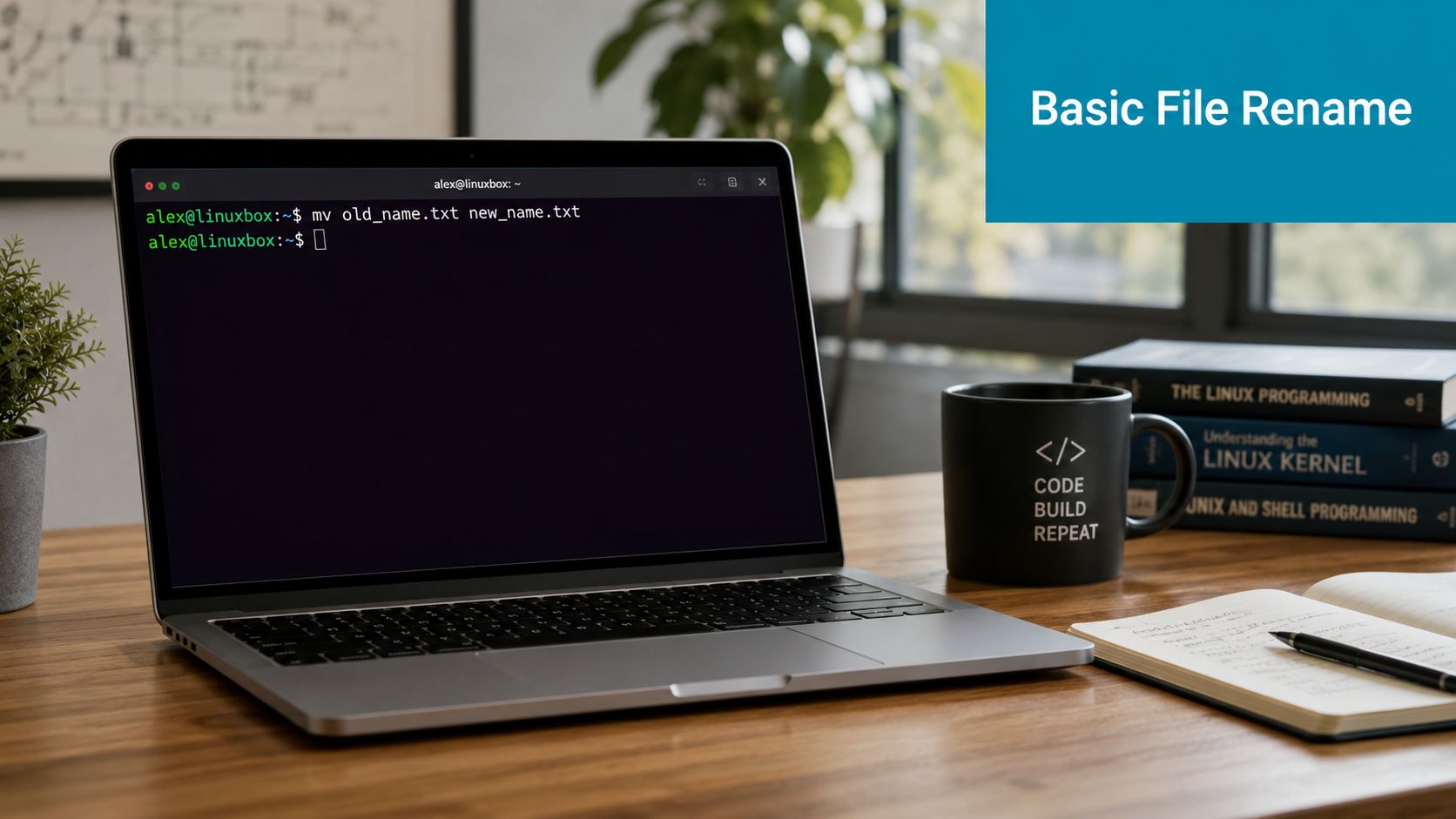
The basic form is simple:
mv oldname.txt newname.txt
If you’re in the correct directory, that’s enough. For day-to-day admin work, I prefer a short verification sequence before pressing Enter:
pwd
ls
mv presentname.txt newname.txt
ls
That pattern is boring on purpose. It reduces mistakes.
Safer single-file renames
When there’s any chance the destination filename already exists, use interactive mode:
mv -i oldname.txt newname.txt
If you want confirmation of what the command did, add verbose output:
mv -v oldname.txt newname.txt
A practical decision table helps:
| Situation | Better command |
|---|---|
| You know the destination name doesn’t exist | mv old new |
| You want overwrite confirmation | mv -i old new |
| You want visible command feedback | mv -v old new |
One more point matters in real administration. Renaming is often part of a broader file operation. If you also need to move directories as part of cleanup, this guide on moving a directory in Linux fits naturally into the same workflow.
A clean
mvcommand is usually enough for one file. The mistake is assuming that the same casual approach is safe for a directory full of mixed filenames.
Batch Renaming Files with Loops and the Rename Utility
Once you move beyond a handful of files, manual mv commands stop being efficient and start becoming risky.
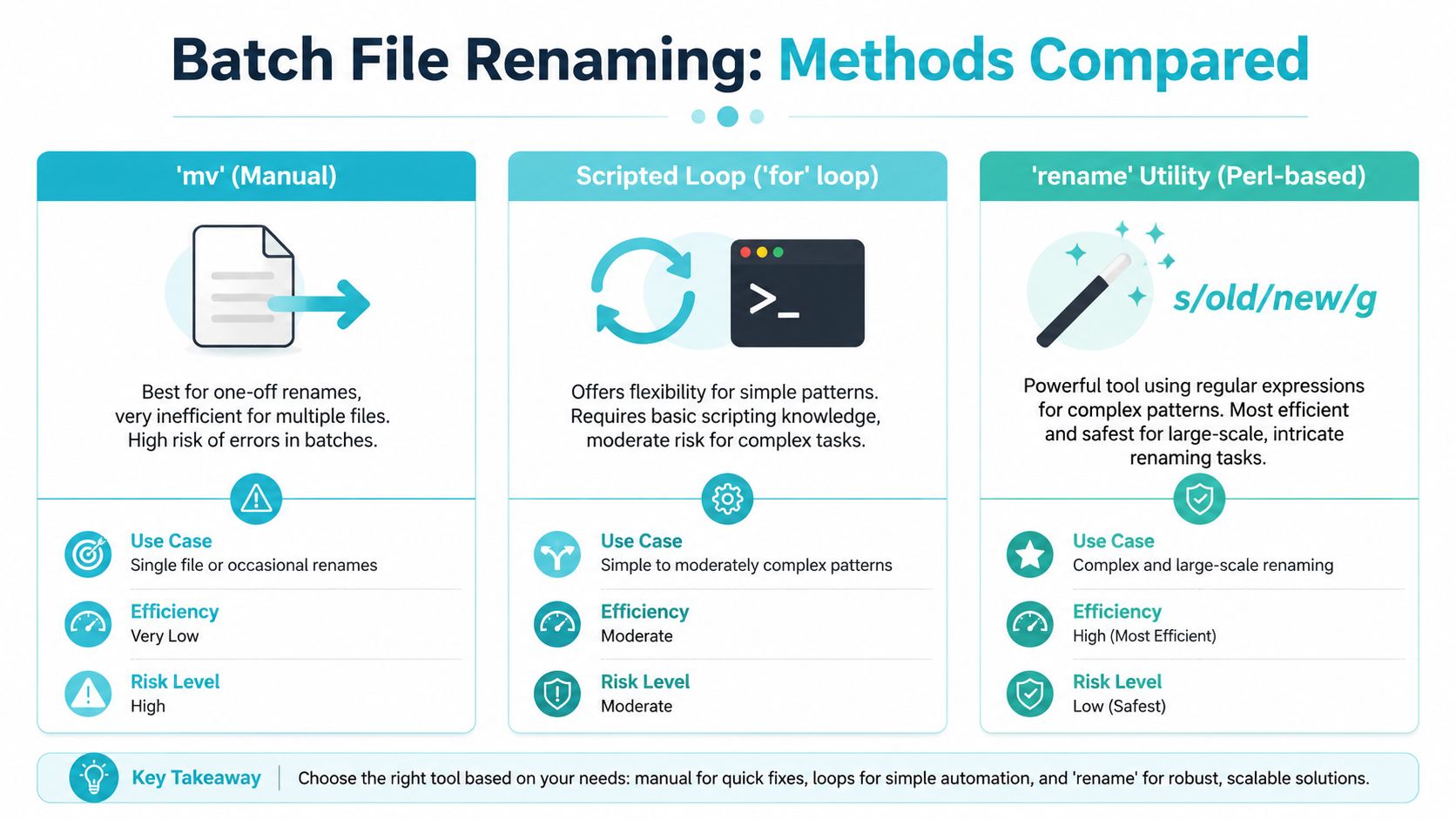
The two practical options are shell loops and rename. Both work. They solve different problems.
When a shell loop is the right tool
A for loop is universal and flexible. It’s often the safest fallback because almost every Linux system gives you the shell, even when package differences make rename inconsistent.
For example, changing .markdown files to .md in a controlled way:
for f in *.markdown; do
 mv, "$f" "${f%.markdown}.md"
done
This pattern matters for safety:
--aftermvhelps prevent odd filenames from being treated as options.- Quoted variables protect filenames with spaces.
- Parameter expansion changes only the suffix you intend.
This is the kind of command I trust when the naming pattern is simple and I need predictable shell behavior.
When rename is better
Linux also provides dedicated rename utilities for batch work. The manual page documents rename as replacing the first occurrence of a substring in each filename, and the same page reflects the common bulk workflow of using loops such as for x in *.txt; do mv..; done when needed.
A basic pattern-based example looks like this:
rename 's/old/new/' *.txt
That’s faster to write and easier to read than a loop when the transformation is purely pattern based.
A quick comparison helps:
| Method | Best use | Main risk |
|---|---|---|
Manual mv | One-off renames | Human error in repetitive work |
| Shell loop | Portable bulk changes with shell logic | Poor quoting breaks tricky filenames |
rename | Pattern-heavy batch changes | Different versions behave differently |
Before going further, watch the pattern in action:
The version problem admins run into
Many beginner guides fail at this point. They mention rename as if it behaves identically everywhere. It doesn’t.
Some distributions ship a Perl-based rename. Others provide a different implementation. That matters for scripts, shared runbooks, and automation. If you’re writing a reusable operational script, don’t assume rename means the same thing on every host. Validate what’s available first, or use a shell loop when portability matters more than elegance.
If a batch rename has to run the same way across mixed Linux environments, a careful loop is often more predictable than a clever one-liner.
Advanced Renaming with Regex and Recursive Find
For larger rename jobs, the strongest tool is usually the Perl-based rename utility. Linuxize documents its syntax as rename [OPTIONS] perlexpr files and recommends a dry run with -n before making changes, which is the habit that separates safe admins from reckless ones.
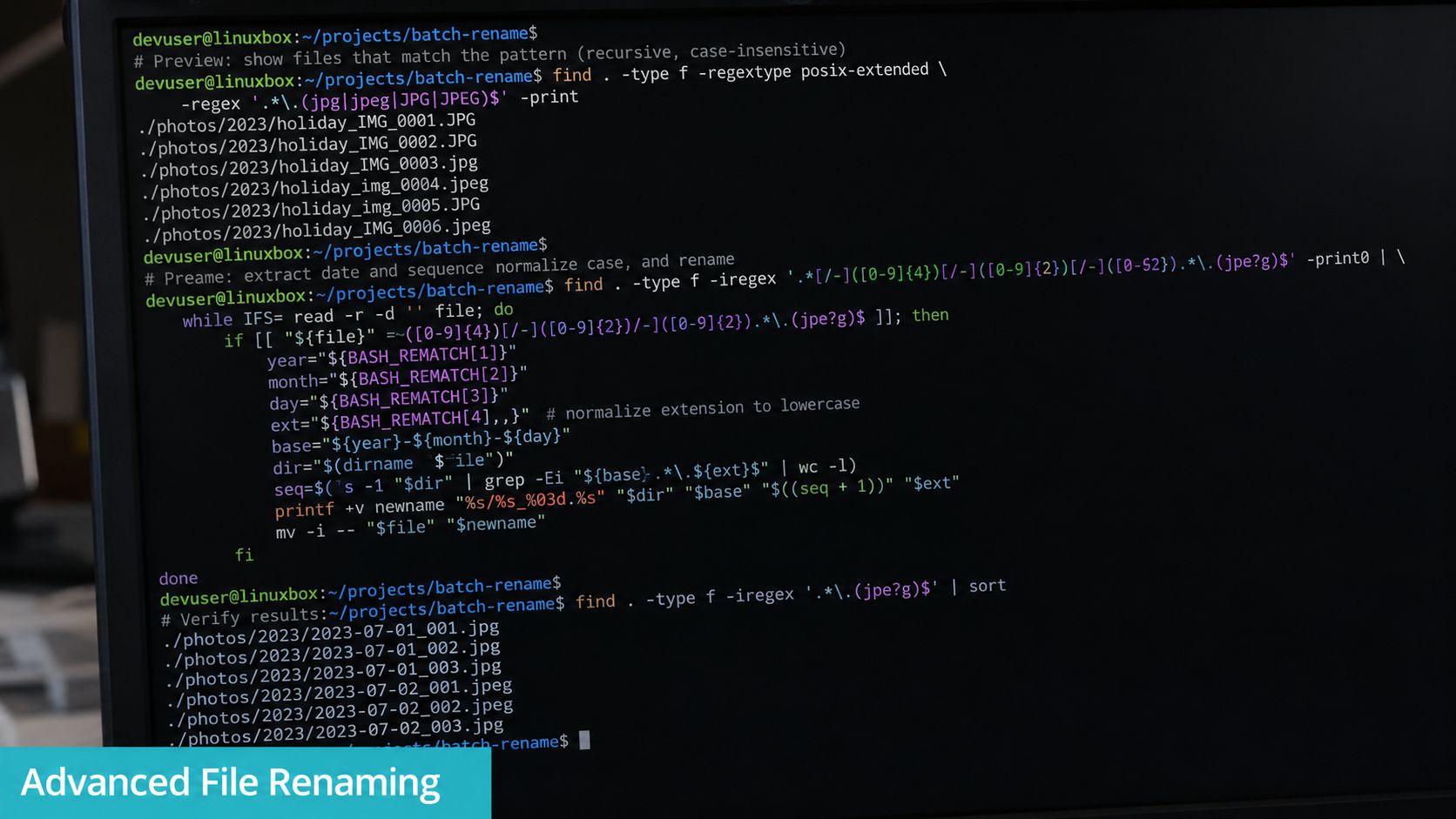
Dry runs are not optional
Use -n first. Every time.
rename -n 's/.htm$/.html/' *.htm
If the preview looks right, run the same expression without the dry-run flag:
rename 's/.htm$/.html/' *.htm
That single habit catches bad regex, overmatching, and accidental extension changes before the filesystem is touched.
Useful regex-based examples
A few practical patterns come up often in server work:
Change an extension
rename -n 's/.log$/.bak/' *.log
Add a prefix
rename -n 's/^/archived_/' *.txt
Replace spaces with underscores
rename -n 's/ /_/g' *
These are compact, readable, and efficient for a directory full of files. They’re also dangerous if your pattern is sloppy, which is why preview mode comes first.
Recursive renaming with find
rename usually works on files in the current directory. When you need to work through a tree of subdirectories, add find.
For a recursive extension change:
find. -name "*.htm" -exec rename -n 's/.htm$/.html/' {};
After confirming the output:
find. -name "*.htm" -exec rename 's/.htm$/.html/' {};
This approach is useful in code repositories, media collections, and exported data trees where files aren’t all in one place.
Know the trade-offs
Not every advanced rename needs regex. Don’t use a complex rename expression when a simple loop is easier to review. On the other hand, don’t force shell string handling into a fragile loop when regex expresses the rule more clearly.
Use this rule of thumb:
- Simple suffix swap in one directory: a shell loop is often enough
- Pattern-heavy batch rename: Perl-based
rename - Deep directory tree:
findplusrenameormv
The safest bulk rename is the one you can preview, explain to another admin, and rerun without surprises.
Common Renaming Pitfalls and How to Avoid Them
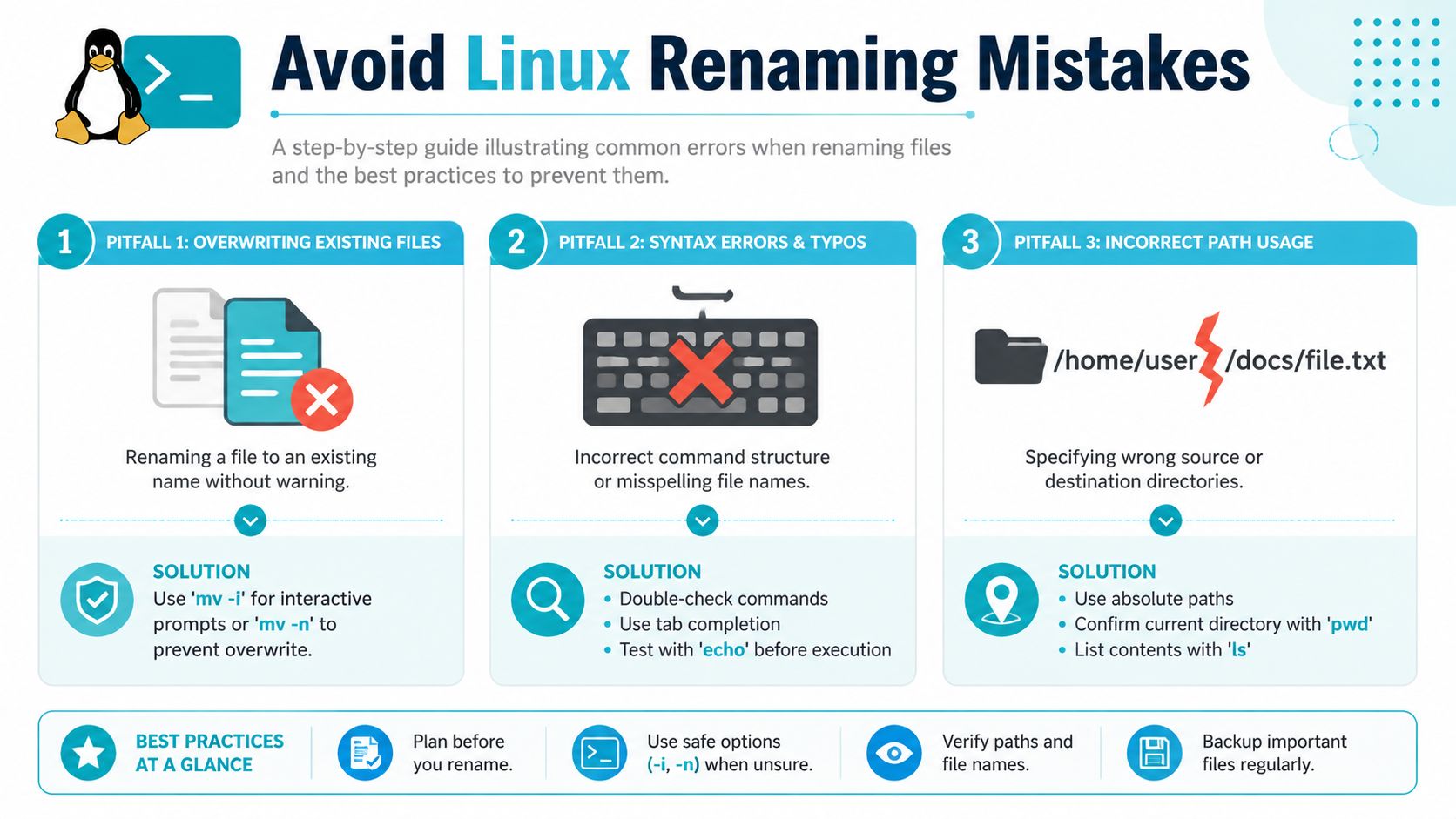
Most renaming mistakes are preventable. They happen because the operator assumes the command is simpler than it is.
The overwrite problem
The classic failure is renaming one file onto another existing file. That’s why interactive mode matters for mv, and why dry runs matter for rename.
A few habits reduce that risk immediately:
- Check the directory first: run
pwdandlsbefore changing names. - Use prompts when unsure:
mv -iis slower, but safer when names are similar. - Preview bulk work: if the tool supports a no-act mode, use it.
Spaces and shell surprises
Filenames with spaces, wildcard characters, or odd punctuation break sloppy commands. The safe answer is consistent quoting.
Good:
mv, "$f" "${f%.txt}.bak"
Bad:
mv $f ${f%.txt}.bak
The second form can split filenames apart or expand unexpectedly. In production, that’s how rename jobs drift from “cleanup” into “incident.”
Cross-filesystem behavior
ManageEngine notes an operational detail that many people miss. mv oldname newname is the most reliable single-file method, and on the same filesystem it performs an atomic metadata update rather than a data copy. If the source and destination are on different filesystems, mv falls back to move-and-delete semantics instead of a true rename. See the ManageEngine explanation of mv rename behavior across filesystems.
That means a command that looks like a simple rename can become a more expensive file transfer if you cross filesystem boundaries. The risk profile changes too.
Permission and path mistakes
When a rename fails, the problem is often basic:
- Wrong directory: verify with
pwd - Wrong path: list the file explicitly with
ls filename - Permission denied: check ownership and permissions before assuming the command is wrong
If you’re already tightening shell hygiene, it’s also worth reviewing operational cleanup habits such as clearing history in Linux when you’re handling sensitive administrative work.
Scaling Your Server Management with ARPHost
Knowing the Linux command to rename a file is useful. Knowing how to do it safely at scale is what helps in production.
The reliable pattern is straightforward. Use mv for single-file changes. Use quoted shell loops when portability matters and the transformation is simple. Use the Perl-based rename tool when you need regex and repeatable batch operations. Add find when the job spans nested directories. Most important, preview changes before touching real data.
That command-line discipline matters more as environments get larger. A rename mistake in a home directory is annoying. The same mistake in an application tree, asset repository, or automation pipeline can break jobs, confuse backups, and waste operator time. Good infrastructure doesn’t replace good habits, but it gives those habits a stable place to run.
For teams that want help beyond one-off shell commands, ARPHost managed services can take over the operational layer around Linux systems, including routine administration, monitoring, and day-to-day platform management. If you need room to grow, ARPHost also provides VPS hosting, secure web hosting bundles, bare metal servers, Proxmox private clouds, colocation, and instant applications for faster deployment paths.
The practical advantage is simple. You can keep full control when you want it, and hand off the infrastructure burden when that’s the better business decision.
If you need infrastructure that supports serious Linux administration, from small VPS workloads to larger private cloud and bare metal deployments, take a look at ARPHost, LLC. Their platform includes VPS hosting, secure web hosting bundles, bare metal servers, Proxmox private clouds, colocation, instant applications, and fully managed IT services for teams that want expert help without giving up flexibility.