Every VPS comes with a firewall that runs on our servers, outside your VPS, so it keeps working whatever happens inside your server. The client area calls it the hardware firewall. When it is turned on it blocks all incoming traffic except what your rules allow, so it is a simple way to keep unwanted connections away from your server. Traffic going out from your server is still allowed.
The firewall is off until you turn it on. Set up your rules first, then turn it on, so you do not lock yourself out.
Before you start
Make a list of what needs to reach your server from the internet. Most servers need SSH (port 22) for Linux or Remote Desktop for Windows, plus HTTP (port 80) and HTTPS (port 443) for websites. Control panels and game servers use their own ports, for example Webuzo uses ports 2004 and 2005.
Steps
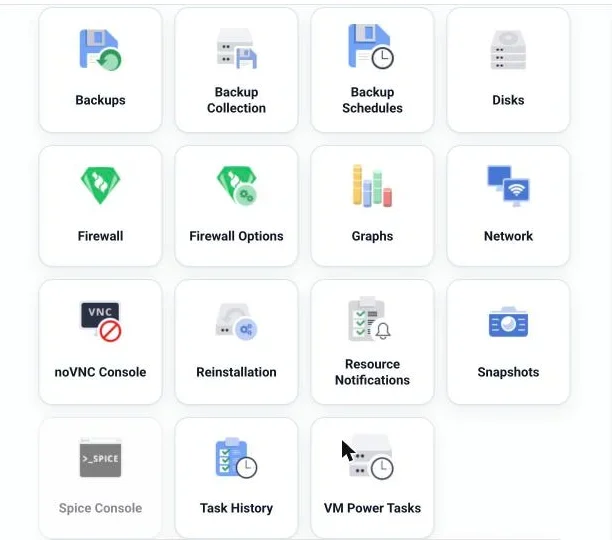
- Sign in to the client area at https://manage.arphost.com/clientarea.php, open Services, click Manage next to your VPS, and click Firewall under Service Management.
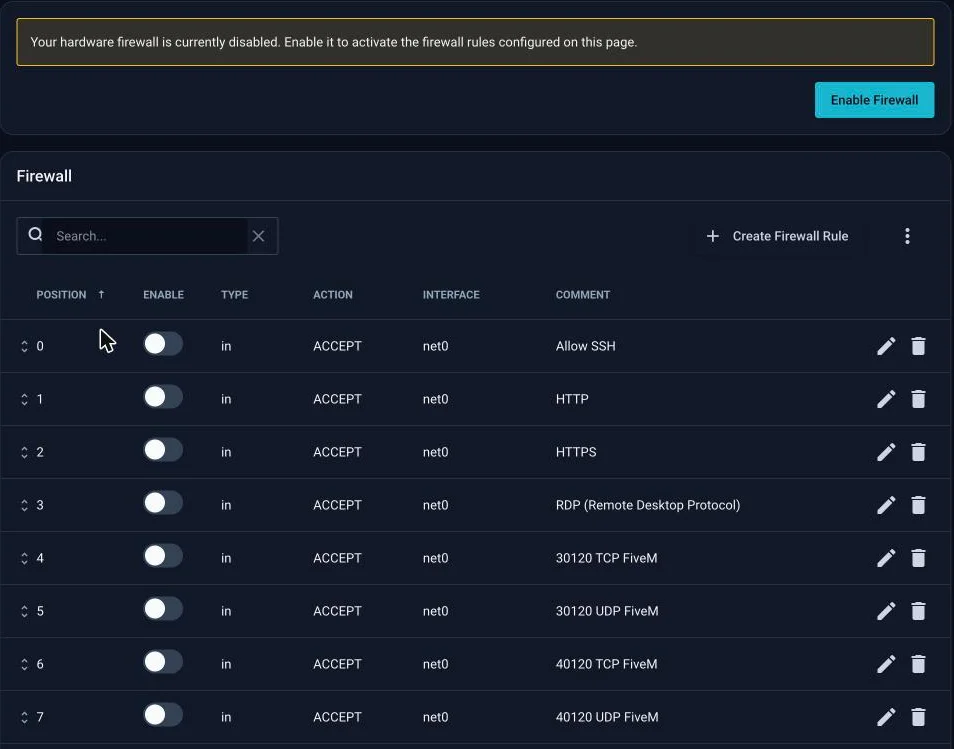
- The Firewall page shows a notice while the firewall is off, and a list of ready made rules for common services such as SSH, HTTP, HTTPS, Remote Desktop and FiveM. They are all switched off to start with.
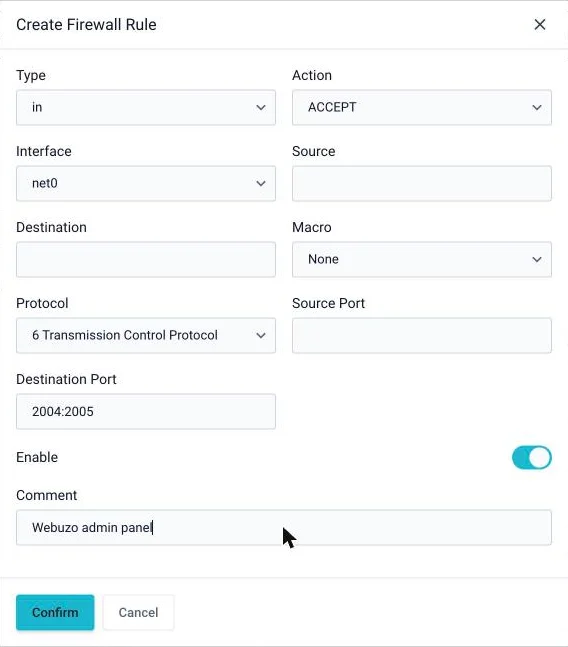
- If a port you need is not in the list, click Create Firewall Rule. Leave Type on in and Action on ACCEPT, choose the Protocol (most services use TCP), and type the port in Destination Port. For a range of ports put a colon between the first and last, for example 2004:2005. Switch on Enable, add a Comment so you remember what the rule is for, and click Confirm.
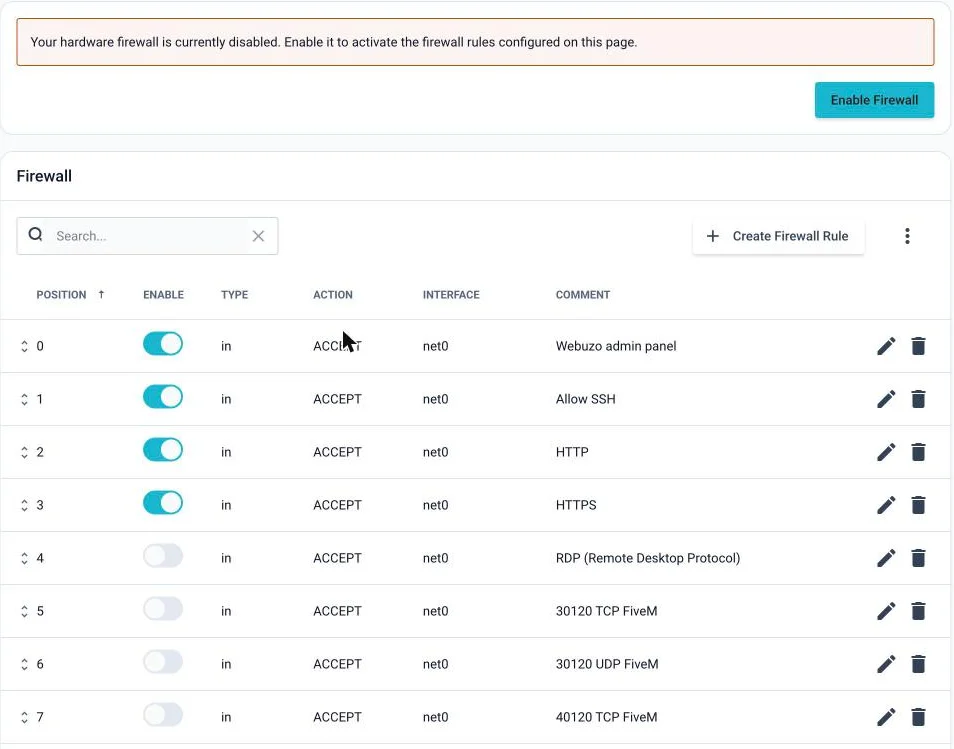
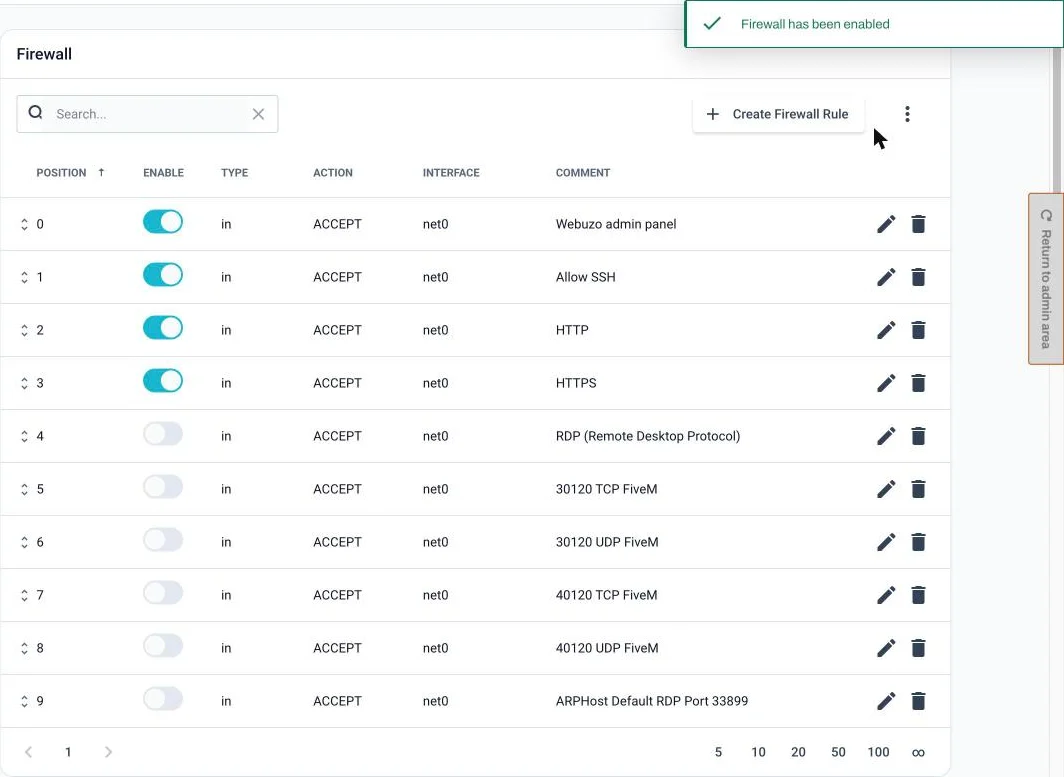
- Switch on every rule you need using the switch in the Enable column. Each change saves straight away. In this example the Webuzo rule, Allow SSH, HTTP and HTTPS are switched on.
- When your rules are ready, click Enable Firewall at the top of the page. The notice goes away and you see Firewall has been enabled.
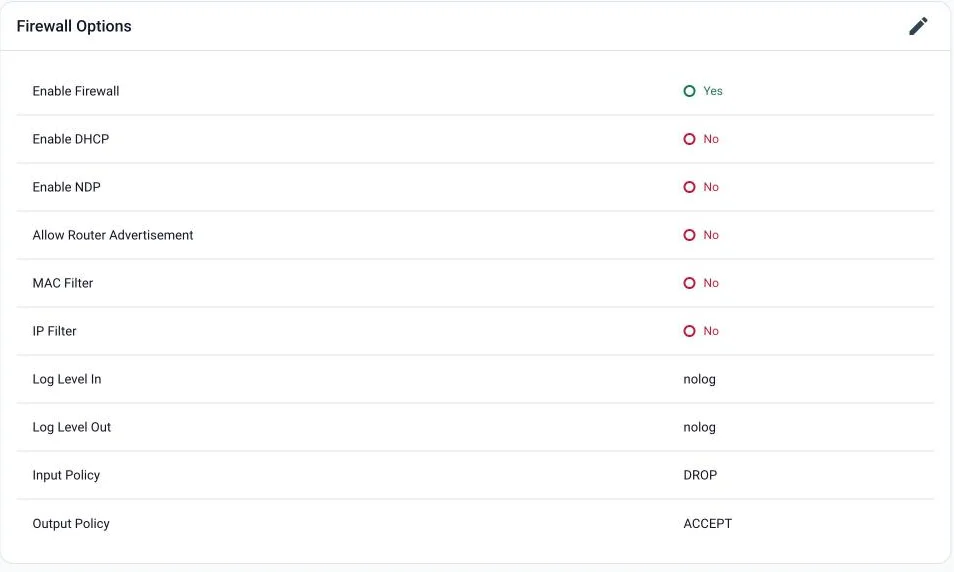
- To check the settings, click Firewall Options. Enable Firewall shows Yes and Input Policy shows DROP, which means anything without an allow rule is blocked.
Turning the firewall off
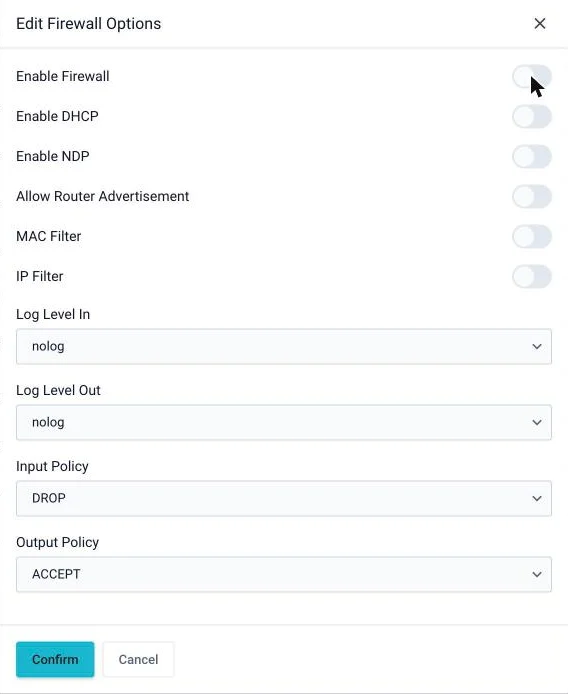
Open Firewall Options, click the pencil at the top right, switch off Enable Firewall and click Confirm. Your rules stay in place, so you can turn the firewall back on later with Enable Firewall on the Firewall page.
Video
If something goes wrong
If you can no longer connect after turning the firewall on, a rule is probably missing. Open the console from noVNC Console under Service Management to reach your server without the network, then add the missing rule or turn the firewall off as shown above.
The higher a rule is in the list, the higher its priority, so a rule near the top wins over one further down.
If you are still stuck, open a ticket from Support in the client area and tell us which ports you need open.