If your server needs more CPU, memory or disk, you can move it to a bigger plan from the client area. This guide shows where to find the upgrade page, how to compare the plans you can upgrade to, and how to check the price before you order.
Upgrading includes a short shutdown. After the upgrade, you shut the server down and start it again so it can use the new resources.
Moving to a smaller plan
The client area only offers upgrades. A VPS cannot be moved to a smaller plan on its own, because its disk cannot be made smaller without reinstalling the server, and a reinstall erases everything on it. To move to a smaller plan, take a backup of anything you want to keep first, then open a ticket from Support in the client area and tell us which plan you want. We will reinstall your server on the smaller plan.
Before you start
Looking at the plans and the price changes nothing on your server and does not place an order. Nothing is ordered until you click Continue on the last page, so you can check the price as often as you like.
Opening the upgrade page
- Sign in to the client area at https://manage.arphost.com/clientarea.php, open Services, and click Manage next to your VPS.
- Click Upgrade/Downgrade under Actions in the menu on the left. You can also click Upgrade in the Service Actions box on the right. Both open the same page. The menu link has Downgrade in its name, but the page it opens only offers upgrades.

Choosing a new plan
- The page shows your Current Configuration at the top, with the plan your server is on now and its hostname in brackets. Under New Configuration you see the plans your server can be upgraded to.
- Each plan lists what it includes, such as the location, the number of IP addresses, the CPU cores, the memory, the disk and the monthly bandwidth. Compare these with your current plan to find the one you need.
- The list on the right of each plan shows its price, for example 1 Month Price – $19.99 USD.
- Click Choose Product under the price of the plan you want.
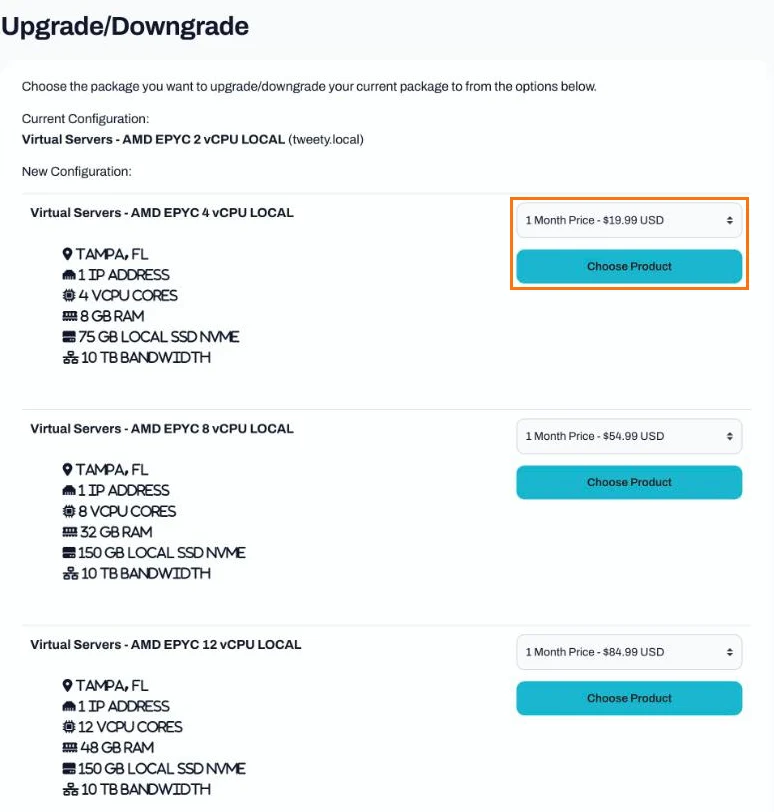
Only bigger plans are offered here. If you want a smaller plan, it cannot be chosen from this list, because the server has to be reinstalled to make its disk smaller. Read Moving to a smaller plan near the top of this guide and open a ticket instead.
If the bigger plan you want is not in the list, open a ticket from Support in the client area and tell us which plan you would like to upgrade to.
Checking the price
- The next page shows your Current Configuration again, then a line with your current plan, an arrow and the new plan, with its Price. Under it you see the Subtotal and the Total Due Today.
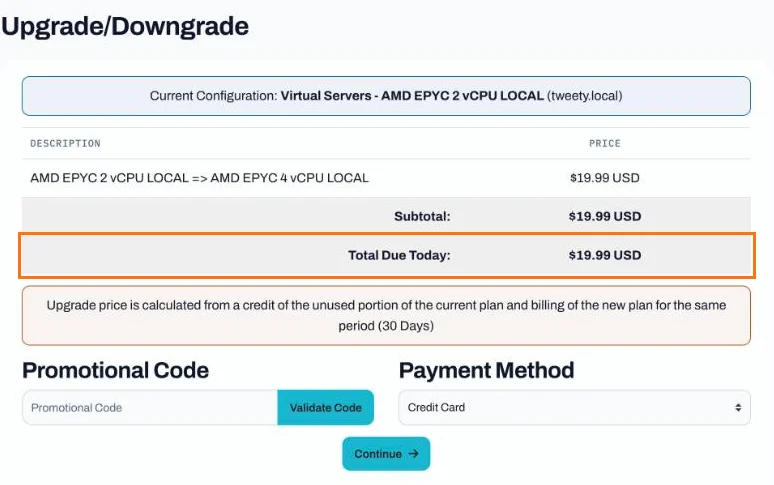
- Read the note under the total. It explains that the upgrade price is worked out from a credit for the part of your current plan you have not used yet and the price of the new plan for the same period.
- If you have a promotional code, type it in the Promotional Code box and click Validate Code.
- Under Payment Method, choose how you want to pay. The list includes Credit Card, PayPal, Mail In Payment and ACH.
- If you only wanted to check the price, stop here. Click Back to Service Details in the menu on the left, or leave the page. Nothing has been ordered.
- When you are ready to go ahead, click Continue to place your upgrade order. Your server is moved to the new plan once the order has been paid and accepted.
After the upgrade
After the upgrade, you have to shut the server down and start it again to get the new CPU, memory or disk. Use Shut Down and then Start, or click Reboot in the client area. A restart from inside the server, for example with the reboot command or Ctrl+Alt+Del, does not count.
Follow these steps to shut the server down and start it again.
- In the client area, open Services and click Manage next to your VPS.
- Under Service Actions, click Shut Down, then click Confirm.
- Wait until Status in the Information box shows Stopped.
- Click Start, then click Confirm. When Status shows Running again, your server has the new resources.
If your server still shows the old disk size after it has been shut down and started again, open a ticket and we will help you use the new space.
Do not use Stop for this unless the server will not shut down.
For more detail on each power button, read the guide How to start, stop, reboot and shut down your VPS at https://arphost.com/how-to-start-stop-reboot-and-shut-down-your-vps/.
If something goes wrong
If the price on the summary is not what you expected, do not click Continue. Open a ticket from Support in the client area and we will check it with you before you order.
If you placed an order by mistake, or your server still shows the old plan after the invoice is paid and you have shut it down and started it again, open a ticket from Support in the client area. Tell us the server name, the plan you chose and roughly when you ordered it.