Your VPS comes with its own IP address. The Network page in the client area lets you view the network settings of your server, such as the IP address, gateway and rate, but you cannot change them from the client area. Any change to the network, including reverse DNS, is done by opening a ticket from Support in the client area. This guide shows where to find your network settings, what the Reconfigure Network button is for, and how to ask for a network change or reverse DNS.
Before you start
Looking at the network settings changes nothing on your server, so you can open these pages as often as you like.
You need your IP address and gateway if you set up the network on the server by hand, or when you point a domain name at your server.
Finding your IP address
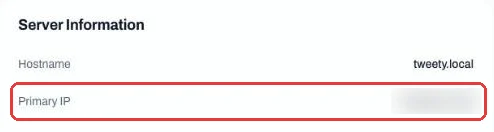
- Sign in to the client area at https://manage.arphost.com/clientarea.php, open Services, and click Manage next to your VPS. The Server Information box at the top shows the Hostname of your server and its Primary IP.
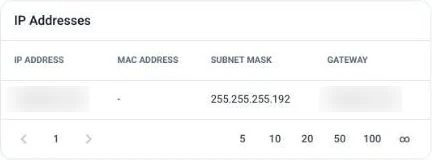
- Scroll down past Service Management to the IP Addresses box. It lists every IP address on your server with its Subnet Mask and Gateway.
Opening the Network page
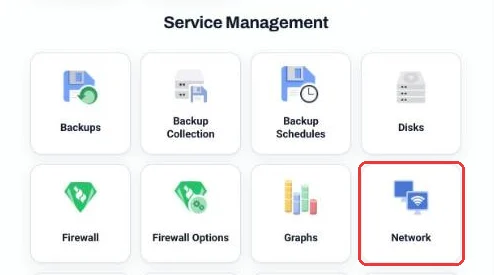
- Under Service Management, click Network. You can also click Network in the menu on the left.
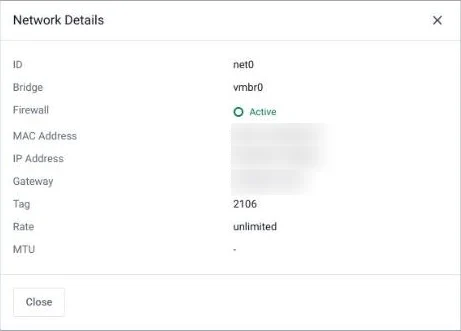
- The Network page lists the network cards of your server. Most servers have one, called net0. For each one you see whether the Firewall is Active, its MAC Address, the IP Address with the size of the network after the slash, the Gateway and the Rate. Unlimited means the speed of the card is not capped.
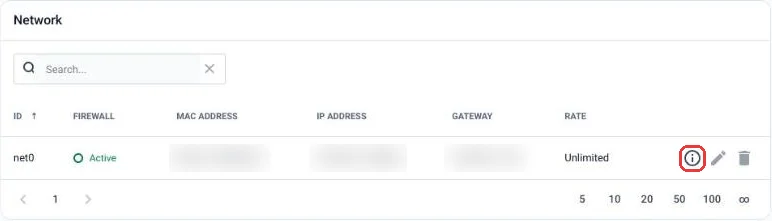
- Click the round i button on the right to open Network Details. Besides the settings from the list, it shows the Bridge, the Tag and the MTU. Click Close when you are done.
The pencil next to the i button is greyed out. The bin is the Delete button. Do not click it on net0, because your server needs that card to be reached over the network. If you need a change to your network, open a ticket instead.
Reconfigure Network
Reconfigure Network under Service Actions resets the network settings of your server back to the ones shown in the client area. You can use it if the network on your server was changed or stopped working.
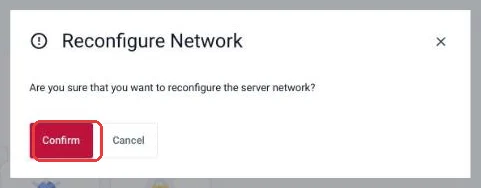
- Click Reconfigure Network. The Reconfigure Network window asks Are you sure that you want to reconfigure the server network? Click Confirm, or Cancel to leave things as they are.
- After a few seconds you see Network has been reconfigured successfully in the top right corner.

Asking for a network change
To have anything about your network changed, open a ticket from Support in the client area. Tell us the server name and what you need.
Setting reverse DNS
Reverse DNS turns your IP address back into a hostname, such as mail.example.com. Mail servers often check it, so it matters most if your server sends email.
Reverse DNS is set by our support team. Open a ticket from Support in the client area and tell us the IP address and the hostname you want it to point to. Set up the hostname first at the place where you manage your domain’s DNS, with an A record pointing to the same IP address, because many mail servers check that both directions match.
Video
If something goes wrong
If your server cannot be reached over the network, you can click Reconfigure Network to reset its network settings back to the ones shown in the client area. You can also open the console from noVNC Console under Service Management to see what the server is doing, as shown in the guide How to open your VPS console at https://arphost.com/how-to-open-your-vps-console/.
If the Network page is empty, or you clicked Delete by mistake, open a ticket from Support in the client area right away and tell us the server name.
For anything else, open a ticket from Support in the client area and tell us the server name, what you were trying to do and roughly when.