The console shows your server’s screen in your web browser, just as if a monitor and keyboard were plugged into it. It works even when the network on the server is down, so it is the way back in when SSH or Remote Desktop cannot connect, a firewall rule has locked you out, or you want to watch the server start up.
Opening the console does not change anything on your server.
Before you start
You need the username and password for the server itself. On Linux the username is usually root. The password is the one you chose when the server was set up or reinstalled, or the one you set later with Change Password under Service Actions. A password changed in the client area works after the server is shut down and started again, as shown in the guide How to change your VPS root password.
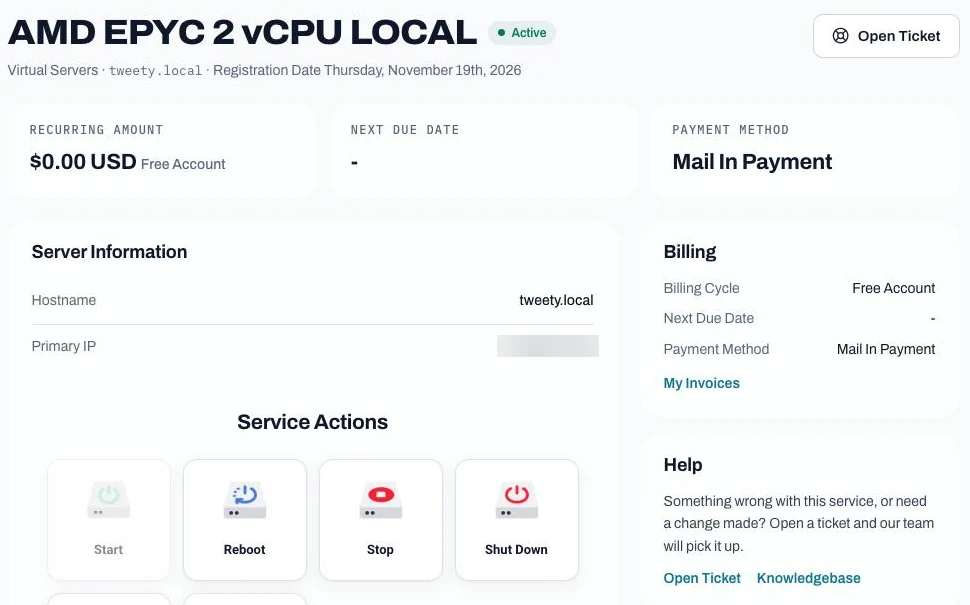
The server needs to be running. The Status in the Information box on the service page should say Running.
Steps
- Sign in to the client area at https://manage.arphost.com/clientarea.php, open Services, and click Manage next to your VPS.
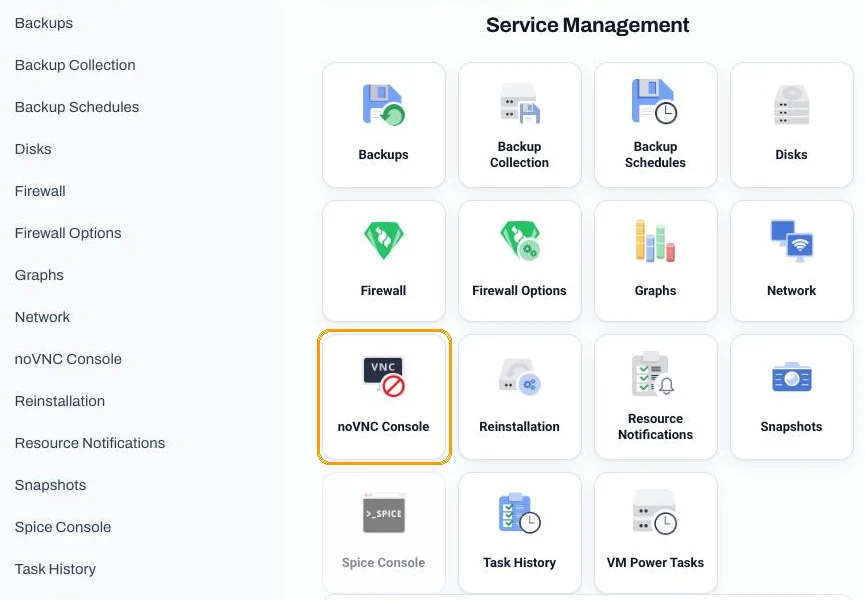
- Scroll down to Service Management and click noVNC Console. You can also use the noVNC Console link in the menu on the left. The Spice Console tile is greyed out and cannot be clicked, so use noVNC Console.
- The console opens in a new browser window. You may see messages the server printed earlier. Click inside the black screen and press Enter, and the login prompt appears with your server’s name, for example tweety login:.
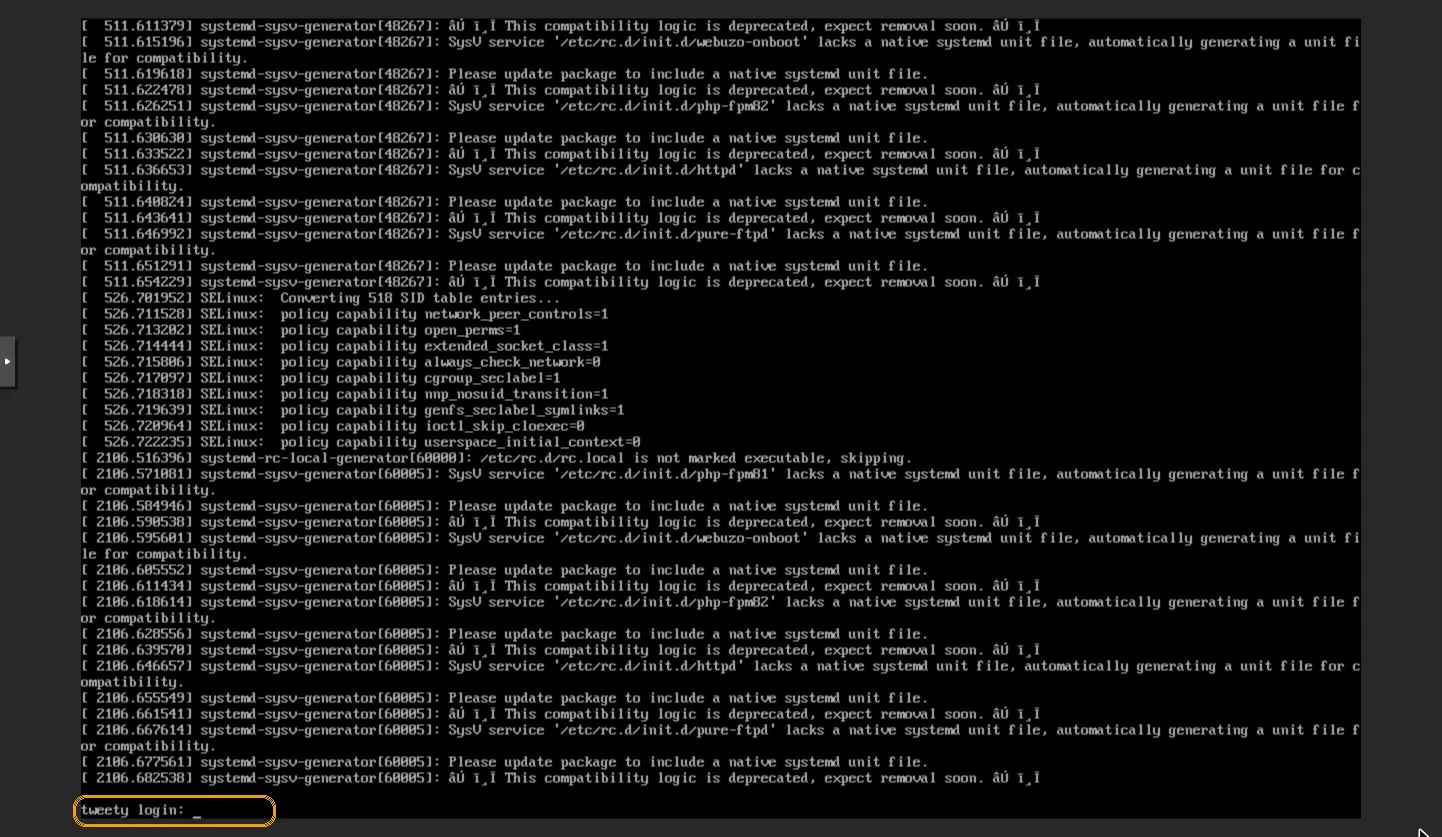
- Type the username and press Enter, then type the password and press Enter. Nothing appears on screen while you type the password, which is normal. The console has no paste button, so type the password by hand. Once you are signed in you can run commands just as you would over SSH.
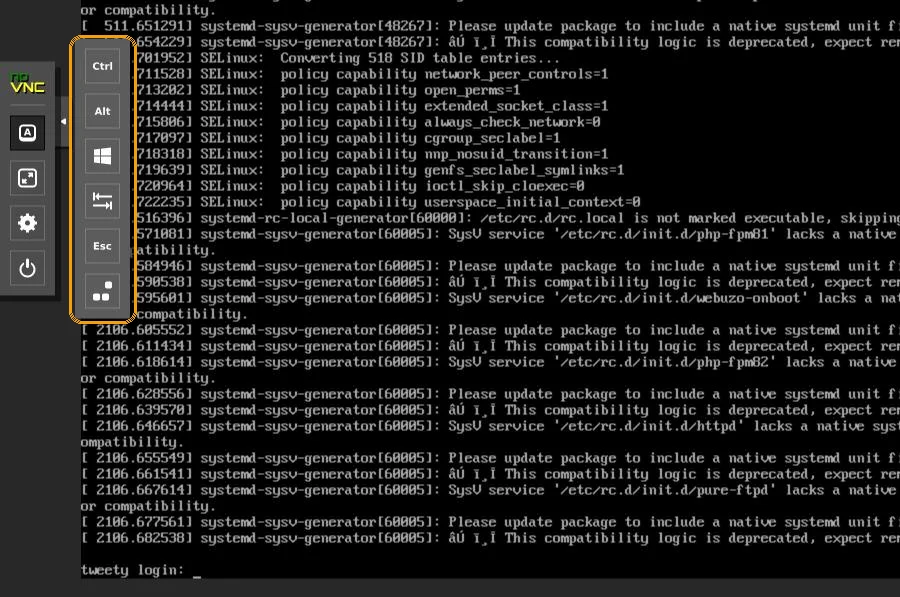
- To send keys that your own computer would catch, such as Ctrl+Alt+Del or Esc, click the small arrow on the left edge of the console to open the control bar, then click the keyboard button at the top. A column of keys opens with Ctrl, Alt, the Windows key, Tab, Esc and Ctrl+Alt+Del at the bottom. Sending Ctrl+Alt+Del can restart the server, so only use it when you mean to. The control bar also has a Full screen button and Settings.
- When you are done, type exit to sign out and close the console window. If your browser asks whether you want to leave the page, click Leave. Closing the console does not turn the server off.
Video
If something goes wrong
If nothing happens when you click noVNC Console, your browser probably blocked the new window. Allow pop ups for manage.arphost.com and click it again.
If the console stays black, click inside it and press Enter. The screen may have gone blank while the server was idle, and a key press usually brings it back.
If the console cannot connect, check that the service page shows the server as Running. If it is stopped, click Start under Service Actions, wait a minute and open the console again.
If you were locked out by the firewall, sign in through the console and fix the rules as shown in the guide How to set up firewall rules and turn on your VPS firewall, or turn the firewall off from Firewall Options.
If your password is not accepted, check that Caps Lock is off and that you are using the server’s password, not your client area password. You can set a new one with Change Password under Service Actions.
If you are still stuck, open a ticket from Support in the client area and tell us what the console shows.