A backup is a full copy of your VPS that is kept away from the server itself. If a file gets deleted, an update goes wrong or the server is broken into, you can put the whole server back the way it was when the backup was taken.
You can take a backup at any time from the client area, and you can set a schedule so backups are taken for you every week or on the days you choose.
Before you start
The Backups page shows how many backups your plan can keep. When you are at the limit, a new backup replaces the last one, so the newest backup is always kept and the older one is removed. The window you use to take a backup tells you the limit for your server.
With the Snapshot mode used in this guide, the backup is taken while your server keeps running. It takes a few minutes, and during that time the buttons on the service page are greyed out until it finishes.
Steps
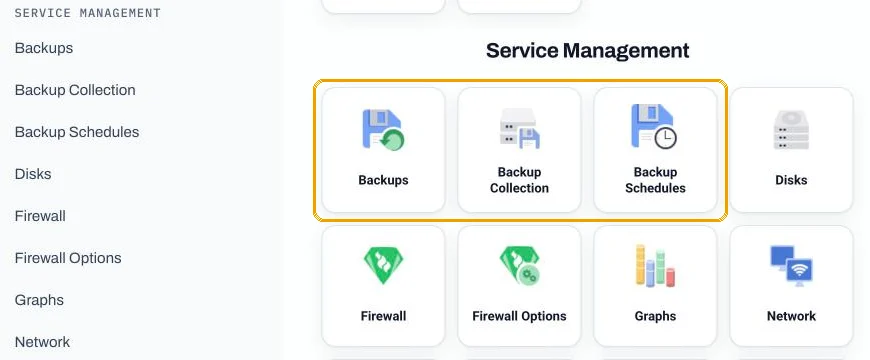
- Sign in to the client area at https://manage.arphost.com/clientarea.php, open Services, click Manage next to your VPS, and scroll down to Service Management. Backups use three tiles, Backups, Backup Collection and Backup Schedules. The same pages are in the menu on the left. Click Backups.
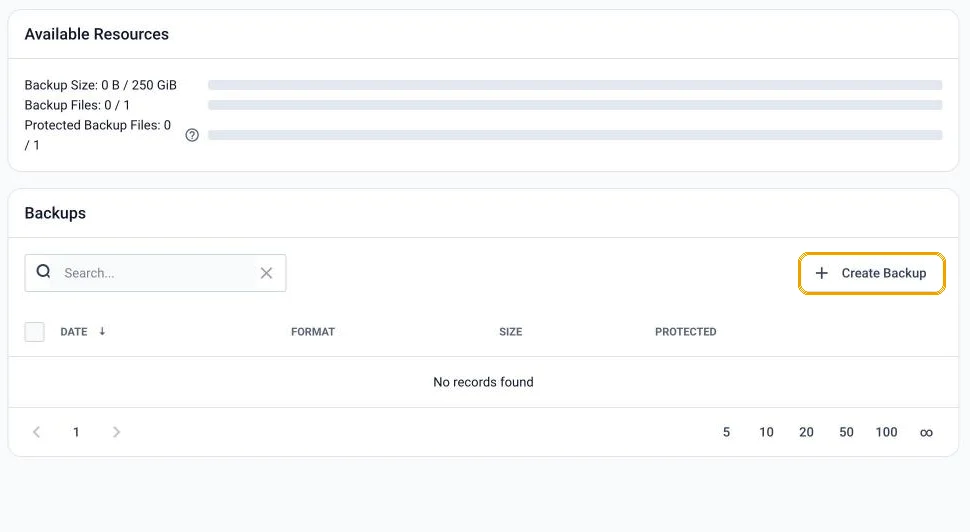
- At the top of the Backups page, Available Resources shows how much backup space and how many backup files your plan includes and how much you have used. The list below is empty until you take your first backup. Click Create Backup.
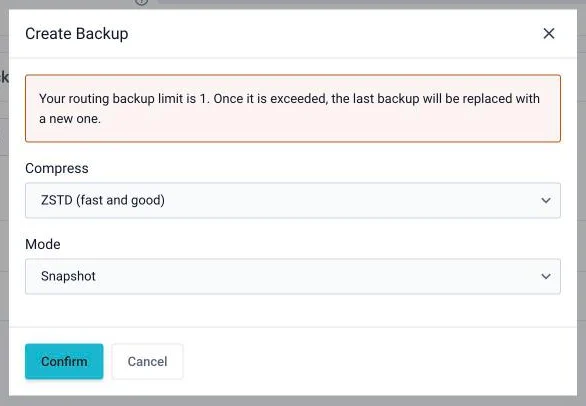
- The Create Backup window opens. The notice at the top tells you how many backups your server keeps and that the last backup is replaced once you go over that number. Leave Compress on ZSTD (fast and good) and Mode on Snapshot, and click Confirm.
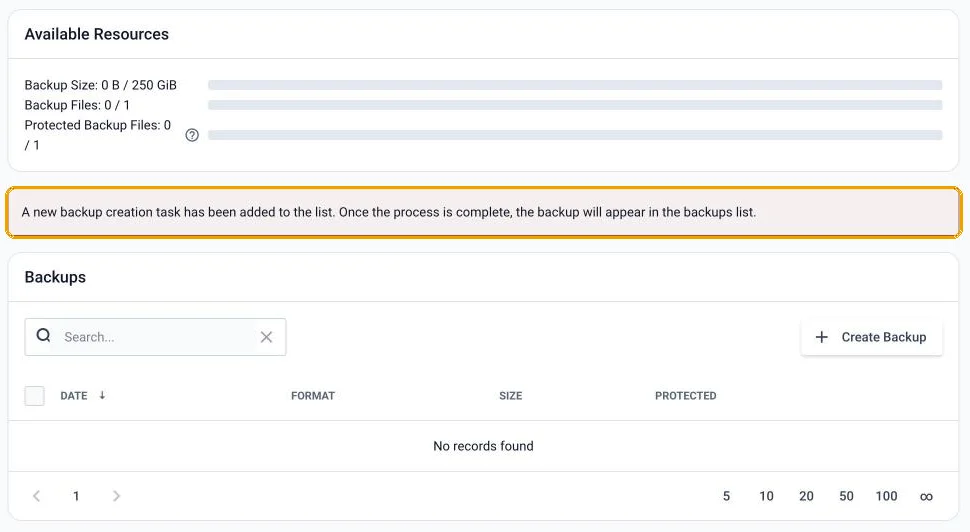
- You see A new backup creation task has been added to the list. The backup now runs in the background. You can leave the page and come back later.
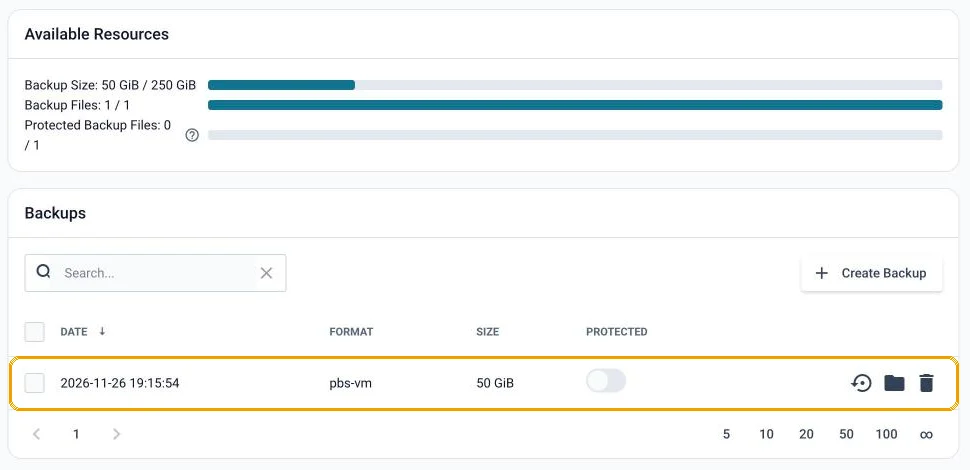
- After a few minutes, refresh the Backups page. The new backup is in the list with its date, format and size, and Available Resources shows the space and backup files it uses. The buttons at the end of the row restore the backup, browse its files and delete it.
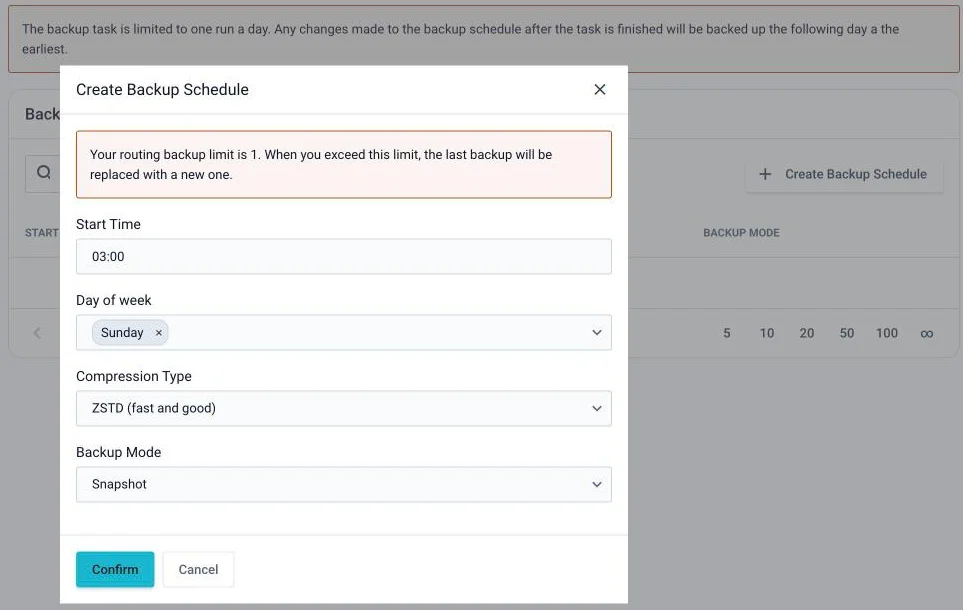
- To have backups taken for you, click Backup Schedules in the menu on the left, then click Create Backup Schedule. Type the Start Time as hours and minutes on the 24 hour clock, for example 03:00. Pick one or more days in Day of week. Leave Compression Type and Backup Mode as they are, and click Confirm.
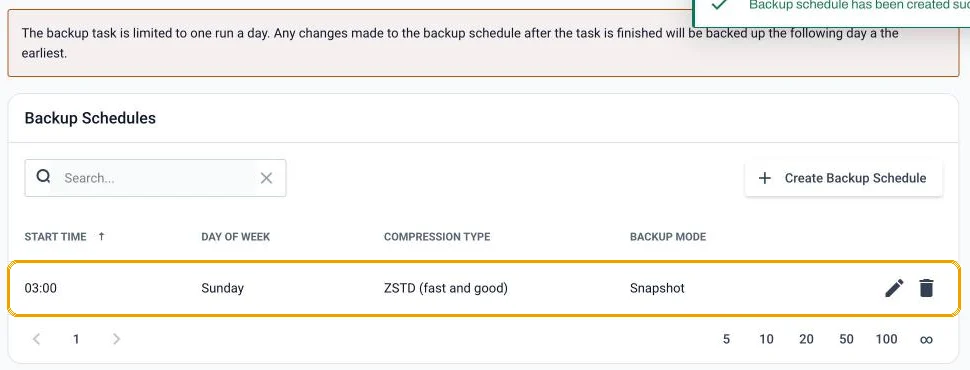
- You see Backup schedule has been created successfully and the schedule appears in the list. Use the pencil to change it or the bin to remove it. The notice at the top of the page explains that backups run at most once a day, so a change made after today’s backup has run takes effect the next day.
Keeping a backup
Each backup has a Protected switch in the Backups list. The question mark next to Protected Backup Files explains that a protected backup is not replaced by new or scheduled backups, and is kept even once it is older than 90 days. Protected Backup Files shows how many backups you can protect.
Restoring a backup
Restoring puts your whole server back to how it was when the backup was taken. Everything on the server now is replaced, so any files, emails, database changes or settings made after the backup was taken are lost. If there is anything newer you want to keep, copy it somewhere else first.
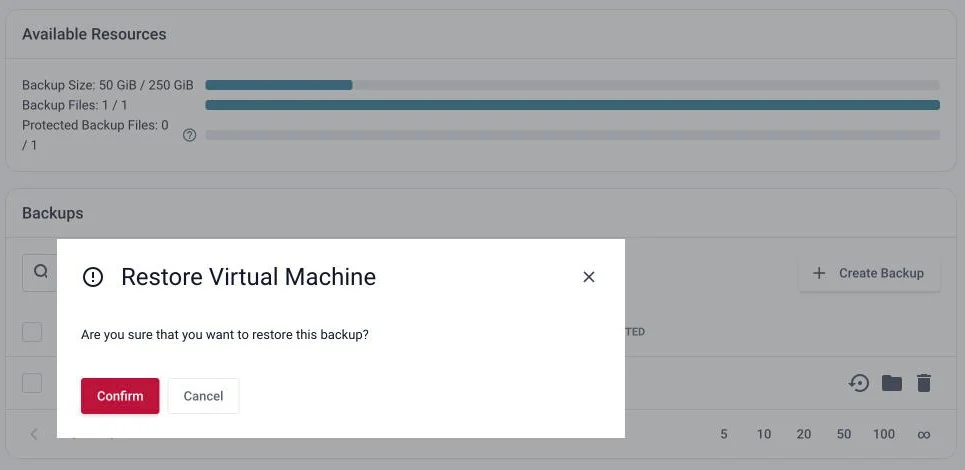
- Open Backups and click the round arrow at the end of the backup’s row.
- The Restore Virtual Machine window asks whether you are sure. Click Confirm to restore, or Cancel to go back without changing anything.
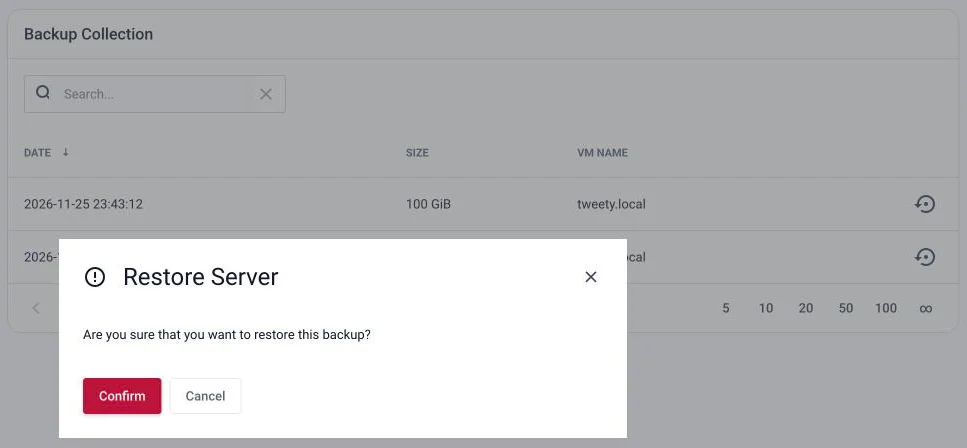
Backup Collection in the menu on the left lists backups by server name, with the same round arrow on each. Clicking it opens a Restore Server window that works the same way.
Deleting a backup
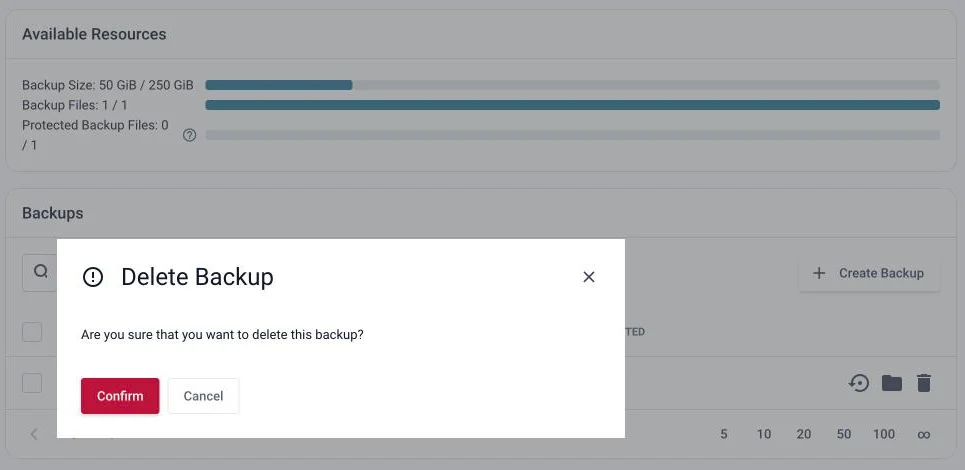
Click the bin at the end of the backup’s row. The Delete Backup window asks whether you are sure. Click Confirm to delete it or Cancel to keep it. A deleted backup cannot be brought back.
Snapshots
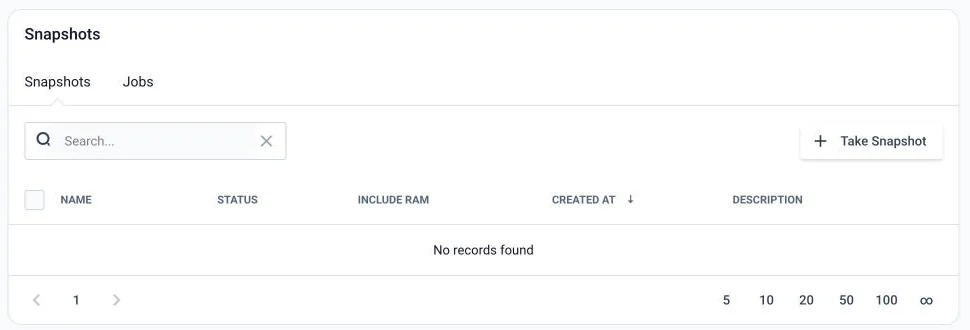
Snapshots has its own tile under Service Management with a Take Snapshot button. Snapshots are separate from backups and are not covered in this guide.
Video
If something goes wrong
If the new backup does not show in the list, wait a few more minutes and refresh the page. A backup waits its turn and then takes a few minutes to run.
If Create Backup is missing or the backup does not finish, open a ticket from Support in the client area and tell us the server name and roughly when you tried.
If you need to keep more backups than your plan includes, open a ticket from Support and we will help.
Before you restore, remember that everything on the server is replaced by the backup. If you are not sure which backup to use, open a ticket first and we can help you choose.