When you sign up and order a server, we send you a few emails in a row. This guide explains what each one is for, where your login details come from, and how to find any of these emails again in the client area.
Before you start
Sign in to the client area at https://manage.arphost.com/clientarea.php. You do not need anything else to read your emails there.
Find your emails in the client area
- Sign in to the client area at https://manage.arphost.com/clientarea.php.
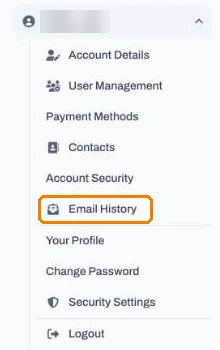
- In the menu on the left, click your name under Support. It shows as Hello, followed by your first name.
- In the menu that opens, click Email History.
- The My Emails page lists the emails we have sent you, newest first, with the Date Sent and the Message Subject of each one. An email with a paperclip next to its subject has a file attached.
- Show at the bottom of the page sets how many emails are listed at once. Use Previous and Next to move between pages when there are more.
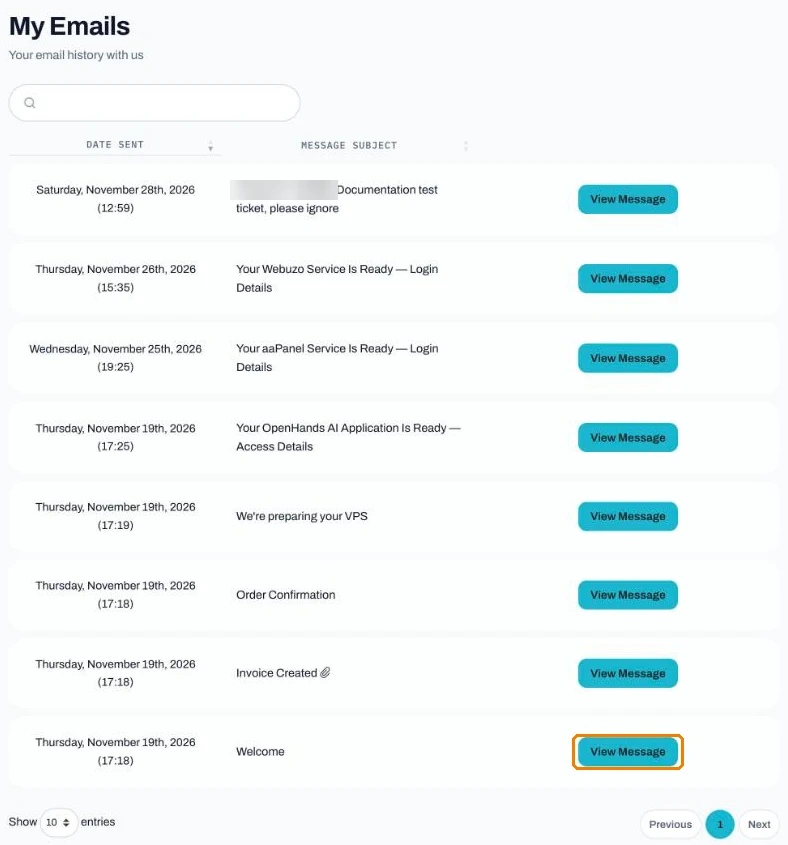
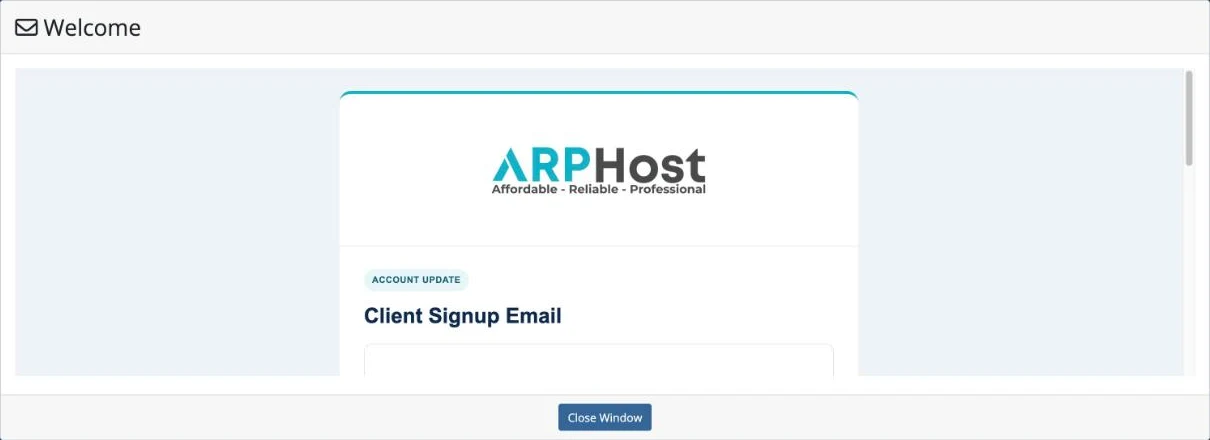
- Click View Message next to an email. The email opens in a small window with its subject at the top and the message under it. Scroll inside the message to read all of it.
- Click Close Window when you are done.
The emails we send
The emails below are the ones a new customer gets after signing up and ordering a VPS, in the order they arrive.
Welcome
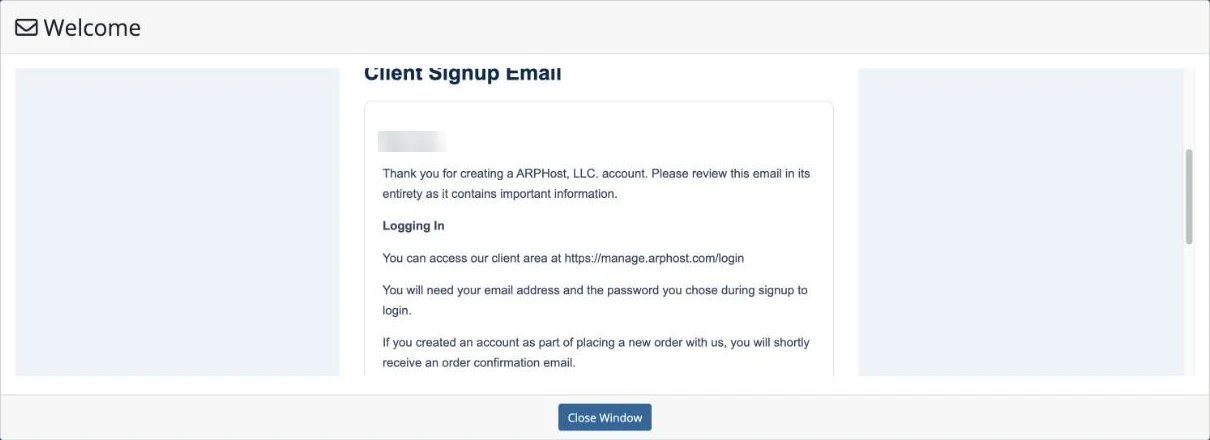
The Welcome email is sent when you create your account. Inside, it is headed Client Signup Email. It thanks you for creating an account, gives the address of the client area and tells you to sign in with your email address and the password you chose when you signed up. Your password is not in the email.
If you created your account while placing an order, the email says an order confirmation email follows shortly.
Order Confirmation
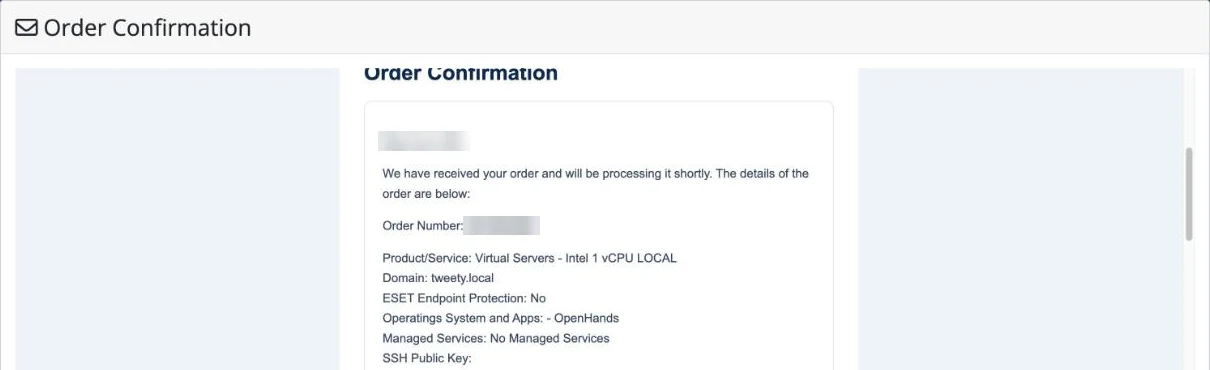
The Order Confirmation email says we have received your order and will process it shortly. It lists the order number, the product, the Domain, the options you picked, the first payment, the recurring amount, the billing cycle and the total due today.
It also says you will get another email once your service is set up. If you contact us about the order, quote the order number from this email.
Invoice Created
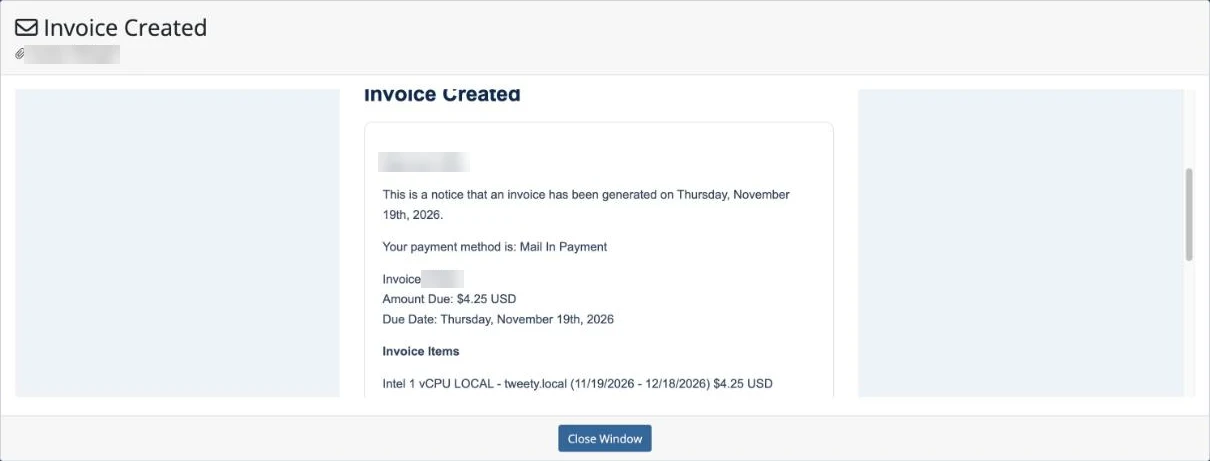
The Invoice Created email tells you that an invoice has been made for you. It shows your payment method, the invoice number, the amount due, the due date and the items on the invoice. The invoice is attached to the email as a PDF file, and the email ends with a link to sign in to the client area to view and pay it. The guide How to view and pay an invoice shows how.
We’re preparing your VPS
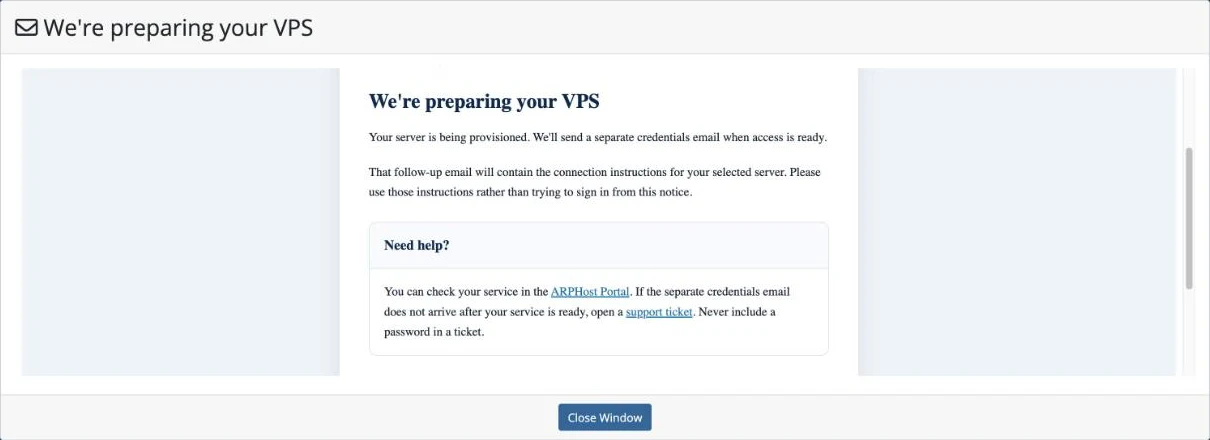
The We’re preparing your VPS email is sent while your server is being set up. It says a separate email with your connection details comes when your server is ready, and that you should use the instructions in that email rather than trying to sign in from this notice.
You can check your service in the client area while you wait. If the email with your details does not arrive after your service is ready, open a support ticket.
Your service is ready
When your server is ready you get an email whose subject names what you installed, for example Your Webuzo Service Is Ready or Your OpenHands AI Application Is Ready. This is the email with your login details.
- Application access shows the address of the application you installed.
- SSH server access shows the Host to connect to and the Username, which is root.
- Your password is never written in the email. Next to Password there is an Open secure password link instead, with the time the link expires printed under it. Open it before then and save the password somewhere safe, such as a password manager.
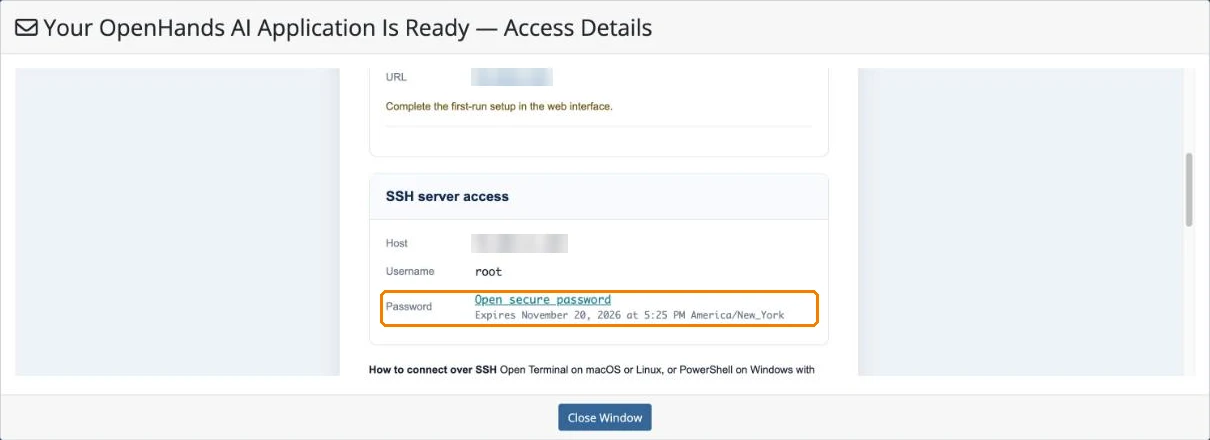
- Further down, the email shows how to connect to the server over SSH and some first steps for the application you installed.
This is how the same kind of email looks in your own inbox.
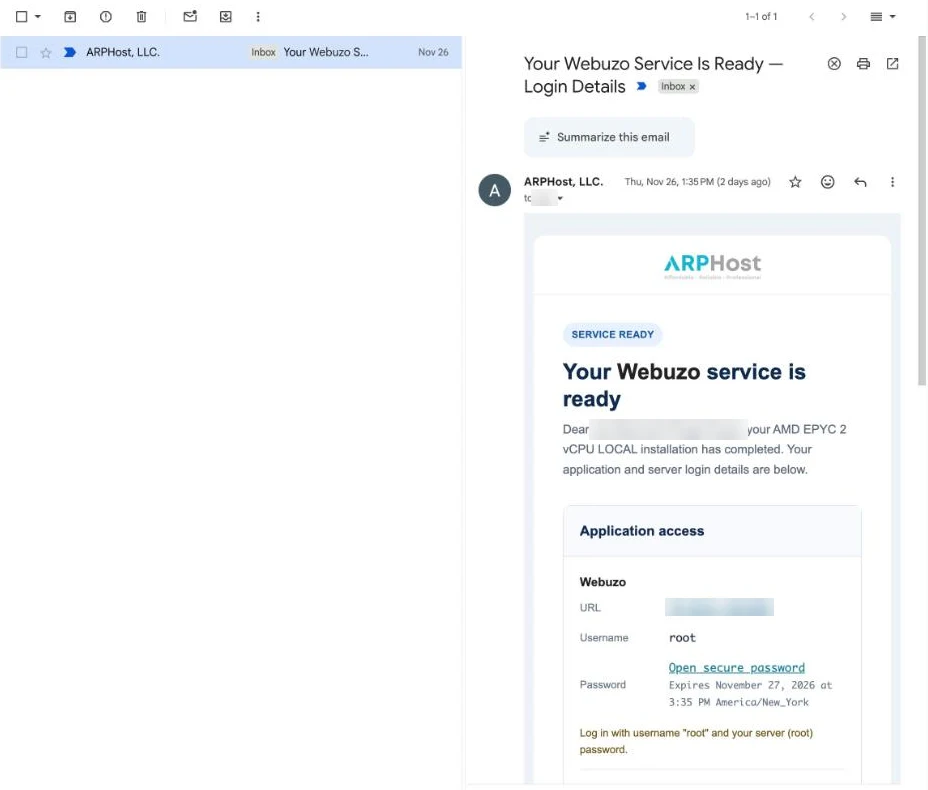
If you reinstall your server later, you get a new service ready email with new details. The guide How to reinstall your VPS covers that.
Where your login details come from
You sign in to the client area with your email address and the password you chose when you signed up, as the Welcome email says. To change that password later, follow the guide How to update your account details.
The login details for your server come in the service ready email. The host and username are written in it, and the password is behind the Open secure password link.
Choose which emails you get
Some of these emails can be turned on or off under Email Preferences on the Account Details page. Product Emails covers welcome emails and other notices about your services, and Invoice Emails covers new invoices, reminders and overdue notices. The guide How to update your account details shows where to find these settings and how to save them.
Video
The video for this guide is linked here once it is published.
If something goes wrong
If you cannot find one of these emails in your inbox, look for it under Email History in the client area, where you can open it again.
If the email with your server details has not arrived after your service is ready, or a secure password link has expired, open a ticket from Support, then Open A Ticket. Never put a password in a ticket.