Sometimes we need a password from you to fix a problem, for example the password for an application on your server. Never type a password in the subject or the message of a support ticket. Use the Secure password box instead. It is on the form you use to open a new ticket and on the reply box of every ticket.
Before you start
Sign in to the client area at https://manage.arphost.com/clientarea.php. The guide How to open a support ticket shows how to open a new ticket and fill in the rest of the form.
Steps
- Sign in to the client area at https://manage.arphost.com/clientarea.php.
- Open a new ticket from Support, then Open A Ticket, and fill in the subject and message. To add a password to a ticket you already have, open Support, then Tickets, click the ticket and go to the Reply box.
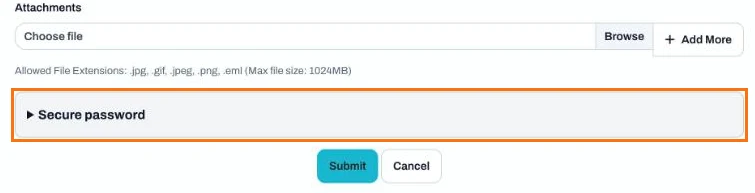
- Under Attachments, click Secure password to open that section. It says Send a password securely to support. and has a Password box and an Add secure password button.
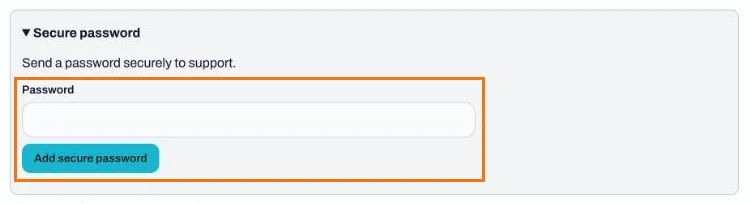
- Type the password in the Password box.
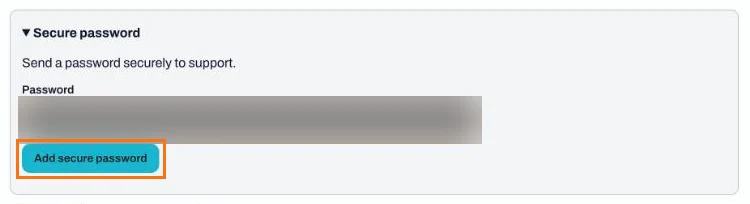
- Click Add secure password. The section shows Password sealed. Add another if needed, then submit your message. and lists Secure password 1 added to this message. A line starting with [Secure password 1] is added to the Message box. Leave that line in your message.
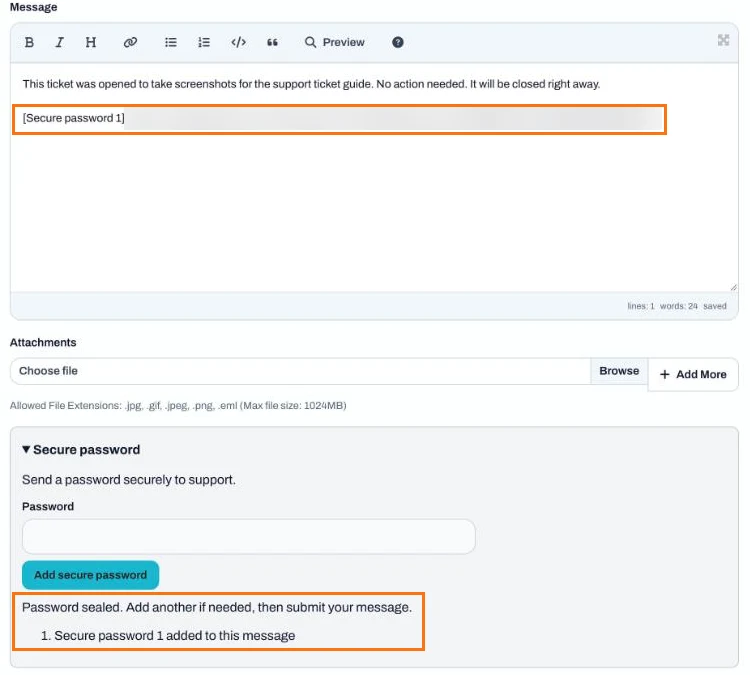
- The Password box is empty again. If we asked for more than one password, type the next one and click Add secure password again. Each one is listed and numbered.
- Click Submit to send the ticket or your reply.
What you see on the ticket
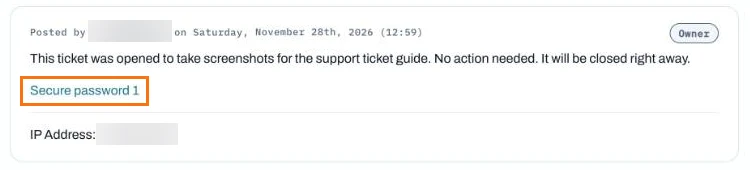
Your message on the ticket shows a Secure password 1 link where the password was added. The password itself is not shown in the message.
To send another password later, open the ticket and click Secure password under Attachments in the Reply box, then follow steps 4 to 7.
Video
The video for this guide is linked here once it is published.
If something goes wrong
If you cannot see Secure password under Attachments, check that you are signed in to the client area and are on the Open Ticket page or the Reply box of a ticket.
If Add secure password does not show Password sealed, do not put the password in the message. Send the ticket without it and tell us you need to give us a password, or call us at 1-970-999-6032. The number is shown under Contact Us at the bottom of the client area.