A support ticket is the way to ask us for help with your account or one of your services. This guide shows how to open a ticket in the client area, what to fill in, how to add files, how to give us a password safely, and where to find our replies.
Before you start
Sign in to the client area at https://manage.arphost.com/clientarea.php. If your question is about a server, have its name handy so you can pick it from the list.
If you need to give us a password, do not type it in the subject or the message. Use the Secure password box shown in step 8.
Steps
- Sign in to the client area at https://manage.arphost.com/clientarea.php.
- In the menu on the left, click Support, then click Open A Ticket.
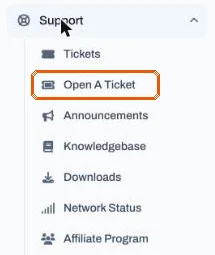
- The Open Ticket page opens with a form called Create new Support Request. Your Name and Email Address are already filled in from your account.
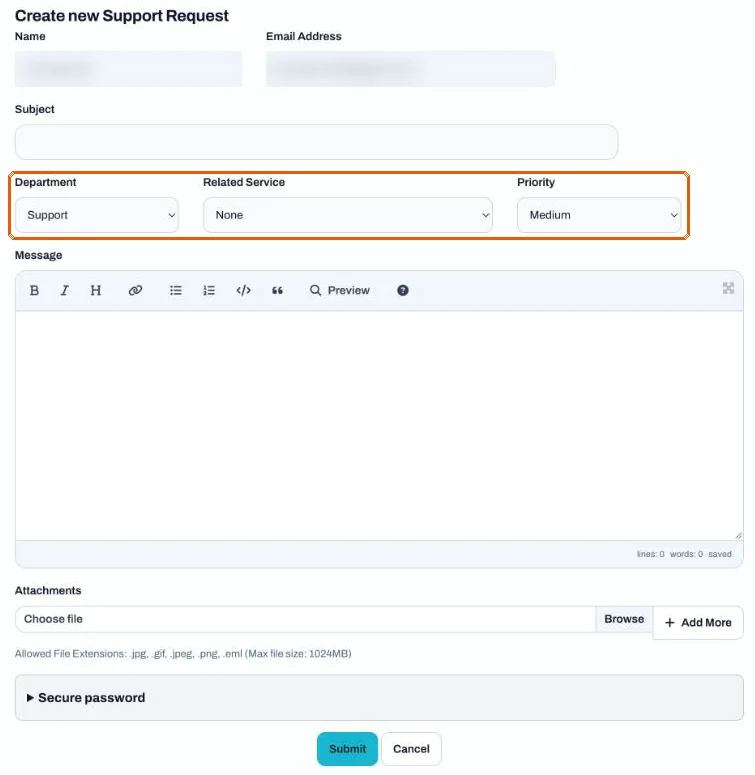
- In Subject, type a short title for your problem, for example the server name and what is wrong.
- Check the three boxes under the subject.
- Department shows Support.
- In Related Service, pick the service the ticket is about. Choose None if it is not about a service, for example a question about your account.
- In Priority, pick High, Medium or Low. Medium is selected to begin with.
- In Message, describe the problem. Say what you were doing, what you expected and what happened instead, and copy in any error message you saw. The buttons above the box can make text bold, add a list or a link, and Preview shows how your message will look.
- To add a screenshot or another file, click Browse under Attachments and choose the file. Click Add More to attach another one. The line under the box lists the file types you can attach and the largest file size. When we checked, it said Allowed File Extensions: .jpg, .gif, .jpeg, .png, .eml (Max file size: 1024MB).

- If we need a password from you, never put it in the subject or the message. Use the Secure password box under Attachments instead, as shown in the guide How to send a password securely to support.
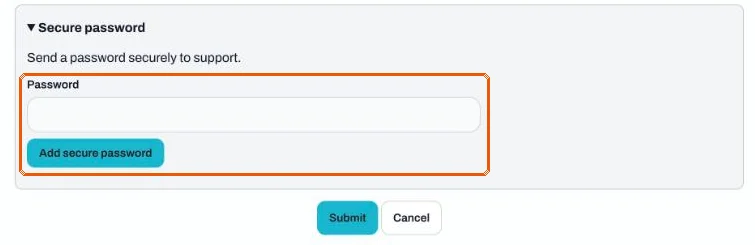
- Check what you have written, then click Submit to send the ticket.
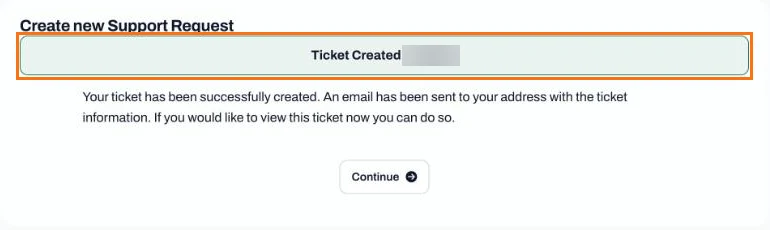
- A green box says Ticket Created with your ticket number, and the page says the ticket was created and that an email with the ticket information has been sent to your address. Click Continue to open the ticket.
Following your ticket
- In the menu on the left, click Support, then click Tickets. The My Support Tickets page lists your tickets with their Department, Subject, Status and Last Updated date.
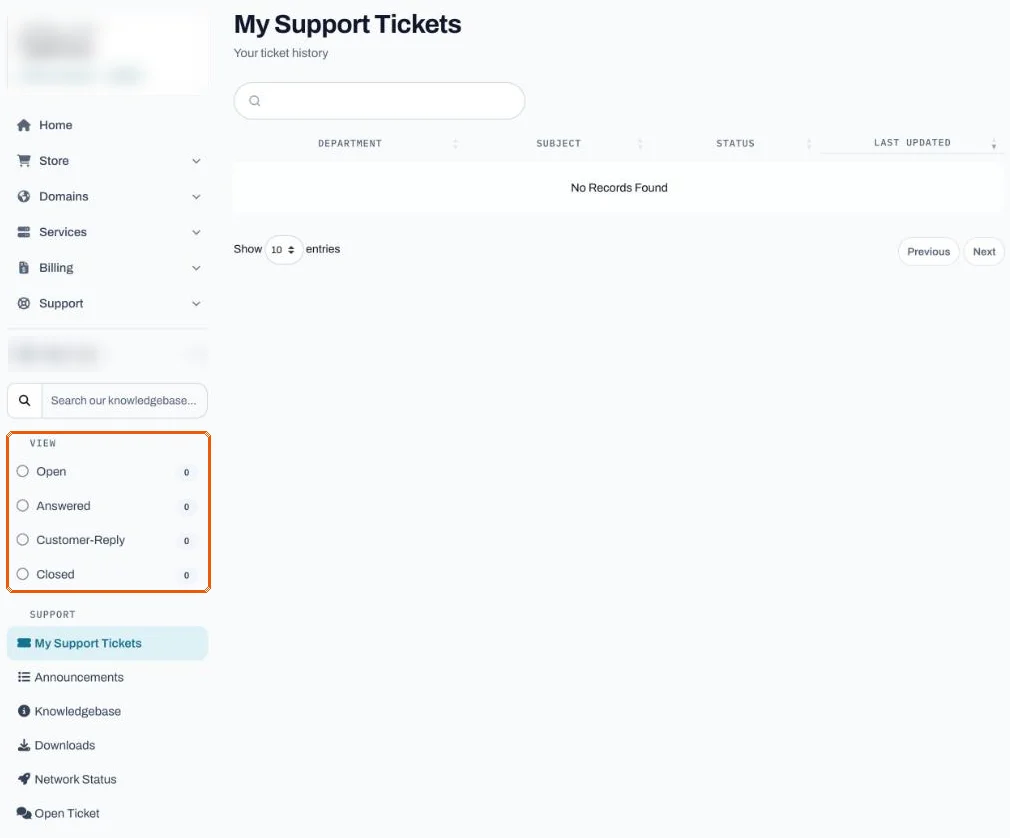
- A new ticket starts with the status Open. When our team replies, the status changes to Answered.
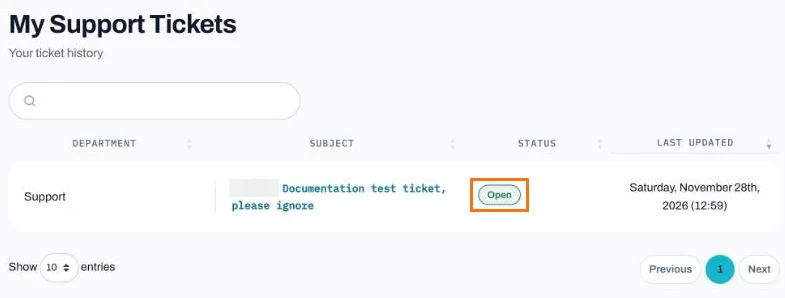
- Use the View list on the left to show only the tickets that are Open, Answered, Customer-Reply or Closed. The number next to each one shows how many tickets have that status.
Viewing and replying to a ticket
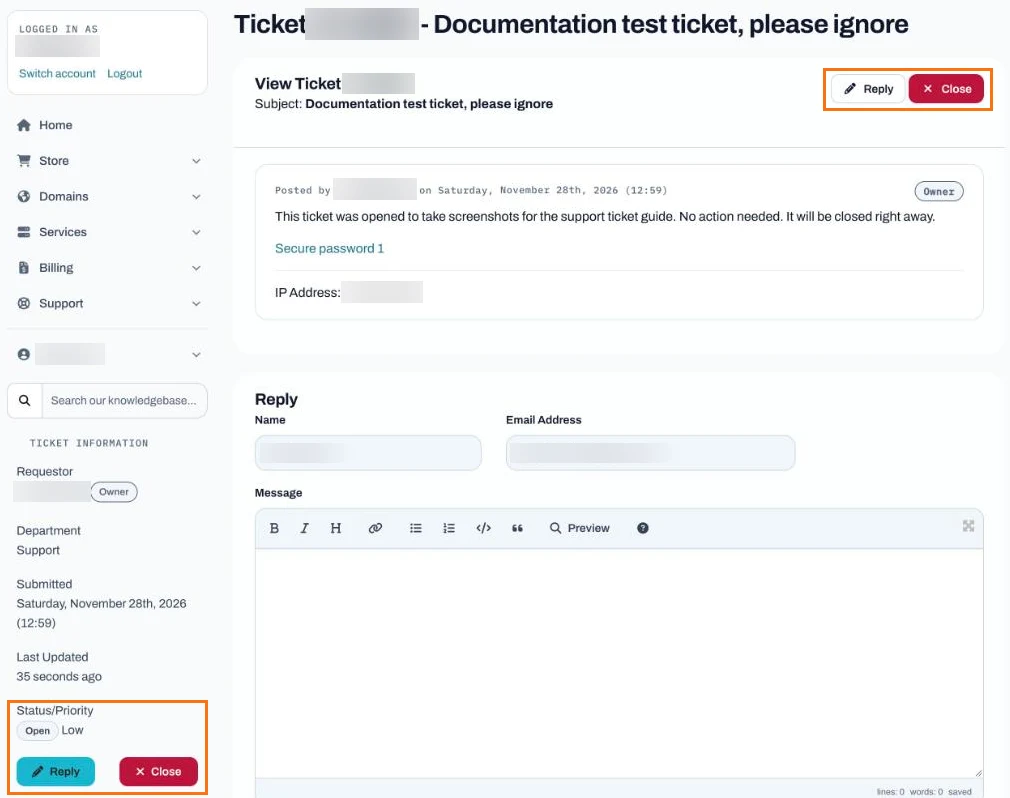
- Click a ticket in the My Support Tickets list to open it. The page shows the ticket subject, every message in the ticket with who wrote it and when, and a Reply box underneath.
- The Ticket Information box on the left shows who opened the ticket, the Department, when it was submitted and last updated, and its Status/Priority. The Reply and Close buttons are shown there and at the top of the ticket.
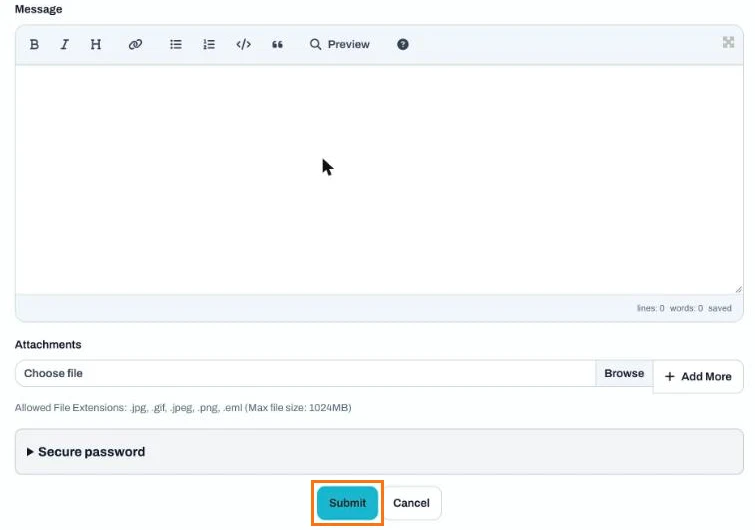
- To answer us, type in the Message box under Reply. You can attach files and add a secure password in the same way as when you opened the ticket. Click Submit to send your reply.
Closing a ticket
- When your problem is solved, open the ticket and click Close, either at the top of the ticket or under Status/Priority on the left.
- The page shows This ticket is closed. You may reply to this ticket to reopen it. The button now says Closed and the status changes to Closed.
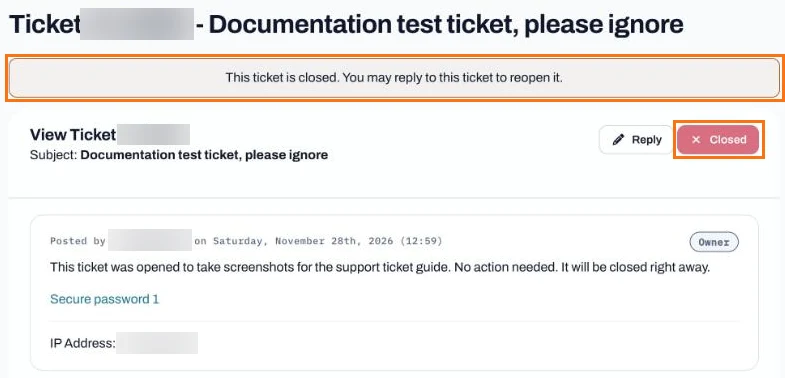
- If you need more help with the same problem, reply to the closed ticket to open it again. For something new, open a new ticket.
Video
If something goes wrong
If a file will not attach, check that it is one of the file types listed under Attachments and is not larger than the size shown there. You can save a screenshot as .png or .jpg before you attach it.
If you cannot find your ticket, open Support, then Tickets, and click each status in the View list on the left.
If you still cannot open a ticket, call us at 1-970-999-6032. The number is shown under Contact Us at the bottom of the client area.