

A managed VPS is returning 504 errors, one Nginx worker is consuming CPU, and the obvious command is kill -9. Don't start there. Confirm the process, then send a normal termination request:
kill <PID>
Linux kill sends SIGTERM, signal 15, by default. That gives the application an opportunity to stop accepting work, flush buffers, close sockets, release locks, and exit cleanly. If it remains alive, investigate why before escalating. The command is a signal interface, not a special “force quit” button, and the difference matters on production systems. The practical workflow is simple: identify the correct PID, request a graceful stop, observe the process state, escalate only when the evidence supports it, then verify the service and its dependants.
Table of Contents
- When a Linux Process Will Not Die
- Finding the Right PID Before You Kill Anything
- Linux Signals You Will Actually Use
- The Graceful Then Force Escalation Workflow
- Choosing Between kill, pkill, and killall
- Handling Stubborn Zombie and Stuck Processes
- Automation, Safety Habits, and When to Escalate
When a Linux Process Will Not Die
A busy Nginx worker can be a symptom rather than the root cause. The worker might be waiting on an upstream application, sharing a socket with a master process, or running inside a service that will immediately recreate it. Killing the visible child without checking the parent can leave traffic flowing through other workers while the actual fault remains.
On a multi-tenant host, forced termination can also create secondary problems. A process killed before it flushes output may leave incomplete logs or application state. A service that loses its chance to close sockets and release locks can restart into stale resources. The result may look like a successful kill in the terminal while the site continues returning 504s.
Practical rule: “Won't die” often means the process hasn't been asked politely yet, or it's waiting somewhere the signal can't be handled immediately.
The historical kill command predates Linux. A documented UNIX history note records it in Version 3 AT&T UNIX, placing its origins in the early 1970s, before Linux existed. Modern Linux behavior follows POSIX and kernel rules, including permission checks that became standardized as Linux matured. The Linux kill manual documents those changes and the protection around signaling special processes.
Start with an orderly request
Run the default signal first:
kill, "$PID"
If you want the intent to be explicit:
kill -TERM, "$PID"
Replace PID with the verified process ID. Wait long enough for the application's shutdown path to run, then inspect it again. Don't assume that an immediate return to the shell means the process has exited, and don't assume that a visible PID means the signal failed.
If the host is showing broader symptoms, preserve logs and resource information before restarting anything. A process failure is different from a kernel failure, so use the guidance in this Linux kernel panic troubleshooting guide when the machine is freezing, rebooting, or losing responsiveness at the kernel level.
Finding the Right PID Before You Kill Anything
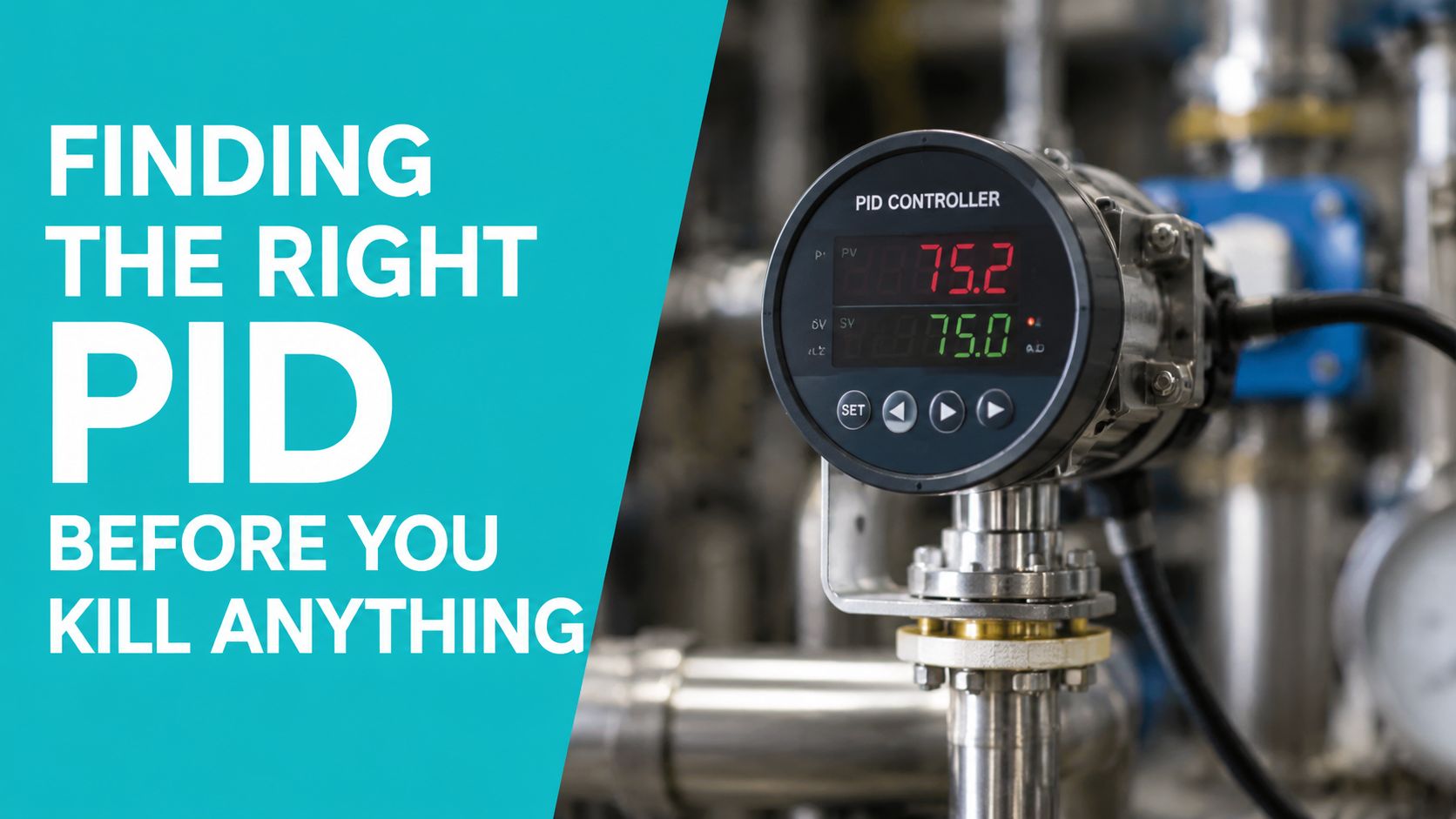
The riskiest process command is a valid command aimed at the wrong PID. Start with a broad view, then narrow the match until the executable, owner, parent, and full command line agree.
Read the process context
ps aux | grep '[n]ginx'
A realistic result might look like this:
root 812 0.0 0.2 18432 4120 ? Ss 09:12 0:00 nginx: master process /usr/sbin/nginx
www-data 1047 92.1 0.8 26540 16200 ? R 09:12 4:18 nginx: worker process
The first field is the owner and the second is the PID. STAT shows process state, while the command column distinguishes a master, worker, shell, wrapper, or unrelated executable. Because this ps aux layout omits PPID, query parentage directly when it matters:
ps -o pid,ppid,user,stat,lstart,cmd -p 1047
The [n]ginx pattern keeps grep from matching its own command line. That small precaution prevents a common incident mistake.
Use exact lookups in scripts
For a name-based lookup:
pgrep -af nginx
Expected output:
812 nginx: master process /usr/sbin/nginx
1047 nginx: worker process
For an exact executable name, avoid loose matches:
pgrep -x nginx
For command-line patterns, -f searches the complete command line:
pgrep -a -f 'python.*worker.py'
Before signaling a result, inspect the kernel's command-line record:
tr '' ' ' < /proc/1047/cmdline
printf 'n'
If /proc hides another user's processes, the restriction may come from its mount policy. With hidepid=1, other users' process directories remain visible but their contents are restricted. With hidepid=2, those directories are hidden. A known PID can still be checked with kill -0 "$PID"
See the process tree interactively
top
htop helps when a master and its workers have different responsibilities:
htop
Use its tree view to identify the process handling traffic and the process supervising it. If the service owns a listening socket, verify the port with checking whether a Linux port is open before terminating anything. That check can prevent stopping the wrong worker when the visible symptom belongs to another process.
Linux Signals You Will Actually Use
Signals are requests or controls delivered to processes. They don't all mean “terminate,” and the process may handle some of them differently from the kernel's default action.
The most important operational distinction is between SIGTERM and SIGKILL. POSIX identifies SIGTERM as signal 15, a termination request that a process can catch, interpret, or ignore. SIGKILL is an immediate termination signal that can't be caught or ignored, so the application gets no opportunity to clean up. The POSIX and Linux signal behavior reference explains why kill -15 is the normal path and kill -9 is a last resort.
| Number | Name | Default Action | Use Case |
|---|---|---|---|
| 1 | SIGHUP | Terminate by default | Ask a daemon to reload configuration when the daemon supports that behavior |
| 2 | SIGINT | Terminate by default | Interrupt a foreground command, commonly from Ctrl+C |
| 15 | SIGTERM | Terminate by default | Request an orderly service shutdown |
| 9 | SIGKILL | Immediate termination | Last-resort termination when cleanup is no longer possible |
| 19 | SIGSTOP | Stop process | Pause execution for inspection or containment |
| 18 | SIGCONT | Continue process | Resume a process stopped with SIGSTOP |
Why SIGTERM can appear ineffective
A process may receive SIGTERM and remain visible while it completes shutdown work. A database can roll back an active operation, a web service can finish closing connections, and an application can flush buffered output. The absence of an immediate exit isn't proof that the signal was lost.
A process in uninterruptible kernel sleep, commonly shown as D, is a different problem. The signal can remain pending until the kernel wait ends. Repeating kill -9 doesn't repair a failed storage path or blocked device.
Well-behaved daemons often assign their own shutdown behavior. Nginx may coordinate workers through its master, while PostgreSQL follows its own database-aware shutdown procedure. That's why the service manager is often safer than targeting one visible child.
Signals also have scope. Linux protects PID 1, and only signals that init has explicitly handled can be sent to it. Broad forms such as kill(-1, sig) target processes the caller is permitted to signal while excluding some implementation-defined system processes. Treat a negative PID as a process-group operation, not as a harmless variation of a single-process command.
The Graceful Then Force Escalation Workflow
Use a staged response. The objective isn't merely to make a PID disappear. It's to stop the workload without losing state, then confirm that the supervising system leaves the host healthy.
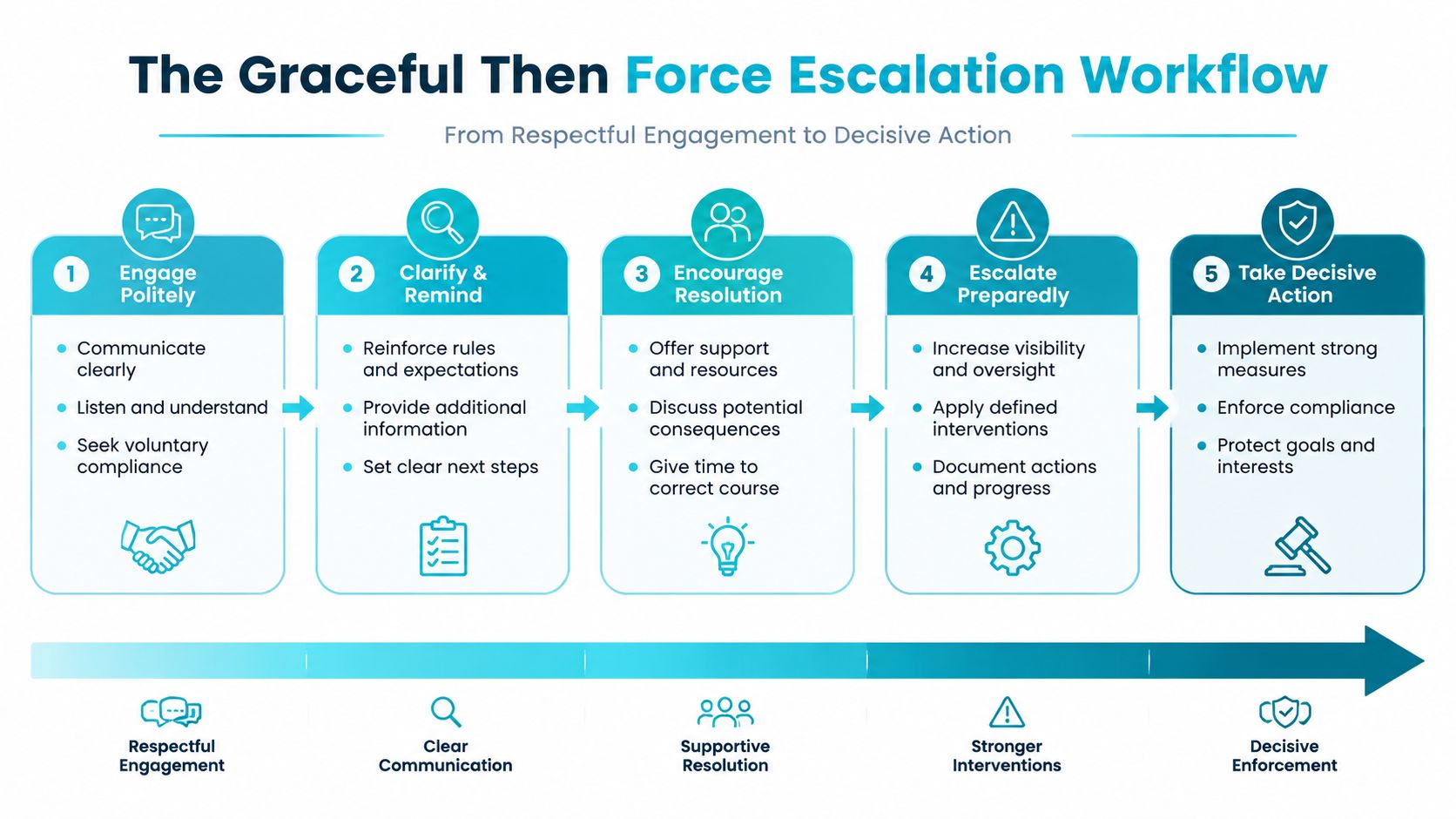
Work through the sequence
Confirm the target.
ps -o pid,ppid,state,etime,cmd -p 1234Request graceful termination.
kill -TERM, 1234SIGTERM lets the application stop new work, flush output, close sockets, release locks, and write state where its shutdown code supports those actions.
Inspect rather than guess.
ps -o pid,ppid,state,etime,cmd -p 1234A changing elapsed time or state can show that shutdown is progressing.
Use SIGINT only where it fits.
kill -INT, 1234SIGINT is appropriate for commands designed around interactive interruption. It isn't a universal replacement for a service stop.
Escalate only after checking the consequences.
kill -KILL, 1234SIGKILL bypasses application cleanup. It can leave lock files, unflushed buffers, incomplete transactions, and inconsistent replicated work.
| Step | Command or Action | Purpose |
|---|---|---|
| Identify | ps -o pid,ppid,state,etime,cmd -p 1234 | Verify identity, parent, state, and runtime |
| Request | kill -TERM, 1234 | Allow orderly shutdown |
| Observe | Repeat the ps command | Determine whether the process is progressing |
| Escalate | kill -KILL, 1234 | Remove an unresponsive process when the risk is accepted |
| Verify | Check PID, service state, and logs | Confirm recovery and supervision |
Let systemd manage systemd services
If systemd owns the workload, stop the unit:
sudo systemctl stop application.service
sudo systemctl status application.service --no-pager
sudo journalctl -u application.service -n 100 --no-pager
If the unit needs a controlled restart, use the procedure in this guide to restart a Linux service safely. After any termination, verify whether the unit should remain stopped or restart automatically. A disappearing PID can be a failure if the service was expected to remain available.
Choosing Between kill, pkill, and killall
Choose the command based on how precisely you know the target. kill is the narrow instrument. pkill and killall trade precision for convenience, which increases the blast radius on shared systems.
| Command | Best Target | Preview or Safety Check |
|---|---|---|
kill -TERM, 4242 | One verified PID | ps -o pid,ppid,pgid,sid,cmd -p 4242 |
pkill -TERM -f 'python.*worker.py' | A command-line pattern | pgrep -a -f 'python.*worker.py' |
killall -TERM nginx | Processes with an executable name | killall -i -TERM nginx |
Exact PID targeting
Use kill when you've already confirmed the process:
kill -TERM, 4242
The -- separates options from PID operands. It prevents a leading dash in an operand from being interpreted as another option. On a multi-tenant machine, this is the safest default because similarly named jobs remain untouched.
Pattern targeting with pkill
pkill sends the selected signal to every matching process, and defaults to SIGTERM when no signal is specified. That makes it useful for a worker family:
pgrep -a -f 'python.*worker.py'
pkill -TERM -f 'python.*worker.py'
Preview first. A loose pattern can match an older rollout, a wrapper shell, or an unrelated command. The pkill reference documents its numeric and symbolic signal forms and its multi-process behavior.
Name targeting with killall
killall -i -TERM nginx
Interactive confirmation reduces accidental matches, but it doesn't replace process inspection. A name can represent multiple instances, and command-line arguments aren't normally considered unless the selected tool options support them.
For a related process group, validate the group ID first:
ps -o pid,ppid,pgid,sid,cmd -p 4242
kill, -"$PGID"
A negative PID means a process group. It can affect more processes than intended, so never derive it from an unverified assumption. If systemd owns the workload, stop the unit rather than manually collecting children.
Handling Stubborn Zombie and Stuck Processes
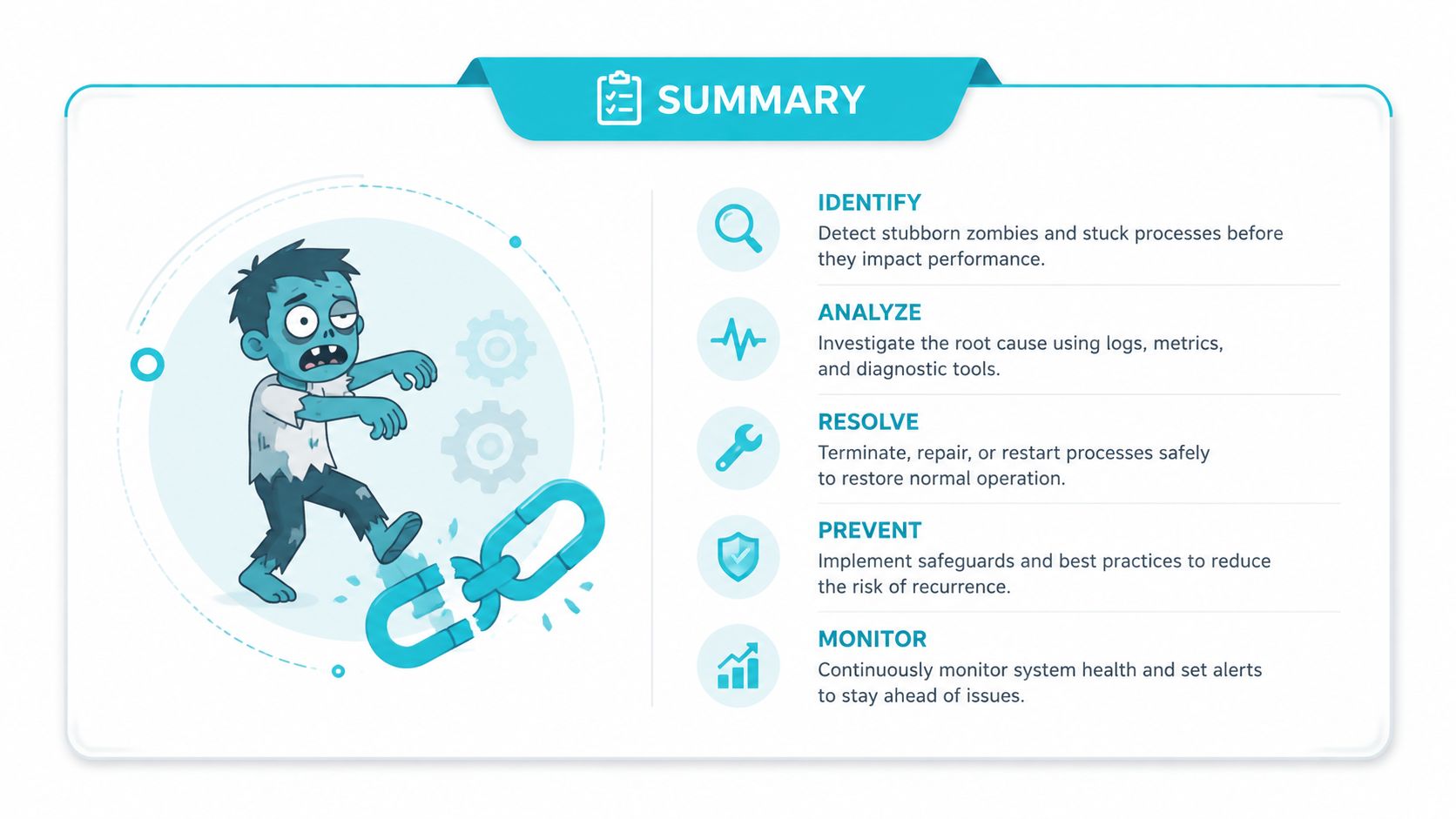
A PID that remains visible isn't necessarily alive in a useful sense. Inspect its state and wait channel before sending another signal:
ps -o pid,ppid,state,wchan:24,etime,cmd -p 1234
A process in Z state is a zombie. It has already exited and is waiting for its parent to call wait(). Sending SIGTERM or SIGKILL to the zombie won't remove it because there's no running process left to terminate.
Match the response to the state
| Observed State | Likely Meaning | Recommended Action |
|---|---|---|
Z | Child has exited and awaits parent reaping | Inspect and repair or restart the parent |
D | Uninterruptible sleep, often kernel or storage I/O | Investigate storage, mounts, and kernel logs |
R | Running on CPU | Inspect workload, parent, and resource behavior |
S | Interruptible sleep | Determine what the process is waiting for |
| Permission error | Caller lacks authority for the target | Verify owner, use approved privilege, inspect access controls |
Find the parent relationship:
ps -o pid,ppid,state,cmd -p 1,1234
The correct remedy for a zombie is usually to restart or repair the parent service. Killing the zombie repeatedly doesn't solve the reaping failure.
Treat D state as an I/O incident
A D state process may not respond immediately even to SIGKILL because the kernel is waiting for an operation to complete. Check the host rather than escalating blindly:
df -h
iostat
dmesg -T | tail -n 100
Review mount health, storage errors, and recent system events. If the process belongs to a systemd unit, inspect and signal the unit deliberately:
sudo systemctl status application.service --no-pager
sudo journalctl -u application.service -n 100 --no-pager
sudo systemctl kill --kill-whom=main --signal=SIGTERM application.service
Avoid a unit-wide SIGKILL until you understand its restart behavior and cleanup requirements. A permission error also deserves verification. Check the process owner, confirm the PID, then use sudo only when your operational authority permits it.
Capture the PID, PPID, state, wait channel, uptime, logs, and recent changes before restarting. On production infrastructure, that record is often more valuable than the command that finally clears the screen.
Automation, Safety Habits, and When to Escalate
A safe automation routine should be conservative by design. It must validate the target, record what happened, allow a cleanup window, and refuse obviously dangerous PIDs.
Keep a pre-kill record
Before termination, collect:
PID=1234
ps -o pid,ppid,user,state,wchan:24,etime,cmd -p "$PID"
sudo lsof -p "$PID"
kill -0 "$PID"
kill -0 sends no terminating signal. It checks whether the caller can address the PID, which is useful when process visibility is restricted. Confirm that a recent backup or snapshot exists before killing a process responsible for stateful work.
A bounded shell routine can handle a known PID without turning SIGKILL into the default:
#!/usr/bin/env bash
set -u

PID="${1:?usage: $0 PID}"
LOG="/var/log/process-stop.log"

if [[ "$PID" == "1" || ! "$PID" =~ ^[0-9]+$ ]]; then
 printf '%s refusing unsafe PID %sn' "$(date -Is)" "$PID" | tee -a "$LOG"
 exit 2
fi

if ! kill -0, "$PID" 2>/dev/null; then
 printf '%s PID %s is not reachablen' "$(date -Is)" "$PID" | tee -a "$LOG"
 exit 0
fi

printf '%s sending SIGTERM to PID %sn' "$(date -Is)" "$PID" | tee -a "$LOG"
kill -TERM, "$PID"

for _ in {1.10}; do
 sleep 1
 if ! kill -0, "$PID" 2>/dev/null; then
 printf '%s PID %s exited after SIGTERMn' "$(date -Is)" "$PID" | tee -a "$LOG"
 exit 0
 fi
done

printf '%s sending SIGKILL to PID %sn' "$(date -Is)" "$PID" | tee -a "$LOG"
kill -KILL, "$PID"
This loop is appropriate only when the PID has already been identified and the workload's hard-stop consequences are understood. It shouldn't replace service-specific shutdown logic.
| Safety Habit | Automation Pattern | Escalate When |
|---|---|---|
| Verify PID and command line | Run ps and /proc/<pid>/cmdline checks | Identity remains ambiguous |
| Inspect parent and process group | Record PPID and PGID before signaling | Children or supervisors keep recreating work |
| Capture open files | Run lsof -p "$PID" before stopping | The process owns critical state or active writes |
| Use TERM first | Apply a bounded wait, then log escalation | Cleanup exceeds the approved window |
| Protect PID 1 and the current shell | Reject unsafe matches and leading-dash operands | A script could affect unrelated tenants |
| Monitor recurrence | Alert on repeated failures and resource pressure | OOM kills, cgroup freezes, or D-state waits recur |
What automation can't fix is a kernel-level I/O stall, a frozen cgroup, a recurring out-of-memory condition, or a supervisor that continually launches the same broken workload. In those cases, preserve evidence and involve the team responsible for the host, storage, container runtime, or service design. Repeating kill -9 only hides the symptom.
ARPHost, LLC provides VPS hosting, bare metal servers, Proxmox private clouds, colocation, and fully managed IT for teams that need help operating Linux workloads safely. If process failures are recurring, visit ARPHost, LLC to discuss managed investigation, infrastructure monitoring, and recovery planning.