Every invoice for your account is kept in the client area. This guide shows how to find your invoices, open one, save it as a PDF and pay an unpaid invoice. It also shows where to find your credit and debit notes and your quotes.
Before you start
Sign in to the client area at https://manage.arphost.com/clientarea.php. To pay, have your card or other payment details ready. You only type them on the payment page, never in a support ticket.
Find your invoices
- Sign in to the client area at https://manage.arphost.com/clientarea.php.
- In the menu on the left, click Billing, then click My Invoices.
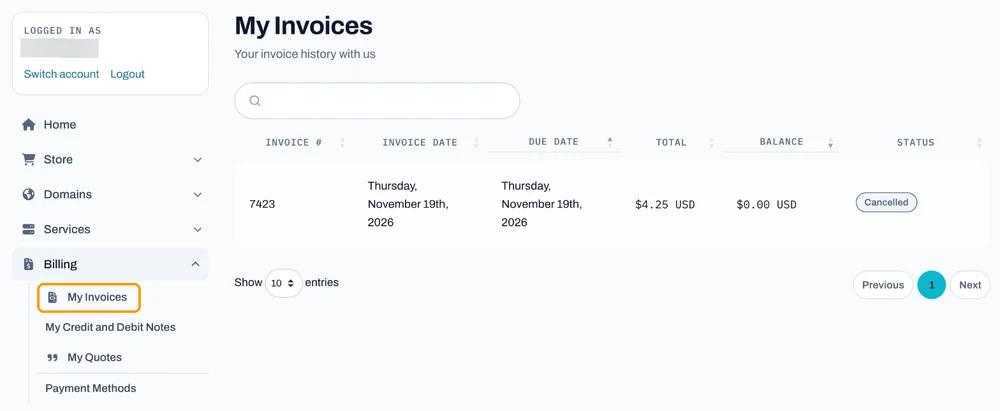
- The My Invoices page lists your invoices with the Invoice #, Invoice Date, Due Date, Total, Balance and Status of each one. Click a column heading to sort the list, or type in the search box above the list to find an invoice.
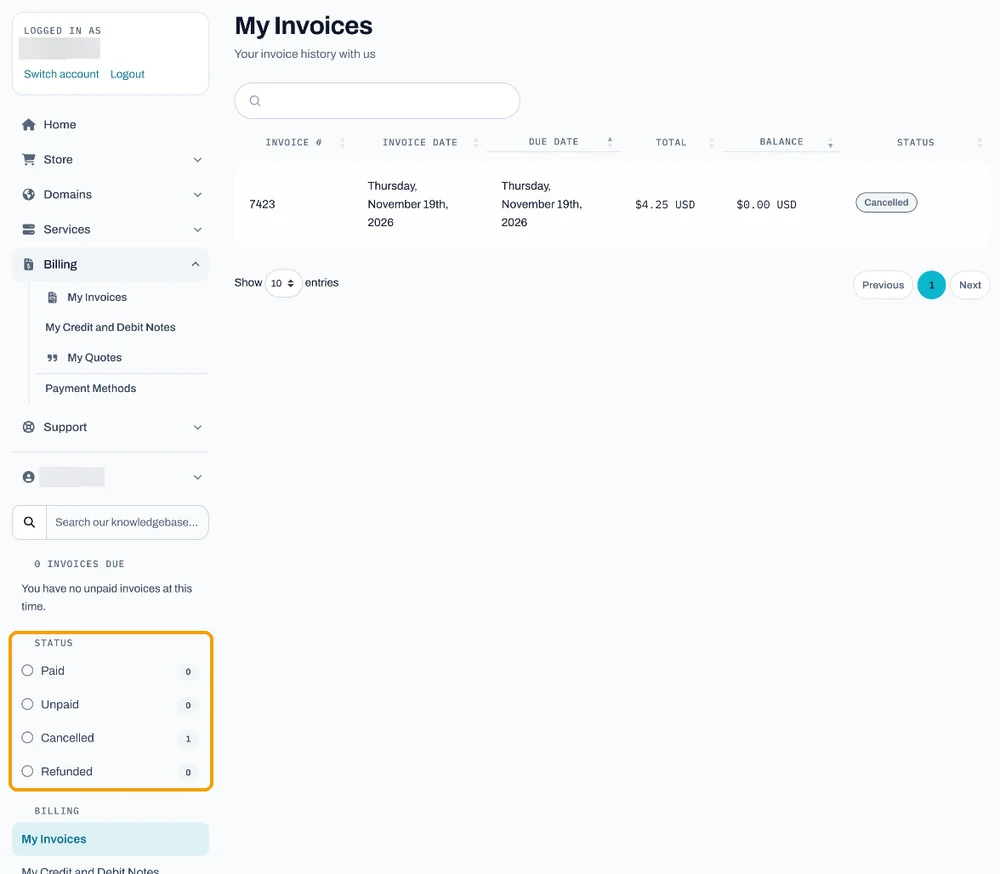
- Under Status on the left, click Paid, Unpaid, Cancelled or Refunded to show only the invoices with that status. The number next to each one shows how many invoices have that status. Above it, the client area shows how many invoices are due. When nothing is owed it says You have no unpaid invoices at this time.
Open an invoice
- Click an invoice in the list. It opens on its own page.
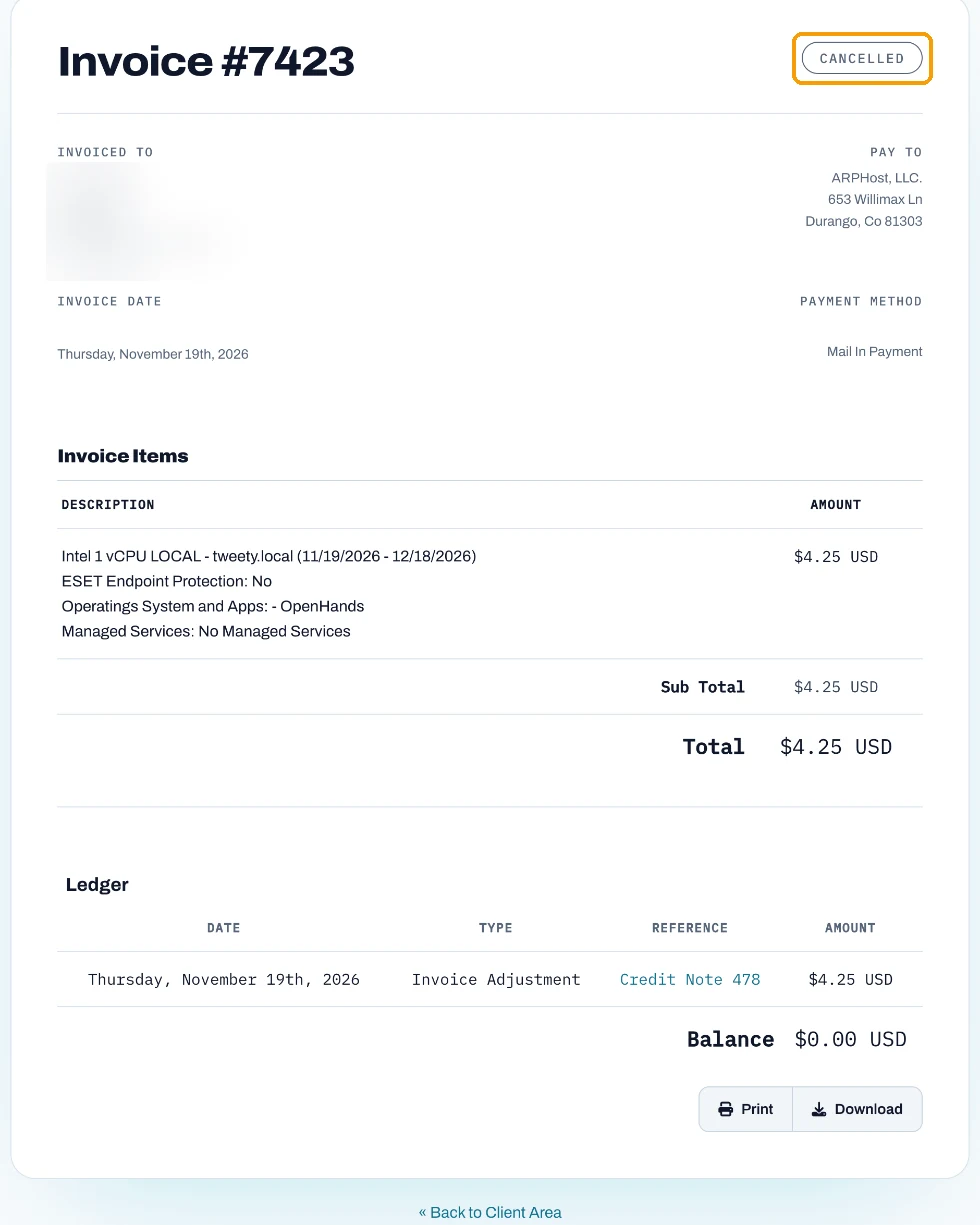
- The invoice number and its status are at the top. Under them you see Invoiced To with your account details, Pay To, the Invoice Date and the Payment Method.
- Invoice Items lists what the invoice is for, with the Sub Total and Total.
- Ledger lists what has been applied to the invoice, and Balance shows how much is still owed. The invoice in the picture was cancelled, so its ledger shows a credit note for the full amount and the balance is $0.00.
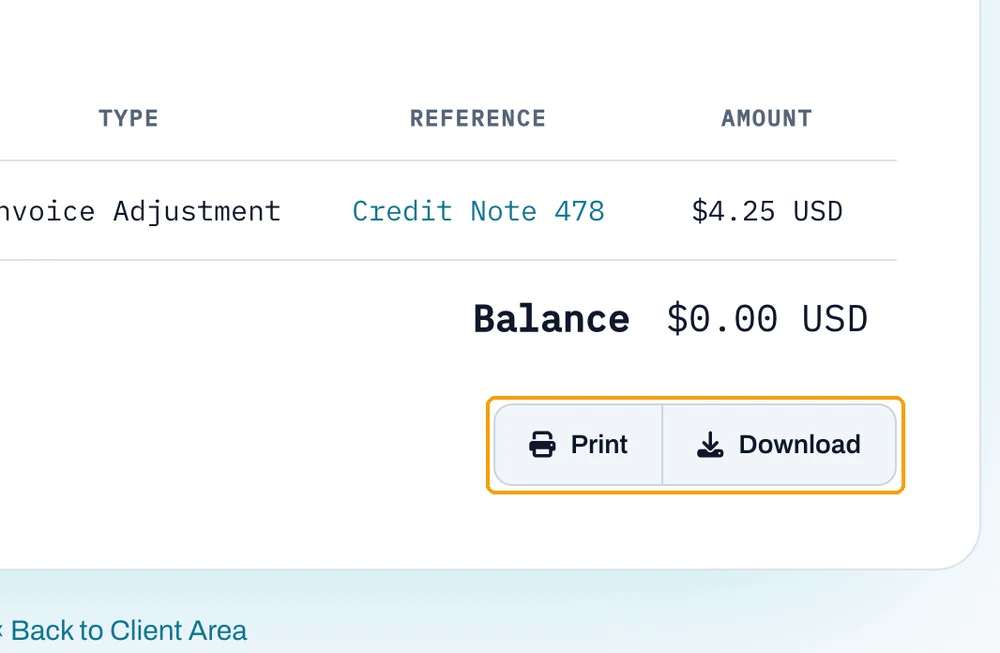
- To keep a copy, click Download at the bottom of the invoice. The invoice is saved as a PDF file. Click Print to print it instead.
- Click My Invoices at the top or « Back to Client Area at the bottom to go back.
Pay an unpaid invoice
Our example account had no unpaid invoice when this guide was written, so the pictures above show a cancelled invoice. A cancelled invoice cannot be paid.
- Open Billing, then My Invoices, and click Unpaid under Status.
- Click the invoice you want to pay to open it.
- Choose how you want to pay from the payment methods shown on the invoice, then click the payment button on the invoice.
- Some payment methods take you to the payment provider’s own website to finish paying. Follow the steps there.
- If you have credit on your account, a box on the invoice shows your credit balance and lets you apply it to the invoice. If the credit covers the whole balance, the invoice is marked Paid.
- If you want to pay with a different card from the one we have on file, open the unpaid invoice and pay it there yourself. Your saved cards and other payment methods are under Billing, then Payment Methods.
- When you have paid, open My Invoices again and check the Status and Balance of the invoice.
Credit and debit notes
- In the menu on the left, click Billing, then click My Credit and Debit Notes.
- The list shows the Note ID, Amount, Date, Status and Type of each note. Use Type on the left to show only credit notes or only debit notes, or pick dates under Date Issued and click Apply Filter.
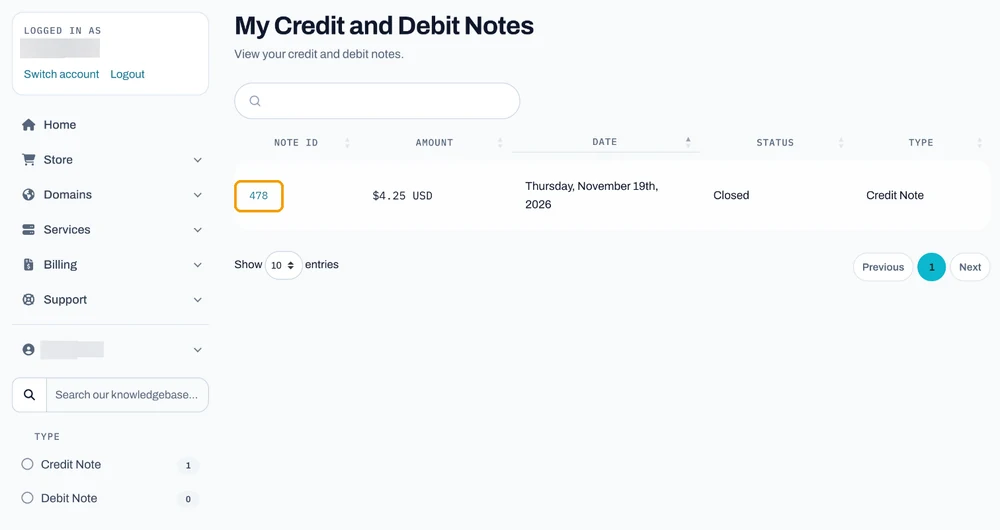
A credit note lowers or clears the balance of an invoice, for example when an invoice is cancelled or a payment is refunded. A debit note raises it, for example when a late fee is added.
Quotes
If we prepare a price for you before you order, it appears under Billing, then My Quotes. The list shows the Quote #, Subject, Date Created, Valid Until and Stage of each quote, and you can use Delivered and Accepted under Stage on the left to filter it. If you have no quotes, the list says No Records Found.
Video
If something goes wrong
If you cannot find an invoice, open Billing, then My Invoices, and click each status under Status. You can also type the invoice number in the search box.
If a payment does not go through, or an invoice still shows as unpaid after you paid it, open a ticket from Support, then Open A Ticket, and put the invoice number in the subject. Never put card or bank details in a ticket.
You can also call us at 1-970-999-6032. The number is shown under Contact Us at the bottom of the client area.