Two factor login adds a second step when you sign in to the client area. After your email address and password, you also type a code from an app on your phone. This guide shows how to turn it on and what to keep safe afterwards.
Before you start
Sign in to the client area at https://manage.arphost.com/clientarea.php. Install an authenticator app on your phone, such as Google Authenticator or Duo. Have somewhere safe to write down a backup code, such as a password manager.
Open Security Settings
- Sign in to the client area at https://manage.arphost.com/clientarea.php.
- In the menu on the left, click your name under Support. It shows as Hello, followed by your first name.
- In the menu that opens, click Security Settings. It is near the bottom, under Your Profile and Change Password.
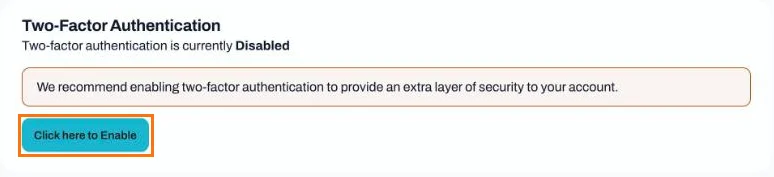
- Scroll down to Two-Factor Authentication. While it is off, the section says “Two-factor authentication is currently Disabled”.
Turn on two factor login
- Click Click here to Enable.
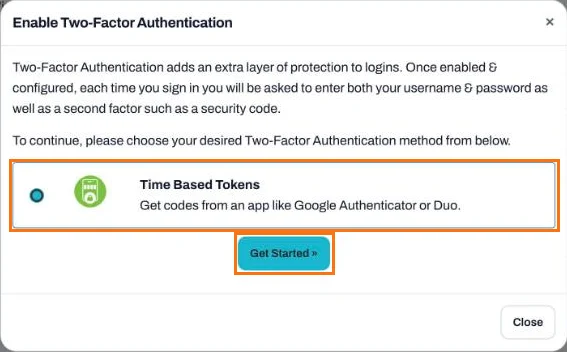
- The Enable Two-Factor Authentication window opens. It explains that once two factor login is on, each time you sign in you are asked for your username and password and a second factor such as a security code.
- Time Based Tokens is picked. It gets codes from an app like Google Authenticator or Duo. Click Get Started.
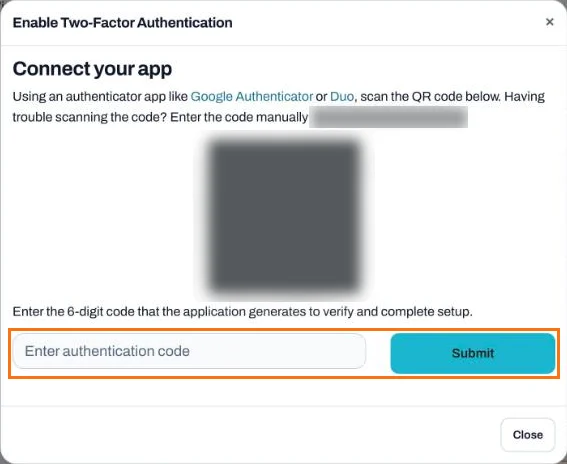
- The window now says Connect your app and shows a QR code. Open your authenticator app and scan the QR code with it. If the app cannot scan it, type in the code shown after “Enter the code manually” instead.
- The app shows a 6 digit code. Type it in Enter authentication code and click Submit.
- The window then shows a backup code. Write it down and keep it somewhere safe, then click Close. This is the only time the backup code is shown.
Never share the QR code, the code under it or your backup code with anyone, including us.
Signing in after it is on
Each time you sign in, type your email address and password as usual, then type the current 6 digit code from your app.
If you lose your phone, click Login using Backup Code at the bottom of the sign in page and type your backup code.
Video
The video for this guide is linked here once it is published.
If something goes wrong
If the code is not accepted while you are turning it on, you can click Close and two factor login stays off. Open Security Settings again when you are ready to try again.
If you have lost both your phone and your backup code, call us at 1-970-999-6032. The number is shown under Contact Us at the bottom of the client area. If you can still sign in and something else is wrong, open a ticket from Support, then Open A Ticket.