You can turn your VPS on and off and restart it yourself from the client area, without opening a ticket. This is handy after installing updates, when the server stops responding, or when you want the server off for a while.
There are four buttons for this, Start, Reboot, Stop and Shut Down. Each one asks you to confirm before anything happens.
Before you start
Shut Down and Stop both turn the server off, but in different ways.
Shut Down asks the operating system on your server to shut itself down, the same as if you ran the shutdown command yourself. Programs get the chance to close and save their work first. Use this one whenever you can.
Stop turns the server off straight away, like pulling the power cord out of a computer. Nothing on the server gets a chance to close or save, so files that were being written at that moment can be damaged. Use Stop only when the server is frozen and Shut Down does not work.
Reboot shuts the server down and starts it again. While the server is off or restarting, your websites, email and anything else on it cannot be reached. A server that is turned off keeps all its files and settings.
Steps
- Sign in to the client area at https://manage.arphost.com, open Services, and click Manage next to your VPS. The power buttons are under Service Actions. While the server is running, Start is greyed out because the server is already on.
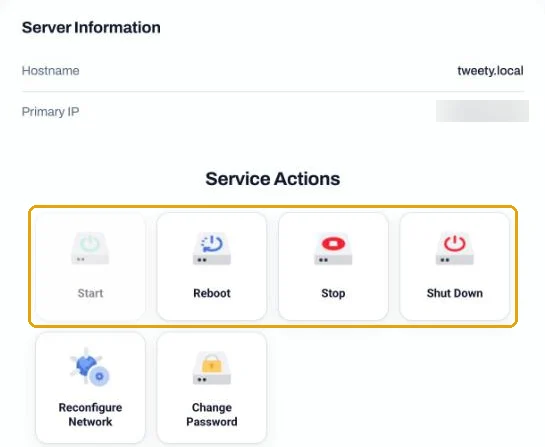
- To check whether the server is on, scroll down to the Information box. Status shows Running when the server is on and Stopped when it is off.

Rebooting your server
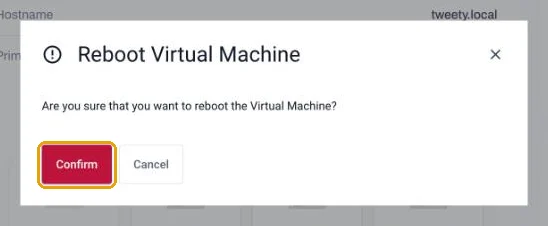
- Click Reboot. The Reboot Virtual Machine window asks whether you are sure. Click Confirm to restart the server, or Cancel to leave it running.
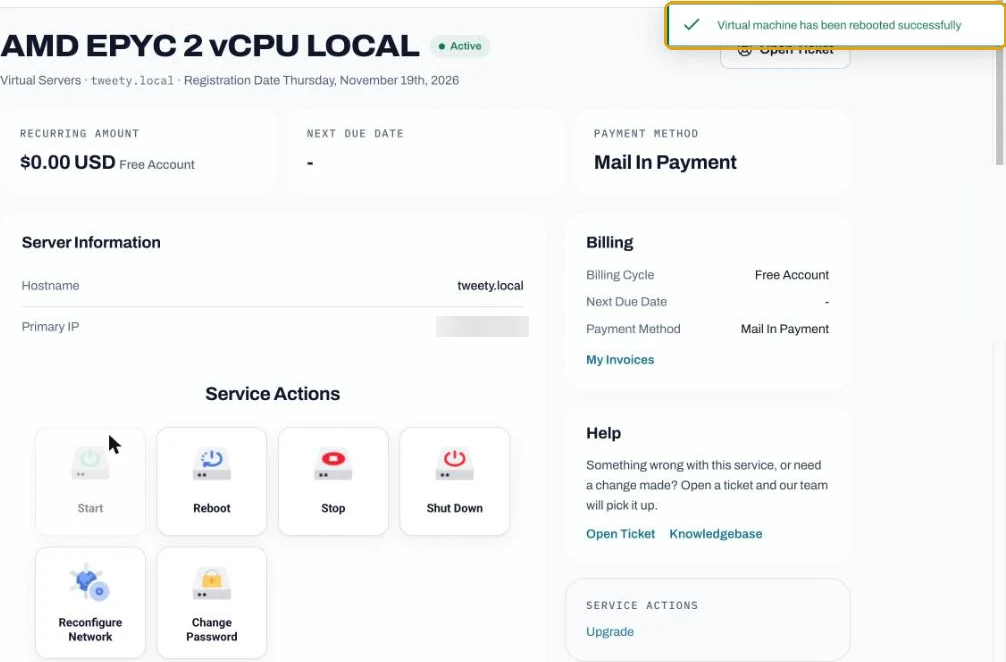
- After a few seconds you see Virtual machine has been rebooted successfully in the top right corner. The server is now starting up again. Give it a minute or two before you try to connect.
Shutting down your server
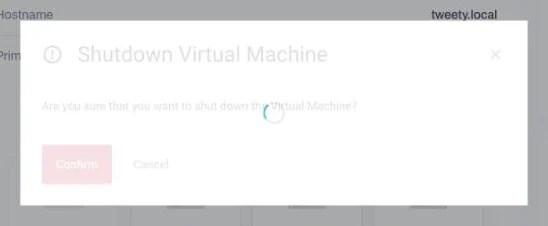
- Click Shut Down. The Shutdown Virtual Machine window asks whether you are sure. Click Confirm.
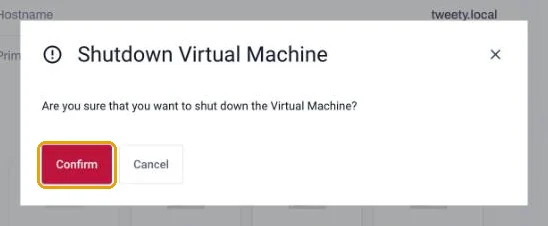
- The window fades and a spinning circle shows while the server shuts itself down. This can take a little longer than the other buttons, because the server is closing its programs first. Leave the page open until it finishes.
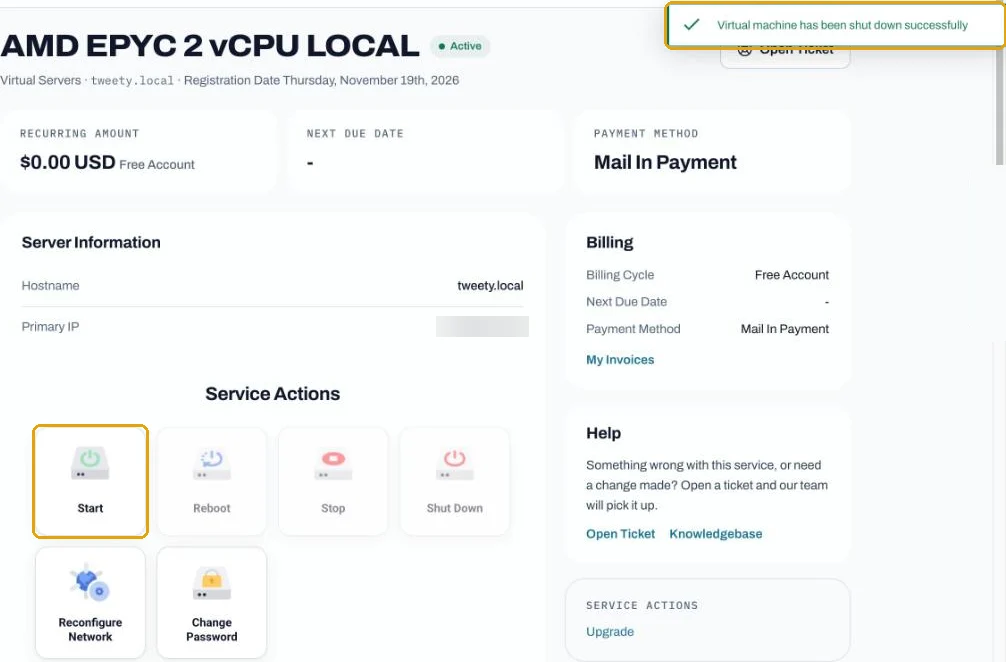
- You see Virtual machine has been shut down successfully. Start is now the only power button you can click, and Reboot, Stop and Shut Down are greyed out.
- The Status in the Information box now shows Stopped.

Starting your server
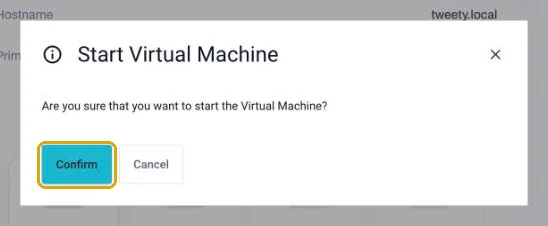
- When the server is off, click Start. The Start Virtual Machine window asks whether you are sure. Click Confirm.
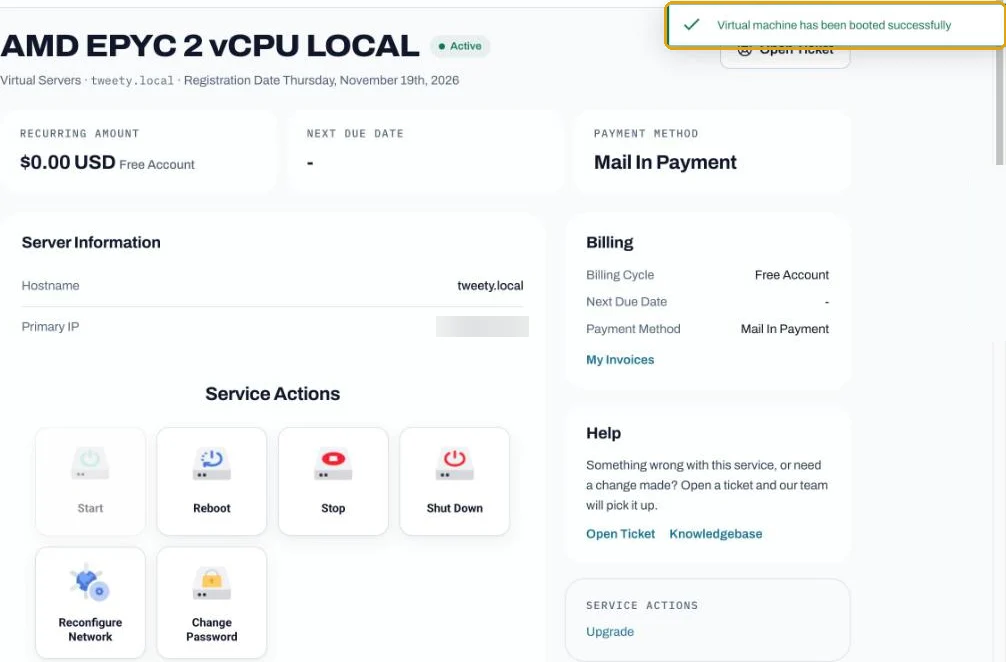
- You see Virtual machine has been booted successfully, Start is greyed out again and the other power buttons can be clicked. The Status changes back to Running. Give the server a minute or two to finish starting before you connect to it.
Stopping your server
Only use Stop when the server is not responding and Shut Down has not worked.
- Click Stop. The Stop Virtual Machine window asks whether you are sure. Click Confirm.
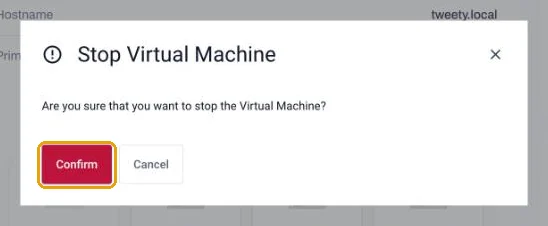
- You see Virtual machine has been stopped successfully. Just like after a shut down, Start is the only power button left and the Status shows Stopped. Click Start when you want the server back on.
Checking what happened
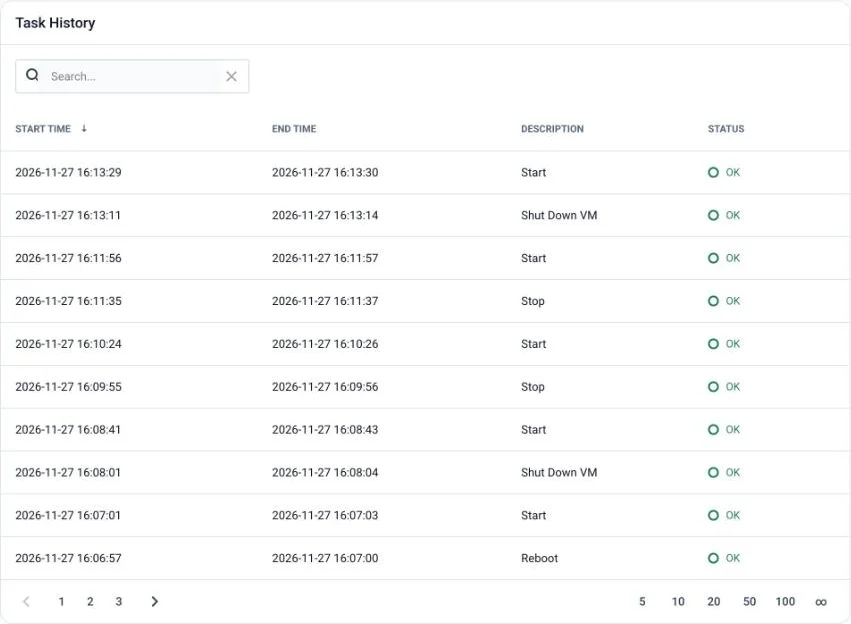
Task History under Service Management lists every action on your server with its start time, end time and whether it worked. A shut down shows as Shut Down VM. A reboot shows as Reboot followed by Start, because the server is shut down and then started again. OK in the Status column means the action finished.
Scheduling power actions
VM Power Tasks under Service Management lets you have the server started, stopped or rebooted for you at a set time, for example a reboot early every Sunday morning.
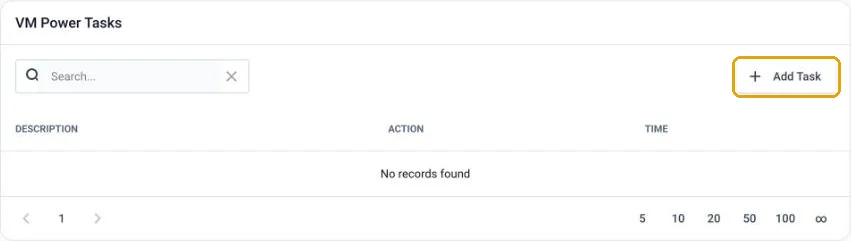
- Click VM Power Tasks. The list is empty until you add a task. Click Add Task.
- The Add Task window opens. Type a Description so you know what the task is for. Pick the Action, which can be Start, Stop or Reboot. Set the Start Date, then pick the Job Type, which can be One Time, Daily or Weekday. Choose the time with Job Hour and Job Minutes. If you picked Weekday, choose one or more days in Day of Week. Click Confirm to save the task.
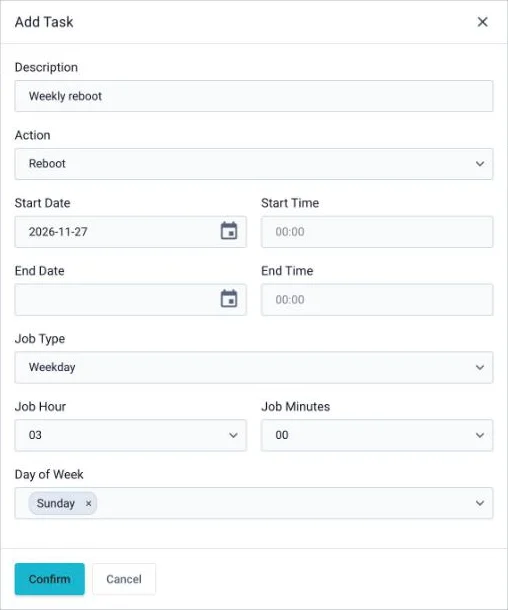
The scheduled Stop is the same as the Stop button, so it cuts the power without letting the server close its programs. If you want the server off on a schedule, shut it down safely from inside the server instead, or open a ticket and we can help.
If something goes wrong
If the server does not come back after a reboot or start, wait a few minutes and refresh the service page. If Status shows Running but you still cannot connect, open the console from noVNC Console under Service Management to see what the server is doing, as shown in the guide How to open your VPS console at https://arphost.com/how-to-open-your-vps-console/.
If Shut Down keeps spinning or the server stays Running afterwards, the operating system may not be responding to the shut down request. Check it in the console, and only use Stop if nothing else works.
If a power button shows an error, check Task History to see whether the action finished, then try again after a minute.
If you are still stuck, open a ticket from Support in the client area and tell us the server name, which button you clicked and roughly when.