


Before installing Postfix or configuring DNS records, you must decide on the hosting environment for your new email server. This foundational choice is critical; a misstep here can lead to significant operational challenges. The decision typically comes down to two professional hosting environments: a KVM Virtual Private Server (VPS) or a dedicated Bare Metal Server.
Each option has distinct advantages, and understanding the trade-offs is essential for architecting a mail system that is reliable, secure, and scalable.

Why a KVM VPS is Often the Optimal Starting Point
For most email server deployments, a KVM VPS provides an ideal balance of performance, control, and cost-effectiveness. In this model, a physical server is partitioned into multiple isolated virtual machines, each with its own guaranteed allocation of CPU, RAM, and storage.
This hardware-level isolation is a significant advantage. KVM virtualization ensures that your resources are dedicated and not impacted by "noisy neighbors"—other tenants on the same physical host consuming excessive resources and degrading your mail queue performance.
Consider a development team needing isolated environments for testing email delivery pipelines. A KVM VPS can be provisioned in minutes, providing a clean, sandboxed environment for each project without the capital expenditure of dedicated hardware. With full root access, you can install and fine-tune your entire mail stack to precise specifications.
A KVM VPS offers the ideal middle ground for businesses needing full administrative control without the capital expense of dedicated hardware. It's the go-to for agility and predictable costs.
Furthermore, the flexibility is a major operational benefit. As email volume increases, you can scale resources like RAM or CPU cores on-demand, without a physical migration. This dynamic scalability makes a VPS an excellent choice for startups and businesses with fluctuating workloads. If you're evaluating options, our overview of small business server solutions can help align your technical requirements with the right platform.
When to Provision a Bare Metal Server
For workloads demanding maximum, uncompromised performance, a Bare Metal Server is the definitive solution. As a dedicated physical machine, it provides direct access to hardware resources with no virtualization layer, meaning 100% of the server's CPU, RAM, and disk I/O are at your disposal.
This is non-negotiable for high-volume or mission-critical email operations.
Imagine a large e-commerce platform processing thousands of transactional emails per hour—order confirmations, shipping notifications, and password resets. Any latency or deliverability issue in this chain has a direct financial impact. A bare metal server can process massive mail queues with minimal latency, ensuring maximum throughput. It is also the only choice for organizations with stringent data sovereignty or security compliance mandates, as it offers the highest level of physical isolation.
The demand for robust infrastructure is a clear industry trend. The global mail server software market is expanding rapidly, with cloud-based solutions now commanding over 60% of the market share, driven by the enterprise need for control and scalability. You can explore these trends in the mail server software report from Market Report Analytics. This data underscores a key point: businesses are investing in dedicated infrastructure to guarantee email deliverability.
KVM VPS vs. Bare Metal Server for Email Hosting
To clarify the decision-making process, this table provides a direct comparison of key factors when choosing between a KVM VPS and a bare metal server for your email infrastructure.
| Factor | KVM Virtual Private Server (VPS) | Bare Metal Dedicated Server |
|---|---|---|
| Performance | Strong, with guaranteed hardware resources. Minimal overhead from the hypervisor. | Unmatched. All physical resources are 100% dedicated to your workload. |
| Control & Isolation | Full root access within an isolated virtual environment. Strong security boundaries. | Complete control over the entire physical machine. Maximum physical isolation. |
| Scalability | Excellent. Resources (CPU, RAM, storage) can be upgraded quickly on demand. | Less flexible. Scaling requires a physical hardware upgrade or planned migration. |
| Cost | More affordable, with predictable monthly pricing. Ideal for initial deployments. | Higher upfront and recurring costs due to dedicated hardware ownership. |
| Best For | SMBs, startups, development/testing, and moderate email volume. | High-volume transactional email, enterprises with strict compliance needs. |
Ultimately, the right choice depends on your specific technical and business requirements. A KVM VPS offers an agile, cost-effective platform for growth, while a bare metal server delivers the raw power needed for mission-critical operations at scale.
Laying the Foundation: Installing Postfix and Dovecot
With your server provisioned, it’s time to install the core components of your mail system. We will use two industry-standard, open-source applications: Postfix as the Mail Transfer Agent (MTA) to handle SMTP transactions, and Dovecot as the Mail Delivery Agent (MDA) to provide user access via IMAP and POP3.
This combination is a staple for building reliable mail servers due to its proven performance, security, and extensive documentation.
This guide provides step-by-step instructions for installing the packages, modifying their primary configuration files, and ensuring seamless integration. All commands are tailored for Debian-based systems like Ubuntu, a common choice for mail servers due to its stability and robust package management.
Installing Core Packages via CLI
First, connect to your server via SSH and use the apt package manager to install the necessary software. As a best practice, always update your package repository index before installing new software to ensure you retrieve the latest stable versions.
Execute the following commands in your server's terminal:
sudo apt update
sudo apt install postfix dovecot-imapd dovecot-pop3d
During the Postfix installation, a text-based configuration wizard will appear. Select "Internet Site" from the options. This configures Postfix to send and receive email directly from the internet. When prompted for the "System mail name," enter your primary domain (e.g., yourdomain.com). This domain will be used for your email addresses.
Configuring Postfix for SMTP Service
Postfix is the engine responsible for all Simple Mail Transfer Protocol (SMTP) communications. Its main configuration is located at /etc/postfix/main.cf. We will now modify this file to define the server's identity and mail storage format.
Open the file using a terminal-based editor like nano:
sudo nano /etc/postfix/main.cf
Ensure the following directives are present and correctly configured. These settings establish the server's identity, define trusted networks, and specify the mailbox format.
- myhostname: Set this to the server's fully qualified domain name (FQDN), such as
mail.yourdomain.com. - mydestination: This parameter lists the domains for which Postfix will accept mail. Ensure it includes the server's hostname and localhost variables.
- mynetworks: A critical security setting that defines trusted IP ranges. For security, restrict this to the local loopback address:
127.0.0.0/8. - home_mailbox: This directive is crucial for integrating Postfix with Dovecot. Set it to
Maildir/. The Maildir format stores each email as an individual file, which is more resilient and performs better under load than the legacy mbox format.
Your final configuration should resemble the following snippet:
# /etc/postfix/main.cf

myhostname = mail.yourdomain.com
mydomain = yourdomain.com
myorigin = $mydomain
mydestination = $myhostname, localhost.$mydomain, localhost
mynetworks = 127.0.0.0/8 [::ffff:127.0.0.0]/104 [::1]/128
home_mailbox = Maildir/
Save the file and exit the editor. Restart the Postfix service to apply the new configuration.
sudo systemctl restart postfix
Configuring Dovecot for IMAP and POP3 Access
While Postfix manages mail transport, Dovecot enables email clients like Outlook or Thunderbird to access mailboxes via IMAP or POP3. Dovecot's configuration is modular, with files located in /etc/dovecot/conf.d/.
First, edit 10-mail.conf to specify the mail storage location, ensuring it matches the Postfix configuration.
sudo nano /etc/dovecot/conf.d/10-mail.conf
Locate the mail_location directive, uncomment it by removing the leading #, and set it to use the maildir format.
# /etc/dovecot/conf.d/10-mail.conf

mail_location = maildir:~/Maildir
By aligning
home_mailboxin Postfix withmail_locationin Dovecot, you create a seamless delivery pipeline. Postfix delivers incoming email to a user'sMaildir/directory, and Dovecot knows precisely where to retrieve it when a client connects.
Next, enhance security by disabling plaintext authentication. Open 10-auth.conf and ensure disable_plaintext_auth is set to yes. This prevents passwords from being transmitted over unencrypted connections. We will enable TLS in the next section to secure the authentication process.
Finally, ensure the IMAP and POP3 protocols are enabled in 10-master.conf, then restart the Dovecot service.
sudo systemctl restart dovecot
With these steps completed, your server can now send and receive email. This initial setup is foundational. While the choice between operating systems can seem small, details in package management and configuration paths matter. For a deeper dive, check out our comparison of a Debian server vs Ubuntu server. Next, we will secure the server.
Securing Your Mail Server with TLS and DNS Authentication
Your server is now functional, but it is not yet secure. An unencrypted, unauthenticated mail server is a significant security risk and a primary reason for being blacklisted by spam filters.
This section focuses on fortification. We will implement TLS encryption to protect data in transit and configure essential DNS records—SPF, DKIM, and DMARC—to authenticate your email and protect your domain's reputation. These steps are non-negotiable for achieving reliable deliverability and preventing domain spoofing.
Encrypting Traffic with a Let's Encrypt TLS Certificate
First, we must encrypt communications between email clients and the server. Without encryption, all data—including credentials and email content—is transmitted in plain text. We will use a free, automated TLS certificate from Let's Encrypt to secure SMTP, IMAP, and POP3 services.
The most efficient method is using Certbot, a client that automates certificate issuance and renewal.
- Installation: Install the Certbot client using your system's package manager.
- Certificate Request: Execute a single command to request a certificate for your mail domain (e.g.,
mail.yourdomain.com). - Automatic Renewal: Certbot automatically configures a systemd timer or cron job to renew the certificate before expiration.
Once the certificate files are generated (typically in /etc/letsencrypt/live/yourdomain.com/), you must configure Postfix and Dovecot to use them. Modify their respective configuration files to point to the fullchain.pem and privkey.pem files. This step ensures all client communication is encrypted, adhering to modern security best practices.
The diagram below illustrates the high-level setup process.
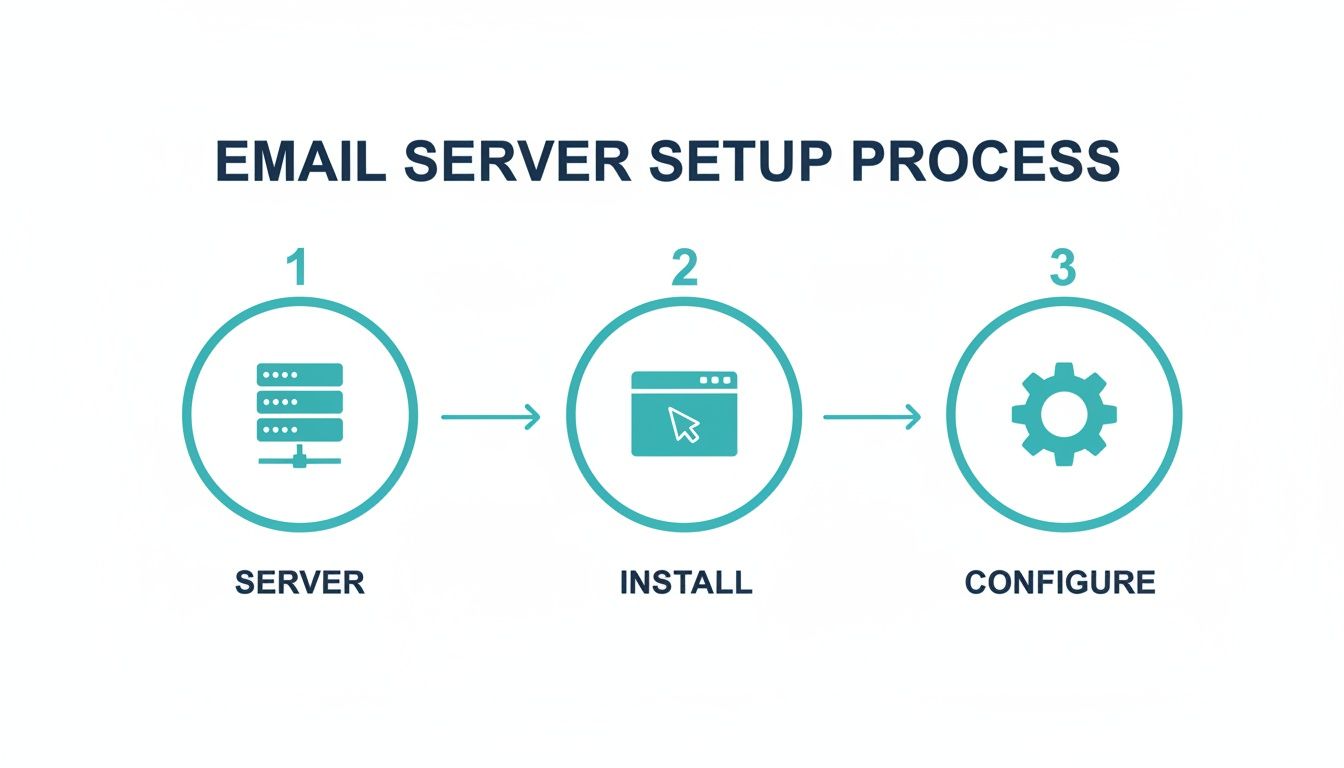
The workflow is logical: provision the server, install the core software, and configure it for secure operation.
The Three Pillars of DNS Email Authentication
With transport encryption in place, we now turn to DNS-based authentication. These three records—SPF, DKIM, and DMARC—are published in your domain's public DNS zone to build a framework of trust. They provide verifiable answers to critical questions for any receiving mail server:
- SPF: Is this email originating from an authorized IP address?
- DKIM: Has this email been altered in transit?
- DMARC: What action should be taken for emails that fail SPF or DKIM checks?
Correct implementation is paramount. The email hosting market is projected to grow by $56.34 billion between 2025 and 2029, reflecting the critical nature of professional email infrastructure. Properly configured SPF, DKIM, and DMARC can improve inbox placement rates from a typical 70% to over 98%. Conversely, a simple syntax error in an SPF record can cause 15-20% of legitimate emails to be outright rejected.
Implementing SPF (Sender Policy Framework)
An SPF record is a TXT record in your DNS zone that specifies which IP addresses are authorized to send email for your domain. It is a fundamental defense against domain spoofing.
For a single mail server, a standard SPF record is:
v=spf1 mx -all
v=spf1: Identifies the record as SPF version 1.mx: Authorizes the servers listed in your domain's MX records to send mail.-all: A hard fail qualifier that instructs receiving servers to reject mail from any source not listed in the record.
Setting Up DKIM (DomainKeys Identified Mail)
DKIM adds a cryptographic signature to the headers of every outgoing email. This signature is generated using a private key stored securely on your server. The corresponding public key is published as a TXT record in your DNS.
When a receiving server receives an email from your domain, it retrieves the public DKIM key from DNS to verify the signature. A successful verification confirms that the email originated from your domain and that its headers have not been tampered with in transit.
Enforcing Policy with DMARC
DMARC unifies SPF and DKIM authentication into a common framework and provides explicit policy instructions to receiving mail servers. It also enables reporting, giving you visibility into how your domain is being used across the internet.
A recommended starting DMARC policy is:
v=DMARC1; p=quarantine; rua=mailto:dmarc-reports@yourdomain.com
v=DMARC1: Specifies the DMARC version.p=quarantine: Instructs servers to place failing emails into the recipient's spam folder. It is best practice to start withquarantinebefore moving to a stricterp=rejectpolicy.rua: Specifies the email address to receive aggregate DMARC reports.
By layering TLS, SPF, DKIM, and DMARC, you build a robust security posture. This not only protects your domain from abuse but also significantly boosts your sender reputation, ensuring your messages actually reach the inbox.
For comprehensive protection against a wider range of network-level threats, consider implementing managed network security solutions to secure your server's perimeter.
Layering in Anti-Spam and Antivirus Protection
With authentication and encryption configured, the next critical step is to deploy a filtering layer to block unsolicited and malicious email. A functional mail server is only effective if its inboxes are clean and its users are protected from threats.
This process is analogous to establishing security checkpoints on a highway. We will integrate two powerful, open-source solutions: SpamAssassin for advanced spam detection and ClamAV for malware scanning. By integrating these tools into the Postfix mail flow, you create a robust filtering pipeline that inspects every message before delivery.
This defense-in-depth approach is about building an intelligent system that adapts to emerging threats.
Implementing SpamAssassin for Spam Filtering
SpamAssassin is your primary defense against spam. It performs hundreds of heuristic tests on each email, analyzing headers, body content, and structural patterns. Each test that indicates spam contributes to a cumulative "spam score."
You can configure actions based on this final score. A common and effective best practice is to set a threshold of 5.0.
- Emails scoring below 5.0 are considered legitimate and are delivered normally.
- Emails scoring above 5.0 are flagged as spam. Postfix can be configured to rewrite the subject line (e.g., adding
***SPAM***) or divert the message to a quarantine location.
SpamAssassin's most powerful feature is its Bayesian filtering engine. This is a learning system that you train to recognize spam specific to your environment. By feeding it samples of junk mail (sa-learn --spam) and legitimate mail (sa-learn --ham), its accuracy improves significantly over time.
Integrating ClamAV for Malware Detection
While SpamAssassin filters spam, ClamAV serves as your malware scanner. As an open-source antivirus engine, its sole purpose is to scan email attachments for viruses, trojans, ransomware, and other malicious payloads. When you are selecting the best antivirus software for small business, ClamAV is an industry-standard component of any mail server security stack.
Integrating ClamAV is non-negotiable for a modern mail server. Email attachments are one of the most common vectors for malware distribution and phishing attacks. Omitting this layer creates a critical security vulnerability.
To maintain its effectiveness, ClamAV includes the freshclam daemon, which automatically downloads the latest virus signature databases. This ensures your defenses remain current against newly discovered threats without manual intervention.
Integrating Filters with Amavis
To connect Postfix with SpamAssassin and ClamAV, you need a content filter agent. Amavis (A Mail Virus Scanner) is a high-performance interface that acts as a bridge between the MTA and the scanning engines.
Here is the mail flow with Amavis integrated:
- An incoming email arrives at the Postfix server.
- Postfix passes the message to the Amavis content filter before final delivery.
- Amavis first sends the email to ClamAV for malware scanning. If malware is detected, the message is rejected immediately.
- If the email is clean, Amavis passes it to SpamAssassin for spam analysis.
- SpamAssassin calculates a spam score, adds its findings to the email headers, and returns the message to Amavis.
- Amavis passes the fully scanned and tagged email back to Postfix for delivery to the user's
Maildir.
This layered filtering architecture ensures every message is comprehensively vetted before reaching a user's inbox.
Maintaining Server Health with Monitoring and Backups
Deploying your email server is a significant milestone, but the operational phase requires ongoing diligence. A proactive monitoring plan and a robust backup strategy are what distinguish a professional, reliable email service from an unstable one. This is about identifying potential issues before they cause outages and ensuring data integrity through a verified recovery plan.
Without consistent monitoring, critical services can fail silently, mail queues can become clogged, and log files can fill with unaddressed warnings. Proactive management is the cornerstone of a professionally run email infrastructure.
Proactive Monitoring for Server Health
Effective monitoring provides real-time visibility into your server's vital signs. Automated systems should be configured to generate alerts at the first indication of an anomaly, enabling you to intervene before a minor issue escalates into a service-affecting outage. A comprehensive monitoring setup should track several key areas.
- Service Status: Implement automated checks to confirm that core daemons like Postfix, Dovecot, and Amavis are running. A service failure should trigger an immediate alert via email or SMS.
- Mail Queue Analysis: The Postfix mail queue provides critical operational insights. A sudden, unexplained growth in the queue can indicate a compromised user account sending spam or a potential denial-of-service attack. Monitoring the queue allows for rapid detection and mitigation of deliverability issues.
- Log File Auditing: Server logs contain a wealth of diagnostic information. Utilities like
logwatchcan parse system logs, identify anomalous activity such as repeated failed login attempts or hardware errors, and send a daily summary report. This is a critical practice for early threat detection. - Resource Utilization: Monitor CPU, RAM, and disk space usage. A server consistently operating at high resource utilization is at risk of failure. Configure alerts to be sent when usage exceeds a predefined threshold (e.g., 85% disk capacity) to allow for timely intervention.
Implementing a Robust Backup Strategy
While monitoring helps prevent failures, a comprehensive backup strategy ensures you can recover from them. A server crash, database corruption, or a successful ransomware attack can result in catastrophic data loss. Your backups are the only guarantee of business continuity.
Your backup plan isn't complete until you've successfully tested a full restoration. An untested backup is just a hope; a tested one is a disaster recovery plan.
An enterprise-grade backup strategy must be automated, frequent, and secure. For virtualized mail servers, a solution like Proxmox Backup Server provides essential features for protecting critical infrastructure.
A strong backup solution must include:
- Automation: Backups must execute automatically on a strict schedule. Daily incremental backups are the industry standard for email servers.
- Off-site Storage: Storing backups on the same physical host as the production data is a critical failure. Copies must be replicated to a geographically separate, off-site location to protect against site-level disasters.
- Immutability and Encryption: Backups should be stored in an immutable state to prevent them from being altered or deleted by ransomware. Furthermore, all backup data must be encrypted both in transit and at rest.
By combining diligent monitoring with a powerful, automated backup system like Proxmox Backup, you build a truly resilient infrastructure. This proactive approach defines a professionally managed email server and provides operational stability and peace of mind.
Frequently Asked Questions
Operating a self-hosted email server is a technically demanding task that often generates questions. From architectural decisions to troubleshooting deliverability, certain challenges are common. This section addresses the most frequent inquiries from IT professionals managing their own email infrastructure.
Is It Better to Build My Own Server or Use a Hosted Service?
The decision between a self-hosted and a third-party email solution involves a trade-off between control, cost, and administrative overhead.
Deploying your own server on a KVM VPS or bare metal infrastructure provides complete administrative control. You have full autonomy over security policies, data privacy, and configuration specifics. This is a critical advantage for organizations with stringent compliance requirements or those operating at a scale where self-hosting is more cost-effective than per-user licensing.
However, this control requires significant technical expertise and time investment. You are responsible for the entire lifecycle, including initial setup, security hardening, ongoing maintenance, and emergency troubleshooting. Hosted services like Google Workspace or Microsoft 365 abstract this complexity away. They are highly reliable and simple to manage but offer limited flexibility, and their per-user costs can become substantial as an organization grows.
A managed hosting plan offers a hybrid solution, providing the dedicated resources of a private server while offloading the day-to-day management to expert engineers.
What Are the Most Common Reasons My Emails Go to Spam?
Email deliverability issues are almost always attributable to a few common root causes. The most prevalent issue is improper sender authentication. If your SPF, DKIM, and DMARC records are missing, misconfigured, or not aligned, receiving servers cannot validate your identity and are likely to classify your mail as junk.
Your server's IP reputation is another critical factor. If the IP address has been previously used for sending spam, it may be on one or more real-time blocklists (RBLs).
Other common causes of poor deliverability include:
- Insufficient IP Warm-up: A new server that immediately begins sending high volumes of email is flagged as suspicious by mail providers. You must gradually "warm up" your IP by slowly increasing sending volume over time.
- Poor Content Quality: Emails with spam-like characteristics, such as excessive capitalization in subject lines or a high image-to-text ratio, are often penalized by spam filters.
- High Bounce Rates: Sending emails to a large number of invalid addresses negatively impacts your sender reputation, as it indicates poor list hygiene.
If you implement only one change, ensure your DNS authentication records are correctly configured and aligned. This is the single most impactful step you can take to improve inbox placement.
How Do I Secure My Email Server Against Attacks?
Effective email server security relies on a defense-in-depth strategy that protects data, controls access, and monitors for threats.
When learning how to setup email server security, these are the non-negotiable layers you must put in place:
- Enforce TLS Encryption: Ensure all SMTP, IMAP, and POP3 client connections are encrypted using a valid TLS certificate to protect credentials and data in transit.
- Configure a Restrictive Firewall: Implement a default-deny firewall policy. Only open ports essential for mail services (e.g., 25, 143, 465, 587, 993) to the internet.
- Implement Strong Authentication: Properly configured SPF, DKIM, and DMARC records are your primary defense against domain spoofing and phishing attacks that abuse your domain.
- Filter for Malicious Content: Utilize tools like SpamAssassin and ClamAV to scan all incoming messages for spam and malware before delivery.
- Maintain Software and Monitor Logs: Regularly apply security patches to all server software to mitigate known vulnerabilities. Continuously monitor system logs for suspicious activity, such as brute-force login attempts, which can indicate an ongoing attack.
For organizations that require robust security without maintaining a dedicated internal team, a managed service provider can deliver proactive monitoring, patch management, and threat response to secure your email infrastructure.
Navigating the complexities of setting up and maintaining your own email server requires a solid foundation and reliable support. At ARPHost, LLC, we provide high-performance KVM VPS and bare metal server solutions designed for mission-critical applications like email. Whether you need an unmanaged server with full root access or a fully managed plan with 24/7 expert oversight, we have the infrastructure to help you succeed. Explore our hosting options and build your ideal email solution today at https://arphost.com.