

You're probably here because a server is working fine right now, and you don't want the next change to turn a normal maintenance window into a lockout. That's the right instinct. How to set up SSH keys the right way starts with one rule I've learned to trust on production boxes: never disable password authentication until you've tested key-based login twice.
Why SSH Key Setup Trips Up Even Experienced Admins
A lot of admins get burned by the same sequence. They run ssh-keygen, copy a public key somewhere, feel the job is done, then flip PasswordAuthentication no and reload sshd before they have proven the key works from a fresh session. That is how a small change turns into a late-night recovery exercise.
SSH key authentication replaces passwords and shared secrets with a public/private key pair. The private key stays on the client, the public key gets enrolled on the server in ~/.ssh/authorized_keys, and the server trusts the match instead of a typed password.
The sequence matters more than the command. A key that exists only on your laptop does nothing until it is installed on the target account, and a server that accepts the key still is not ready for hardening until you have verified login from a new shell.
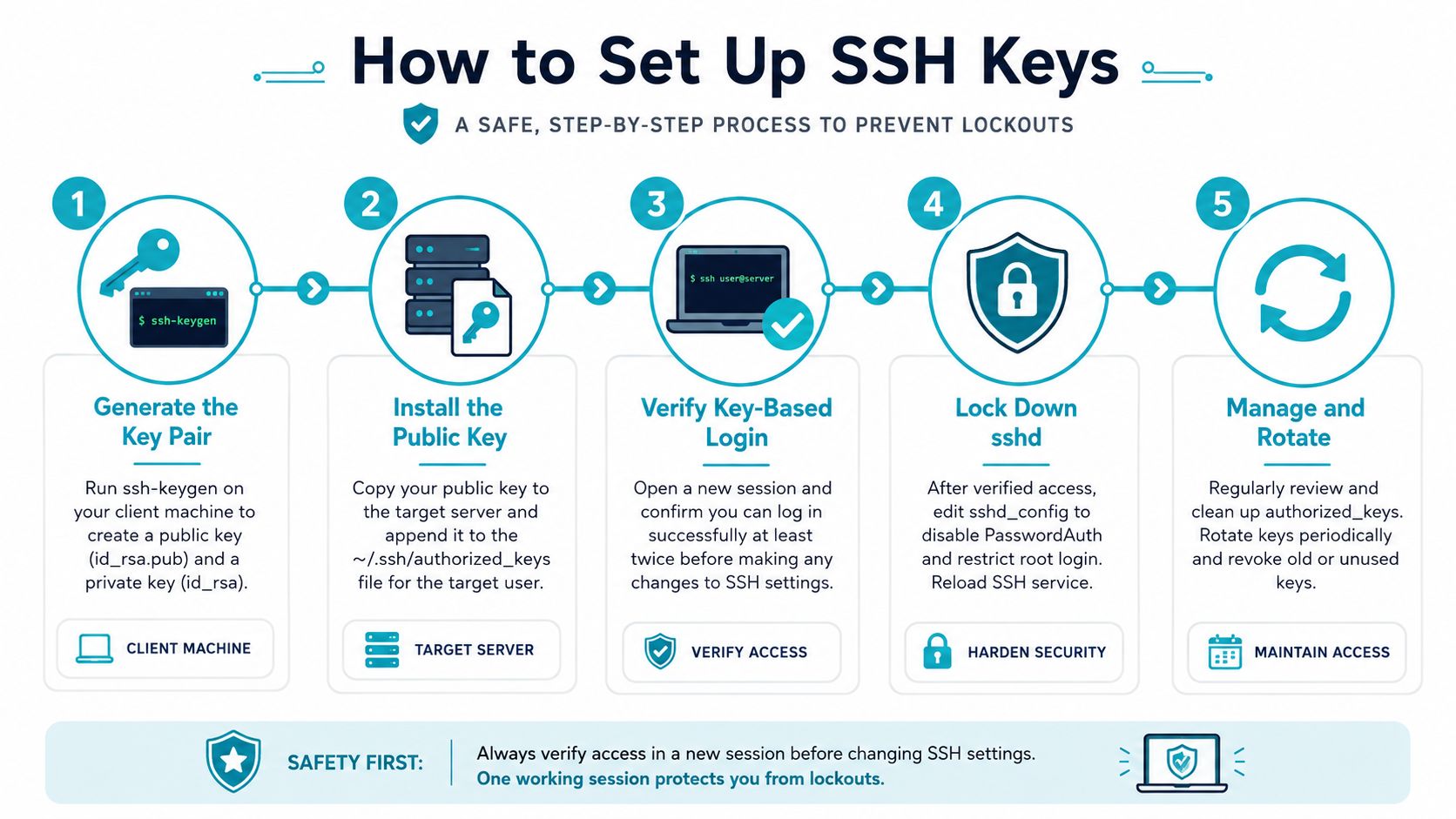
Practical rule: generate the key, install the public half, test twice, then harden
sshd. Anything else is guessing.
Generating Your First SSH Key on Linux, macOS, and Windows
Start with Ed25519 unless the system can't take it
Open a terminal and generate the key pair locally. On current Linux and macOS installs, ssh-keygen -t ed25519 is the clean default, and the same command works on Windows when the built-in OpenSSH tools are available. If a host or toolchain does not support Ed25519, fall back to ssh-keygen -t rsa -b 4096.
A typical run looks like this:
ssh-keygen -t ed25519 -C "yourname@laptop"
Use the comment field. A readable label is often the fastest way to identify which laptop, jump box, or admin account a key belongs to when you are looking at a long list later.
On Windows, the workflow stays the same even if the path details differ. Current OpenSSH support gives you the same ssh-keygen flow, while older setups may still use PuTTYgen. The files and the trust model do not change, you still end up with a private key, a public key, and a local place to keep the private half out of reach.
Keep the passphrase. A key without one is convenient, but anyone who gets the private key also gets immediate use of it.
Know what the filenames mean
The generator usually produces a pair like id_ed25519 and id_ed25519.pub, or id_rsa and id_rsa.pub for RSA. The first file is the private key, the second is the public key. The private file stays on the client machine, not for Git, not for SSH, not for copy-paste convenience.
If you manage more than one key, name them so they describe their job. id_ed25519_prod, id_ed25519_git, or id_ed25519_admin is easier to work with than a pile of anonymous defaults. That matters once one laptop talks to a jump host, a Git provider, and production servers.
Windows users should still think in Unix paths
Windows does not change the logic. The key pair is created locally, the public key is copied to the server, and the private key stays on the workstation. Mixed fleets are easier to support when you keep that model in mind, because the remote server only cares whether the public half is enrolled correctly.
If you are also exposing files over SSH, the FTP over SSH guidance is a useful companion for the same trust model.
Installing the Public Key on Your Server Safely
The server-side part is where one can move too fast. The public key has to land in the target account's ~/.ssh/authorized_keys, and that directory and file need the right permissions before you trust them. A reliable setup is chmod 700 ~/.ssh, append the public key to ~/.ssh/authorized_keys, then chmod 600 ~/.ssh/authorized_keys before testing access with ssh username@host or ssh -i path/to/key username@host
Use the easy path when it exists
If ssh-copy-id is available, it's the least error-prone route. It handles the file placement for you and removes a lot of the chances for a copy-paste mistake. I use the manual path only when I'm dealing with a fresh image, a restricted environment, or a host where I need to be very explicit about what's being changed.
That's also where ARPHost-style provisioning flows are useful in practice. On a VPS or a dedicated node, key enrollment during deployment is cleaner than retrofitting access after the fact, and a fresh image on a Proxmox-based cloud or colocation box usually means I'm appending the key manually into authorized_keys anyway. For teams that expose files over SSH, the internal FTP over SSH guidance is a natural companion.
Hardening the directory and file matters
Permissions are not cosmetic. ~/.ssh should be private to the account, and authorized_keys should not be writable by the wrong user or group. When those permissions are wrong, SSH can ignore the file, and the error message often doesn't tell you enough to spot the issue immediately.
A tidy manual flow looks like this:
- Create or fix the directory:
chmod 700 ~/.ssh - Install the key: append the public key into
~/.ssh/authorized_keys - Lock the file down:
chmod 600 ~/.ssh/authorized_keys - Test before changing anything else: open a new shell and connect with the key you just installed
The login test is the proof. If you haven't connected successfully from a fresh session, the setup isn't finished yet.
Using ssh-agent and Passphrases Without Re-typing
A passphrase protects the private key at rest, but nobody wants to type it thirty times a day. That's what ssh-agent is for, it keeps decrypted key material in memory so you authenticate once and keep working. The Windows-oriented workflow documented in the source guidance sets the ssh-agent service to Automatic, starts it, then loads the key with ssh-add, while AddKeysToAgent yes in ~/.ssh/config helps make the right key available per host Windows ssh-agent setup.
Use the agent intentionally
On Linux and macOS, the pattern is usually straightforward:
eval "$(ssh-agent -s)"ssh-add ~/.ssh/id_ed25519
That single passphrase entry buys you convenience without giving up the protection of an encrypted private key. It's the practical middle ground for daily admin work, because the key still isn't usable to someone who steals the file off disk.
Make host selection predictable
A ~/.ssh/config entry keeps the right identity attached to the right destination. It stops the common mess where your workstation offers the wrong key first and the server rejects it before it ever sees the one you intended.
A clean per-host block usually includes the host alias, the actual host name, the login user, and the IdentityFile. When you're talking to multiple Git providers or a handful of production systems, that tiny bit of structure saves time and avoids weird authentication failures.
Don't skip the passphrase just for speed
The temptation to remove the passphrase is real when you're hopping between boxes all day. I'd rather keep the passphrase and let ssh-agent do its job, because it protects you against the boring, ugly failure mode where a laptop or backup disk goes missing and the private key is sitting there naked.
Hardening sshd After Key Login Is Verified
Leave sshd_config alone until key-based login works twice from separate sessions. Once is a good sign, twice is proof you are not about to lock yourself out by disabling the fallback too early.
After that, the hardening changes are straightforward. PasswordAuthentication no removes password login, PermitRootLogin prohibit-password blocks root password access, and PubkeyAuthentication yes makes the intended path explicit. If your environment already uses tighter controls, AllowUsers or AllowGroups can narrow access further without changing the basic key-based flow.
Keep a second shell open while you test the config. One session proves the key works, the other gives you a way back in if you typo the reload path or block the wrong account.
Validate before reload
Run sshd -t before you restart or reload anything. A syntax error is easier to fix while the current session is still alive than after you have removed password access. For a full post-key hardening sequence, use our server hardening checklist.
After the config checks out, reload with systemctl reload ssh on many Linux systems. The order matters more than the exact command. Test the key, test it again, validate the config, reload, then open a fresh session and test once more. If password auth disappears before the key path is proven, recovery gets harder for no useful gain.
Treat root access as a deliberate exception
Root should not be the everyday login path. Use a normal account with key-based access, then escalate only when you need to. That keeps the audit trail clearer and reduces the chance that one bad edit becomes a full outage.
In managed environments, onboarding should cover this early. On properly maintained VPS and dedicated systems, baseline SSH hardening belongs in the handoff instead of being left for later.
Managing Multiple Keys, Git, and Routine Rotation
Once one machine talks to GitHub, GitLab, Bitbucket, and a few servers, identity management stops being a convenience problem and becomes an operational one. The fix is a disciplined ~/.ssh/config, not more guessing.
Keep per-host identity blocks clean
A good host block prevents the wrong key from being offered first. Use Host, HostName, User, IdentityFile, and IdentitiesOnly so the client knows exactly which private key belongs to which destination. That keeps personal and work identities separate without forcing you to remember every file path.
Git is simple in comparison. The same Ed25519 public key can usually be uploaded to multiple providers, and the provider decides whether that key is valid for the account you attached it to. The win is that the client side stays deterministic. Once the key is registered with your provider, our step by step guide on how to push code to GitHub covers the first commit, the remote, and the push itself.
Rotate on purpose, not when something breaks
Key rotation should be normal maintenance, not an emergency. Set a reminder, create a fresh key pair, distribute the new public key to every host, and remove the old one from each authorized_keys file. Best-practice guidance explicitly calls out the risk of stale keys left behind in authorized_keys
Match the key to the workflow
Development laptops, build runners, and admin jump boxes don't all need the same trust model. A workstation with ssh-agent and a passphrase-protected key can be a good fit for day-to-day work, while a tightly controlled automation host may use a narrower set of identities with stricter host blocks. The point is consistency, not uniformity.
Troubleshooting, Recovery, and Scaling with ARPHost
Most SSH failures come from boring mistakes. Wrong permissions on ~/.ssh or authorized_keys, a public key copied with extra whitespace or a broken line, or an sshd reload that never picked up the change are the three I see most often in real deployments. The fixes are equally boring, which is good, because boring problems should stay boring.
Fix the common failures first
If permissions are wrong, fix them before chasing anything else. If the key looks right but login still fails, re-open the public key file and compare it with the original source, because stray line breaks and clipped characters happen more often than people admit. If the config changed but behavior didn't, confirm the daemon was reloaded and that the syntax check passed before the reload.
Recovering when you're already locked out
Beginner tutorials usually stop here, and production reality begins. If SSH access is gone, use the provider console, a rescue environment, or a management layer such as KVM over IP, Webuzo, or a Proxmox noVNC console to get back into the box and repair authorized_keys. On a fresh VPS, cloud-init user data can also seed the public key at boot, which is cleaner than trying to retrofit access after the fact.
A simple recovery mindset helps:
- Get console access first: use the hosting panel or out-of-band console
- Mount or enter the filesystem: edit the target user's
authorized_keys - Check permissions again: fix
~/.sshand the file itself - Test from a new session: prove key login before changing passwords or root settings
For a broader safety net, the backup restoration guide is worth keeping close when key changes happen alongside other system work.
Scale the pattern to the workload
For a small server, the setup is straightforward. For a fleet, the question becomes who owns key rotation, who audits old entries, and who gets called when access breaks at the worst possible time. That's where managed infrastructure earns its keep, because the same SSH control that's easy on one box becomes a repeatable process across many.
ARPHost, LLC offers managed VPS hosting, secure web hosting bundles, bare metal servers, Proxmox private clouds, colocation, instant applications, and fully managed IT services. If you need a starting point for a single-purpose server, VPS plans begin at $5.99/month on the hosting page ARPHost VPS hosting, and for denser virtualization or clustered SSH administration, the Proxmox private cloud plans are the better fit.
For web workloads that need isolation and security layers, the secure VPS bundles combine the right pieces without making you bolt them together yourself. Teams that want someone else to own the hardening, rotation, and audit trail can use managed services instead of trying to keep every key state in sync by hand.
ARPHost, LLC helps teams set up SSH keys on VPS, bare metal, and private cloud environments without treating access control like an afterthought. If you want a host that can support key-based administration, hardened SSH defaults, and managed recovery paths, visit ARPHost, LLC and start with the infrastructure that matches your workload.