

Run tracert target on Windows, traceroute target on macOS, or traceroute target on Linux. Windows waits up to 4,000 milliseconds per response by default and stops after 30 hops, so use tracert /d /w 1000 /h 50 target when you need a faster, longer diagnostic run.
You're probably here because a service is slow, unreachable, or producing an alarming line such as * * * Request timed out. The important part is not just finding an asterisk. It's determining whether a router is suppressing diagnostic replies while forwarding traffic normally, or whether the same degradation continues all the way to the destination.
Table of Contents
- Running the Command Across Operating Systems
- Interpreting Hop Output and Latency Samples
- Essential Flags for Faster and Cleaner Traces
- Why Asterisks Do Not Always Mean Packet Loss
- Building a Complete Diagnostic Workflow
- When to Escalate to Your Infrastructure Provider
Running the Command Across Operating Systems
A service may be unreachable from one network while responding normally from another. Start with the command that matches the operating system, then compare the path and destination response.
On Windows, open Command Prompt or PowerShell and run:
tracert example.com
On macOS or Linux, open Terminal and run:
traceroute example.com
Windows includes tracert by default. macOS commonly includes traceroute, while some Linux installations require the distribution's traceroute package. The command accepts either a hostname or an address, but use the affected hostname first because it tests the name customers use.
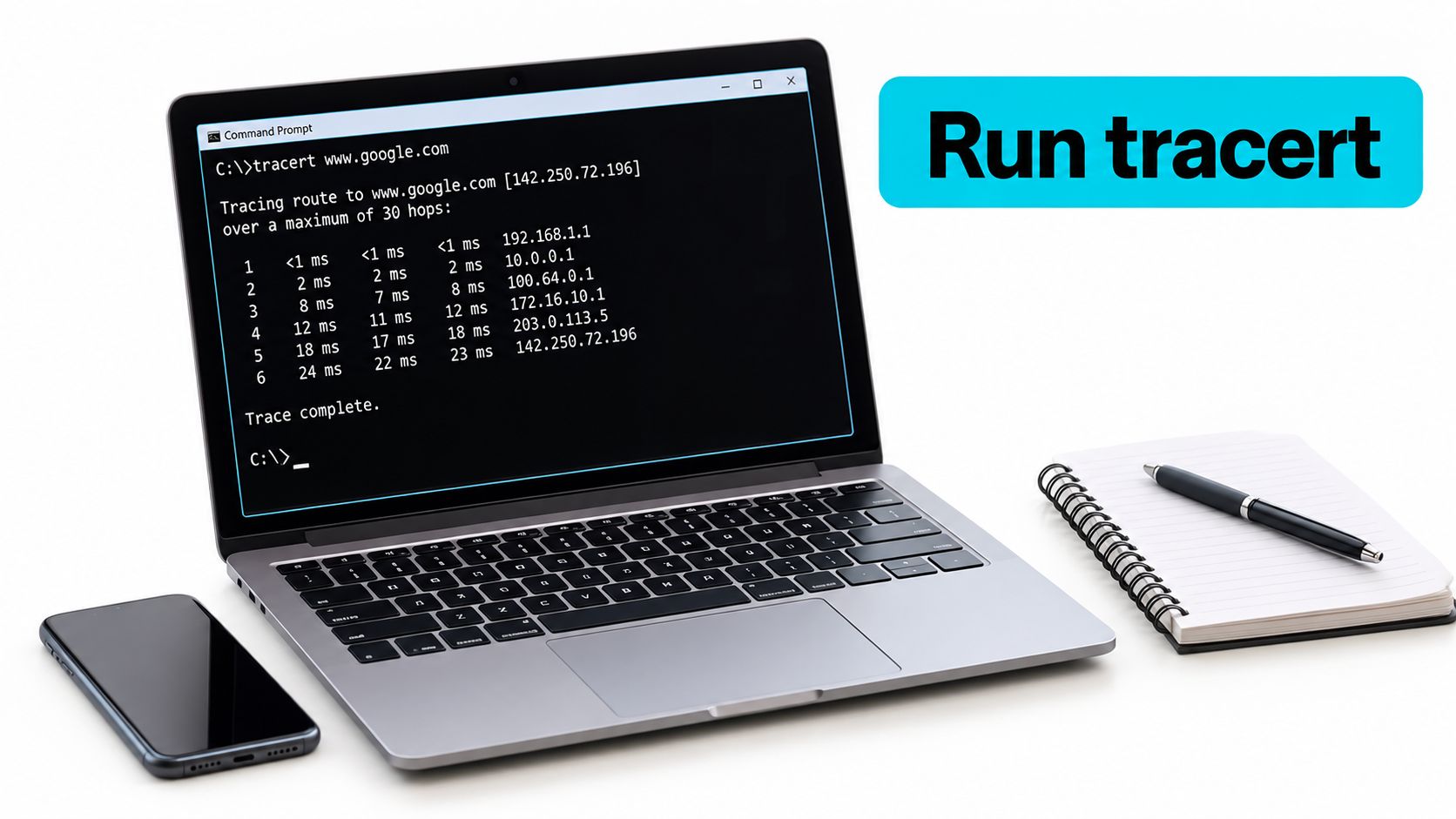
What the command is doing
Windows tracert sends ICMP Echo Request messages while increasing the packet's Time To Live, or TTL, one step at a time, as documented in Microsoft's tracert reference. A packet with TTL 1 expires at the first router, which returns an ICMP Time Exceeded message and reveals that hop. The next probe uses TTL 2, then TTL 3, continuing until the destination responds or the hop limit is reached.
The result is a sequence of controlled measurements, not a permanent route record. Routing may change, load balancing may choose another path, and devices may suppress diagnostic replies while forwarding traffic normally. An asterisk therefore identifies a missing response from that probe, not automatic proof of a broken path.
For a clean Windows baseline, use:
tracert /d example.com
The /d switch suppresses reverse-DNS lookups, so Windows prints addresses without waiting for router hostnames. This can shorten the run and avoid delays caused by unavailable or slow reverse DNS.
Practical rule: Record the command, target, timestamp, and source system. Without that context, later traces are difficult to compare.
Interpreting Hop Output and Latency Samples
A typical Windows line has a hop number, three response times, and a router hostname or address:
5 18 ms 17 ms 20 ms router.example
The three time values are three separate round-trip samples for that hop. They aren't a guaranteed measurement of how long the router takes to forward normal customer traffic. A router may give ICMP error generation a low priority or rate-limit it while forwarding transit packets normally, a behavior described in Cisco's traceroute documentation.
Read the pattern, not one number
A single high value at hop 5 means little if hops 6 through the destination return normally. The router may have delayed its diagnostic response while handling other work. The useful pattern is a change that begins at one hop and persists through every later responding hop.
| Output pattern | Practical interpretation |
|---|---|
| One slow intermediate hop, later hops normal | Likely ICMP prioritization or rate limiting at that router |
| Asterisks at one hop, later hops respond | The router may filter diagnostic replies while forwarding traffic |
| Higher latency begins at one hop and continues to the destination | Investigate the path segment or policy boundary near that point |
| Asterisks continue through the destination | Possible filtering, unreachable path, timeout, or destination ICMP policy |
| Destination responds while an intermediate hop is silent | The intermediate silence alone doesn't prove packet loss |
Hostnames can provide useful clues about network boundaries, but don't treat reverse-DNS labels as authoritative ownership records. An address is more reliable for comparing runs, especially when a provider uses generic router names.
Use endpoint testing alongside the trace. Linux ping troubleshooting helps establish whether the destination responds independently of the hop-by-hop view. A trace tells you where probes receive replies. It doesn't prove that HTTPS, SSH, SMTP, or another application protocol is available.

What this looks like in production
On multi-tenant infrastructure, it's common to see an intermediate carrier router return inconsistent times or no ICMP response while hosted websites remain reachable. The trace becomes actionable only when the application test fails too, and the same loss or latency persists across downstream hops and repeated runs.
Essential Flags for Faster and Cleaner Traces
A trace that appears stalled may be waiting on routers that do not answer diagnostic probes. Windows waits up to 4,000 milliseconds for a response by default and stops after 30 hops. Check tracert /? on the local system before building scripts around those values.
Start with numeric output to avoid reverse-DNS delays:
tracert /d example.com
Then set the wait time or hop ceiling to match the question you are testing:
tracert /d /w 1000 example.com
tracert /d /w 5000 example.com
tracert /d /h 50 example.com
tracert /d /4 example.com
tracert /d /6 example.com
The first command waits up to 1 second per probe, making it useful for repeated checks. The second gives slower routers more time to respond. Use /h when the destination lies beyond the default hop limit. Use /4 and /6 to compare address families when IPv4 and IPv6 may follow different firewall, peering, routing, or MTU policies.
| Function | Windows (tracert) | macOS / Linux (traceroute) |
|---|---|---|
| Basic trace | tracert example.com | traceroute example.com |
| Suppress name resolution | /d | -n |
| Force IPv4 | /4 | -4 |
| Force IPv6 | /6 | -6 |
| Change maximum hops | /h 50 | -m 50 |
| Change wait interval | /w 1000 | -w 1 on commonly used implementations |
| Use ICMP probes | Default Windows behavior | -I |
| Numeric ICMP trace on Linux | Not applicable | traceroute -I -n example.com |
Linux commonly sends UDP probes by default, while -I selects ICMP Echo probes. Run both if a firewall treats those protocols differently:
traceroute -n example.com
traceroute -I -n example.com
Flag units also vary. Windows /w uses milliseconds, while Linux implementations commonly express -w in seconds. Confirm the local syntax before automating:
tracert /?
traceroute --help
For dual-stack checks, capture the normal hostname result and both forced address families:
tracert /d /4 example.com
tracert /d /6 example.com
tracert /d example.com
Compare completion, hop sequence, and response behavior. A difference between the two forced runs can identify an address-family-specific path or filtering issue. The hostname run shows which route the operating system normally selects.

Why Asterisks Do Not Always Mean Packet Loss
The line below is easy to overinterpret:
7 * * * Request timed out.
On Windows, the asterisks mean tracert didn't receive the expected ICMP Time Exceeded or Echo Reply within the configured wait period. They don't, by themselves, prove that traffic is broken, as explained in Microsoft's traceroute troubleshooting guidance).
The downstream persistence test
Look at every hop after the first anomaly. If hop 7 shows asterisks but hops 8 through the destination respond, hop 7 is probably suppressing or rate-limiting ICMP replies. If the loss begins at hop 7 and continues through the destination, investigate the path between the last consistently healthy hop and the first consistently affected hop.
This distinction matters because routers can forward transit traffic normally while limiting control-plane responses. A firewall may allow customer HTTPS traffic but discard or rate-limit diagnostic ICMP. An edge device may also answer some probes and ignore others under load. That behavior can produce asterisks without an application outage.
Don't escalate on an isolated asterisk. Escalate when the anomaly persists downstream and application testing confirms the same failure.
An application-layer gateway can create another misleading boundary because it may terminate one connection and establish another. Understanding what an application-layer gateway does helps separate a transport-path observation from an application proxy or policy decision.
Confirm the customer-facing service
Run an endpoint check instead of relying on the trace alone:
ping example.com
Test-NetConnection example.com -Port 443
A successful port test with an incomplete trace points toward ICMP filtering or rate limiting. A failed port test combined with persistent downstream trace failure is stronger evidence of a path, firewall, or destination problem. Test the actual service port because ICMP reachability doesn't establish application availability.
Repeat the trace at separated times and record whether the same hop remains affected. One snapshot can capture a temporary control-plane response policy, a route change, or congestion that isn't representative of the service path.
Building a Complete Diagnostic Workflow
Treat tracert as path evidence, not a formal availability test. A disciplined workflow starts from the affected client, captures a numeric trace, checks the application port, and compares the result from another vantage point.
On Windows, use:
tracert /d affected-host.example
Then test the service:
Test-NetConnection affected-host.example -Port 443
From Linux, compare the normal UDP-based view with ICMP:
traceroute -n affected-host.example
traceroute -I -n affected-host.example
Capture at least three runs at separated times from the same source. Compare hop presence, latency patterns, destination completion, and the first point where a persistent anomaly appears. Also record whether a VPN, NAT device, local firewall, or security gateway was active.
A trace from one office or Tampa-hosted server can't establish how customers in Europe, Asia, or another U.S. carrier reach the same destination.
That vantage-point limitation is why network latency testing guidance should include more than one source when the service has a distributed customer base. For hosted infrastructure, test from the customer endpoint, the VPS or bare-metal server, and another ISP when possible. Compare those results with server logs, interface counters, firewall counters, and an application-specific request.
A locally healthy trace doesn't rule out a regional routing issue. Likewise, a silent intermediate router doesn't establish a provider fault when the endpoint and application continue to respond.
When to Escalate to Your Infrastructure Provider
Open a provider or ISP ticket when the evidence is repeatable and specific. Attach the affected hostname, resolved destination address, source location, protocol family, and timestamps for each test.
Include:
- Numeric traces from the affected endpoint and, when available, the hosted VPS or bare-metal server.
- Separate IPv4 and IPv6 traces when dual-stack behavior differs.
- Ping results and
Test-NetConnectionoutput for the actual service port. - The first consistently affected hop and every later hop.
- Relevant application, firewall, interface, and service logs.
- A comparison from another ISP or external vantage point.
Don't describe an intermediate * * * as confirmed packet loss unless the destination and later hops show the same failure. Providers can work faster when you supply raw output, exact timestamps, and a clear statement of what customers can and can't reach.
ARPHost, LLC offers VPS hosting, bare-metal infrastructure, colocation, Proxmox private clouds, and managed services, so its operations team can use this evidence alongside host and network-side checks.
If your traces show persistent downstream loss or inconsistent paths, send the collected outputs with timestamps before opening a support request. Visit ARPHost, LLC to discuss hosted infrastructure or managed support for the systems you're diagnosing.

Leave a Reply
You must be logged in to post a comment.