Reinstalling puts a fresh operating system or application template on your VPS. It is the quickest way to start over, switch to a different operating system, or set up a ready made application such as Webuzo, cPanel or WordPress.
A reinstall erases everything on the server. Your files, databases, users and settings are all removed and cannot be recovered afterwards, so save anything you want to keep first.
Before you start
Take a backup or a snapshot of the server, or copy your files somewhere else. You will also need a new root password of at least 8 characters for the reinstalled server. A password manager is the easiest way to make and keep one.
Steps
- Sign in to the client area at https://manage.arphost.com, open Services, and click Manage next to your VPS.
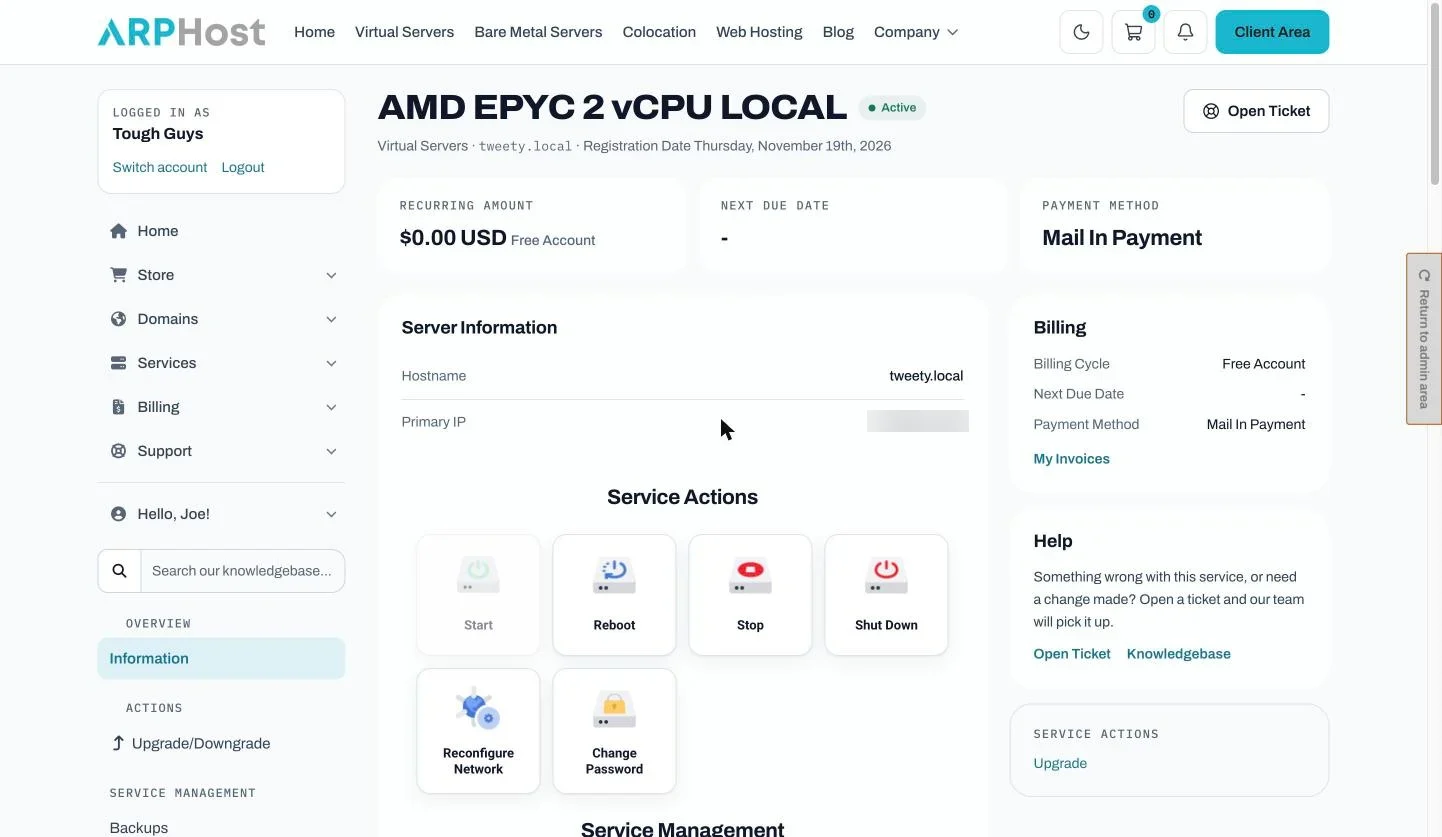
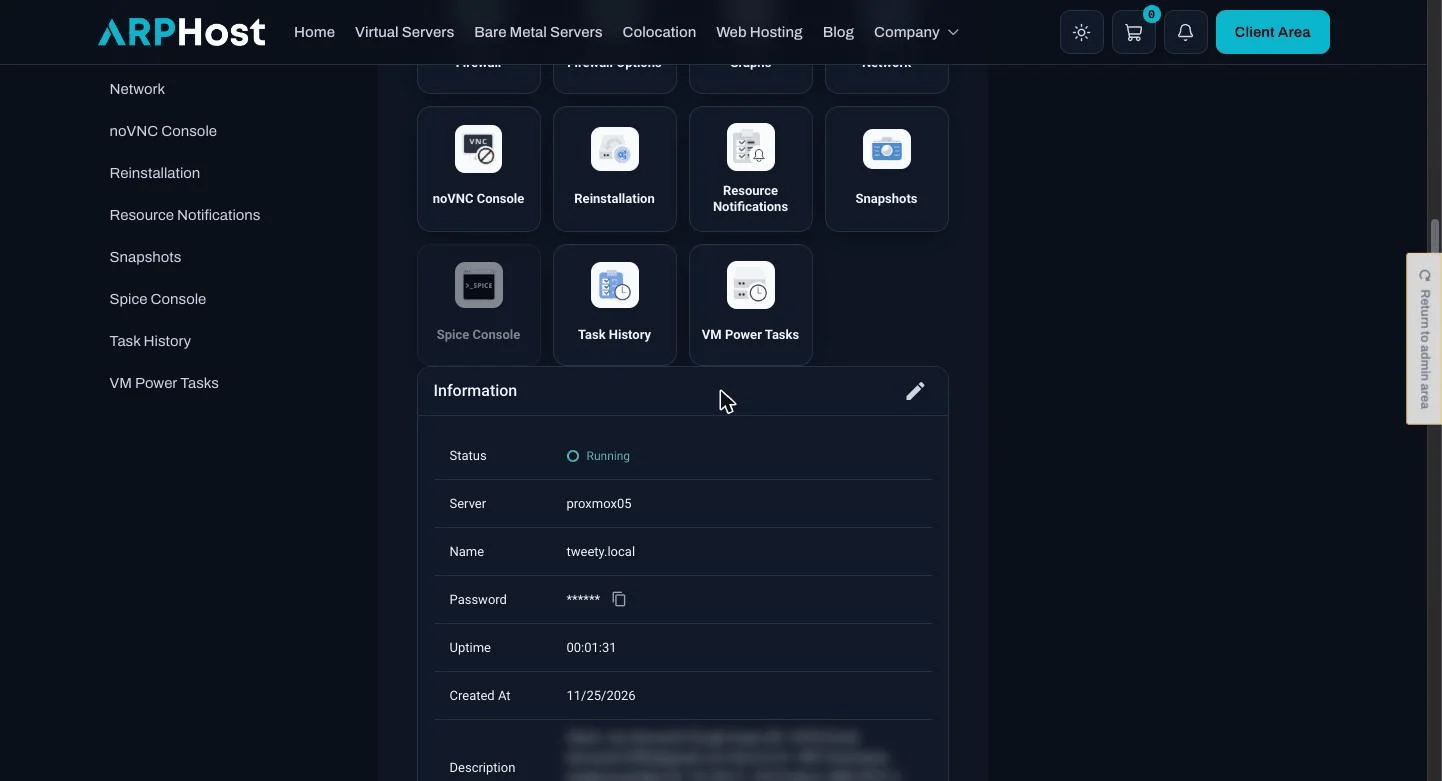
- Scroll down to Service Management and click Reinstallation. You can also use the Reinstallation link in the menu on the left.
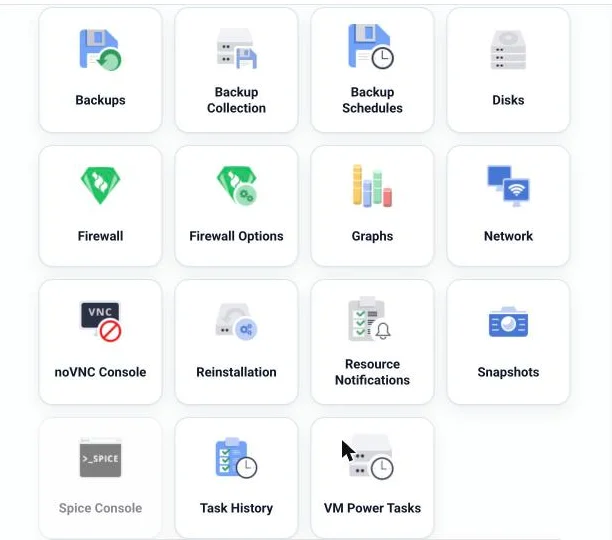
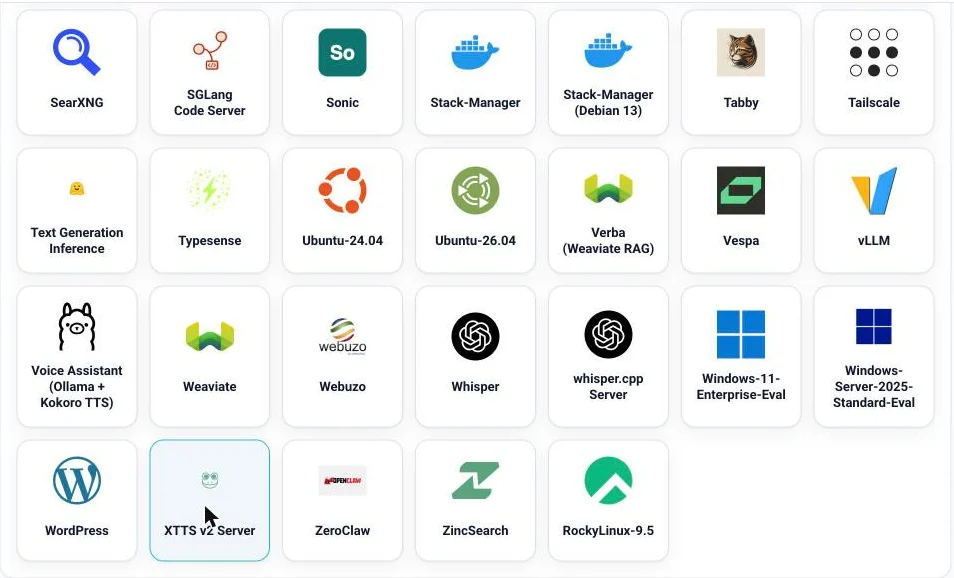
- The KVM Templates page lists every operating system and application you can install. The notice at the top reminds you that all data on the server will be lost.
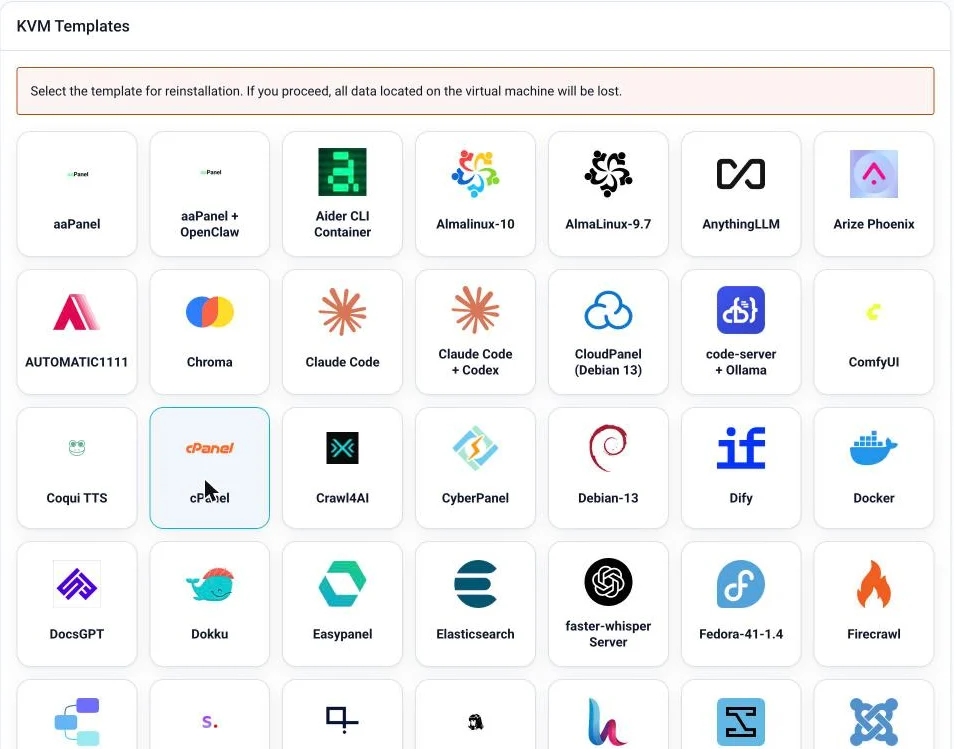
- Click the template you want. This guide uses Webuzo.
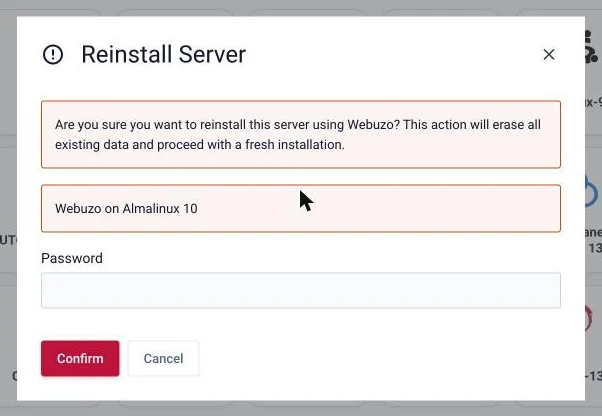
- The Reinstall Server window shows which template will be installed, for example Webuzo on Almalinux 10. Type a new root password of at least 8 characters in the Password box and click Confirm. Click Cancel if you change your mind.
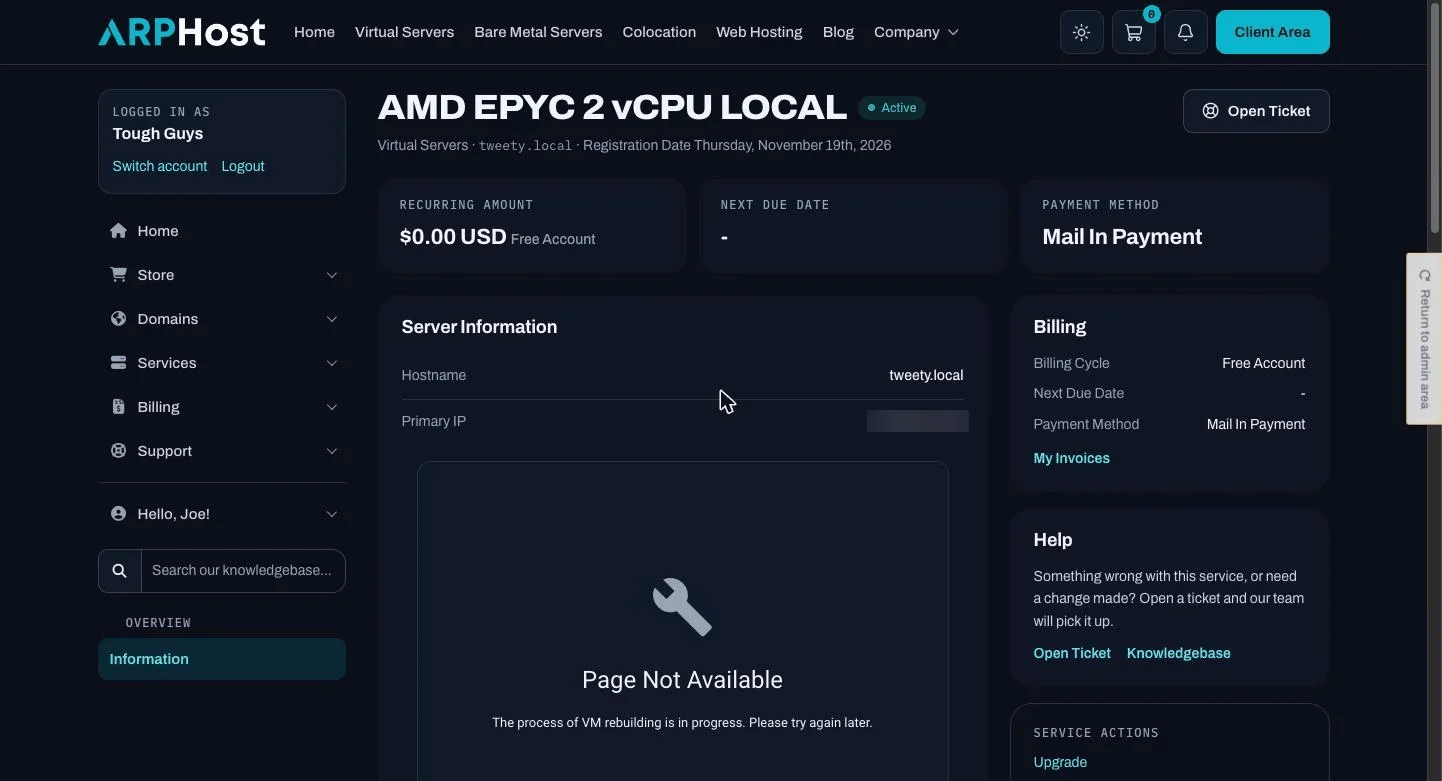
- While the server is rebuilt, the service page shows Page Not Available with a note that the rebuild is in progress. A Webuzo reinstall took about 10 minutes in our test. Plain operating systems are usually quicker.
- When it finishes, the service page loads normally again and the server shows as Running.
Your welcome email
When the reinstall is done you get an email titled Your Webuzo Service Is Ready, Login Details, or the same with the name of the template you picked. It has everything you need to log in.
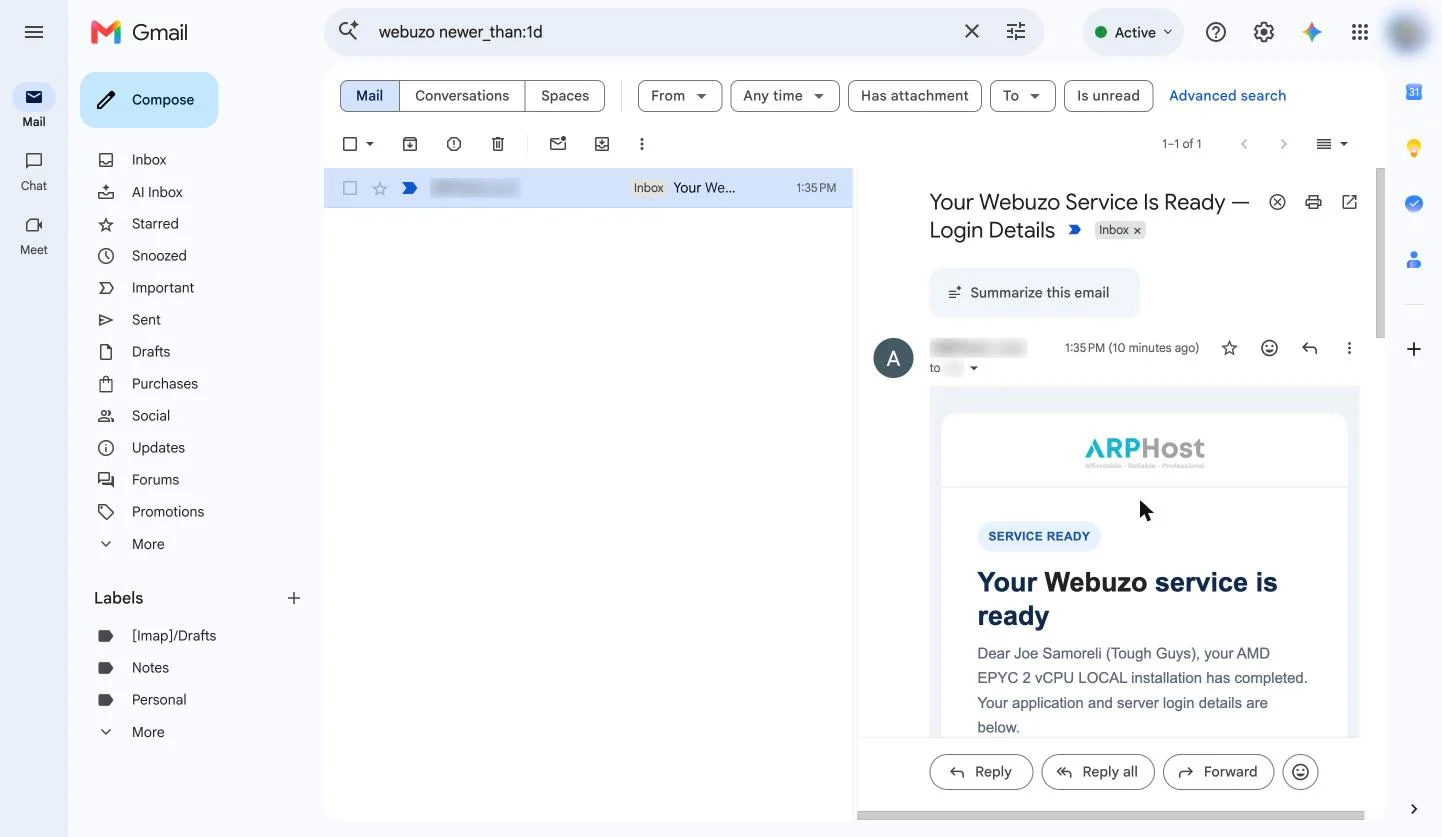
Under Application access you will find the address of the application, which for Webuzo ends in port 2005, and the username, which is root.
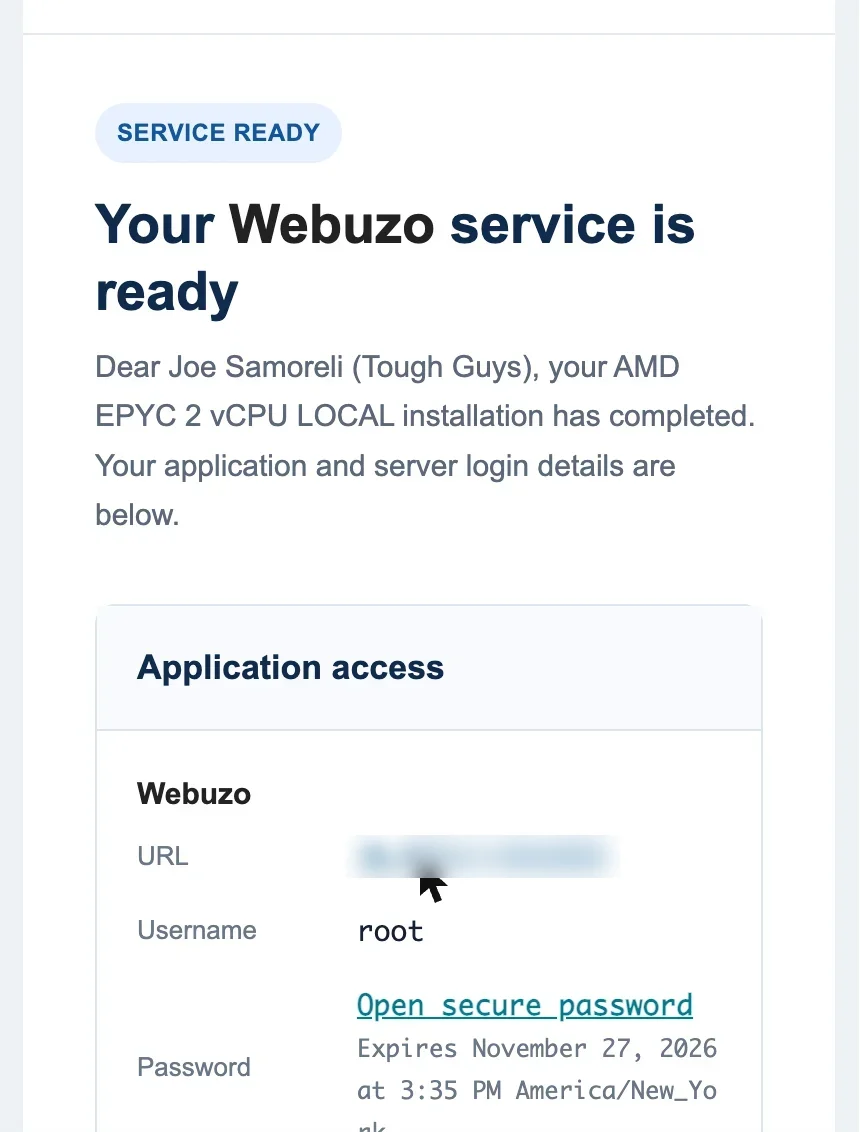
Passwords are never written in the email. Click Open secure password to see yours. Each link expires after about a day, so open it soon and save the password somewhere safe.
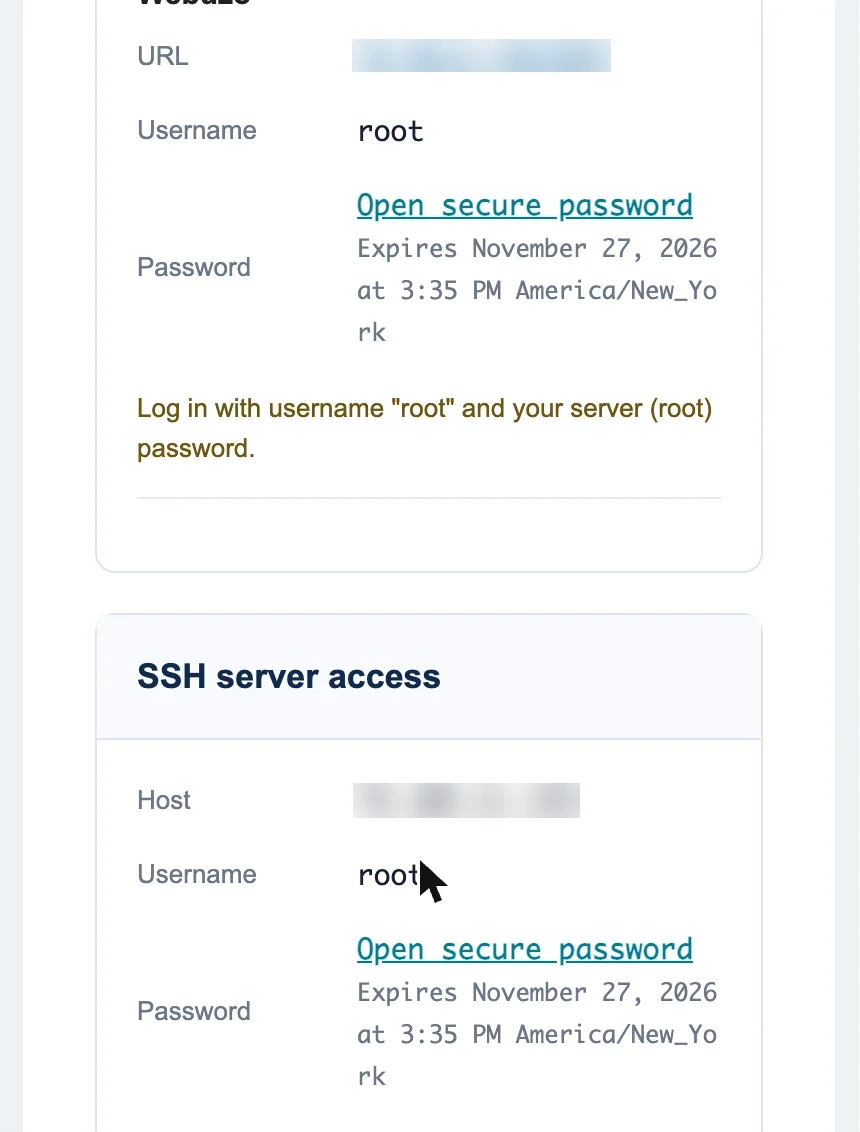
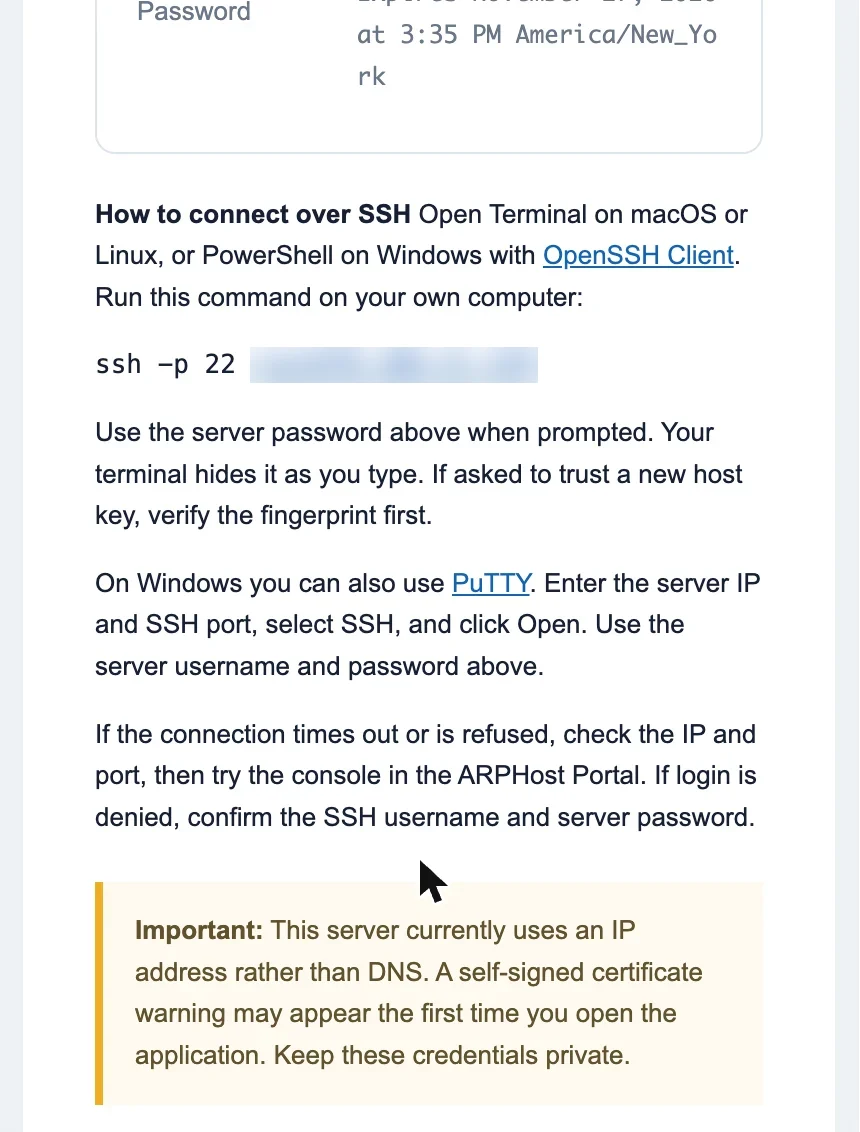
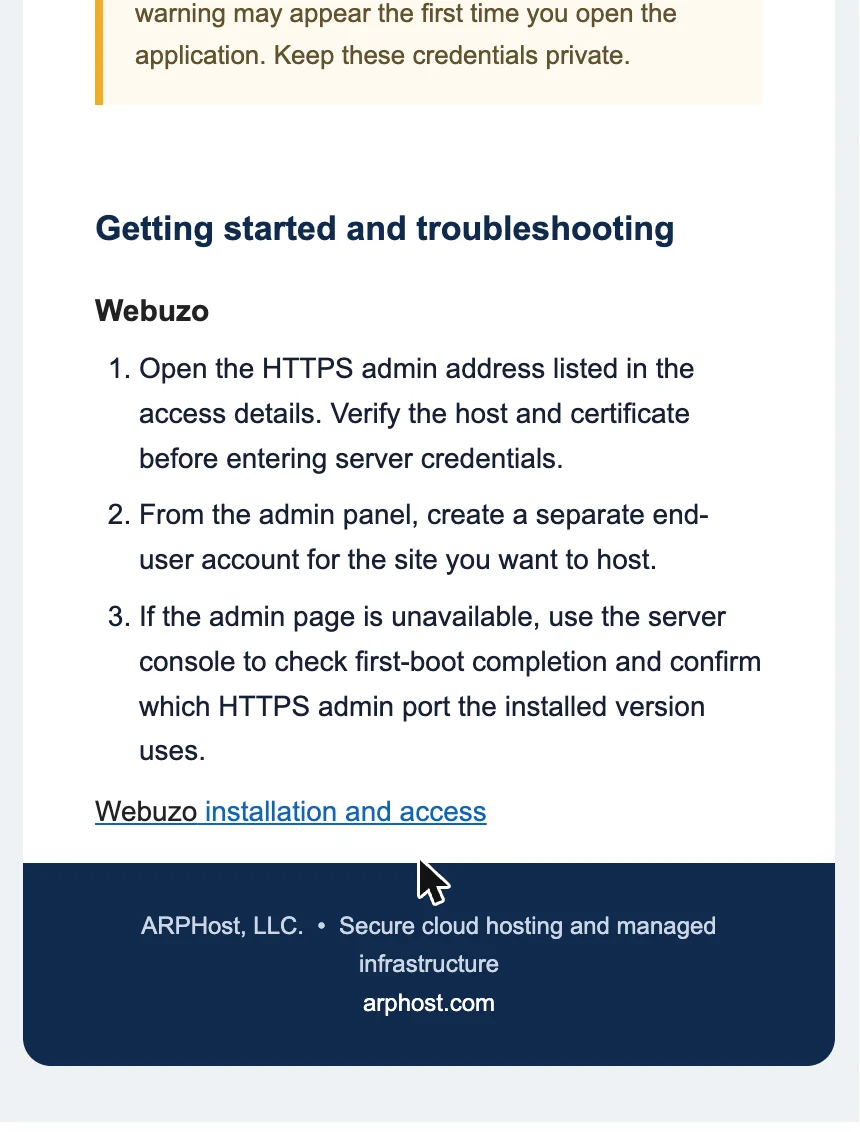
The email also shows the command for connecting over SSH and some first steps for the application you installed.
Video
If something goes wrong
If you see Outdated security token. Refresh the page and try again. after clicking Confirm, the page was open too long. Reload the page, choose the template again and confirm.
If you see The password must be at least 8 characters long, type a longer password and click Confirm again.
If the page still says the rebuild is in progress after 30 minutes, or the server does not start, open a ticket from Support in the client area and tell us which template you picked.