

When managing Linux environments, opening a file is a foundational task. However, the term "opening" encompasses multiple actions: quickly viewing a configuration, scrolling through large log files, or executing critical edits. Selecting the appropriate command-line tool is crucial not only for efficiency but also for preventing inadvertent modifications that can compromise system stability.
Your objective determines the command. For a quick, non-interactive view, cat is the standard. For navigating larger files, less provides superior control. When modifications are necessary, a terminal-based text editor like nano or vim is required.
Your Essential Toolkit For Opening Linux Files
For any IT professional managing bare metal servers, Proxmox VE clusters, or KVM virtual machines, fluency with the terminal is non-negotiable. Whether you're analyzing application logs to diagnose an error or modifying a system configuration file, knowing the correct command can significantly reduce troubleshooting time. This guide provides an actionable framework for making that choice effectively.
Before interacting with files, implementing a structured file system is a best practice that streamlines operations. A logical directory structure minimizes the time spent locating files and enhances overall workflow efficiency. It is advisable to review established strategies for organizing your digital files to optimize your environment.
This decision tree offers a visual reference for selecting the appropriate command based on your objective.
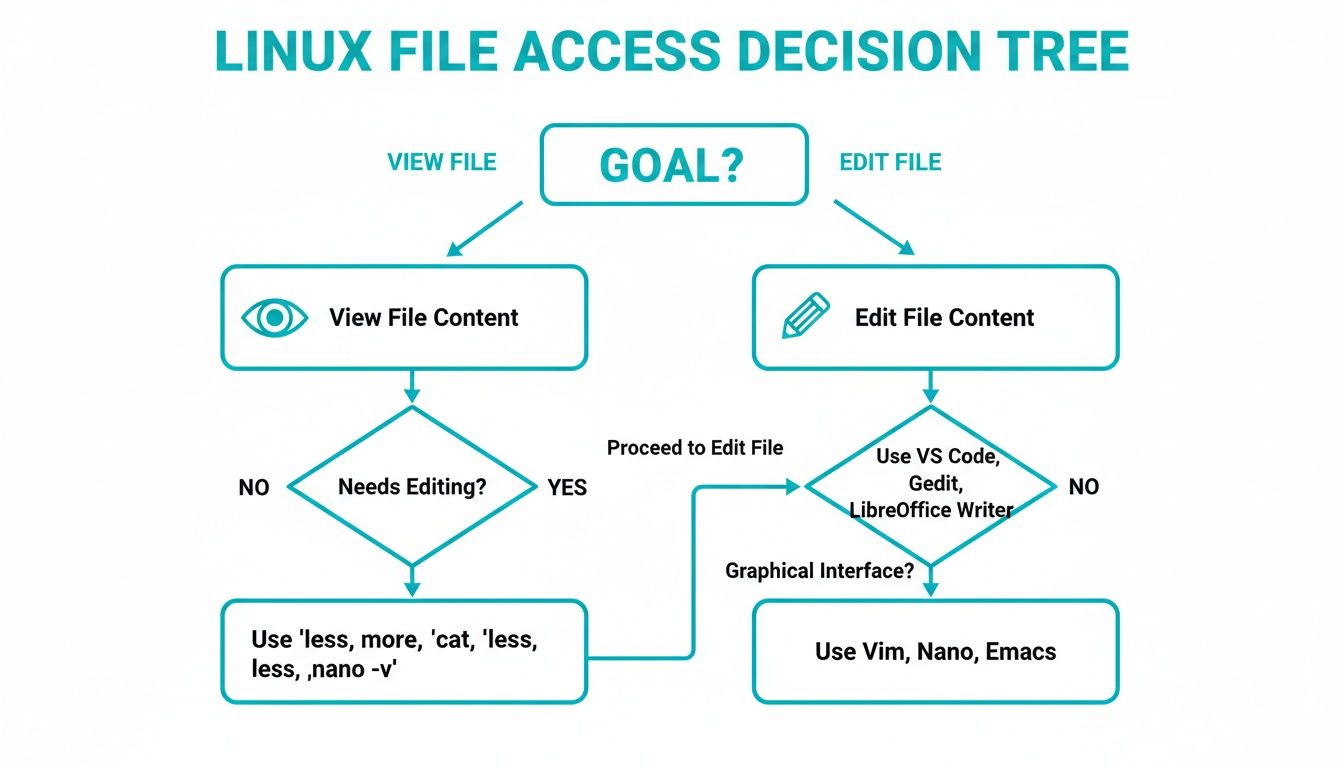
As illustrated, the process bifurcates into two primary functions: viewing and editing. The final tool selection depends on the file's size and your specific intent.
Why You Need To Master The Command Line
As enterprise infrastructure increasingly relies on scalable and secure Linux-based systems, command-line proficiency has become an indispensable skill for IT professionals. Enterprise Linux adoption is projected to climb from 51.6% in 2023 to 61.4% by 2025, underscoring the importance of mastering terminal operations as a core competency.
The core of a sysadmin's file-handling toolkit consists of a few essential commands. I utilize
catfor a quick glance,lessfor in-depth analysis of extensive log files, andvimornanofor precise modifications to configurations. Each tool is purpose-built for speed and accuracy in a server environment.
Choosing The Right Command to Open a Linux File
To facilitate tool selection, this reference table categorizes the most common commands by their primary use case.
| Your Goal | Recommended Command | Best For |
|---|---|---|
| Quickly view a small file | cat | Displaying entire contents of config files, scripts, or short text files directly in the terminal. |
| Read a large file interactively | less | Paging through long log files or documents; allows for bidirectional scrolling and searching. |
| Glance at the beginning of a file | head | Checking the first few lines of a log or CSV file to verify its structure and content. |
| See the end of a file in real-time | tail -f | Monitoring live log files as new entries are written. Indispensable for real-time debugging. |
| Easy, straightforward editing | nano | Simple text editing ideal for beginners or quick modifications. On-screen commands enhance usability. |
| Powerful, efficient editing | vim | Advanced text editing for experienced users. It's modal, fast, and highly extensible for complex tasks. |
| Identify what a file actually is | file | Determining a file's type (e.g., text, image, binary) before attempting to open it. |
This table serves as a quick-reference guide. Consistent use will build muscle memory, making the distinct advantages of each tool second nature. For example, knowing to use less instead of cat for large files prevents terminal flooding and maintains a clean workspace.
Viewing Files Safely Without Modification
A frequent task for system administrators is inspecting files without the risk of accidental modification. Whether checking logs on a production server, reviewing configurations in a Proxmox environment, or navigating a bare-metal machine, read-only file access is a critical, foundational skill.
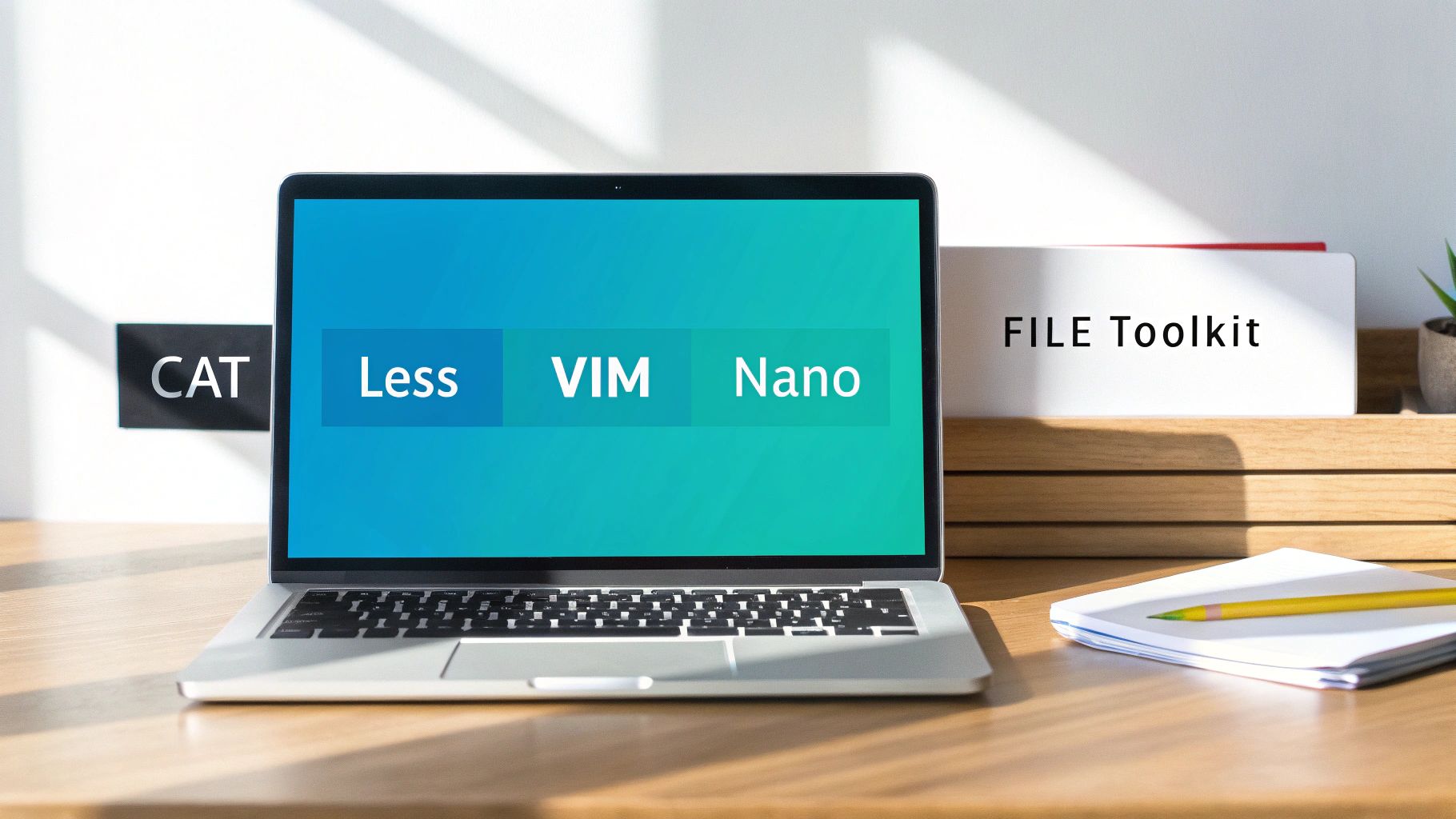
The simplest tool for this purpose is cat (short for concatenate), which reads a file and outputs its entire contents to standard output. It is ideal for viewing small files.
For example, to display the contents of a user's shell configuration, execute:cat ~/.bashrc
However, using cat on a large log file like /var/log/syslog will overwhelm the terminal, making it impractical for such use cases.
Handling Larger Files
For larger files, less is the industry-standard tool. As a "pager," it loads the file one screen at a time, allowing for navigation with arrow keys without high memory consumption. Its efficiency makes it the preferred choice for analyzing massive log files. To search for text within less, press / followed by the search term.
One of the most powerful and commonly used commands in a sysadmin's toolkit is
tail -f. This command displays the last few lines of a file and watches for new lines in real-time, printing them as they are added. It is invaluable for monitoring live application logs or system events during troubleshooting.
To begin monitoring a system log, use the following command:tail -f /var/log/syslog
The command maintains an open connection to the file, streaming updates to the terminal until manually stopped (Ctrl+C). To further develop these skills, our collection of Linux CLI tutorials provides additional hands-on guidance.
The head command complements tail by displaying the first few lines of a file, useful for quickly inspecting file headers or initial configuration parameters. Together, these read-only commands provide a secure and efficient method for any file inspection task. These skills are increasingly relevant, as evidenced by Linux's growing market share. You can explore these Linux adoption statistics to understand the expanding ecosystem.
Editing Files with Command Line Editors
Viewing files is often insufficient; modifications are frequently required. Whether adjusting a configuration file, updating a script on a headless server, or creating notes, a command-line editor is necessary. The two most ubiquitous editors on Linux systems are nano and vim.
The choice between them typically depends on the complexity of the task and user preference. nano is valued for its simplicity, making it ideal for quick, straightforward edits.
Getting Started with Nano
Opening a file in nano is direct. Simply type nano followed by the file path. For instance, to modify a server's network configuration, you would execute:
sudo nano /etc/network/interfaces
Inside the editor, nano displays a list of common keyboard shortcuts at the bottom of the screen, such as ^X (Ctrl+X) to Exit and ^O (Ctrl+O) to "Write Out" (save). This built-in reference makes it highly accessible for users new to the command line.
Harnessing the Power of Vim
For professionals who spend significant time in the terminal, vim provides a more powerful and efficient editing experience, albeit with a steeper learning curve. The core concept of vim is its modality, operating primarily in Normal and Insert modes.
- Normal Mode: The default mode upon opening a file. It is used for navigation, executing commands like deleting lines, and copying/pasting text.
- Insert Mode: The mode for text entry. Enter this mode by pressing
iand return to Normal mode by pressingEsc.
This modal design, while initially unfamiliar, enables extremely fast text manipulation without relying on a mouse. For a more detailed comparison and usage examples, our guide on how to edit a file in Linux offers further instruction.
While
vim’s learning curve can seem daunting, mastering basic operations—navigation, pressingito insert text, and using:wqto save and quit—delivers a significant productivity boost. It is a game-changing tool for any sysadmin managing complex configurations on Proxmox or bare metal servers.
Navigating Permissions and Ownership Issues
A common obstacle in Linux is the "Permission denied" error. This is not a bug but a core security feature of the operating system. The Linux permissions model is based on user, group, and other (ugo), where each has specific read (r), write (w), and execute (x) permissions.
When encountering this error, the first step is to diagnose the issue by checking the current permissions with ls -l. This command provides a detailed output of file ownership and access rights, revealing why access was denied.
Taking Control with chmod and chown
Once the problem is identified, two primary commands are used for remediation: chmod and chown.
The chmod command modifies access rights. For example, to make a deployment script executable, use the following:
chmod +x deploy.sh
The chown command changes file ownership. This is critical in environments like a private cloud where services must run as specific, non-root users. To assign ownership of a configuration file to the web server user, you would run:
chown www-data:www-data /var/www/html/config.php
This command changes both the user and group owner to www-data, ensuring the web server has the necessary permissions to read its configuration. Correctly managing ownership is fundamental to a secure and functional server.
A common mistake among junior administrators is to prepend
sudoto every command to bypass permission errors. This approach is insecure and fails to address the root cause. Best practice dictates understanding the reason for the permission denial and usingchmodorchownto implement a correct and permanent fix. Running all operations as root introduces significant security risks.
Using Elevated Privileges Safely
There are legitimate cases where root access is required, such as editing system-wide configuration files. The sudo command is designed for this purpose, allowing a user to execute a single command with elevated privileges.
To correctly edit the system's hosts file, for example, use:
sudo nano /etc/hosts
This practice adheres to the principle of least privilege, ensuring that root powers are used only when necessary. This discipline is vital for maintaining the stability and security of any production system, from a single bare metal server to a multi-node Proxmox cluster.
Opening Files on Remote Linux Systems
System administrators and developers typically manage remote servers, not local machines. Whether managing a single KVM VPS or a large Proxmox cluster, proficiency in remote file access is essential. The Secure Shell (SSH) protocol is the industry standard for this purpose.
SSH establishes a secure, encrypted connection to a remote server's terminal. Once connected, all standard file manipulation commands—cat, less, nano, vim—function identically to how they would on a local machine. This seamless access is the foundation of modern remote system administration. For those new to SSH, our guide on how to connect to a cloud VPS details the connection process.
Transferring Files Securely
Beyond viewing and editing, transferring files between local and remote systems is a common requirement. For ad-hoc file transfers, scp (Secure Copy) is a simple and effective utility. It leverages SSH for authentication and encryption, ensuring data integrity and confidentiality.
To download a server's configuration file to your local machine for analysis, execute:
scp user@remote_host:/path/to/remote/file .
The trailing . is a shortcut indicating the destination is the current local directory.
For more complex or recurring file synchronization tasks,
rsyncis the superior tool. It is more efficient thanscpas it performs delta transfers, moving only the differences between the source and destination files. This significantly reduces bandwidth consumption and transfer time, making it ideal for synchronizing large directories or performing backups.
While scp is excellent for simple, infrequent transfers, mastering rsync is a valuable investment for any professional responsible for maintaining data consistency across remote systems.
Working With GUIs and Identifying File Types
While the command line is the primary interface for server administration, graphical user interfaces (GUIs) have their place. It is possible to launch GUI applications directly from the terminal on a Linux desktop, effectively bridging the two environments.
The xdg-open utility facilitates this integration. It functions as a universal file opener, automatically identifying the file type and launching the system's default application for it.
To open a PDF document from the terminal, for example, simply run:
xdg-open monthly_report.pdf
This command works for images, documents, and any other file type with an associated GUI application, streamlining workflows by eliminating the need to manually select programs.
Identifying Unknown Files
System administrators often encounter files with missing or incorrect extensions, especially in data exports or legacy directories. Before attempting to open an unknown file, it is crucial to identify its type. The file command is the definitive tool for this task.
It inspects the file's header and content—not its name—to determine its actual type. This is a critical step for both security and proper file handling. For instance, to verify a file named data.txt, run:
file data.txt
The output might reveal it is a gzipped archive or an executable script. This simple check prevents errors, such as attempting to cat a binary file, which would output unreadable characters to the terminal.
As a best practice, always run the
filecommand before opening any unfamiliar file. This quick, simple habit prevents errors and can instantly identify potentially malicious files masquerading with common extensions.
If you know which application to use, you can also call it directly. For example, to open an image with the Eye of GNOME viewer, you would type:
eog screenshot-2024.png
Mastering these commands allows for the seamless integration of GUI tools into command-line workflows, providing the flexibility required to manage systems effectively.
Frequently Asked Questions About Opening Files
Here are answers to common questions system administrators encounter when learning how to open a file in a Linux environment.
What Is the Difference Between cat less and more?
The primary difference lies in how they display file content. cat outputs the entire file to the terminal at once, making it suitable for short configuration files but impractical for large ones.
more is an older paging utility that allows forward scrolling one screen at a time. However, less is the modern and superior standard. It loads files almost instantly by not reading the entire file into memory, making it highly efficient for massive log files. less also supports backward and forward scrolling, text searching, and other advanced navigation features. In most scenarios, less is the recommended tool.
Why Cant I Edit a File Even with sudo?
If sudo nano filename still results in a "permission denied" error, the file may have the immutable attribute set. This is a special file system flag that prevents all modifications, even by the root user. It is typically used to protect critical system files from accidental or malicious changes.
To check for this attribute, run lsattr filename. An i in the output indicates the file is immutable. To edit the file, you must first remove this attribute with sudo chattr -i filename, make the necessary changes, and then immediately re-apply the protection with sudo chattr +i filename.
How Do I Open a File with Spaces in Its Name?
Filenames containing spaces require special handling in the terminal to prevent the shell from misinterpreting them. There are two primary methods:
- Quoting: Enclose the entire file path in double quotes. This is generally the cleanest and most readable method. Example:
less "My Important Log File.log" - Escaping: Precede each space with a backslash (
). This tells the shell to treat the space as a literal character rather than an argument separator. Example:less My Important Log File.log
For IT professionals aiming to expand their expertise beyond specific commands, resources on improving your IT skills can provide a roadmap for career development.
At ARPHost, LLC, we provide the high-performance bare metal and KVM server infrastructure that gives you the power and control to manage your systems with confidence. Explore our reliable hosting solutions at https://arphost.com.