

You usually search how to move a directory in linux when the task is already live. A site has outgrown its current path. A backup volume is filling up. A VM migration is waiting on data placement. At that point, a simple command can either finish cleanly or create a long maintenance window.
On a production server, moving a directory is not just file housekeeping. It affects permissions, application paths, service uptime, and storage performance. The safest method depends on one question first. Are you moving inside the same filesystem, or across different filesystems?
Moving Directories Beyond Basic File Management
A desktop habit causes trouble on servers. Admins often treat every move like the same operation. Linux does not.
The foundational tool is mv. It has been around since the original Unix system by AT&T Bell Labs in 1971, and for intra-partition moves it works by updating inodes instead of copying data, which makes the operation effectively 100% efficient for that case according to this guide to moving directories in Linux. That is why a directory rename on fast storage often feels instant.
That speed is what makes mv excellent for work like:
- Renaming an application directory during a deployment rollback
- Reorganizing web roots under
/var/www - Cleaning up configuration paths after testing
- Standardizing mountpoint layouts on a server you already know well
The mistake is assuming mv behaves the same way everywhere. It does not. If source and destination are on different filesystems, Linux cannot just retag metadata and call it done. It has to copy data and then remove the original.
What makes a move professional
On a live server, a directory move has to answer more than “did the command run.”
You also need to know:
- Will the application stay online
- Will ownership and permissions remain valid
- Will the move hit local disk only, or the network too
- Can you recover if the transfer stops halfway
- Do you need visibility into progress
Treat directory moves like change management, not shell trivia. The command is small. The impact is not.
A small config folder on a test VM is one thing. A large uploads directory, a Magento media tree, or exported VM data is another. For those cases, the right tool is the one that matches the storage layout and the recovery requirements.
Start with this check
Before running anything, confirm where you are moving from and to:
df -h .
df -h /target/path
If both paths live on the same mounted filesystem, mv is usually the right first choice. If not, plan for a data transfer workflow instead of a metadata change.
That distinction is the difference between an instant reorganization and a long-running copy job.
Mastering the mv Command for Everyday Operations
For ordinary server work, mv is still the best answer. The key is knowing exactly what it will do before you press Enter.

Renaming is not the same as moving into a directory
These two commands do different things:
mv /var/www/site /var/www/site-old
That renames site to site-old.
mv /var/www/site /srv/www/
That moves site into /srv/www/, resulting in /srv/www/site.
Admins mix these up all the time during deployments. If the target already exists and you are tired, you can end up nesting a directory where you meant to rename it.
Safe day-to-day usage
The default syntax is simple:
mv source_directory destination_directory
For production work, I recommend using flags that reduce mistakes.
-iasks before overwritemv -i app-config app-config.bakUse this when replacing an existing path would be costly.
-nrefuses to overwritemv -n uploads/ archive/Good for cautious admin work when existing files must remain untouched.
-vshows what changedmv -v release-2024-01 release-currentHelpful in change windows and shell history reviews.
You can combine them:
mv -iv olddir newdir
What mv preserves well
Within normal Linux usage, mv preserves the directory as-is from the application’s point of view. That means your web service or scheduled task usually keeps seeing the same permissions and ownership after the move, provided the surrounding path and service configuration still make sense.
That is one reason it works well for reorganizing deployed applications. You are changing location or name, not rebuilding the tree file by file.
If you need a refresher on creating the target location cleanly before a move, this walkthrough on creating a folder in terminal covers the basics.
Practical examples admins use often
Rename a release directory
mv -v /var/www/releases/release-17 /var/www/releases/release-18
Move a project into a web root
mv -v /home/deploy/new-site /var/www/
Archive logs before rotation work
mv -iv /opt/app/logs /opt/app/logs.previous
mkdir /opt/app/logs
That last pattern matters. Some applications expect the directory to exist at startup. If you move it away, create the replacement immediately.
A quick visual refresher helps if you are training junior staff or documenting a runbook:
When mv is the right tool
Use mv first when all of these are true:
- Same filesystem: The source and target are on the same mounted volume.
- Local operation: You are not crossing hosts.
- No need to resume: If interrupted, you do not need chunk-level recovery.
- Low complexity: You are renaming or reorganizing, not performing a migration.
If the move is local and intra-filesystem,
mvis usually the cleanest and least disruptive choice.
The moment you cross filesystem boundaries, the decision changes.
Handling Large Directories Across Different Filesystems
Many Linux guides stop too early at this point. They show mv, it works in a small demo, and then it performs badly in real hosting environments.
When source and destination are on different filesystems, mv no longer behaves like a quick rename. It falls back to copying data and removing the original afterward. That is why a move from one mount to another can take far longer than expected.
Existing Linux tutorials often understate this gap. This overview of moving directories in Linux notes that benchmarks show rsync -a --remove-source-files can be 20-50% faster than default mv behavior for cross-filesystem moves.
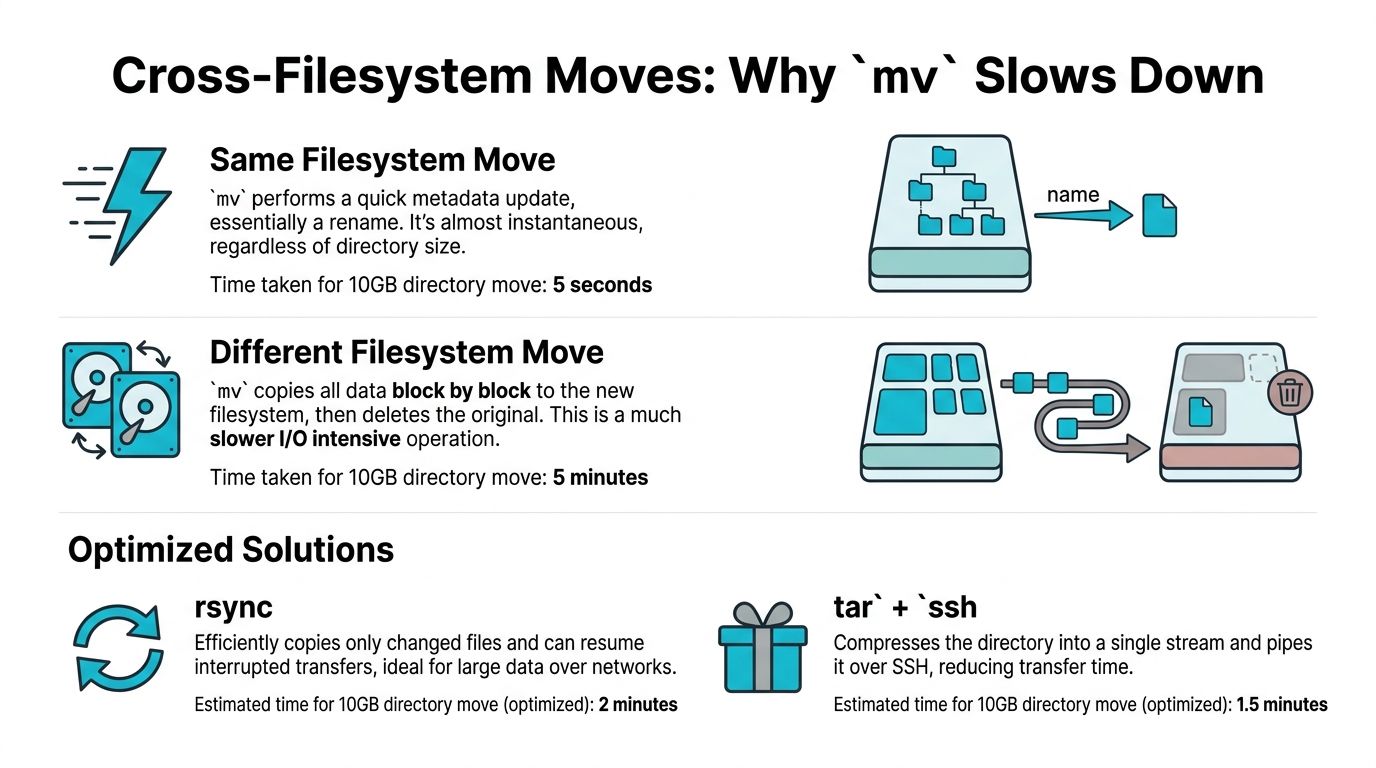
Why cross-filesystem moves get slow
The problem is not the command name. The problem is the storage boundary.
A move from /var/www/site to /mnt/data/site might look simple, but if /var and /mnt/data sit on different filesystems, Linux must:
- Read the source data
- Write the destination data
- Preserve attributes
- Delete the original tree
That creates heavy I/O. On busy servers, it can also compete with databases, web workers, backups, and cache rebuilds.
A quick way to verify the target device before you start is to inspect mounts and filesystem layout. This guide on how to mount a drive in Linux is useful if you are preparing the destination volume first.
Comparison of Directory Moving Methods
| Method | Use Case | Speed (Same Filesystem) | Speed (Cross-Filesystem) | Network Capable |
|---|---|---|---|---|
mv | Renames and local reorganizing | Excellent | Can be slow because it copies then deletes | No |
rsync -a --remove-source-files | Large migrations with visibility and control | Often better than mv for large transfers | Often better than mv for large transfers | Yes |
cp -a then rm -rf | Simple manual copy workflow | Slower than mv | Viable, but less elegant than rsync | No |
tar piped to another process | Specialized transfer and archival workflows | Situational | Useful in advanced pipelines | Yes, with SSH |
The method I trust for large moves
For large application directories, media trees, or migration staging data, rsync is usually the better choice.
Use this pattern:
rsync -a --progress /source-dir/ /target-dir/
Important detail. The trailing slash on /source-dir/ copies the contents of the directory, not the directory container itself.
After validation, remove the source:
rm -rf /source-dir
If you want a move-like workflow, use:
rsync -a --progress --remove-source-files /source-dir/ /target-dir/
find /source-dir -type d -empty -delete
This approach gives you more control than mv. You can monitor progress, rerun the command if needed, and inspect the target before deleting the source tree.
A practical decision model
Use mv when:
- The move stays on one filesystem
- The operation is mostly a rename
- You want the cleanest possible local change
Use rsync when:
- The destination is another mounted volume
- The directory is large
- You need progress visibility
- You want safer recovery from interruption
Use cp -a plus cleanup when:
- You need a straightforward copy first
- You want to keep the source until a manual verification step
rsyncis unavailable
Commands that work well in production
Move a web root to another disk with progress
rsync -a --progress /var/www/html/ /srv/web/html/
Reduce I/O priority during a busy period
ionice -c3 rsync -a --progress /var/www/html/ /srv/web/html/
Copy first, verify, then remove source
cp -a /opt/app/data /backup/app-data
rm -rf /opt/app/data
That last method is simple, but it lacks rsync’s recovery advantages.
For live production systems, the best move is often not a literal move. It is a controlled copy, a validation step, and a deliberate cleanup.
One more operational point matters. After any large transfer, verify ownership, application config paths, and service behavior before deleting the original. The command can succeed while the application still fails because a service file, symlink, or policy points to the old location.
Moving Directories Securely to Remote Servers
Local moves are only half the job. In real environments, you often need to move a directory to another server for deployment, backup intake, or migration.
For that, the common choices are scp and rsync over SSH. Both are valid. They serve different purposes.
When scp is enough
Use scp for quick, one-time transfers when you do not need resume behavior or detailed synchronization logic.
Example:
scp -r ./site-backup admin@remote-host:/srv/migrations/
This is straightforward. It is good for sending a small directory to a remote VPS or staging host.
Its limitations appear fast. If the transfer breaks, you usually start over. You also get less control over repeated syncs.
Why rsync over SSH is better for serious work
For remote directory migration, rsync is usually the stronger option.
rsync -av --progress ./site-backup/ admin@remote-host:/srv/migrations/site-backup/
That gives you:
- Attribute preservation for normal admin workflows
- Visible progress during larger transfers
- Repeatable sync behavior when you need to rerun after interruption
- Better fit for recurring jobs than
scp
For remote workflows that later need source cleanup, do that only after you validate the target.
Use SSH keys, not interactive passwords
Password prompts are manageable once. They are poor practice for repeatable administration.
Generate a key if you do not already have one:
ssh-keygen
Then install the public key on the target host through your normal access process. Once that is in place, your transfer commands become safer and easier to automate.
If you need a secure file transfer workflow that already rides on SSH, this guide to an FTP server with SSH is a useful reference point.
Two remote patterns that work well
Push from local to remote
rsync -av --progress ./build/ admin@remote-host:/var/www/app/
Use this for deployments, static site publishing, or application artifact upload.
Pull from remote to local
rsync -av --progress admin@remote-host:/var/backups/site/ ./restores/site/
Use this when gathering backups, exporting data before a migration, or pulling logs for analysis.
For anything important, choose
rsyncover SSH unless you have a specific reason not to.
Remote move checklist
- Confirm destination path first: Create it and check permissions.
- Avoid deleting source immediately: Validate contents on the target.
- Use trailing slashes carefully: They change whether you copy the folder or its contents.
- Test with a small subset: Useful before moving a full application tree.
- Plan service impact: Data transfer can finish while the remote app still points to the old path.
Remote movement is less about the command itself and more about making the process repeatable, encrypted, and easy to recover from.
Why ARPHost Excels at Managing Server Data
The command line solves only part of the problem. The rest is platform quality, storage layout, and operational support.
Directory movement becomes routine work when the infrastructure is predictable. Fast local storage makes intra-filesystem reorganization painless. Stable disk layouts reduce surprises during migrations. Clean virtualization and bare metal options make it easier to place data where it belongs from the start.
What matters in hosting environments
For SMBs and DevOps teams, the practical concerns are consistent:
- Root access: You need the freedom to inspect mounts, permissions, and services directly.
- Flexible compute choices: Some workloads fit VPS well. Others need bare metal performance.
- Private cloud paths: Multi-node virtualization environments need disciplined data placement and migration workflows.
- Managed support: A failed move at midnight is not the moment to start guessing.
If you are evaluating infrastructure before a migration, this breakdown of cloud hosting versus dedicated server options gives useful context for choosing the right platform model.
Why platform design affects move reliability
A clean server environment changes how easy it is to execute safe moves:
| Operational factor | Why it matters |
|---|---|
| Storage layout | Determines whether mv stays local or becomes a copy job |
| Performance headroom | Reduces contention during large transfer operations |
| Access model | Affects whether you can use rsync, maintenance windows, and validation steps |
| Support availability | Helps when services fail after a path change |
That is why mature hosting teams standardize directory layouts, mount strategies, and deployment paths. The less improvisation in the environment, the less risk in the move.
Where managed service changes the outcome
Businesses often know the command but still need help with the surrounding work:
- stopping or draining services cleanly
- validating ownership after migration
- checking application config references
- handling rollback if the new path fails
- coordinating storage changes during broader infrastructure upgrades
Those are the tasks that separate “the files moved” from “the service stayed healthy.”
In practice, moving a directory safely is part of a larger discipline. It sits beside backup policy, mount planning, change control, and application-aware maintenance. Teams that treat it that way avoid the common pattern of a successful transfer followed by a broken app.
Frequently Asked Questions for Moving Directories
What happens if a move is interrupted
It depends on the method.
If you used mv inside one filesystem, the change is usually quick enough that interruption is less of a practical concern. If you were crossing filesystems or moving over the network, interruption is more serious because data was being copied.
That is one reason rsync is preferred for large or remote transfers. You can rerun it and continue the job more cleanly than a basic copy workflow.
How do I move hidden files too
Directories already contain hidden files. If you move the directory itself, dotfiles go with it.
The problem appears when you move contents with shell globs. For example:
mv /source/* /target/
That misses hidden entries. If you need all contents, move the directory itself or use a method that explicitly copies the whole tree.
Why do I get permission denied
Usually one of these is true:
- You do not own the source
- You cannot write to the destination
- A parent directory blocks traversal
- A service account created the files
Check ownership and permissions first:
ls -ld /source-dir /target-dir
If needed, rerun the move with appropriate privileges.
How do I verify the move worked
Do not trust command completion alone.
Check:
- Directory exists at destination
- Expected files are present
- Ownership and mode look correct
- The application starts and reads from the new path
- Logs show no path-related errors
For large transfers, compare the source and target structure before cleanup.
The safest time to delete the original is after the application has already used the new path successfully.
Can I move a directory while an application is writing to it
You can, but that does not make it wise.
If a database, CMS, queue worker, or backup process is writing during the move, you risk inconsistent results. Quiesce the application first when the data matters. For active web content, schedule the change during a maintenance window or use an application-aware migration process.
Is cp -r good enough
For disposable test data, maybe.
For production directories, prefer rsync -a or cp -a because preserving attributes matters. Ownership, modes, and timestamps often affect whether the application works after relocation.
Should I delete the source immediately after transfer
No.
Validate first. Start the service. Check permissions. Confirm the new path is in use. Then remove the old directory deliberately.
If you want experienced hands on migrations, storage changes, secure managed VPS hosting, bare metal deployments, or fully managed IT support, ARPHost, LLC provides infrastructure and operational help that makes directory moves, server reorganizations, and production cutovers much easier to execute safely.