

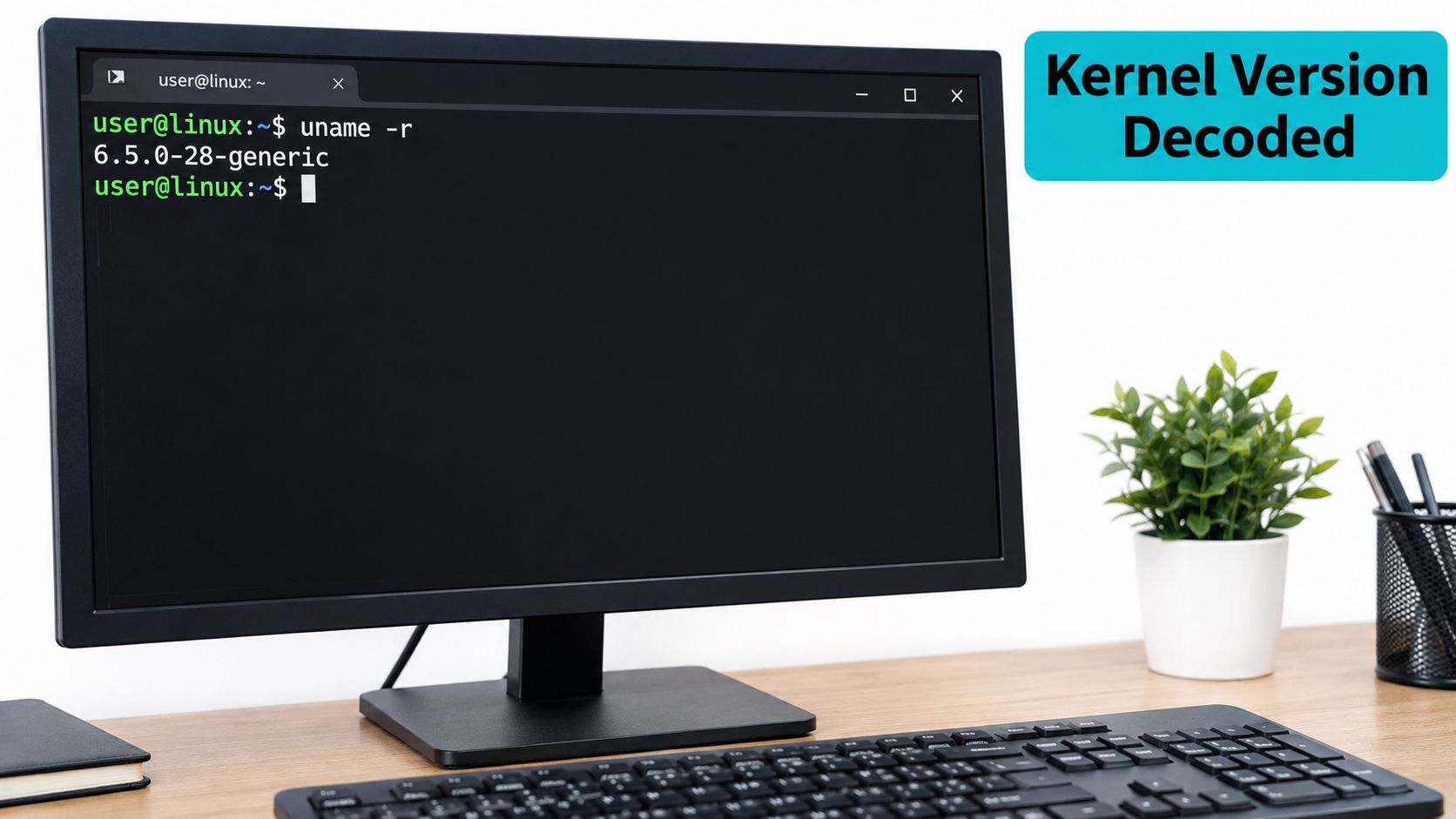
You're staring at a Linux box that's already under load, and someone wants the kernel version now because a driver, module, or support ticket depends on it. The fastest answer is uname -r, and if you need a compact one-line snapshot, uname -a gives the kernel name, release, version, machine type, and operating-system identifier. On a real server, that's usually the first thing I run before I touch packages, reboot history, or container runtime details.
Table of Contents
- The Two Commands That Identify the Running Kernel
- Reading Kernel Details from procfs and hostnamectl
- How to Read a Linux Kernel Version String
- Checking the Installed Kernel Package on Debian, RHEL, and SUSE
- Containers, VMs, and the Host Kernel Question
- Verification, Headers, Module Compatibility, and Common Mistakes
The Two Commands That Identify the Running Kernel
uname -r is the command you want when the question is, "What kernel is running right now?" GNU documents -r as the kernel release flag, and -a as the broader system summary, which is why those two are the starting point on production Linux hosts GNU coreutils uname documentation.
A typical response might look like this:
uname -r
5.15.0-91-generic
Or, on a cloud-flavored Ubuntu host:
uname -r
6.8.0-1051-azure
If I'm handed a server by a colleague, I read uname -r first and treat everything else as context. uname -a is useful when I need the architecture and build context in one line, but -r is the field that answers the immediate operational question.
Practical rule: if you only need one value for a ticket, record the full
uname -rstring exactly as it appears. Do not trim the suffix, because that suffix often carries the information that matters.
Reading Kernel Details from procfs and hostnamectl
Some environments make uname awkward, especially inside minimal systems or stripped-down containers. In those cases, procfs gives you the same running-kernel identity without relying on the utility itself.
cat /proc/sys/kernel/osrelease
cat /proc/sys/kernel/version
cat /proc/version
/proc/sys/kernel/osrelease maps to the uname release field, while /proc/sys/kernel/version exposes the build-version text and can include a build counter and build date man7 uname(1). cat /proc/version is often the quickest way to see build context when you're inside a thin environment and just need proof of what kernel the process is talking to.
On modern systemd hosts, hostnamectl is a good shorthand because it can show the OS, the kernel, and the architecture in one place.
hostnamectl
cat /etc/os-release
Use hostnamectl when the machine is fully systemd-managed and you want a readable summary. Use /etc/os-release when the actual question is the userland distribution, not the kernel itself. That distinction matters because a host can run one distribution image while booting a different kernel release, especially in managed or cloud environments.
How to identify the operating system on Linux is useful when the ticket starts as a kernel problem but turns out to be a distro or image question instead.
| Command | What it reports | When to use it |
|---|---|---|
uname -r | Running kernel release | Fastest check for the live kernel |
uname -a | Kernel name, release, version, machine type, and OS identifier | One-line incident snapshot |
cat /proc/sys/kernel/osrelease | Same release field as uname -r | Minimal environments and container debugging |
cat /proc/sys/kernel/version | Build-version text, often with build counter and date | Build metadata and provenance |
hostnamectl | Host summary, including kernel and OS | Systemd hosts that need a readable overview |
cat /etc/os-release | Distribution and userland metadata | When the OS release matters more than the kernel |
How to Read a Linux Kernel Version String
A kernel release string is how you tell which kernel is running, not just which upstream line it came from. On RHEL, 5.14.0-503.23.1.el9_5.x86_64 includes the upstream base version, the vendor patch and maintenance identifiers, the RHEL stream tag, and the architecture (Red Hat kernel management documentation).
Break the string into useful pieces
Read the string from left to right. The front tells you the upstream lineage. The rest tells you how the vendor built, revised, and labeled that kernel for a specific distribution stream and CPU architecture. Two nodes can both start with 5.14.0 and still differ in vendor fixes, maintenance revisions, or architecture, which is exactly why trimming the suffix creates bad comparisons.
uname -r is the field to capture first because it identifies the live kernel release. uname -v adds build metadata, which helps when you need provenance or build context. uname -m confirms the machine architecture, and that matters fast when x86_64 and aarch64 packages or modules are not interchangeable.
I see this go wrong when a team compares two servers by the 5.14.0 prefix, assumes they match, and then ships a module built for a different vendor patch level.
The same caution applies to virtualized and containerized environments. A guest or container may present a kernel string that looks close to the package you installed, while the inherited or booted kernel differs in the part that decides compatibility. Treat the version string as an identity label; capability still depends on the suffix, the architecture, and the loaded modules.
Checking the Installed Kernel Package on Debian, RHEL, and SUSE
The running kernel and the installed kernel package are related, but they're not the same thing. A system can have a newer kernel installed on disk and still boot an older one until someone reboots and verifies the live release with uname -r. On RPM-based systems, Red Hat explicitly treats the comparison between uname -r and the installed kernel package naming pattern as the standard check for whether the booted kernel matches the package Red Hat kernel management documentation.
Debian and Ubuntu
dpkg -l 'linux-image*'
uname -r
Use that pairing when you want to compare the installed images with the kernel currently running. If the package list shows a newer image than uname -r, the host likely hasn't booted into it yet.
RHEL, Rocky, Alma, and Fedora
rpm -q kernel
uname -r
The package name and the running release should line up in a clean post-reboot state. If they don't, the box may still be running an older kernel even though the new RPM is installed.
openSUSE and SLES
rpm -q kernel-default
uname -r
This is the same idea with a different package name. The point is not memorizing syntax, it's matching the package database against the booted kernel.
| Distribution family | Package query | Sample output pattern |
|---|---|---|
| Debian and Ubuntu | dpkg -l 'linux-image*' | Installed image packages with versioned names |
| RHEL, Rocky, Alma, Fedora | rpm -q kernel | Installed kernel RPM names and release strings |
| openSUSE and SLES | rpm -q kernel-default | Installed default kernel package name |
Containers, VMs, and the Host Kernel Question
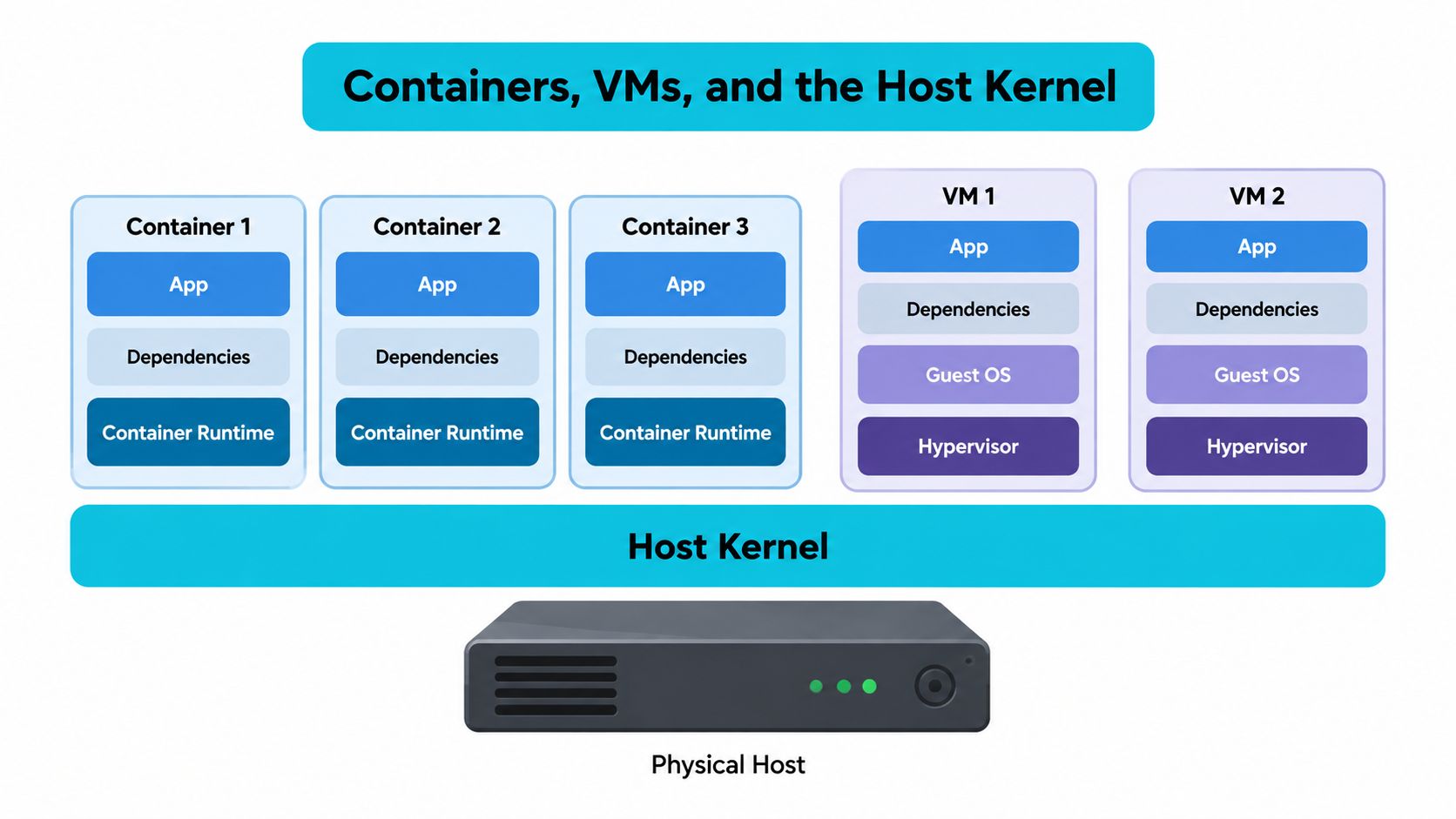
Containers usually share the host kernel, so uname -r inside a container reports the host release, not a separate kernel owned by the image The Register on container kernel sharing. That's the trap behind many “I upgraded the package, but nothing changed” tickets.
Inside a thin Ubuntu container, you can easily end up with no kernel packages installed at all while uname -r still returns a real release from the host:
apt list --installed 'linux-image*'
uname -r
For that reason, kernel questions inside containers are usually really host questions, not image questions. If a workload is on KVM, the guest kernel is the one the guest booted, which is why the boundary matters when you troubleshoot hosted systems What is KVM.
What I check first on hosted infrastructure
If the kernel string looks wrong, I sort the problem into one of three layers. First, I confirm whether I'm in a container, a VM, or on bare metal. Second, I compare uname -r with the package database on the layer that owns the kernel. Third, I check whether the reboot happened after the upgrade.
That sequence saves time on VPS and Kubernetes tickets because the issue is often ownership, not version. A control panel may say one thing, the package database may say another, and the running kernel may still be the old one.
Verification, Headers, Module Compatibility, and Common Mistakes
After any kernel install or change, the verification sequence is simple. Reboot, run uname -r, and confirm that the live release matches the intended target. Ubuntu's verification flow explicitly uses that pattern and shows 6.8.0-1051-azure as an example of a flavor-specific kernel release that should be confirmed after reboot Ubuntu kernel verification docs.
Match headers and modules to the running release
When a module build fails, the first thing I check is whether the headers or devel package match the running kernel release.
uname -r
ls /usr/src
On Debian and Ubuntu, that usually means linux-headers-$(uname -r). On RPM-based systems, the analogous check is whether the matching kernel-devel package is present for the exact running release. If the headers belong to an older kernel, DKMS or out-of-tree modules will often fail in a way that looks like a compiler problem but isn't.
Common failure modes in production
| Symptom | Likely cause | Fix |
|---|---|---|
New kernel is installed, but uname -r still shows the old release | The machine has not booted the new kernel yet | Reboot, then verify again |
Control panel shows one version, uname -r shows another | The panel is reporting the image or package state, not the running kernel | Trust the live kernel output first |
| Module build fails after a kernel update | Headers or kernel-devel do not match the booted release | Install the matching header package and rebuild |
| Container shows an unexpected release | The container inherits the host kernel | Check the host, not the container image |
For deeper incident work, read the kernel panic basics at What a kernel panic means. In multi-tenant hosting, this distinction matters because one customer's package update doesn't change the host kernel, and one host reboot changes it for every workload on that node.
If you need a VPS, bare metal server, or private cloud with predictable kernel behavior and clear operational boundaries, ARPHost, LLC provides infrastructure in Tampa for teams that need exact runtime visibility. Visit ARPHost, LLC when you want kernel versions, reboot state, and host ownership to be easy to verify instead of guess.

Leave a Reply
You must be logged in to post a comment.