The root password is the main admin login for the operating system on your server. You use it when you sign in to the server by SSH or through the console. This guide shows how to set a new root password from the client area, for example if you have lost the old one or want to change it for safety.
This is not your client area password. Changing the root password does not change how you sign in to the client area.
The new password does not work straight away. It only takes effect after the server has been shut down and started again, so plan for a short time when your server is off.
Before you start
Have a strong new password ready, or let the client area make one for you. A password manager is the easiest way to keep it safe.
Steps
- Sign in to the client area at https://manage.arphost.com/clientarea.php, open Services, and click Manage next to your VPS.
- Under Service Actions, click Change Password.
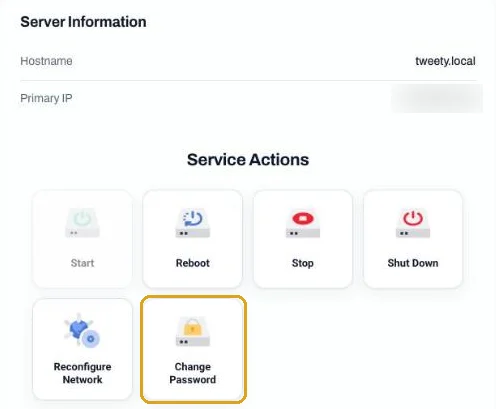
- The Change Password window opens with a New Password box. Type a strong new password in the box. A long password with a mix of letters, numbers and symbols is best.
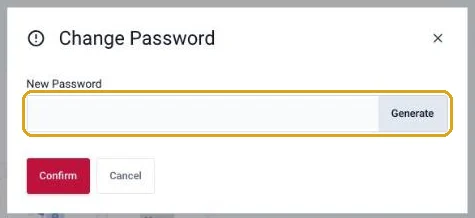
- If you would rather have a password made for you, click Generate and a new password is filled in. Copy it and save it somewhere safe, such as your password manager, before you go on. We suggest doing this because the password is not shown to you again after you confirm.
- Click Confirm. Click Cancel if you change your mind, and nothing is changed.
- A message in the top right corner says Password has been changed succesfully. Now shut the server down and start it again, as shown in the next section.

After the change
After you change the password, you have to shut the server down and start it again before the new password works. Use Shut Down and then Start, or click Reboot in the client area. A restart from inside the server, for example with the reboot command or Ctrl+Alt+Del, does not count. The same goes for an SSH key you add in the client area.
Follow these steps to shut the server down and start it again.
- In the client area, open Services and click Manage next to your VPS.
- Under Service Actions, click Shut Down, then click Confirm.
- Wait until Status in the Information box shows Stopped.
- Click Start, then click Confirm. When Status shows Running again, give the server a minute or two to finish starting.
Do not use Stop for this unless the server will not shut down.
For more detail on each power button, read the guide How to start, stop, reboot and shut down your VPS at https://arphost.com/how-to-start-stop-reboot-and-shut-down-your-vps/.
Using the new password
Once the server is running again, log in as root by SSH or through the console with the new password.
For help signing in through the console, read the guide How to open your VPS console at https://arphost.com/how-to-open-your-vps-console/.
If something goes wrong
If the old password still works and the new one does not, the server has probably not been shut down and started again since the change. Shut it down and start it again as shown above, then try the new password.
If you do not see the success message, or the new password does not work after the server has been shut down and started again, check that Caps Lock is off and that you are typing the new password, not your client area password. If it still does not work, open a ticket from Support in the client area. Tell us the server name and roughly when you changed the password. Never send us the password itself.