

Your WordPress site usually looks stable right up until it doesn’t. A plugin update throws a fatal error. PHP changes underneath an old theme. A compromised admin account plants junk in the database. Then the homepage goes white, logins fail, and everyone suddenly asks the same question: do we have a usable backup, or do we only think we do?
That’s the core issue behind how to backup WordPress site properly. Most site owners don’t fail because they ignored backups completely. They fail because they backed up only part of the site, kept the copy in the wrong place, or never tested whether they could restore it under pressure.
A solid backup strategy is less about clicking “Download backup” and more about capturing the application as it exists. On a simple blog, a plugin may be enough. On a business site, a VPS, or a private cloud deployment, you need a system that survives mistakes, compromise, and infrastructure failure.
Why Your WordPress Backup Strategy Is a Business Lifeline
The failure pattern is familiar. A business owner logs in after an update, sees a blank page, and assumes hosting is down. A developer opens SFTP and finds files intact, but the content is wrong because the database changed. Someone else has a database export, but no uploads directory, so the pages come back with broken images and missing theme assets.
That’s why the official WordPress guidance matters. A complete restore requires two parts, the database and the files, and WordPress recommends keeping 3–5 recent backups in different locations so one bad copy doesn’t leave the site unrecoverable, according to the WordPress Advanced Administration backup guidance.
What actually makes up a full backup
The split is straightforward once you think like an administrator:
- Database content includes posts, pages, users, comments, settings, and much of the live site state.
- File system content includes themes, plugins, uploads, and WordPress core files on disk.
- A full restore needs both. If you miss either side, you’re rebuilding manually.
Practical rule: If your backup plan only captures what you can see in one interface, it’s probably incomplete.
For businesses, this isn’t housekeeping. It’s continuity planning. When teams keep several dated restore points on separate storage locations, they have options after a bad deployment, plugin conflict, or malicious change. That’s also why I push clients to treat backup policy the same way they treat patching and access control.
If you’re tightening your broader process, this checklist of data backup best practices is a useful companion to WordPress-specific planning.
Foundation Level Backups with Plugins and Control Panels
For smaller WordPress sites, the first workable backup system is usually either a plugin or a hosting control panel. That’s fine. These methods are easy to schedule, easy to hand off, and easy to understand. If you’re running a brochure site, a small blog, or an early-stage business site, that simplicity matters.
They also have limits. Plugin backups run inside WordPress itself. If WordPress is unhealthy, the backup job may fail, stall, or produce an incomplete archive. Control panel backups are usually more stable, but they still depend on how the host has packaged the account and what exactly the panel includes.
When a plugin makes sense
A backup plugin is often the right first step when you need:
- Simple scheduling for daily or periodic backup jobs
- One dashboard where non-technical staff can trigger a backup before editing the site
- Basic restore convenience for minor site rollbacks
What works well is using a plugin before content changes, plugin updates, or theme work. What doesn’t work is assuming the plugin alone solves disaster recovery. If the whole account is compromised, or the host storage fails, an on-server plugin archive won’t save you.
Using hosting control panels for safer routine backups
A good control panel lowers the risk of user error because it exposes both account files and database tools in one place. On shared or secure web hosting, this is often cleaner than relying entirely on WordPress admin plugins.
A practical control panel workflow looks like this:
- Generate a full account or site backup from the hosting panel.
- Download a local copy instead of leaving it only on the server.
- Check whether uploads and database exports are included.
- Label the archive clearly with site name and date.
- Store a second copy elsewhere so one failed account doesn’t take your backup with it.
Webuzo-style hosting panels make this approachable because they bundle file management, database access, and application management in one interface. For clients that don’t want root access or shell work, that’s often the cleanest starting point. If you’re using managed shared hosting with WordPress deployments, look for secure hosting that includes panel-level tooling and app installs, such as secure web hosting bundles.
Plugin backups are convenient. Control panel backups are usually cleaner. Neither becomes a serious backup strategy until copies leave the server.
The trade-off most people miss
Ease of use often comes at the cost of visibility. With a plugin, you may not know whether it captured all uploads, current tables, and custom configuration files unless you inspect the archive. With a panel backup, you may not know whether the export includes exactly what you need for a single-site restore versus a full account recovery.
That’s why I tell clients to use these methods as foundation-level protection, not the final design. They’re appropriate for low-complexity environments. Once the site has revenue implications, customer logins, or multiple developers touching it, you should move up the ladder.
Professional Grade Manual Backups via CLI and SFTP
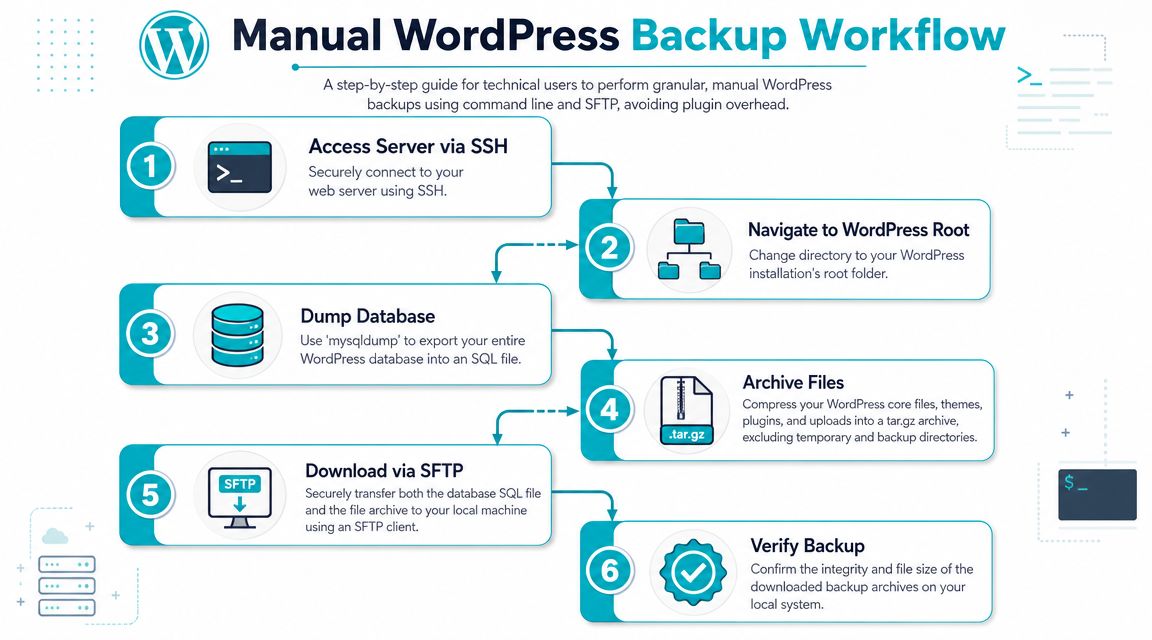
Developers and administrators usually outgrow plugin backups quickly. When you need control, repeatability, and clean auditability, manual backups over SSH, SFTP, and database export tools are still the most dependable approach.
The reason is simple. You’re working directly with the site’s two real components instead of trusting a WordPress layer to package them for you. That manual split has been standard for a long time: site files over FTP or SFTP, and the database via phpMyAdmin or mysqldump. Jetpack’s guide also documents command-line backup workflows and includes the database export pattern mysqldump -u USERNAME -p DATABASE > database_backup.sql
The file backup process
Start with the file system. You want the full WordPress web root, especially wp-content, your active themes, plugins, uploads, and the site’s configuration.
If you prefer SFTP, connect with a client such as FileZilla and download the WordPress directory to a local machine. If you’re on SSH, archive it first so you move one clean package instead of thousands of loose files.
cd /var/www/html
tar -czf wordpress-files-backup.tar.gz public_html
Adjust the path to match your actual document root. On some systems that might be a user home directory, a vhost path, or a container mount.
The database export process
The database is the stateful part that changes most often. Export it separately and name it clearly.
With mysqldump:
mysqldump -u USERNAME -p DATABASE > database_backup.sql
If you manage WordPress with WP-CLI, this is also clean:
cd /var/www/html/public_html
wp db export database_backup.sql
For a one-shot manual backup, I usually pair the database dump with a compressed file archive and then transfer both over SFTP or SCP to off-server storage.
A practical shell workflow
This is a common pattern on VPS or bare metal hosting:
cd /var/www/html/public_html
wp db export database_backup.sql
tar -czf wordpress-site-files.tar.gz.
Then download:
database_backup.sqlfor MySQL contentwordpress-site-files.tar.gzfor WordPress files
Don’t trust a backup because the command completed. Open the archive. Confirm the SQL file exists. Confirm uploads and themes are actually inside the file archive.
For a second perspective on manual and practical WordPress site protection methods, that walkthrough is worth reviewing, especially if you’re comparing plugin and manual approaches.
Where manual backups fit
Manual backups are ideal when you want:
- Granular control over exactly what gets captured
- Repeatable scripts for staging, deployment, or pre-change backups
- No plugin overhead inside WordPress
- A path to automation later through cron or orchestration
They’re a strong fit on VPS and dedicated systems where you have shell access and need predictable behavior. They’re less suitable for teams that won’t maintain scripts or check logs. A backup method that your staff won’t run is not a strategy.
Automating and Securing Your Offsite Backups
The backup itself is only half the job. Effective protection encompasses scheduling, transfer, retention, and storage discipline. Consequently, many WordPress sites become fragile. Someone creates a backup routine, leaves the archives on the same VPS, and assumes the site is protected. It isn’t.
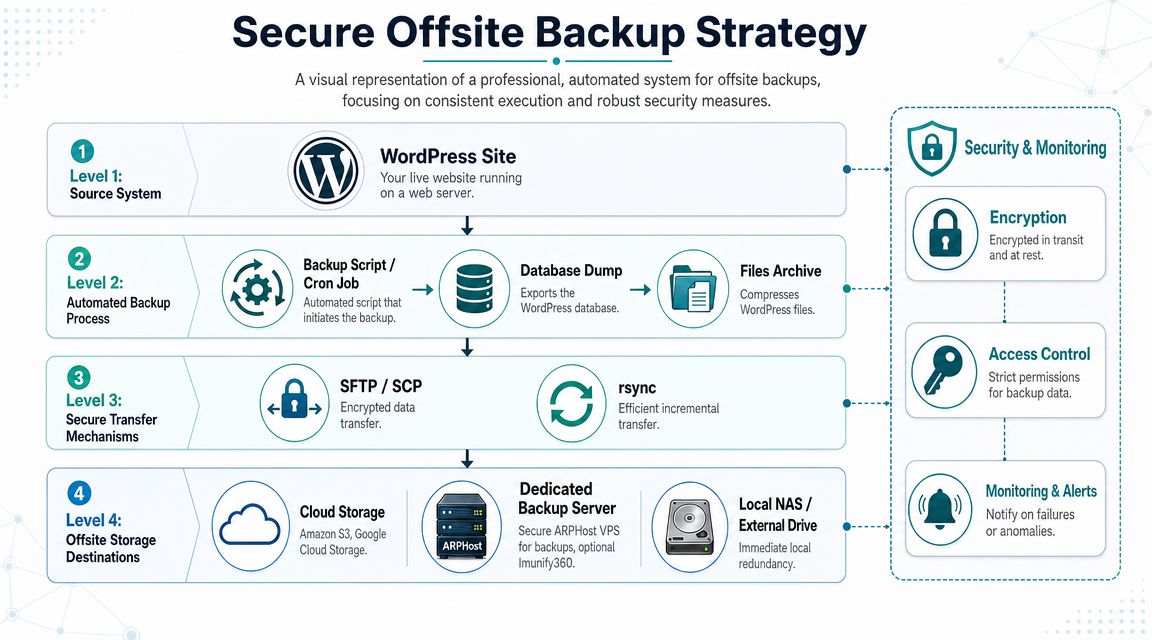
A backup stored on the same host as the production site can disappear in the same event that destroys the site. Guidance for WordPress administrators recommends the 3-2-1 rule: three copies of data, on at least two different media, with one copy offsite. The same guidance also recommends daily remote backups for VPS-based WordPress environments, as covered in this WordPress backup strategy discussion.
What a resilient backup system looks like
Once a site matters to the business, the workflow should move from ad hoc exports to a repeatable pipeline:
- Scheduled execution through plugin scheduler, cron job, or external task runner
- Separate capture steps for database and files if you’re using manual methods
- Encrypted transfer over SFTP, SCP, or another secure transport
- Offsite storage target such as cloud object storage, a backup VPS, or a separate backup platform
- Alerting when a job fails or an archive is missing
Example automation pattern with cron
If you’ve already scripted manual backups, cron is the next step. A simple backup shell script might export the database, archive files, and move the results to a temporary secure location for transfer offsite. The exact script depends on your stack, but the design principle stays the same: automate the boring part and verify the result.
What works:
- server-side jobs that run without a browser session
- archives pushed offsite immediately
- retention rules that keep multiple restore points
What fails:
- emailing huge backup files
- keeping only one rolling archive
- saving archives in the same account and calling it disaster recovery
A backup job without offsite storage is closer to a convenience copy than a recovery plan.
Offsite storage is the line between backup and wishful thinking
Teams that manage multiple WordPress sites often end up on dedicated backup infrastructure or managed backup platforms because manual remote copy chains become messy over time. Credentials drift. storage fills. Nobody notices failed jobs until they need a restore.
For organizations that want a service-based model rather than maintaining backup plumbing themselves, Backup as a Service is the right architecture to evaluate. It separates backup storage from the production host and simplifies retention, monitoring, and recovery handling.
That shift matters most on VPS and private cloud workloads, where the business depends on consistent remote copies and someone being accountable for backup health.
The Ultimate Protection Server-Level Snapshots
Application-level backups are useful. They are not the strongest layer. If WordPress is damaged badly enough, a plugin inside WordPress may not run, and even shell-based file and database jobs only capture what you script them to capture.
Server-level snapshots solve a different problem. They capture the state of the virtual machine or container outside the guest application. That means the operating system, WordPress files, database storage, configuration, and service state can all be protected at the infrastructure layer.
Plugin backup versus snapshot
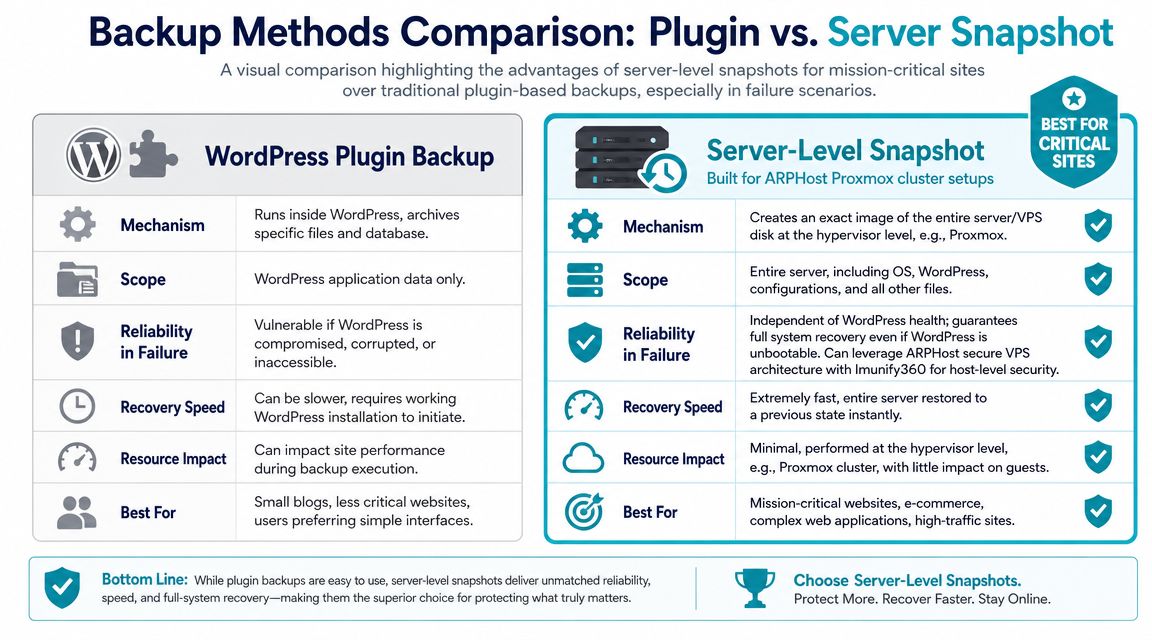
This is the comparison I use with clients managing revenue-bearing sites:
| Method | What it captures | Main weakness | Where it fits |
|---|---|---|---|
| WordPress plugin backup | WordPress files and database exports, depending on plugin settings | Depends on WordPress health and plugin execution | Small sites, low-risk workloads |
| Manual CLI backup | Whatever you explicitly export and archive | Requires discipline, scripting, and offsite handling | Developer-managed VPS and bare metal |
| Server snapshot | Entire guest state at the virtualization layer | Usually needs platform support and proper retention planning | Business-critical sites and infrastructure |
The operational advantage is independence. A snapshot doesn't care whether the WordPress admin is broken, whether a plugin update failed, or whether a site owner locked themselves out. It captures the system from outside the application boundary.
This overview video gives the right context before you choose that route:
Why snapshots change recovery
Snapshots are especially useful when the WordPress site is only one part of a larger workload. Maybe you run Redis, custom services, scheduled jobs, or multiple virtual hosts on the same machine. A plugin backup won't recreate that environment. A server-level rollback often will.
That doesn't mean snapshots replace every other backup type. They are strongest when paired with sound backup retention and external storage policy. For ransomware-sensitive or high-governance environments, it's also worth evaluating immutable backup solutions, which are designed to reduce the risk of backup tampering after compromise.
Where this fits in hosted infrastructure
On managed virtualized platforms, snapshots are often the first backup layer I recommend for serious WordPress deployments because they reduce dependence on the application itself. That's especially true on clustered virtualization stacks and private cloud environments. ARPHost, LLC offers this style of protection through its Proxmox-based infrastructure and backup services, which is the right model when a WordPress site has moved beyond basic hosting and into operationally important workload territory.
How to Restore and Verify Your WordPress Backup
The restore is where backup strategies get exposed. A lot of teams can create archives. Fewer can restore them cleanly, quickly, and without discovering that tables, uploads, or configuration files are missing.
Operationally, restore readiness matters more than backup completion. Practical restore hygiene includes verifying the database name in wp-config.php, confirming the correct database before export, and checking that the archive contains both the database and the file system.
Restoring from a plugin or control panel backup
If the backup was made with a plugin, use that plugin's restore workflow only after confirming what the archive includes. Some restores cover files and database together. Others need separate handling.
For control panel restores, check whether you are restoring:
- A full account backup
- A home directory or file archive
- A separate MySQL export
That distinction matters. Restoring only the account files without importing the SQL dump won't bring the site back to the expected state.
Restoring manually with files and SQL
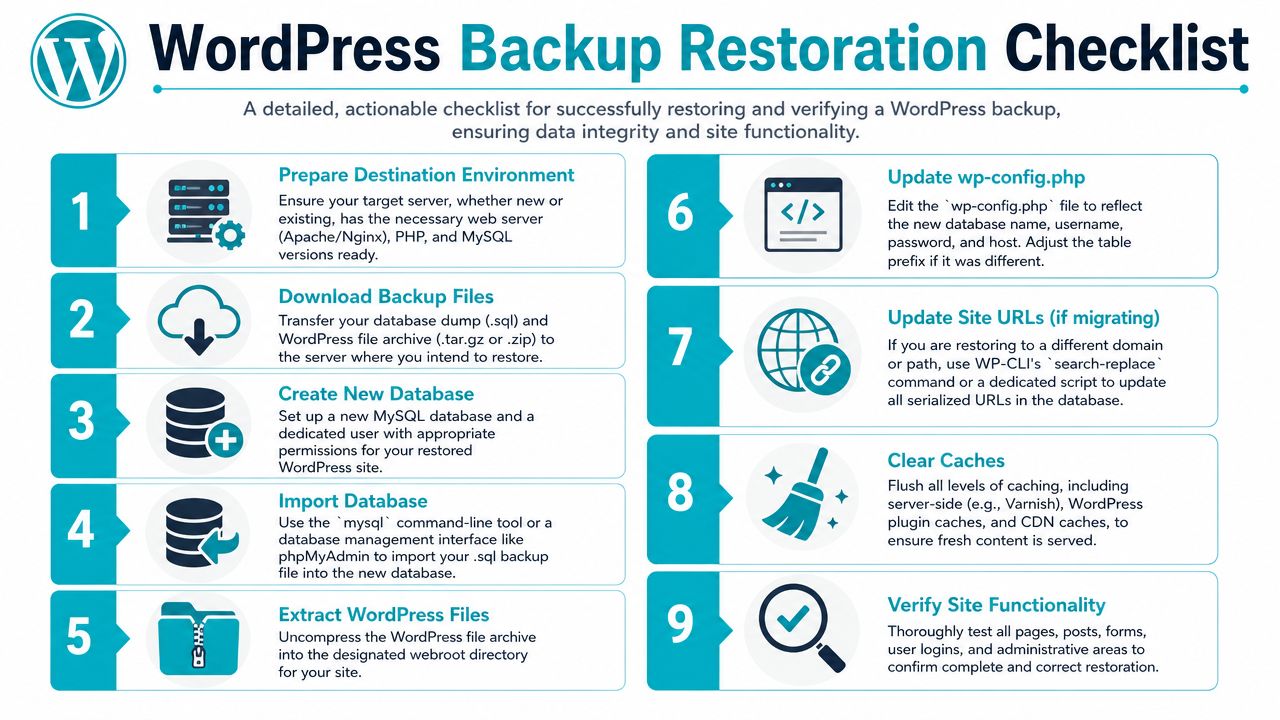
A clean manual restore usually follows this order:
- Prepare the destination environment with the needed web stack.
- Upload the WordPress file archive to the target web root.
- Extract the files into place.
- Create or confirm the database you intend to use.
- Import the SQL dump with phpMyAdmin or command line.
- Update
wp-config.phpso it points to the correct database. - Clear any caches at the application and server layers.
- Test the site thoroughly before declaring success.
A MySQL import from shell typically looks like this:
mysql -u USERNAME -p DATABASE < database_backup.sql
If you're restoring to a different path or host during a migration, URL handling and serialized data become part of the job.
Don't stop testing at the homepage. Check media, forms, logins, plugins, admin settings, and recent content changes. Homepages lie.
The verification checklist that catches real problems
After the restore, verify the parts users and staff depend on:
- Posts and pages open correctly
- Media library items display and link properly
- User logins work for admin and standard roles
- Plugin settings survived the restore
- Forms and checkout flows submit correctly
- Theme customizations are intact
- Recent content appears as expected
For business sites, do this in staging first whenever possible. If you only test restore procedures during an outage, you're testing under the worst possible conditions.
Scaling Your Backup Strategy with ARPHost
The right WordPress backup method depends on how much risk the site carries and how fast its data changes. If the site rarely changes, a simple scheduled routine may be enough. If it accepts orders, form entries, support requests, or account activity throughout the day, the interval should follow the rate of change because the most recent database state is often the most valuable part of the restore. Guidance on WordPress backup operations also stresses backing up site files, plugins/themes, and the database
Match the backup method to the workload
A practical ladder looks like this:
| Site type | Backup approach | Good fit |
|---|---|---|
| Simple brochure site or blog | Plugin or hosting control panel backups | Teams that need ease of use over shell access |
| Developer-managed production site | CLI, SFTP, and scheduled offsite jobs | VPS or bare metal with root control |
| Revenue-critical or multi-service stack | Server snapshots plus offsite backup retention | HA VPS, private cloud, or managed infrastructure |
What to choose as complexity grows
If you're starting small, use hosting that gives you straightforward panel access, downloadable backups, and clean app deployment. If you're already managing WordPress over SSH, a VPS gives you room to script, automate, and keep your process under version control. When downtime carries real business consequences, infrastructure-level backup and managed recovery become the safer option.
That's where a provider with shared hosting, VPS, bare metal, Proxmox private cloud, and managed services can help you scale the backup model instead of replacing it every time your site grows.
If you're comparing options, these are the logical starting points:
- Launch on a VPS with root access using VPS hosting
- Review managed recovery and infrastructure help through managed services
- Move critical workloads to virtualized private infrastructure with Proxmox private clouds
A backup plan should become more comprehensive as the site becomes more valuable. This is the essential approach to how to backup WordPress site in a business setting. Start with complete backups. Move them offsite. Test restores. Then raise the protection level when the workload justifies it.
If you need help designing a backup and restore process that fits your current hosting stack, ARPHost, LLC can support everything from basic WordPress hosting and VPS deployments to managed backup workflows, Proxmox private clouds, and disaster recovery planning.