

You’re probably here because you’re speccing a laptop, a workstation, or a server and the RAM choice feels oddly expensive to get wrong. Buy too little and the machine drags under normal work. Buy too much and you’ve tied budget up in memory you may never touch.
The answer to how many gigs of RAM do I need isn’t a single number. It depends on whether you’re juggling browser tabs and Office apps, compiling code, hosting client sites, running Proxmox, or trying to keep a database hot in memory. The mistake most buyers make is treating desktop advice and server advice as two unrelated worlds. They aren’t. They sit on the same continuum.
The Critical RAM Question Beyond More is Better
The most common hardware mistake isn’t buying the slowest CPU or the cheapest SSD. It’s buying memory based on habit. Plenty of people still think 8 GB is “fine,” others default to 32 GB because it sounds safe, and IT teams often overbuy server RAM without working through the workload.
For modern Windows desktops, the baseline has shifted. In 2026, 16 GB of RAM has become the definitive industry standard for friction-free multitasking on Windows PCs, with major hardware guidance treating it as the right default for most users, including office workers, students, and remote staff, according to HP’s 2026 RAM guidance.
That one fact clears up a lot of confusion. If you’re asking about a normal PC in current conditions, start at 16 GB, not 8 GB. But that doesn’t mean every workload stops there.
Where people usually get it wrong
Some buyers think in minimums. A machine boots, opens a browser, and technically runs Teams or Excel, so the spec must be acceptable. That logic breaks as soon as background sync, browser tab growth, endpoint security tools, and modern productivity apps all compete for memory.
Others oversimplify in the other direction:
More RAM helps only when the workload can actually use it. Past that point, you’re buying insurance or wasting budget.
That’s why a gaming PC, a developer workstation, a web server, and a Proxmox node need different answers even when they all “feel fast” at idle.
A practical way to think about it
Use RAM sizing like capacity planning, not like a wishlist. Ask three questions:
- What stays open all day? Browsers, IDEs, mail clients, chat tools, database engines, and background agents matter more than short bursts.
- What happens at peak load? A workstation with light usage can look identical to a strained workstation until the user opens one more heavy app.
- What has to stay in memory to avoid slowdown? On desktops that may be active apps and tabs. On servers it may be VM allocations, cache, or the active database dataset.
A laptop for meetings and spreadsheets, a machine for local AI tools, and a virtualization host all answer those questions differently. That’s why blanket advice fails.
The spectrum matters
At one end, you’ve got a Windows PC where 16 GB covers the vast majority of users comfortably. At the other, you’ve got virtualization, databases, and AI workloads where memory planning becomes architectural.
If you’re buying for business, the useful question isn’t “what’s the minimum?” It’s “what avoids friction today and leaves enough headroom that I’m not replacing this in frustration later?”
Understanding RAM A Workbench for Your Digital Workload
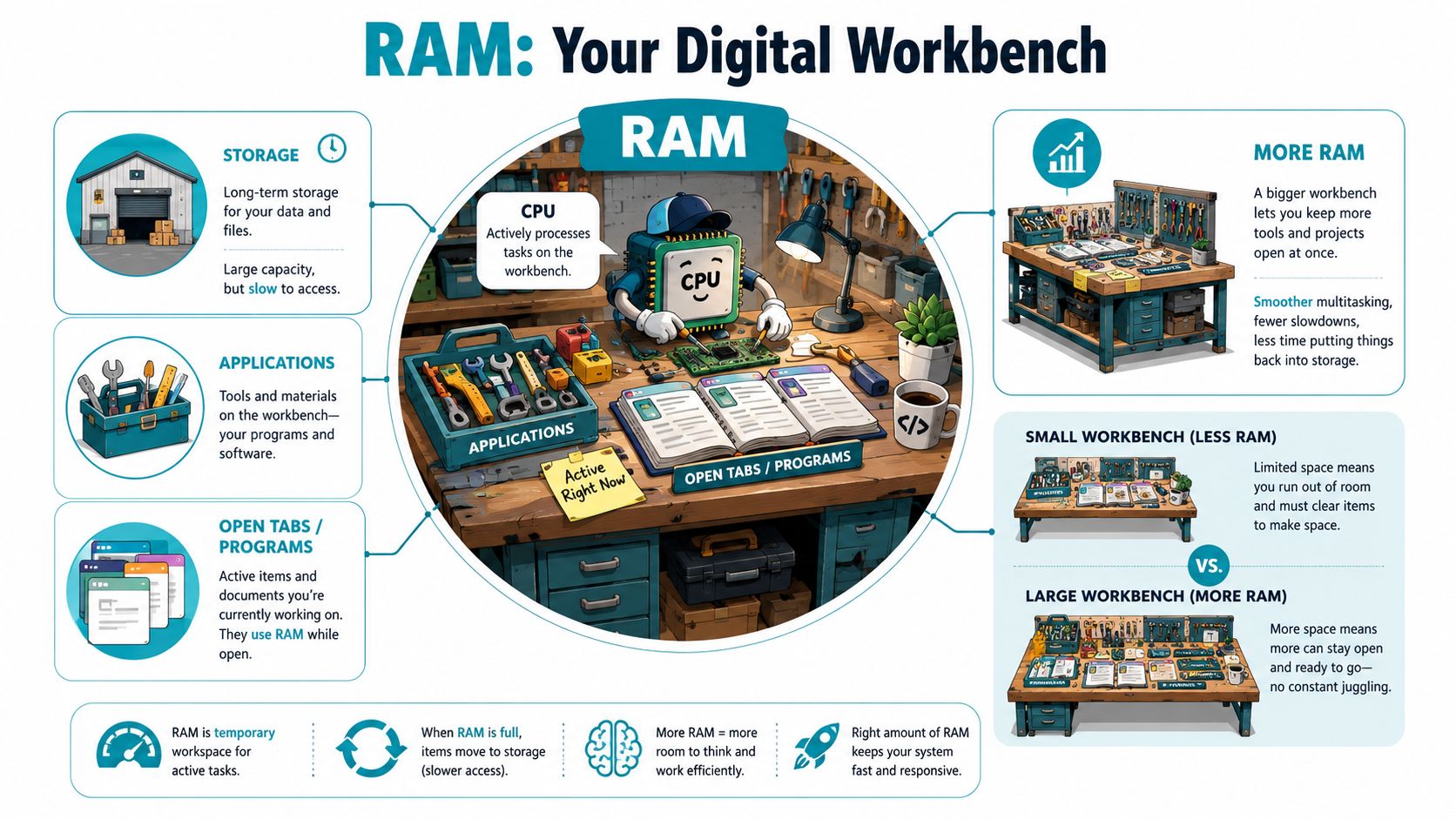
RAM is easiest to understand if you stop thinking of it as an abstract number and start thinking of it as a workbench.
Your storage drive is the warehouse. It holds everything, but it’s slower to reach into. Your CPU is the worker. It needs tools and materials close at hand to do useful work. RAM is the bench space where active work happens.
What RAM actually does
RAM is volatile memory. That means it holds active data while the system is running, but it doesn’t keep that data permanently after shutdown. The operating system loads applications, file caches, browser tabs, and active processes into RAM because the CPU can access it much faster than long-term storage.
The useful concept here is latency. Lower latency means the system gets what it needs faster. RAM has much lower access latency than even fast SSD storage, which is why a machine with enough RAM feels immediate while an underprovisioned one feels hesitant.
What too little RAM looks like
When the workbench is too small, the operating system starts moving less-active data out of RAM and into swap space or paging space on storage. That process isn’t free. It creates stalls, app switching delays, browser tab reloads, and the classic “everything is open but nothing feels responsive” problem.
If you want a deeper look at the mechanics, this explanation of swap memory is worth reading because swap isn’t extra RAM. It’s a pressure relief valve, and a much slower one.
A system that relies on swap constantly isn’t well-sized. It’s surviving.
What too much RAM looks like
Oversizing RAM doesn’t hurt performance directly. It hurts the budget. On desktops, that may mean spending money better used on a stronger CPU or better storage. On servers, it may mean paying for memory capacity your workload never consumes while leaving CPU, storage layout, or redundancy underplanned.
A practical memory purchase should do two things well:
- Keep active work in RAM during normal operation
- Absorb peaks without constant paging or guest contention
The workbench test
Use this mental model when you size memory:
- Small bench: Good for one simple task at a time.
- Adequate bench: Good for several active tasks with room to work.
- Large bench: Necessary when the project itself is large, such as many VMs, rendering, analytics, or heavy database caching.
That’s why 16 GB feels roomy on one machine and cramped on another. The number alone doesn’t define the experience. The active workload does.
RAM Sizing Rules of Thumb from Desktops to Web Servers
If you want a working shortcut, use tiers. For most buying decisions, RAM planning gets easier when you separate minimum viability from recommended daily use and from professional headroom.
For higher-end technical work, the gap widens quickly. For specialized professional workloads such as virtualization, database management, and AI/ML processing, RAM requirements escalate significantly, with 32 GB to 128 GB often required depending on the number and complexity of virtual machines or datasets.
Quick reference by workload
| Use Case | Minimum / Budget | Recommended / Standard | High-Performance / Professional |
|---|---|---|---|
| Everyday Windows use | 8 GB | 16 GB | 32 GB |
| Gaming | 16 GB | 16 GB | 32 GB |
| Programming and development | 16 GB | 32 GB | 64 GB |
| Creative work and video editing | 16 GB | 32 GB | 64 GB |
| Basic website or small business hosting | 8 GB | 16 GB | 32 GB |
| Busy e-commerce or application hosting | 16 GB | 32 GB | 64 GB |
| Virtualization and VM labs | 16 GB | 32 GB | 64 GB to 128 GB |
| Databases and large in-memory workloads | 32 GB | 64 GB | 128 GB+ |
| AI and local model work | 16 GB | 32 GB | 64 GB+ |
What works in practice
For desktop users, the current answer is straightforward. 16 GB is the sensible standard. 8 GB still belongs in budget systems and very basic use, but it stops feeling comfortable once the machine handles real multitasking.
For gaming, 16 GB still covers mainstream titles well. If you’re streaming, multitasking heavily, or keeping other tools open while playing, 32 GB gives you cleaner headroom.
For developers, the answer depends on stack complexity. A browser, editor, terminal, and a few containers can make 16 GB workable, but larger projects and local services push many setups toward 32 GB quickly.
The server side of the same question
A small web workload and a real business workload aren’t the same thing.
- Simple brochure site or light CMS: 8 GB can work.
- Multi-site hosting or active business apps: 16 GB is a safer floor.
- E-commerce, heavier caching, or several services together: 32 GB and up becomes more realistic.
CPU still matters here. If you’re balancing processor and memory for hosted applications, this guide to CPU cores and threads helps frame the other half of the sizing equation. A slow CPU with extra RAM can still bottleneck, just like a strong CPU can idle while the host pages memory.
Practical rule: For web and app hosting, size RAM for what must stay resident, not for what can technically start.
Good, better, best thinking
The cleanest way to answer “How many gigs of RAM do I need?” is this:
- Good: enough to run the workload
- Better: enough to run it smoothly
- Best: enough to absorb growth and peaks without immediate redesign
For a student laptop, “best” may be 16 GB. For a developer machine, it may be 32 GB. For a business server, it may start where desktop guidance ends.
Sizing RAM for Proxmox Virtualization and Databases
A desktop can tolerate a little memory pressure. A virtualization host or database server usually cannot. Once one machine is carrying several services, RAM sizing becomes capacity planning, not preference.
Proxmox with ZFS needs a formula
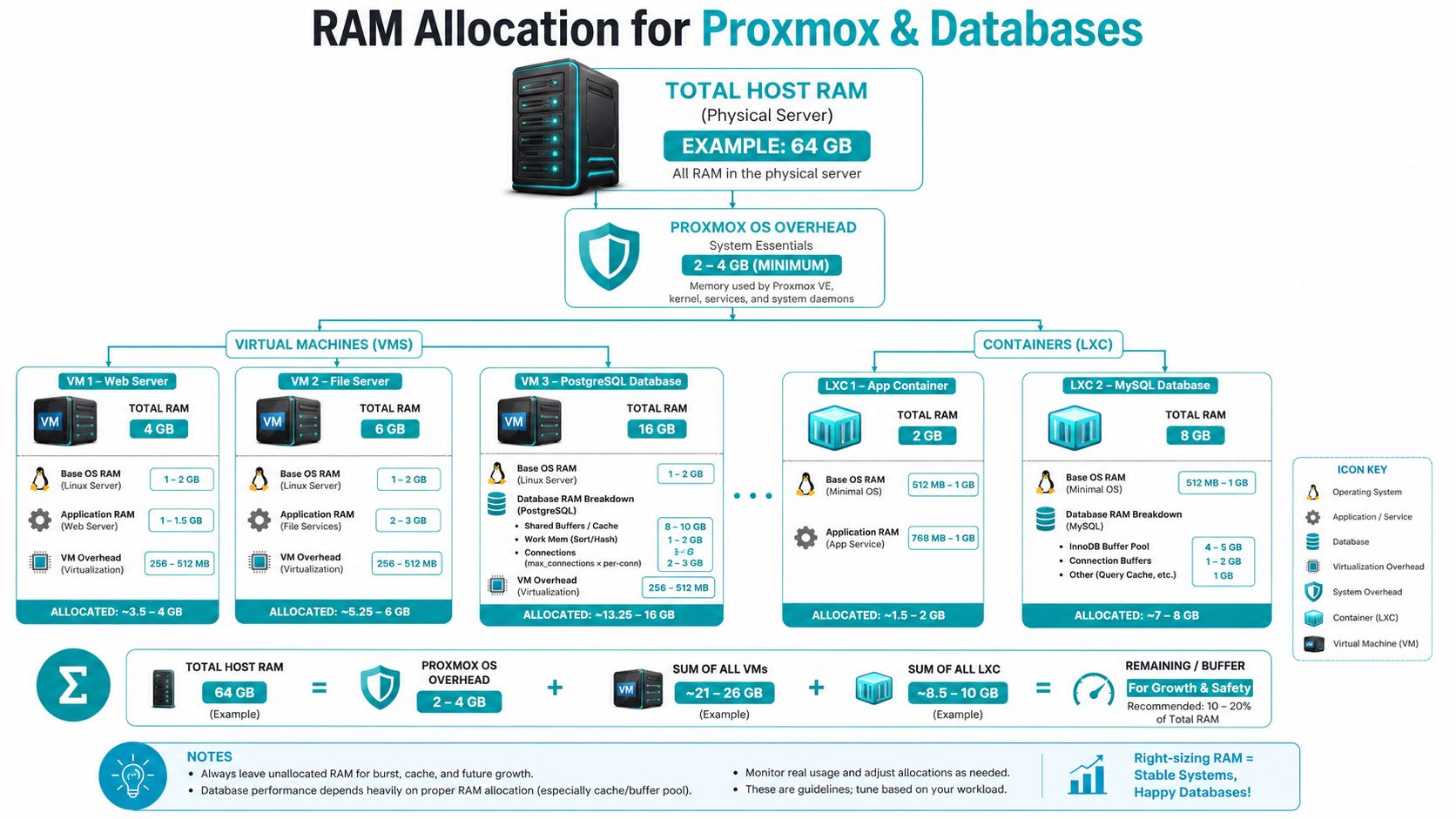
Proxmox nodes fail for a predictable reason. Teams total the memory assigned to guests, then forget the hypervisor, filesystem cache, and safety margin needed when several VMs get busy at the same time.
For Proxmox VE 9 with ZFS, a practical sizing formula is Host RAM = (Total VM RAM × 1.15) + ZFS ARC (8 to 16 GB per node) + Host OS (4 to 8 GB) The 1.15 multiplier gives you breathing room for ballooning and normal host overhead. ZFS also wants memory for ARC, and starving it usually shows up as storage latency before people realize memory is the root cause.
A worked sizing example
Start with a modest node that will host several VMs with 32 GB of assigned memory in total.
Apply the formula:
- VM RAM with margin: 32 GB × 1.15
- ZFS ARC: add 8 GB to 16 GB
- Host OS: add 4 GB to 8 GB
That pushes the host well past a simple 32 GB plan. In practice, 64 GB is often the comfortable point for a ZFS-backed node with several active guests, while 32 GB is closer to a minimum that leaves little room for spikes, maintenance tasks, or a new VM added later.
For production Proxmox deployments, a Proxmox bare metal server is usually the right base because predictable memory allocation matters more than squeezing VMs onto opportunistic shared hardware.
Size the node for guest memory, storage cache behavior, and host overhead together.
A visual walkthrough helps here:
Databases need active data in memory
Database sizing follows a different discipline. The question is not whether the service starts. The question is how much of the working set stays in RAM during peak reads, writes, sorts, joins, and cache churn.
Oracle’s database performance documentation on memory architecture explains the same basic reality seen across database platforms. Memory is there to keep frequently accessed data and execution state close to the CPU, reducing expensive disk access and limiting stalls under load. For production planning, I treat RAM as a performance boundary, not a comfort feature. If the active dataset and cache needs do not fit, latency rises fast.
That is why database hosts often land in a higher memory tier than general web servers. A small transactional database can live comfortably below the large-memory range, but once the dataset is active all day, indexes are heavily used, or several services share the box, 64 GB and up becomes normal very quickly. Larger OLTP systems, analytics jobs, and in-memory caches push well past that.
Virtual machines multiply memory pressure
Each VM gets its own operating system, page cache, background services, and update cycle. Lenovo notes in its virtual machine hardware guidance that per-VM memory adds up quickly even for basic workloads. A significant planning mistake is assuming every guest will stay near idle at the same time.
That assumption breaks in business environments. Backups run, users log in, package updates hit, scheduled jobs start, and storage activity climbs together. A host that looked fine in a quiet test window can become unstable once several ordinary tasks overlap.
Matching memory tiers to server classes
Use these ranges as planning bands, not rigid rules:
- Light virtualization or dev lab: 32 GB can work with a small VM count and careful limits.
- Business workloads with ZFS: 64 GB is a safer starting point.
- Heavier private cloud or mixed app estate: 128 GB is common.
- Dense virtualization, larger databases, AI inference, or memory-heavy caching: plan above 128 GB and choose hardware built for high DIMM capacity and ECC.
This is the point where consumer advice stops being useful. A gaming PC recommendation of 32 GB might be generous. In virtualization and database work, 32 GB is often the first rung on the ladder. The sizing mindset stays the same across both worlds, though. Keep the active workload in memory, leave room for peaks, and buy for the next stage of growth instead of the first successful boot.
How to Measure Usage and Plan for Growth
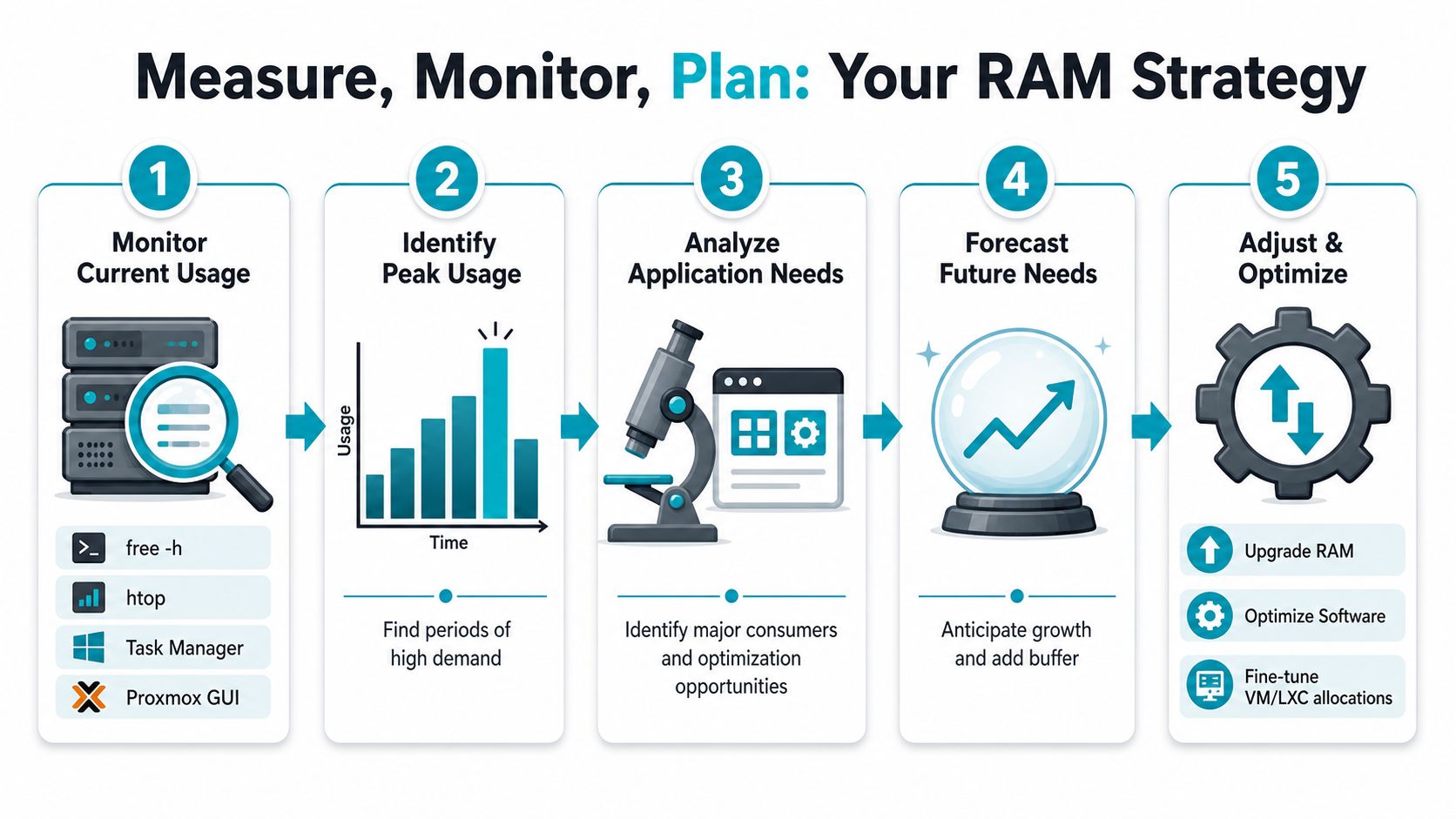
Good RAM sizing starts with observation, not guesswork. Before upgrading a workstation or ordering a server, measure what the system does during a normal day and during the busiest period you can capture.
That sounds obvious, but many teams only check memory at idle. Idle tells you almost nothing.
Check memory usage on each platform
On Windows, open Task Manager and sort by Memory under Processes. For longer observation, Resource Monitor gives a better picture of pressure over time.
On Linux, start with:
free -h
Then inspect live process usage with:
htop
If you’re on a server and want swap visibility too:
swapon --show
On macOS, Activity Monitor gives the cleanest overview. Watch the memory pressure graph, not just app totals.
For Proxmox, the GUI is useful because it shows both host-level memory and guest allocation patterns. That helps you catch the classic issue where every VM looks fine by itself while the node as a whole is tight.
Measure peaks, not just averages
A practical workflow looks like this:
- Capture normal usage during routine business activity.
- Record peak periods such as batch jobs, backups, imports, compilations, or traffic surges.
- Identify what stays resident all day versus what spikes temporarily.
- Add room for growth instead of ordering to the exact current ceiling.
The best RAM upgrade is the one you make before users start feeling memory pressure, not after tickets arrive.
For production systems, add headroom deliberately. Earlier server guidance in this article noted the need for 30–50% headroom above peak measured usage in production environments. That buffer is what prevents a healthy server from turning fragile during a busy window.
ECC versus non-ECC
For desktops, non-ECC memory is common and usually acceptable. For servers, ECC RAM is the safer choice because it’s built for reliability under continuous operation.
That matters most on virtualization hosts, database systems, and any machine where silent memory errors have operational consequences. If the machine is critical to the business, this isn’t the place to cut corners.
The storage trade-off people ignore
There’s one nuance most consumer RAM guides skip. Sometimes the best-performing budget system isn’t the one with the bigger RAM number.
The under-discussed trade-off is memory versus storage speed. As noted in a WindowsForum discussion of RAM and storage trade-offs, a 12 GB RAM + 1TB NVMe configuration may outperform 16 GB RAM + slow SATA for some database caching scenarios, and that nuance matters for budget-constrained VPS planning. The same discussion highlights entry VPS pricing at $4.25/month in that context.
That doesn’t mean less RAM is usually better. It means the full memory story includes storage latency, CPU strength, and workload shape.
Scaling this with a better plan
If current measurements show frequent memory pressure, you’ve got three levers:
- Upgrade RAM when the workload itself is valid and growing
- Reduce memory waste by trimming oversized apps, idle services, or overallocated VMs
- Move to a better server class when the host is too small for production use
That’s often the point where a small VPS, a larger VM host, or dedicated infrastructure becomes the cleaner operational choice than continued tuning.
Choosing Your Ideal ARPHost Hosting Solution
A laptop user asking whether 16 GB is enough and an operations team planning a Proxmox cluster are solving the same problem at different scales. The job is still RAM sizing. The difference is how expensive a mistake becomes once real users, production data, and uptime targets enter the picture.
By this point, the pattern should be clear. Buy memory for the workload you run, leave headroom for spikes, and choose a platform that does not force an early migration.
Start with the workload, then match the failure tolerance
Small websites, light business apps, staging environments, and low-traffic services usually belong on a VPS. That keeps cost under control while giving you enough memory for normal web and application stacks.
The next step up is not just “more RAM.” It is better isolation and more predictable performance. If the application is stateful, gets hit hard during specific hours, or suffers when neighboring tenants get noisy, a stronger virtual plan or single-tenant system is often the safer call.
Virtualization changes the math quickly. A Proxmox host needs RAM for each guest, RAM for the hypervisor, and extra memory for storage behavior if you use ZFS. Databases do the same in a different way. They reward available memory until the point where cache growth no longer improves query performance enough to justify the spend.
A practical platform map
Use this as a sizing path from personal-server thinking to infrastructure planning:
- Small sites, email, test environments, and light business apps: start with a VPS.
- Growing application stacks with moderate concurrency: move to a larger virtual footprint or managed environment with stronger operational controls.
- Single-tenant apps, CI runners, development boxes, and workloads that like high clock speed: choose a Ryzen-class dedicated server.
- Proxmox nodes, game servers, VM consolidation, and services that need ECC memory: use a dual Xeon or similar dedicated platform.
- Large databases, AI inference, analytics jobs, and dense virtualization: choose an EPYC-class system with a larger memory ceiling.
That progression matters because RAM decisions stop being isolated purchases once you reach server scale. Memory size affects consolidation ratio, failover planning, backup windows, and how painful the next upgrade will be.
Where ARPHost fits best
ARPHost is a good fit when you need a clean path from entry-level hosting to infrastructure that can carry production growth.
- VPS hosting from $5.99/month: suitable for smaller workloads that need KVM virtualization and fast NVMe storage.
- Secure web hosting bundles: useful for teams that want hosting with added security controls and less setup work.
- Dedicated Proxmox private clouds starting at $299/month: a strong option for teams standardizing on Proxmox VE 9 and planning cluster growth.
- Bare metal servers: the right choice when databases, VM density, or specialized applications justify dedicated hardware.
- Fully managed IT services from $275/month: a practical option if your team wants patching, monitoring, backups, firewall management, and direct operational support.
The available server inventory also maps well to common RAM profiles. A Dual Intel Xeon E5-2690 V3 with 64GB DDR4 ECC RAM fits Proxmox hosts and multi-tenant workloads. An AMD Ryzen 9600X with 96GB DDR5 RAM suits single-tenant applications, development environments, and build systems. An AMD EPYC 4584PX with 192GB DDR5 RAM makes more sense for memory-heavy databases, AI inference, and higher VM density.
The right answer to how many gigs of RAM do I need is not a single number. It is the smallest memory tier that keeps the workload stable under normal load, stays responsive at peak, and leaves enough room that growth does not force a rushed platform change.