

Right-click the folder in File Explorer, choose Properties, and read Size and Size on disk on the General tab. Wait for the file and folder counts to stop changing before recording either value.
If the Size column is blank, Properties reports less than your backup job, or PowerShell disagrees with a disk-usage scan, don't delete anything yet. Those tools may be counting different quantities or different sets of files. Checking folder size in Windows Explorer is straightforward; deciding which number explains a nearly full server requires a little more care.
Table of Contents
- Check Folder Size in Properties Step by Step
- Why Size and Size on Disk Give Different Totals
- Get an Exact Folder Size with PowerShell
- Cross-Check Totals with du.exe and Robocopy
- Track Down Space Explorer Does Not Show
- Verify the Numbers Before You Delete Anything
Check Folder Size in Properties Step by Step
Start with read access to the entire directory tree, not just its top-level folder. On a shared server, use an authorized administrator account for restricted directories, but remember that elevation doesn't automatically bypass every access control.
Explorer's normal Size column doesn't calculate cumulative folder totals. Microsoft's archived Folder Size documentation explains the missing functionality and the recursive calculation needed to provide it. Properties is the built-in Explorer interface for requesting that calculation.
Record a complete baseline
- Open File Explorer and browse to the target folder's parent directory so you can select the folder itself.
- Right-click the target folder rather than opening it and selecting only its visible contents.
- Choose Properties to open the General tab. On Windows 11, use Show more options if you need the classic context menu.
- Wait for enumeration to finish because the displayed totals update while Windows visits descendant directories.
- Record both size values and both counts so later checks have a meaningful baseline.
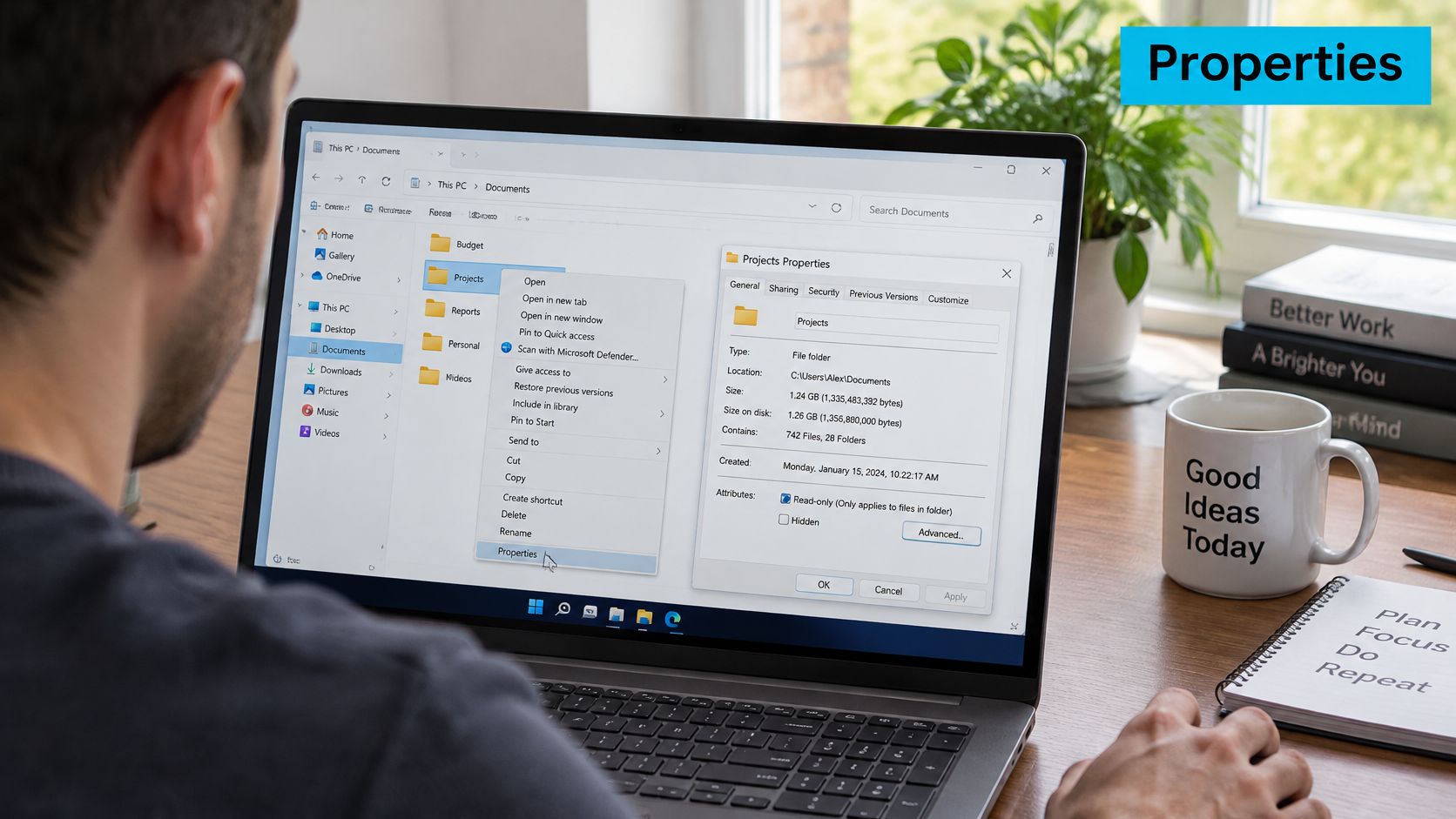
Record the folder's full path, the account used, and whether the location is local or network-mounted. Also note compression, quotas, and active applications that write into it. Otherwise, you can mistake a changed workload or changed permissions for a measurement error.
For a disposable test directory, follow the terminal folder creation procedure rather than experimenting inside a live application's data tree. Folder measurement itself is read-only and doesn't require a rollback.
Recognize an incomplete count
In multi-tenant infrastructure, a web root can contain application dependencies, session files, caches, and customer uploads under different permissions. A long-running calculation isn't automatically a hung Explorer process. Run the check locally through a stable administrative session to remove unnecessary network variables.
Investigate an unexpectedly small total in this order:
- Scope mismatch: Confirm that you're measuring the same root directory as the other tool.
- Restricted descendants: Look for paths your account can't enumerate.
- Changing contents: Check whether applications are creating or rotating files during the scan.
- Storage access problems: Investigate disconnected shares, unavailable volumes, or stalled storage requests.
A completed-looking dialog isn't proof that every descendant was readable.
Don't change ownership or permissions just to make the number larger. Preserve the existing security boundary and collect an authorized inventory instead. The two Properties values answer different storage questions, so retain both.
Why Size and Size on Disk Give Different Totals
A directory containing 100,000 one-byte files can hold about 0.095 MiB of content yet require about 390.6 MiB of allocated data under the simplified cluster-allocation example described in Microsoft's NTFS overview. That model assumes 4 KB clusters, excluding metadata and special filesystem behavior.
Size measures logical file contents. Size on disk measures filesystem allocation. Treating those as interchangeable is how a perfectly valid report becomes a misleading capacity estimate.
Which Size value answers which question
The following cases use that allocation model. Tiny files can also receive special NTFS treatment, so use the table to understand allocation rounding, not to predict every file's physical footprint.
| Case | Size (logical) | Size on disk | Why they differ |
|---|---|---|---|
| 100,000 files of 1 byte each | About 0.095 MiB | About 390.6 MiB | Each file occupies one 4 KB cluster in this simplified model |
| Single 1-byte file | 1 byte | 4 KB in this model | One cluster is the minimum nonresident allocation |
| Compressed file | File length | Less than Size when compression is effective | NTFS compression reduces allocated clusters |
| Sparse file | File length | Allocated written ranges, rounded to allocation boundaries | Unwritten sparse ranges need no data clusters |
Check the actual allocation unit from an elevated command prompt:
fsutil fsinfo ntfsinfo C:
Find the Bytes Per Cluster line in the output. Use the drive containing the measured folder, not automatically the operating-system drive. For a mounted directory, establish which underlying volume owns it before interpreting the result.
Choose the quantity that matches the task
Use logical Size to inventory content and establish a starting point for migration planning. Transfer compression, backup deduplication, and link handling can still change the amount a particular job sends.
Use Size on disk when investigating allocated capacity. It isn't a guarantee of immediately reclaimable space: snapshots, hard links, open handles, and filesystem accounting can complicate what deletion releases.
Permissions create a separate problem from allocation. If your account can't read part of the tree, neither a neat logical total nor a neat allocated total proves the scan is complete.
Practical rule: Explain the allocation gap before treating it as waste.
Don't reformat a volume or change its allocation-unit size because a folder has a large gap. First identify the workload responsible, especially caches or session stores containing many small files. Changing retention or application behavior is usually a safer starting point than changing the filesystem.
Get an Exact Folder Size with PowerShell
Use PowerShell when you need a repeatable logical-byte total that you can save or schedule. Start with the recursive enumeration documented by Microsoft's Get-ChildItem reference:
Get-ChildItem C:PathToFolder -Recurse |
    Measure-Object -Property Length -Sum
Replace the path with your actual folder. Read the Sum field as bytes; the other measurement fields can be blank because you haven't requested them.
Without recursion, you measure only immediate children. That can produce a plausible but incomplete report for a web root whose uploads and dependencies live below the top level.
Include hidden files without hiding failures
For an operational report, restrict enumeration to files and include hidden entries:
Get-ChildItem 'C:PathToFolder' -File -Recurse -Force -ErrorAction Continue |
Measure-Object Length -Sum
These switches have distinct jobs:
- -File: Excludes directory objects from the objects being measured.
- -Recurse: Traverses descendant containers.
- -Force: Includes hidden items, but doesn't override security permissions.
- -ErrorAction Continue: Suppresses nonterminating errors while enumeration continues.
The last switch makes unattended output cleaner, but it can conceal missing data. Capture those errors explicitly rather than presenting the result as complete:
$scanErrors = @()
$r = Get-ChildItem 'C:PathToFolder' -File -Recurse -Force `
-ErrorAction Continue -ErrorVariable +scanErrors |
Measure-Object Length -Sum
$r | Select-Object Count, Sum
'{0:N2} GiB' -f ($r.Sum / 1GB)
$scanErrors | Select-Object TargetObject, Exception
Expected output contains Count and Sum, followed by the formatted GiB value. Error rows identify failed operations; no error rows means PowerShell recorded no errors during that enumeration, not that the underlying data was frozen.
The GiB label is deliberate: PowerShell's binary size suffix uses binary units. Keep the unrounded byte sum for reconciliation rather than comparing rounded display strings.
Save evidence for repeatable checks
Export the result and the errors separately:
$r | Select-Object Count, Sum |
    Export-Csv -LiteralPath "$env:TEMPfolder-size.csv" -NoTypeInformation

$scanErrors |
    Out-File -LiteralPath "$env:TEMPfolder-size-errors.txt"
This is read-only against the target tree. The only new files are the reports, which you can remove afterward.
Measure-Object Length reports logical bytes, not allocated storage. A successful PowerShell report therefore establishes content volume, but it doesn't explain physical allocation by itself. Also review reparse points deliberately: don't assume different PowerShell versions and other tools traverse links identically.
Cross-Check Totals with du.exe and Robocopy
| Tool | What it counts | Reports Size on disk | Best use |
|---|---|---|---|
| Explorer Properties | Recursive logical and allocated totals for one folder | Yes | Quick check on a single folder |
| PowerShell Get-ChildItem | Recursive sum of file Length values | No, logical only | Scripted reports and hidden files with -Force |
| du.exe -c | Recursive file and directory sizes with DirectorySizeOnDisk | Yes | Explaining allocation overhead and hard links |
| Robocopy /L /BYTES | Enumerated file sizes in exact bytes | No | Independent audit of a disputed total |
Inspect allocated usage with du.exe
Use the official Microsoft Sysinternals Disk Usage utility when you need logical and allocated values in the same report:
du.exe -nobanner -c C:PathToFolder
The CSV includes CurrentFileSize, FileCount, and DirectorySizeOnDisk. CurrentFileSize concerns files directly in the current directory; don't confuse it with the recursive directory total.
Save a report outside the measured tree:
New-Item -ItemType Directory -Path C:Temp -Force | Out-Null
du.exe -nobanner -c C:Data > C:Tempdata.csv
Import-Csv C:Tempdata.csv |
    Select-Object Path, FileCount, DirectorySize, DirectorySizeOnDisk
Compare DirectorySize with your logical inventory and DirectorySizeOnDisk with allocated usage. Allocation rounding can increase the latter; sparse files and compression can decrease it. Hard-link counting can alter comparisons independently.
Two switches require particular care:
- -n: Disables recursion, changing the scope.
- -u: Counts every hard-linked instance, changing how shared file data contributes to totals.
Audit enumeration with Robocopy
Use list-only mode, documented in the Robocopy reference, for an independent view:
robocopy "C:Target" NUL /E /L /BYTES
/L prevents copying, /E includes descendant directories, including empty ones, and /BYTES displays exact byte values. Check the summary and error messages, not just the last visible filename.
For a retained audit:
robocopy "C:Target" NUL /E /L /BYTES /FP /LOG:"C:Tempfolder-audit.txt"
Keep /L in place. This workflow doesn't require copying, deleting, or synchronizing production files.
Run the audit again after a short interval. Accept the result only when the file count and byte total remain stable, and retain inaccessible paths as explicit exceptions. A stable result is useful evidence, but it still isn't a transactional filesystem snapshot.
Track Down Space Explorer Does Not Show
Open Settings > System > Storage on Windows clients when the question is why the volume is full. Category-level accounting separates user content from temporary files and system allocations; Windows Server installations without that interface require administrative storage tools instead.
Cleanup recommendations can help identify candidates, but don't treat a recommendation as approval to remove application data. Identify the owner and retention requirement first.

Measure the search database correctly
Microsoft's Windows Search guidance identifies Windows.edb on Windows 10 and Windows.db on Windows 11 and recommends checking Size on disk because sparse storage and compression affect the database's footprint. Microsoft gives a rule of thumb of less than 10% of indexed-file size, with potentially much higher proportions for files smaller than 4 KB or large source-code collections.
Find the database under:
C:ProgramDataMicrosoftSearchDataApplicationsWindows
Measure after indexing activity settles. Excluding high-churn directories from indexing reduces indexed scope without deleting their contents.
Investigate retained and protected data
- Recycle Bin: Deleted content can remain allocated until the relevant bin is emptied.
- Cloud placeholders: Online-only files can advertise content without storing that full content locally.
- Restore points and shadow copies: Retained blocks can explain usage absent from a normal folder inventory.
- Update and application caches: Use supported cleanup procedures rather than deleting protected directories.
A Temp directory can refill after cleanup, including with Microsoft Store package files. Repeated growth calls for diagnosing the producer, not repeatedly deleting the output. The same distinction between expendable cache and application state matters in the Linux-specific Yum cache cleanup procedure, but those commands aren't Windows remedies.
Finding a large file doesn't prove its space is reclaimable. An open handle can delay release, and snapshots can retain blocks after deletion.
Verify the Numbers Before You Delete Anything
Deleting the largest visible folder isn't a diagnosis. Accept a measurement when logical totals agree across tools, allocated totals reconcile separately, and every remaining difference has an explanation.
Don't demand that PowerShell's sum equal du.exe's allocated value. Instead, use a short acceptance checklist:
- Logical agreement: Explorer Size, PowerShell Sum, and du.exe DirectorySize cover the same readable files.
- Allocation explanation: DirectorySizeOnDisk is consistent with cluster rounding, compression, sparse allocation, and the selected hard-link policy.
- Complete exceptions: Unreadable paths and link-traversal differences are documented.
- Volume reconciliation: System and retained storage explain usage outside the measured tree.
Preserve a rollback path
Before moving or deleting data, confirm the owner, maintenance window, and tested restore method. Use the data backup best practices checklist to verify recoverability rather than assuming a successful backup job proves a usable restore.
For approved inactive data, a holding folder on the same volume can provide a quick reversal: move it back if validation fails. That move doesn't free capacity, and moving active application directories can break services, so stop or reconfigure dependent applications first.
Our individual files restore in seconds, while full system restores depend on data size and connection speed. Keep that distinction in the recovery plan.
Prevent recurrence by retaining byte-level reports, tracking growth by application owner, and setting retention for logs, sessions, and caches. If totals still don't reconcile or the volume keeps filling, submit the CSV, Robocopy log, inaccessible-path list, and volume details to ARPHost managed services for review before destructive cleanup.
ARPHost, LLC offers fully managed IT and infrastructure services for teams that need help diagnosing storage growth and planning safe recovery. Visit ARPHost, LLC to discuss a review of your folder-size audit and the next steps for your Windows environment.

Leave a Reply
You must be logged in to post a comment.