A lot of IT teams reach the same point at roughly the same time. Laptops are aging out. Remote staff need access from home and the office. One department wants Windows-only line-of-business apps, another needs Linux tools, and the security team is tired of chasing patch levels across a scattered fleet of endpoints.
Buying more physical PCs solves that problem for a quarter or two. It usually doesn’t solve consistency, remote access, recovery, or support overhead. That’s where desktop pc virtualization becomes useful. It changes the question from “Which machine does this employee use?” to “How do we deliver the right desktop securely, consistently, and at the right cost?”
What Is Desktop Virtualization and Why It Matters Now
A practical definition is simple. Desktop virtualization separates the user’s desktop environment from the physical machine in front of them. The operating system, applications, and user workspace can run locally in a virtual machine, on a server in your rack, or on infrastructure hosted elsewhere. The endpoint becomes a way to access the workspace, not the workspace itself.
For a growing business, that shift matters because desktop management is usually where complexity piles up first. Hardware refresh cycles, emergency replacements, software conflicts, remote access, and endpoint drift all get harder as headcount grows. If you’ve ever had two users with “the same build” that behave completely differently, you’ve already seen the problem desktop virtualization is designed to reduce.

From niche tool to mainstream operating model
Desktop virtualization isn’t new or experimental. Desktop PC virtualization emerged as a commercial technology in 1999 when VMware released Workstation 1.0, which let users run multiple operating systems on a single PC and pushed virtualization beyond mainframes into x86 computing, as outlined in this history of virtual machines. By 2003, the market had already shifted toward mainstream adoption as major vendors entered the space and enterprises looked for better ways to use underutilized infrastructure.
That history matters for one reason. You’re not betting on an immature concept. You’re choosing among mature architectures with very different trade-offs.
Practical rule: Most failed desktop virtualization projects don't fail because virtualization is a bad fit. They fail because the team chooses the wrong delivery model for the users it actually has.
Why decision-makers care
When desktop environments are abstracted from hardware, IT gains options that physical fleets don’t offer cleanly:
- Standardized builds reduce drift between users and locations.
- Faster recovery becomes possible because a failed endpoint doesn’t always mean a full rebuild.
- Remote access gets easier to control when the desktop lives in a managed environment.
- Testing and development improve because teams can run isolated operating systems without dedicating separate hardware to every use case.
The business case isn’t just “run PCs on servers.” It’s better control over delivery, support, and lifecycle management. That’s why desktop virtualization keeps showing up in modernization projects, private cloud planning, and managed workplace strategies.
Core Virtualization Architectures Compared
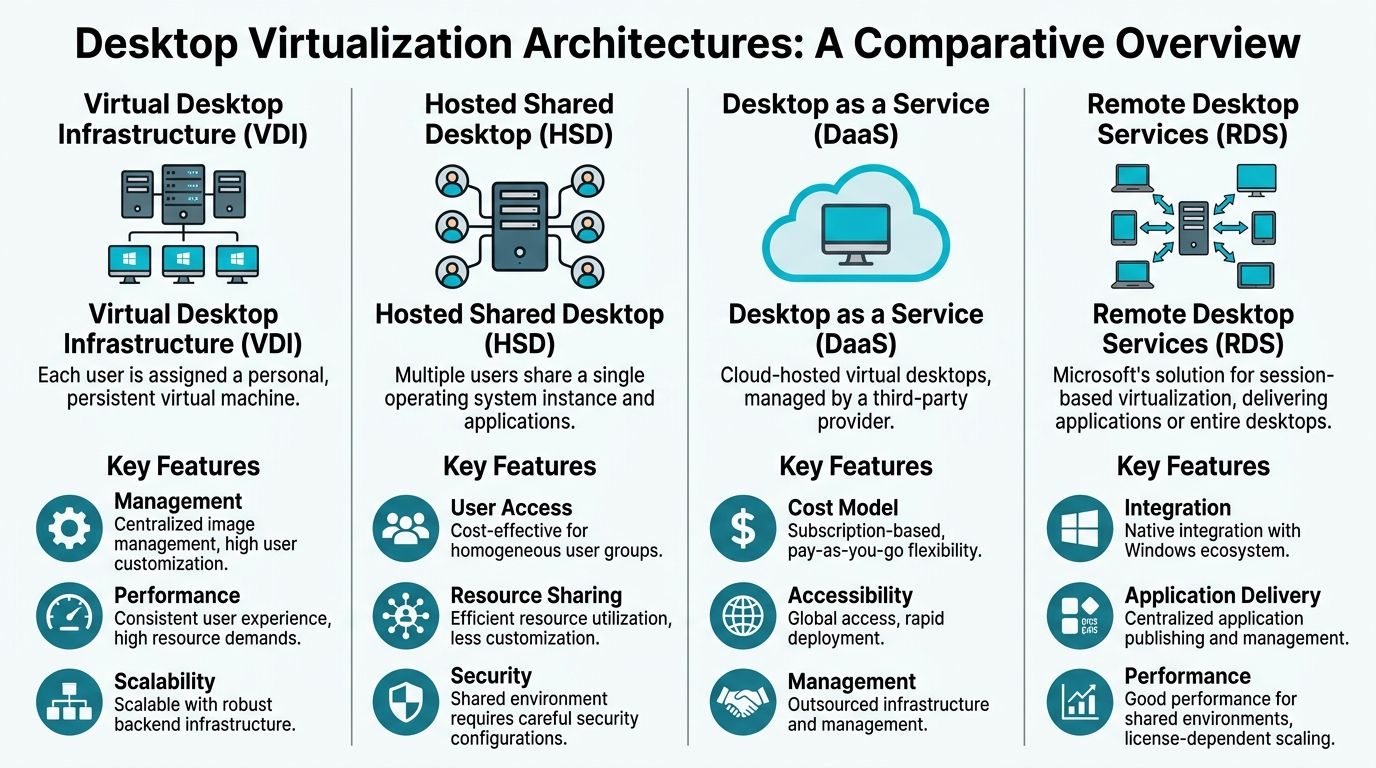
There isn’t one desktop virtualization model. There are several, and they behave very differently under load, under support pressure, and under budget constraints. The cleanest way to choose is to match the architecture to the user behavior, not the marketing label.
The four models that matter most
Think of these as different levels of control and outsourcing.
Local hypervisors (Type 2) fit developers, testers, and engineers who need multiple operating systems on one machine. VMware Workstation, VirtualBox, and similar tools run on top of a desktop operating system. This is the most direct model for labs, app testing, and short-lived environments. It gives the user freedom, but it also pushes more responsibility onto the endpoint and the person using it.
Client virtualization (Type 1 on the endpoint) runs closer to the hardware and is usually chosen when the endpoint itself must stay tightly controlled. It’s less common in SMB environments, but it can make sense for specialized security or kiosk-style deployments where local isolation matters.
VDI or server-hosted desktops centralize the desktop in the datacenter or private cloud. Each user typically gets a dedicated virtual desktop or a defined pool. This is the model most IT leaders mean when they say “virtual desktops.” It improves consistency and central management, but the backend design has to be right. Storage, memory, CPU, profile handling, and graphics policy all matter.
DaaS or cloud-hosted desktops shifts more of the infrastructure burden to a provider. You still own policy, identity, app delivery, and user experience decisions, but you don’t own as much of the underlying platform. This can be a strong fit for distributed teams, temporary projects, mergers, and organizations that want less hardware ownership.
Desktop virtualization architecture comparison
| Architecture | Primary Use Case | Management Model | Initial Cost | Scalability | Offline Access |
|---|---|---|---|---|---|
| Local Hypervisor | Developer labs, testing, multi-OS workflows on one PC | Managed per endpoint | Lower infrastructure commitment, higher endpoint dependence | Limited by local hardware | Yes |
| Client Virtualization | Locked-down local endpoints, specialized secure use cases | Endpoint-centric with stricter controls | Depends on device strategy and tooling | Moderate | Yes |
| VDI / Server-Hosted Desktop | Office workers, centralized desktop control, regulated environments | Centralized in datacenter or private cloud | Higher upfront planning and infrastructure work | Strong if backend is sized correctly | Usually no |
| DaaS / Cloud-Hosted Desktop | Rapid rollout, distributed workforces, seasonal or changing demand | Provider-managed infrastructure with customer-managed policy and apps | Lower hardware ownership, ongoing service spend | Strong operational flexibility | Usually limited |
What works well and what usually doesn't
Local hypervisors work well when the user is technical and the workload changes often. They don’t work well when your support team needs strict standardization across dozens of non-technical employees. Once every laptop becomes its own mini-lab, compliance and troubleshooting get messy fast.
VDI works well when users need a stable desktop, predictable application access, and managed remote connectivity. It works poorly when teams assume centralization automatically fixes every application issue. Bad profile design, weak storage, and insufficient graphics planning can turn a good VDI concept into a frustrating user experience.
DaaS works well when speed matters more than infrastructure ownership. It’s often attractive during expansion, branch rollouts, and short planning cycles. It becomes less attractive when long-term cost predictability, custom networking, or very specific compliance controls drive the design.
RDS-style shared environments deserve a separate mention even though they often sit adjacent to VDI in buying conversations. They’re efficient for task workers and published applications, but they’re not a perfect substitute for a personal desktop experience. If users need heavy customization or app isolation, session sharing may become the wrong compromise.
Choosing between these models is less like choosing a “best” platform and more like choosing whether you want to own, lease, or outsource complexity.
A simple decision framework
Use these questions before you get deep into tooling:
- Do users need offline access? If yes, local or endpoint-based approaches stay on the table.
- Do you want centralized rebuilds and policy control? If yes, server-hosted models are stronger.
- Are workloads short-term or variable? If yes, DaaS may be worth modeling.
- Do users need admin rights or custom stacks? If yes, local hypervisors or persistent VDI pools may fit better.
- Is support capacity thin? If yes, avoid architectures that create dozens of one-off endpoint snowflakes.
For teams comparing platforms more broadly, this Proxmox VE vs VMware vSphere feature comparison matrix is a useful starting point when you’re deciding how much platform control and licensing complexity you want to carry.
Optimizing Performance and Hardware Resources
A desktop virtualization project usually succeeds or fails at the host layer. If users complain about lag, slow logons, or random instability, the root cause is usually oversubscription, weak storage design, or a desktop pool that was sized for averages instead of peak behavior.
For SMBs, the choice of architecture becomes a critical cost decision. Local virtualization shifts more load to the endpoint. Server-hosted desktops concentrate it on your cluster. Cloud desktops turn it into an operating expense, but only after careful control of sizing, storage, and session behavior. The right model is the one that matches user patterns without forcing you to pay for idle capacity.
CPU support sets the baseline
Modern desktop virtualization depends on hardware virtualization extensions being enabled and exposed correctly. Intel VT-x and AMD-V are not optional if you want predictable performance from KVM, Proxmox, Hyper-V, or VMware. If they are disabled in firmware, the host wastes cycles on software translation and every user session feels the penalty.
Start by verifying that the platform is ready:
lscpu | grep Virtualization
If support is missing or inconsistent across nodes, fix that before testing anything else. This guide on how to enable virtualization in BIOS or UEFI is a useful host-prep check, especially when you are working with mixed hardware generations.
I see this often during migrations. The cluster is built, storage is live, templates are ready, and one BIOS setting keeps the environment from performing the way the sizing model assumed.
Memory efficiency drives density
CPU gets attention first. RAM usually determines whether the design makes financial sense.
Virtual desktops are repetitive workloads. In a standardized pool, many machines run the same OS build, the same agents, and the same office apps. Hypervisors can use memory optimization features such as KSM, page sharing, and ballooning to reduce waste, but those features help most when images are disciplined. If every user gets a heavily customized desktop with different software stacks, memory savings drop and host density drops with them.
That trade-off matters when choosing between persistent and non-persistent desktops. Persistent pools give users flexibility, but they usually cost more per seat because they reduce image uniformity and increase storage and RAM pressure. Non-persistent pools are easier to scale and patch, which is why they often fit task workers and standardized office teams better.
What to tune first on a real deployment
When I assess an underperforming environment, I start with four checks before looking at anything exotic:
CPU extensions and firmware settings
Confirm VT-x or AMD-V is enabled on every host and exposed consistently to the hypervisor.Memory policy and overcommit
Review assigned RAM, ballooning behavior, swap activity, and whether the workload mix is too diverse for page-sharing features to help.Storage latency under burst conditions
Boot storms, login storms, patch cycles, and antivirus scans can hit shared storage at the same time. SSD or NVMe storage is the baseline for serious desktop pools.Profile and image design
Bloated profiles, poor redirection policy, and too many startup tasks can make a healthy platform feel slow to the user.
Here’s a quick host-side check sequence for KVM or Proxmox:
lscpu | grep Virtualization
free -h
cat /sys/kernel/mm/ksm/pages_sharing
top
These commands will not replace proper load testing. They do show whether the host sees virtualization support, whether RAM pressure is obvious, and whether memory sharing is active.
Capacity planning has to follow workload type
A shared desktop pool for call-center agents should not be sized like a pool for software developers. An accounting team running multiple browser tabs, Excel models, and PDF tools behaves differently from a graphics team that needs GPU-backed rendering. Treating all users as one class either inflates cost or creates a noisy, unstable environment.
A better approach is to build service tiers:
- Task workers need stable performance and high density.
- Knowledge workers need more headroom for browsers, collaboration apps, and background sync.
- Developers need more RAM, more CPU headroom, snapshots, and sometimes nested virtualization.
- Graphics users need GPU planning, protocol testing, and careful storage design.
Proxmox and bare metal decisions become practical considerations. On Proxmox, SMBs can segment pools by workload and keep tighter control over resource allocation and HA behavior. On bare metal, local virtualization can make sense for a small set of power users who need direct hardware access or offline capability, but it increases support variance. Managed platforms such as ARPHost reduce that operational burden by standardizing host design, monitoring contention early, and keeping pool sprawl from turning into an ongoing support problem.
A good technical explainer on the mechanics is below.
Nested virtualization for developer workflows
Developer desktops need their own planning model. If engineers are building labs, testing Kubernetes, validating appliances, or running hypervisors inside a VM, standard office desktop assumptions break quickly.
Microsoft’s documentation on nested virtualization in Hyper-V makes that clear. It requires explicit configuration and has scenario limits. The same general lesson applies across platforms. If nested virtualization is part of the requirement, define it early, reserve resources accordingly, and keep those users in a separate pool from ordinary office desktops.
That separation improves both cost control and user experience. Heavy users stop competing with standard workers for shared resources, and the business avoids buying high-spec capacity for everyone just to satisfy a small technical team.
Navigating Security and Licensing Complexities
The most dangerous assumption in desktop virtualization is that centralization equals safety. It helps. It does not make the problem disappear.

Centralized doesn't mean inherently secure
Morphisec’s 2025 analysis argues that VDI is not necessarily safer than physical PCs, and that without specialized defenses a compromised session can become a pivot point toward the host or other systems in the environment, as discussed in this analysis of VDI security risk.
That matches what operators see in practice. If you put many users on shared infrastructure, you improve visibility and control, but you also concentrate risk. One weak template, one poorly segmented management network, or one stale image can spread problems faster than on isolated endpoints.
A better security model
A sound desktop virtualization security model has layers. It doesn’t rely on any single product category.
- Harden the hypervisor hosts with strict admin access, patch discipline, and limited management exposure.
- Segment desktop networks from management, storage, and backup paths. East-west traffic matters.
- Protect the guest OS because malware inside the virtual desktop is still malware.
- Control identity tightly with least privilege, MFA, and role separation for admins.
- Watch the image lifecycle so golden images don’t become stale attack surfaces.
Zero-trust is the right mindset for virtual desktops. Treat every session, admin action, and management path as potentially hostile until proven otherwise.
For teams delivering desktops alongside other hosted workloads, the same layered thinking applies to secure VPS and web environments. Hypervisor security, workload isolation, malware controls, and backup integrity belong in the same operational conversation, not separate silos.
Licensing can change the whole design
Security is only half the story. Licensing often decides whether an architecture stays practical.
With Microsoft-centric environments, licensing can become the hidden line item that changes the economics of VDI. Windows virtual desktop rights, VDA entitlements, Remote Desktop Services CALs, and application licensing all need to be reviewed in the context of how desktops are delivered. Office apps in virtual environments need the same scrutiny. A design that looks cheap at the infrastructure layer can become expensive once desktop and access rights are modeled correctly.
That’s one reason many SMBs evaluate open-source virtualization stacks for the platform layer. Using a platform like Proxmox doesn’t erase application licensing, but it can simplify the hypervisor side and reduce dependence on expensive platform-specific licensing decisions.
What to verify before approval
Before signing off on any desktop virtualization plan, make sure the project team can answer these questions clearly:
Where does admin access terminate?
If too many people can reach the hosts, cluster management, or templates, your attack surface is wider than it looks.How are desktops isolated from one another?
Session separation, VLAN design, firewall policy, and management segmentation all matter.What licensing assumptions are being made?
“We’ll sort that out later” is how budget overruns happen.How are image updates tested and rolled back?
Desktop image management is an operational discipline, not a one-time build task.
If a provider can’t explain those points in plain language, they probably can’t operate the environment well under pressure either.
Planning Your Migration and Deployment
Most desktop virtualization failures happen before production. They start in discovery, where teams guess at user needs, ignore edge cases, or assume that all desktops are basically the same.
A better rollout is phased, measured, and boring in the right ways. You want fewer surprises, fewer one-off exceptions, and clear go or no-go checkpoints.
Start with assessment, not hardware
Inventory the user groups first. Don’t begin with a vendor shortlist or a shopping list of hosts.
Map users by actual behavior:
- Office and productivity users who need stable apps, browser access, and collaboration tools
- Power users who keep many apps open and expect desktop responsiveness all day
- Developers and testers who need snapshots, admin rights, or nested environments
- Graphics or specialty users who may need physical workstations or GPU-aware design
Then document application dependencies, login patterns, remote access requirements, USB and printer expectations, and data location constraints. In doing so, many projects discover they don’t need one desktop model. They need two or three.
Prove the design with a small group
A proof of concept should answer narrow questions, not try to impress everyone at once. Pick a small user set with real work to do. Give them the target apps, the target access path, and a support channel that captures every friction point.
Watch for practical issues:
- Login and profile behavior
- Printing and peripheral access
- Application launch reliability
- Network dependency pain
- User tolerance for small latency differences
This is also the right stage to validate your migration plan against a formal checklist. A server migration checklist helps keep discovery, rollback planning, access controls, and testing from being treated as afterthoughts.
A pilot should include at least one difficult user profile. If everyone in the test group has simple needs, the pilot tells you very little.
Expand by department, not by enthusiasm
After the proof of concept, expand to a pilot group that reflects a real business unit. Finance, support, or a software team usually exposes more meaningful operational issues than a handpicked list of cooperative users.
Use the pilot to test:
Operational support
Can the help desk reset, rebuild, and troubleshoot desktops without escalating every ticket?Change control
Can images, applications, and policies be updated without disrupting everyone at once?Monitoring and visibility
Can you tell whether poor user experience is tied to CPU, memory, storage, network, or the application itself?Rollback readiness
If a template update causes breakage, can you recover quickly?
Roll out in waves
Full deployment should happen in waves with clear acceptance criteria. Don’t convert the entire company because the pilot “felt good.” Use measurable operational readiness. Stable images. Known support runbooks. Documented exception handling. Confirmed licensing position. Backup and recovery tested.
The strongest migrations also define where physical desktops remain the right choice. That’s not failure. Some users should stay on local hardware, especially if peripherals, latency sensitivity, or graphics needs make virtualization a poor fit.
Why ARPHost Excels for Desktop Virtualization
A desktop virtualization project usually breaks down in one of two places. The design does not match the users, or the operating burden lands on an IT team that already has too much to carry. ARPHost stands out because it can support both sides of the decision: the right architecture for the workload, and the infrastructure model your team can realistically operate.
For SMBs, that matters more than feature lists. The question is whether you need local flexibility, centralized control, or cloud-style elasticity, and how much risk you want to keep in-house. ARPHost’s service mix fits that decision process instead of forcing every use case into a single VDI pattern.
For cost-conscious SMBs
Dedicated Proxmox private cloud environments are often the best fit for businesses that want centralized desktops without adding expensive hypervisor licensing or building a cluster from scratch. They give IT teams dedicated hardware, control over VM placement, and room to run supporting systems in the same environment, such as domain services, management servers, and line-of-business applications.
That model works well when the goal is predictable monthly spending, tighter data control, and a clear path from a small pilot to a production desktop estate.
For developers and test environments
A lot of desktop pc virtualization projects are not really VDI projects. Development teams, QA staff, and contractors often need isolated systems with snapshot control, admin access, and the ability to rebuild quickly. KVM VPS hosting fits those cases better than a shared desktop pool designed for office users.
Typical examples include:
- Multi-OS testing for application and web teams
- Temporary lab systems for patch validation and release staging
- Controlled jump boxes for vendors and short-term contractors
- Small remote dev desktops where flexibility matters more than density
I’ve seen teams waste time trying to standardize every user on one desktop model. In practice, mixed environments are usually the better answer. Office staff may belong on centralized desktops, while developers need more freedom and faster rebuild cycles.
For performance-sensitive deployments
Some workloads need full host control because the tolerance for noisy neighbors is low. Dense desktop pools, custom storage layouts, specialized networking, and GPU-adjacent workloads often fit better on bare metal servers.
That gives IT more room to:
- Reserve hardware fully for a single desktop environment
- Separate admin, user, and management roles more cleanly
- Tune Proxmox or KVM hosts around actual workload behavior
- Scale into clustered private infrastructure without changing platforms later
Colocation also fits organizations that already own hardware and want better power, connectivity, and remote hands support without giving up platform control.
For organizations that want less operational drag
Desktop virtualization succeeds or fails on day-two operations. Backups, patching, monitoring, image updates, security baselines, and incident response decide whether the environment stays stable and supportable.
Fully managed IT services reduce that burden. Your team keeps architectural direction, while a provider handles the repetitive work and the failure-prone parts that create outages, security gaps, or user frustration.
Why that matters in practice
ARPHost fits businesses that need more than one deployment model. A company might run centralized desktops for office users, keep a few bare metal hosts for demanding workloads, and maintain isolated VPS instances for development, admin access, or testing. That is a common real-world design, especially for SMBs balancing cost control with security and performance.
The value is not a single product. The value is having infrastructure options that map cleanly to real user groups, plus operational support that keeps the environment maintainable after rollout.
If you want a provider that can support that mixed model instead of pushing every workload into one architecture, get a custom quote for your virtualization project at ARPHost managed services.
Conclusion Your Next Step to a Modern Workplace
Desktop virtualization works best when it’s treated as a design choice, not a buzzword. The right model depends on your users, your applications, your security posture, and how much operational complexity your team wants to own. Local VMs, server-hosted desktops, and cloud-delivered workspaces all have legitimate roles.
If you’re ready to modernize desktop delivery without guessing your way through architecture, explore Dedicated Proxmox Private Cloud plans and build a rollout that fits how your business works.
ARPHost, LLC helps businesses deploy desktop virtualization on infrastructure that fits the workload, from KVM VPS hosting and bare metal servers to Proxmox private clouds and fully managed IT services. If you need a practical design for remote desktops, developer labs, or a VMware-to-Proxmox migration path, talk with the team at ARPHost, LLC.