The default FTP port for the control connection is TCP port 21, and the default data port is TCP port 20 in active mode. If you're troubleshooting an FTP upload right now, that answer is correct, but it usually isn't the whole fix.
This issue commonly arises when the login works, then the directory listing hangs, or a file transfer stalls after authentication. The port number looks simple on paper. The underlying problem is that FTP isn't a single-stream protocol, and modern firewalls, NAT, cloud security groups, and host-based filtering don't tolerate vague FTP configuration.
Decoding the Default FTP Port
A junior admin usually starts with the right question: “What is the default ftp port?” The short answer is straightforward. TCP port 21 is the standard FTP control port, assigned for FTP communications and defined in RFC 959, where it handles session setup, authentication, and commands such as LIST, RETR, and STOR, as described in TechTarget’s explanation of FTP port 21.
That matters because port 21 is not the port that necessarily carries the actual file payload. It carries the conversation about the transfer. The protocol tells the server who you are, what file you want, whether you want a directory listing, and how the data channel should be opened.
What port 21 actually does
When a client connects to an FTP server, port 21 handles:
- Authentication commands:
USERandPASS - Session control: connect, quit, and command exchange
- File operations:
LIST,RETR,STOR, and related instructions - Mode negotiation: active or passive behavior for the data path
That distinction is where many bad troubleshooting decisions begin. Teams open port 21 and assume they’re done. Then the application still fails, because the file transfer itself needs a second path.
Practical rule: If FTP login succeeds but browsing or transferring files fails, stop looking only at port 21. Check the data channel design next.
This is why “default ftp port” questions quickly turn into firewall reviews, server config edits, and security policy decisions. On a simple Linux VM, the fix might be a few lines in vsftpd.conf. In a larger environment, the issue can span host firewall rules, upstream filtering, load balancers, and reverse path assumptions across virtualized infrastructure.
Understanding FTPs Two-Channel Architecture
A common failure pattern looks like this. The client reaches the FTP server, gets the banner, and authenticates on port 21. Then LIST hangs, uploads stall, or downloads never start. The reason is usually simple. FTP does not use one TCP connection. It uses one channel for commands and a separate channel for the actual payload.
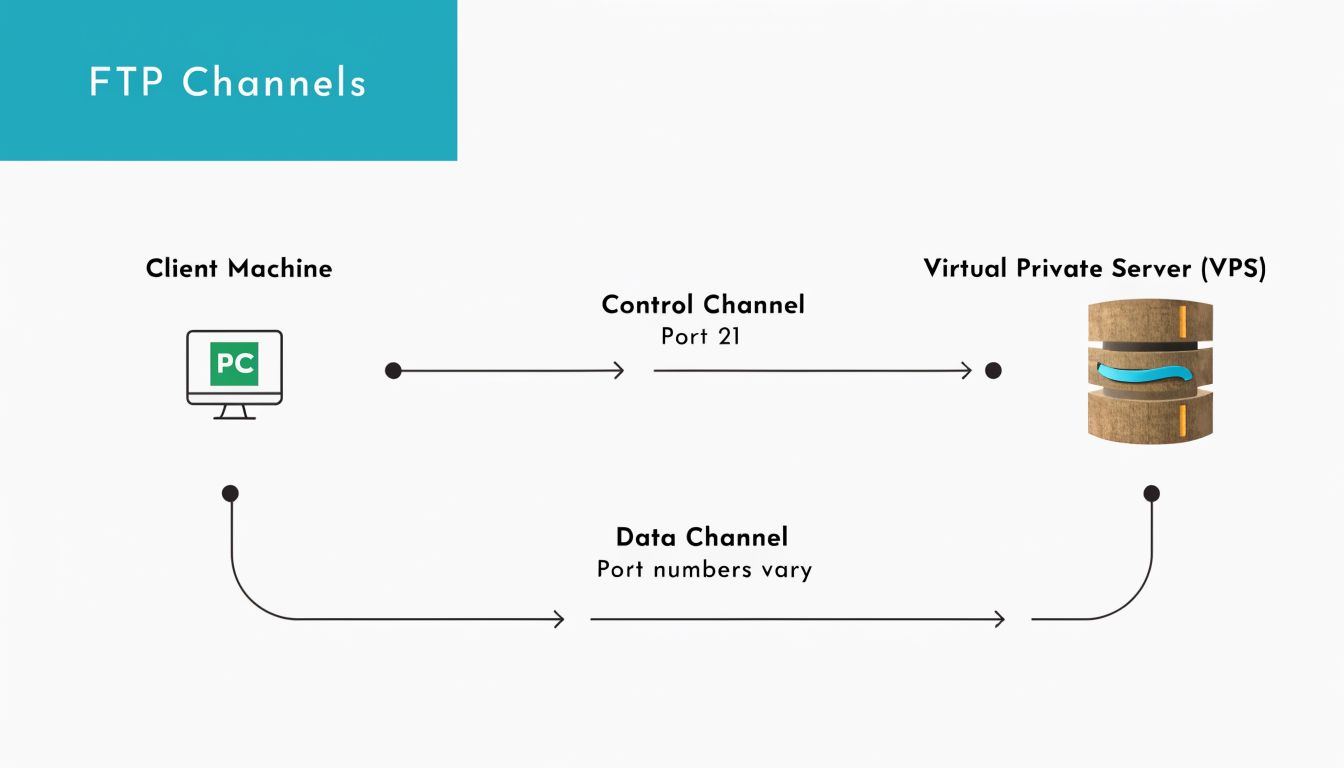
That split is built into the protocol, and it creates real operational overhead on Linux hosts, virtual machines, and firewall appliances. A service check can show FTP as "up" while every transfer path is still blocked.
Control channel on port 21
The control channel is the long-lived session on port 21. It carries login, directory changes, transfer requests, and mode negotiation. If you connect with ftp, lftp, FileZilla, or an automation script, this is the socket that stays open while the client and server coordinate the session.
Typical commands on this channel include:
USERandPASS: identify and authenticatePWDandCWD: inspect and change directoriesLIST: request a directory listingRETRandSTOR: download and upload filesQUIT: close the session cleanly
From an operations perspective, port 21 is only the starting point. It proves the command path works.
Data channel behavior during transfers
The second channel carries the file contents or directory listing data. That channel is created only when the client asks for a listing, upload, or download. It is separate from the control session, and its port usage depends on whether the server and client are using active or passive mode.
In traditional active FTP, the server sends data from TCP port 20 to a client port that was negotiated on the control channel. In passive FTP, the server opens a high-numbered listening port and tells the client to connect to it. That distinction is where firewall rules, NAT, and load balancer behavior start to matter.
The practical result is straightforward. Authentication can succeed while transfers fail because only one of the two paths is open.
Why this matters in operations
This architecture changes how teams should troubleshoot FTP in production:
- Host and network firewalls must allow the control path and the data path
- NAT devices must preserve the negotiated address and port information
- Server configuration has to match the firewall policy, especially passive port ranges
- Connection tracking helpers are not something to assume, especially on hardened Linux systems or cloud networks
On a Proxmox-hosted Linux VM, for example, the FTP daemon, the guest firewall, the Proxmox firewall, and any upstream edge policy can all affect the data channel. A clean way to avoid random high-port exposure is to define a narrow passive range on the server and permit only that range in your Linux firewall configuration.
Managed hosting changes the day-to-day burden here. Instead of tracing control and data flows across the guest OS, hypervisor rules, and external filtering, teams can use ARPHost-managed environments to reduce the amount of FTP-specific firewall tuning they have to maintain by hand.
If port 21 answers but
LIST,RETR, orSTORfails, treat it as a data-channel problem until proven otherwise.
That mindset saves time. It also prevents the common mistake of restarting a healthy FTP service when the actual issue is a blocked secondary connection.
Active vs Passive FTP A Critical Choice for Firewalls
The biggest operational difference in FTP is active versus passive mode. If you're supporting users behind office routers, cloud firewalls, endpoint protection, or carrier-grade NAT, this choice decides whether FTP works consistently or burns hours.
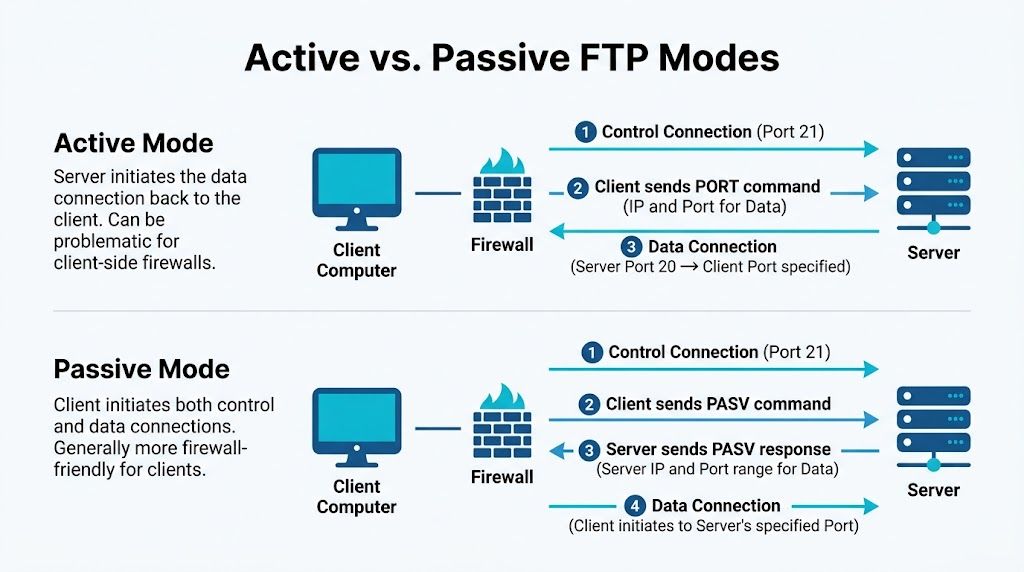
How active mode works
In active FTP, the client connects to the server on port 21 and then tells the server which client-side port to use for data. The server initiates the data connection back from port 20 to that client port.
That worked more comfortably in older network designs. It often fails in modern ones because inbound connections to client devices are usually blocked by design.
Common blockers include:
- Endpoint firewalls on laptops and workstations
- NAT gateways that don't preserve the expected callback behavior
- Corporate security policies that reject unsolicited inbound traffic
- Cloud egress and ingress controls that don't match FTP's old assumptions
Why passive mode usually wins
In passive mode, the server doesn't call back to the client. Instead, the client asks the server for a passive endpoint, and the server opens a high-numbered port for the client to connect to. This model aligns better with how modern clients already work: they initiate outbound connections.
That sounds minor, but it's the reason passive mode is usually the safer operational default.
Field note: If your users are outside your LAN, passive mode is usually the first mode to test, not the backup plan.
The implementation gap is where many teams get stuck. IBM’s troubleshooting guidance highlights that many guides explain ports 20 and 21 but don't explain passive mode's dynamic port allocation well, and that mismatch is a primary reason FTP deployments fail in practice, as noted in IBM’s FTP transfer troubleshooting documentation.
What actually breaks in passive mode
Passive FTP is better, but not automatic. The server must advertise a usable passive port range, and the firewall must permit that exact range. If either side is wrong, you get the classic symptom: login succeeds, then listing or transfer fails.
A clean passive design usually requires:
- A defined passive port range: don't leave it vague if you can avoid it
- Matching host firewall rules:
iptables,nftables,ufw, orfirewalld - Matching edge firewall rules: cloud firewall, appliance, or upstream ACL
- Server software alignment:
vsftpd,ProFTPD, or another daemon must advertise the same range you open
Active versus passive in plain terms
| Mode | Who starts data connection | Data port behavior | Firewall impact | Best fit |
|---|---|---|---|---|
| Active FTP | Server | Server uses port 20 back to client | Often blocked on client side | Legacy controlled networks |
| Passive FTP | Client | Server offers a high port | Easier for clients, needs server-side range planning | Most modern deployments |
If you're managing Linux hosts and need a tighter server-side policy, a practical next step is to pair passive FTP with explicit filtering and review guidance like Linux firewall management for hosted servers. The key is to make the passive range deliberate, limited, and documented.
Secure File Transfer with FTPS and SFTP
Plain FTP has one major weakness. It was built in a time when encryption wasn't part of the default model. If you're moving credentials or business data across untrusted networks, plain FTP should not be your first choice.
The secure alternatives are FTPS and SFTP, and they are not interchangeable even when users casually treat them as the same thing.
The port and protocol differences
For secure variants, Implicit FTPS uses TCP port 990 for the control channel and 989 for data, while Explicit FTPS keeps the control connection on port 21 and upgrades it with AUTH TLS. SFTP is a different protocol entirely and uses TCP port 22, the same port as SSH.
That one sentence carries a lot of practical meaning:
- FTPS keeps FTP semantics, including separate control and data behavior.
- SFTP rides over SSH and doesn't inherit FTP’s two-channel complexity in the same way.
- Explicit FTPS is often easier for environments that already expect port 21.
- SFTP is often easier to secure and explain to firewall teams.
FTP vs FTPS vs SFTP Comparison
| Protocol | Default Port(s) | Encryption | Connection Type | Firewall Friendliness |
|---|---|---|---|---|
| FTP | 21 for control, 20 for active data | No | Separate control and data channels | Often troublesome |
| FTPS | 990 and 989 for implicit, or 21 for explicit control | Yes, via SSL/TLS | FTP-style multi-channel | Moderate, depends on mode |
| SFTP | 22 | Yes, via SSH | Different protocol, SSH-based | Usually simpler |
What works best in real infrastructure
For internal legacy systems, teams sometimes keep FTP or FTPS because the application stack expects it. That can be workable if the firewall policy is tight and the transfer path is limited.
For newer deployments, SFTP is usually cleaner. You get one known service port, simpler client support, and fewer moving parts during troubleshooting. If your team already manages SSH keys and SSH hardening, SFTP fits naturally into that operational model.
A practical reference for admins comparing deployment options is FTP server access with SSH-based alternatives, especially when you're deciding whether to keep patching old FTP workflows or replace them.
If your only reason for using FTP is “that's what we've always done,” revisit the requirement. Many environments don't need FTP anymore. They need secure file movement and predictable firewall behavior.
Why protocol choice affects governance
This isn't just a port question. It's a control question. Security teams need to know whether credentials are protected, whether the data path is encrypted, and whether the protocol can be audited and maintained without special-case firewall work.
That’s why protocol decisions belong in change planning, not just app setup notes. Once several business systems depend on a file transfer method, changing it later gets harder.
Practical Server and Firewall Configuration Examples
A working FTP setup on Linux is mostly about getting the server configuration and firewall policy to agree. The cleanest practical pattern is passive mode with a narrow passive port range.
Configure vsftpd for passive mode
In passive mode, the server opens a high-numbered data port. RFC-aligned guidance notes that passive ports typically come from a high range such as 1024-65535, and a more controlled example is 60000-65535, with matching vsftpd.conf directives and firewall rules described in the RFC 959 reference section used for passive mode examples.
A practical vsftpd.conf example looks like this:
listen=YES
anonymous_enable=NO
local_enable=YES
write_enable=YES

pasv_enable=YES
pasv_min_port=60000
pasv_max_port=65535
That does two important things:
- It enables passive mode.
- It constrains the data channel to a defined range your firewall team can manage.
If you're building this on a Linux VM, keep the passive range documented in the ticket or infrastructure repo. FTP issues become much easier to resolve when the network and systems teams are reading the same range.
Open the firewall correctly
For classic iptables, the server needs to accept the control port and the passive range:
iptables -A INPUT -p tcp --dport 21 -j ACCEPT
iptables -A INPUT -p tcp --dport 60000:65535 -j ACCEPT
If you're using firewalld, the equivalent is:
firewall-cmd --permanent --add-port=21/tcp
firewall-cmd --permanent --add-port=60000-65535/tcp
firewall-cmd --reload
For ufw, use:
ufw allow 21/tcp
ufw allow 60000:65535/tcp
Verify from the server side first
Before you test with a remote client, verify locally:
Check the daemon is listening
ss -lntp | grep:21Confirm the passive settings loaded
grep -E 'pasv_enable|pasv_min_port|pasv_max_port' /etc/vsftpd.confReview logs during a failed session
journalctl -u vsftpd -f
One common mistake is opening the passive range on the host firewall but forgetting the upstream firewall, virtualization security group, or edge appliance. Another is the reverse: opening the edge policy but not the host itself.
Operator habit: Test control-plane success and data-plane success separately. “Login works” is only half a result.
A lot of teams also overlook the endpoint side. If users connect from unmanaged laptops or mixed office networks, endpoint security can interrupt client behavior long before the server sees a valid transfer.
A short walkthrough can help if you want to see the basics in action:
A sane rollout checklist
Use this checklist before declaring the service ready:
- Server config matches policy: the passive range in
vsftpd.confis the exact range you approved - Host firewall is explicit: port 21 and the passive range are allowed
- Upstream filtering matches: cloud firewall or edge ACL permits the same ports
- Client mode is correct: the FTP client is set to passive mode
- Logs are watched during testing: don't test blind
This is one of those jobs that seems small until multiple teams touch it. Once there’s a VM host, a guest firewall, a perimeter firewall, and endpoint security in the path, consistency matters more than speed.
Troubleshooting Common FTP Connection Failures
FTP failures tend to repeat the same patterns. The trick is mapping the symptom to the layer that’s broken.
Login fails immediately
If the client can't establish a session at all, start with the obvious checks:
- Port 21 isn't reachable: host firewall, upstream firewall, or service isn't listening
- The FTP daemon is down: the process never accepted the control connection
- A security policy is intercepting the traffic: local filtering or edge policy is dropping it
A quick operational check is to verify the path with tools from the server and the client side, then confirm service state.
Login works but directory listing fails
This is the classic trap. Authentication succeeds, so everyone assumes the service is healthy. Then LIST hangs, or the client reports that it can't retrieve a directory listing.
That usually points to the data path, especially passive mode configuration. IBM’s documentation calls out this exact implementation gap. Many guides focus on ports 20 and 21, but passive mode’s dynamic port allocation is where many firewall misconfigurations occur, which is why teams often see connection failures after successful login, as described in Linux port-checking and reachability troubleshooting guidance.
Transfer starts and then stalls
When a transfer starts and then freezes, check for:
- Mismatch between advertised passive range and allowed firewall range
- FTP client using active mode unexpectedly
- Intermediate inspection device timing out or filtering the data stream
- TLS negotiation issues if you're using FTPS
“Connected” is not the same as “correctly routed for data.” FTP can pass the first test and still fail the only part users care about.
Permission-looking errors that are really network errors
Teams sometimes chase filesystem permissions when the actual issue is transport. If uploads intermittently fail from one network but work from another, compare client mode, firewall path, and endpoint controls before rewriting local ownership or ACLs.
The fastest troubleshooting sequence is usually:
- Confirm the service is listening.
- Confirm the client reaches port 21.
- Confirm passive mode is enabled on both sides if that's your design.
- Confirm the passive range is allowed everywhere in the path.
- Review logs while reproducing the problem.
That order prevents wasted time on wrong-layer debugging.
Conclusion Best Practices for Modern File Transfer
The default ftp port is simple. Port 21 handles control, and port 20 is the traditional data port in active mode. Running FTP well isn't simple at all.
Use passive mode when you must keep FTP because it fits modern firewall behavior better. Prefer SFTP on port 22 or FTPS when you need secure transfers. Keep the server config and firewall rules aligned, and test both the control channel and the data path every time you make a change.
If you want infrastructure that’s easier to secure and easier to troubleshoot, ARPHost, LLC is a strong fit. Their stack covers VPS hosting, secure web hosting bundles, bare metal servers, Proxmox private clouds, colocation, instant applications, and fully managed IT services. If your team is tired of chasing firewall edge cases and fragile file-transfer setups, start with a platform that gives you clean networking, root control where you need it, and experienced support when the problem crosses server, firewall, and virtualization boundaries.