

Ever wonder how servers manage to run backups at 2 AM or clear out old files without anyone lifting a finger? The secret is a simple, decades-old utility called cron. Think of it as your server's personal scheduler, a tireless assistant that never forgets an appointment.
What Exactly Is a Cron Job and Why Should You Care?
At its core, a cron job is just a scheduled task. It’s an instruction you give to a background process, or daemon, that’s always running on your Linux server. This daemon wakes up every single minute, checks a master list called a crontab (short for "cron table"), and runs any commands that are due.
This "set it and forget it" approach is the bedrock of smart server management. It's the key to automating repetitive tasks, which not only saves you time but also eliminates the risk of someone forgetting to do something critical.
The real-world uses are everywhere, and they directly impact your site's performance, security, and reliability. For instance:
- Automated Backups: A cron job can run a backup script every night, copying your website files and databases to a safe location. This is non-negotiable for disaster recovery, especially if you're on a VPS hosting plan where you're in charge of your own data.
- System Maintenance: You could schedule a job to automatically clear out temporary cache files every few hours. This keeps your application or e-commerce store feeling snappy and responsive for your users.
- Security Scans: With an ARPHost Secure Web Hosting bundles, you can set a cron job to trigger regular malware scans with Imunify360, catching threats proactively without you ever needing to log in.
- Report Generation: Need to send out daily sales figures or server health reports? A cron job can compile the data and email it to the right people every morning like clockwork.
Cron isn't just another utility; it's the foundation of a reliable, hands-off infrastructure. It’s what ensures essential maintenance happens on time, every time, whether you're running a single blog on a high-availability VPS or a sprawling cluster on a Dedicated Proxmox Private Clouds.
Without cron, all these chores would have to be done by hand—a tedious process that’s just asking for human error. Once you learn how to schedule tasks, you unlock a new level of control over your server, making sure it runs smoothly and securely 24/7. This guide will show you exactly how to do it.
Decoding Crontab Syntax to Master Your Schedule
If you really want to get a grip on cron jobs, you have to speak its language: crontab syntax. Think of the syntax as the precise set of coordinates you feed your server—it tells the cron daemon exactly when to run a specific command. Every cron job you write is made of two simple parts: the schedule and the command to execute.
The schedule is built from five distinct fields, read from left to right. Each one represents a unit of time, and you have to define a value for all five to create a valid job.
This diagram breaks down how the server's cron daemon takes your schedule and turns it into automated action.
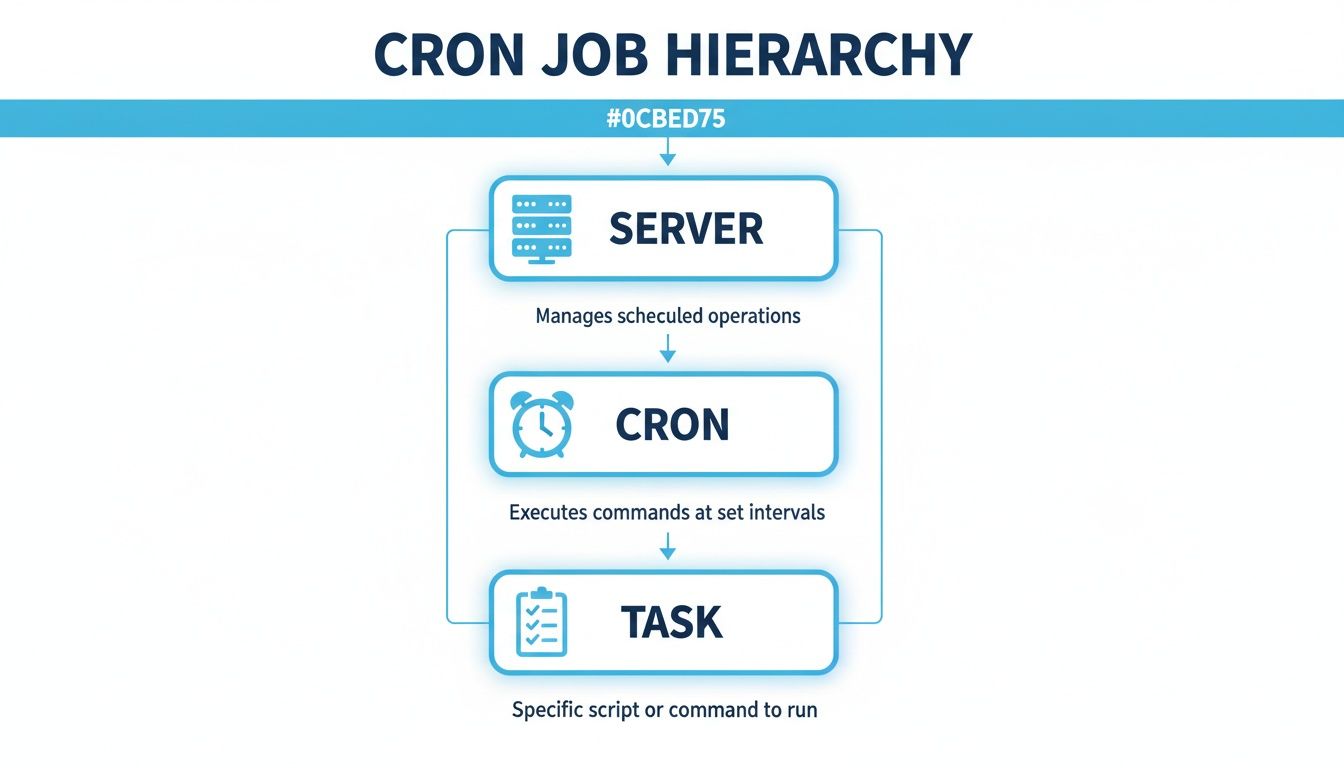
As you can see, the cron process is like a middle manager living on the server. It reads your crontab schedule and makes sure your scripts and commands get triggered right on time.
The Five Fields of Time
Getting these fields right is the first step to writing any cron job. The order is absolutely critical:
- Minute: (0 – 59)
- Hour: (0 – 23, using 24-hour format)
- Day of Month: (1 – 31)
- Month: (1 – 12 or three-letter abbreviations like JAN, FEB, etc.)
- Day of Week: (0 – 6, where both 0 and 7 represent Sunday, or SUN, MON, etc.)
Your command comes right after these five fields. For instance, a basic cron job might look like this: * * * * * /path/to/your/script.sh. That specific schedule will run your script every single minute of every day.
Unlocking Control with Special Characters
The real magic of crontab syntax is in its special characters. These operators give you incredibly fine-grained control over your schedule.
| Character | Name | Meaning | Example |
|---|---|---|---|
* | Asterisk | "Every" | * * * * * runs every minute. |
, | Comma | "And" (separates multiple values) | 0 8,17 * * * runs at 8:00 AM and 5:00 PM. |
- | Hyphen | "Through" (defines a range) | 0 9-17 * * 1-5 runs every hour from 9 AM through 5 PM, Monday to Friday. |
/ | Slash | "Step" (defines an interval) | */15 * * * * runs every 15 minutes. |
These are the building blocks you'll use to create just about any schedule imaginable. Let’s break one down: 0 2 * * 0. This tells cron to run a job "at minute 0 of hour 2 on any day of the month, in any month, but only on day-of-week 0 (Sunday)." Put simply, it runs at 2:00 AM every Sunday—perfect for weekly maintenance on your Bare Metal Servers.
Putting It All Together: A Step-by-Step Example
To add or change your cron jobs, you’ll need to pop open the command line. The main command you'll use is crontab -e. This command opens your personal crontab file in your server's default text editor. If you're still getting comfortable with the terminal, our guide on how to edit a file in Linux is a great place to start.
Once the file is open, you can start adding your scheduled commands, with one job per line. For example, to run a database backup script at 3:30 AM every day, you'd add this line:
30 3 * * * /usr/bin/php /home/user/scripts/backup.php
Pro Tip: Always use absolute paths for your scripts and binaries (/usr/bin/php). This guarantees the cron daemon can find and run them without any issues. This simple but powerful syntax is the key to automating all your essential tasks on any Linux server, from a basic VPS Hosting plan to a complex Dedicated Proxmox Private Clouds.
Practical Cron Job Examples for Server Automation
Alright, the theory is great, but seeing cron jobs work in the real world is where it all clicks. Let's move from syntax to practical, copy-and-paste examples that solve the kind of headaches developers and sysadmins face every day. Think of these as your first steps to automating routine maintenance, saving you time and stopping server problems before they start.

These examples are the building blocks of a solid automation strategy, whether you're managing a single VPS hosting plan or a whole fleet of servers.
1. Automating Daily Backups
For any serious project, daily backups are a lifeline. This single cron job can mean the difference between a minor hiccup and a full-blown catastrophe. The following script creates a compressed archive of your website files and a fresh dump of your MySQL database every single day at 2:00 AM.
# Daily backup of website files and database
0 2 * * * tar -zcf /backups/files_$(date +%F).tar.gz /var/www/html && mysqldump -u db_user -p'db_password' db_name > /backups/db_$(date +%F).sql
- Schedule:
0 2 * * *runs this at minute 0 of hour 2 (2:00 AM) every day, a perfect time when server traffic is usually low. - Command: It first uses
tarto create a neat, gzipped archive of your/var/www/htmldirectory. Immediately after,mysqldumpgets to work, creating a full backup of your database. Note the escaped%in the date command, which is required by cron.
2. Clearing Application Cache
Over time, application caches can swell up, hogging disk space and slowing your site to a crawl. A simple cron job keeps things lean and fast by periodically wiping those temporary files. This example clears a cache folder every hour, on the hour.
# Hourly cache clearing
0 * * * * rm -rf /var/www/html/app/cache/*
- Schedule:
0 * * * *triggers the command at the top of every hour. - Command: The
rm -rfcommand is powerful—it forcefully and recursively deletes everything inside the cache directory. Be extremely careful with this one; triple-check your path to avoid accidentally deleting the wrong files!
3. Scheduling Regular Security Scans
Staying ahead of threats is non-negotiable. If you're on an ARPHost Secure Web Hosting Bundles, your server is already protected by Imunify360. You can use cron to schedule a recurring scan of a user's home directory, ensuring any malware is caught and flagged right away.
# Weekly Imunify360 scan for a specific user
30 1 * * 0 /usr/bin/imunify360-agent malware user scan --user username --path /home/username
- Schedule:
30 1 * * 0kicks off the scan at 1:30 AM every Sunday (Day 0). - Command: This executes the Imunify360 agent, telling it to perform a deep malware scan on a specific user's home directory.
These automations handle the boring but critical tasks that are all too easy to forget. By putting even one of these cron jobs in place, you’re taking a huge step toward a more reliable and self-sufficient server. For those managing larger infrastructures, this is where RMM tools come in. Learn more about what is RMM software and how it offers centralized control over your entire environment.
Managing Cron Jobs in Your ARPHost Environment
So, you're ready to put cron jobs to work. At ARPHost, we believe you should manage your server your way, whether that means clicking through a friendly interface or diving straight into the command line.
For those who prefer a visual approach, our Secure Web Hosting bundles and some VPS hosting plans include the Webuzo control panel. But if you’re a command-line pro on one of our advanced VPS Hosting or Bare Metal Server solutions, you'll feel right at home with SSH. Let's walk through both methods.
Method 1: Using the Webuzo Control Panel
If your ARPHost plan comes with the Webuzo control panel, you're in luck. Setting up cron jobs is a breeze and requires zero command-line fu. It's the perfect way to automate simple but critical tasks, like running a PHP script for your website.
Step-by-step instructions:
- Log into your Webuzo panel.
- Navigate to the Server Settings section and click on Cron Job.
- You'll see a clean, simple form. Use the dropdown menus to pick the schedule for your task—Minute, Hour, Day, Month, and Weekday are all right there.
- In the Command field, enter the exact command to run. For instance, to run a PHP script, you might type something like:
/usr/bin/php /home/username/public_html/myscript.php. - Click Add Cron Job. That's it. Webuzo takes care of adding it to your crontab file behind the scenes.
This is the kind of powerful, yet simple, management you get with our ARPHost Secure Web Hosting Bundles.
The Webuzo panel included with these plans makes server automation accessible to everyone, not just sysadmins who live in the terminal.
Method 2: Managing Cron Jobs via SSH
For developers and sysadmins who want total control, managing cron jobs via SSH is the way to go. This is the standard method on our VPS Hosting (starting from $5.99/month) and Bare Metal Server solutions, giving you direct access to the crontab file for ultimate flexibility.
Step-by-step instructions:
- First, connect to your server using SSH.
- Then, run this command to open your crontab file for editing:
crontab -e - This will open your user-specific crontab file in the default terminal editor (usually nano or vim). From here, add, modify, or remove jobs using the standard syntax we covered earlier.
Best Practice: Always comment your crontab file. Just start a line with a
#symbol to leave a note about what the job does and why it's there. Your future self—or your teammates—will thank you.# Runs daily database backup at 3:30 AM30 3 * * * /usr/bin/php /home/user/scripts/backup.php
If you're building out more complex automation pipelines and need even more granular control over your infrastructure, you might want to explore our Dedicated Proxmox Private Clouds. They provide a foundation for creating highly customized and scalable automated environments from the ground up.
Best Practices for Secure and Reliable Automation
Automation is a game-changer, but with great power comes great responsibility. It's easy to set up a cron job and forget it, but a single misconfigured task can quietly wreak havoc—slowing your server, causing silent data failures, or even punching a security hole in your defenses. The true cron job meaning in a professional context isn’t just about scheduling; it’s about building a rock-solid, secure, and reliable automation pipeline.
Following a few key best practices will ensure your automated tasks are robust and safe, reflecting the kind of enterprise-grade stability we bake into our fully managed IT services at ARPHost.

Lock Down Your Scripts and Commands
First things first: always use absolute paths. Don't just write my_script.sh; specify the full path like /home/user/scripts/my_script.sh. Why? Because the cron daemon often runs with a completely different PATH environment than your own interactive shell. This simple step prevents a whole class of "command not found" errors that are frustrating to debug.
Next, you need a plan for your output. By default, cron will try to email any output from your job to the user who owns the crontab. This is great for a critical task, but a disaster for a script that runs every minute. You'll wake up to thousands of pointless emails.
You have two good options:
- Discard Routine Output: If a job runs correctly and you don't need a record, just throw the output away. Append
>/dev/null 2>&1to your command to send both standard output and error messages into a digital black hole. - Log Everything to a File: For jobs where you need to track what happened, redirect the output to a log file. Using
>> /var/log/myjob.log 2>&1appends all output to a dedicated log, which is priceless when a job fails and you need to see what went wrong.
Limit Permissions and Access
This one is huge: never run cron jobs as the root user unless it is absolutely, unavoidable necessary. A script running with root privileges is like giving a toddler the keys to a bulldozer. If there's a bug or an attacker finds a way to exploit it, the damage can be catastrophic.
Always follow the principle of least privilege. Create a dedicated user account that has just enough permission to run the script and nothing more.
On top of that, lock down the script file itself. Running chmod 700 /path/to/script.sh is a great start. It ensures that only the script's owner can read, write, or execute it, preventing anyone else from tampering with or running your automated tasks.
For a much deeper dive into securing your server—from file permissions to network configs—our comprehensive server hardening checklist is a must-read. These principles are the bedrock of any secure automation setup.
To truly fortify your environment, integrate these habits with established DevOps Security Best Practices. By layering these strategies, you can build a stable and secure automation framework that you can trust, whether it's running on a small VPS hosting plan or across a sprawling Dedicated Proxmox private cloud.
Why ARPHost Excels Here: From Cron Jobs to Managed Workflows
Knowing what a cron job is and how to write one is the easy part. The real challenge? Making sure those automated tasks run without a hitch, every single time, especially when your business depends on them. This is where ARPHost transforms a simple scheduler into a cornerstone of operational reliability.
Our Fully Managed IT Services team does more than just plug a command into a crontab. We design, build, and proactively monitor the entire automation pipeline. Think of us as the guardians of your critical tasks—backups, security scans, system updates, you name it.
- Proactive Monitoring: We ensure your jobs run flawlessly, with alerting systems that notify our engineers of any failure or anomaly.
- 24/7 Expert Support: Our team is always on standby to resolve issues before they can impact your business.
- Integrated Security: With tools like Imunify360 integrated into our secure hosting bundles, your automated security scans are part of a larger, managed defense strategy.
- Custom Solutions: For clients on Dedicated Proxmox Private Clouds or Bare Metal Servers, we architect custom automation systems built for your exact needs—far beyond what a basic scheduler or limited PaaS provider (like the cron jobs on Vercel) can handle.
With ARPHost, you aren't just renting a server; you're gaining a dedicated team of specialists to manage your entire infrastructure. You can finally stop worrying about routine maintenance and focus on your business.
Let our experts take the headache out of server automation. Request a managed services quote at arphost.com/managed-services/ and see how we can streamline your operations for good.
Common Cron Job Questions Answered
Once you get the hang of cron, a few practical questions always seem to pop up. These are the things you run into in the real world when you're trying to get a job done. Let's tackle them head-on with some straight answers.
How Do I See My Cron Job Output?
Your cron job ran, but did it actually work? By default, cron tries to email you any output, but that can get messy fast and isn't great for real debugging.
The pro move is to redirect your job's output directly to a log file. Just add this to the end of your command:>> /path/to/your/logfile.log 2>&1
This snippet captures everything—both the standard output (stdout) and any errors (stderr)—and sticks it in a log file you can check anytime. It's a lifesaver for troubleshooting and standard practice on any ARPHost VPS Hosting server.
What Is the Difference Between Cron and Systemd Timers?
Think of cron as the tried-and-true classic. It’s been around forever and you'll find it on practically every Unix-like system out there. Systemd timers are the newer, more powerful kid on the block, offering way more flexibility, like triggering tasks after a system boot or setting up complex job dependencies.
Cron's biggest win is its sheer simplicity and universal availability. It’s the reliable go-to for most automation. Systemd timers pack more of a punch but are tied to systems running the systemd init system, making your scripts less portable.
Can a Cron Job Run Every 30 Seconds?
Nope, not directly. Cron's finest level of detail is one minute; it only checks its schedule once every 60 seconds. But there's a clever and simple workaround.
Just wrap your command in a small shell script that includes a 30-second pause:
#!/bin/bash
/path/to/your/command
sleep 30
/path/to/your/command
Save that script, make it executable (chmod +x your_script.sh), and then set up a cron job to run it every single minute (* * * * * /path/to/your_script.sh). Problem solved.
How Do I Safely Disable a Cron Job?
If you need to pause a job without completely deleting its configuration, commenting it out is the safest and easiest way.
Open your crontab with crontab -e and just put a hash symbol (#) at the very beginning of the line for the job you want to disable.
# 0 2 * * * /path/to/backup.sh
The cron daemon will simply ignore that line. The job is effectively paused, but your settings are saved and ready to be re-enabled whenever you need them again.
At ARPHost, our Fully Managed IT Services handle all this and more, giving you robust, monitored automation for your critical server tasks without the headache. Request a managed services quote and let us ensure your operations run flawlessly around the clock.