

You're usually not searching how to create a file on Linux because you're writing a note to yourself. You're doing it because a service needs a config, a script needs a lock file, a deployment needs a placeholder, or a log path has to exist before an application starts. On a fresh VPS, shared shell, container, or private cloud node, file creation is one of the first commands that determines whether the next step succeeds or fails.
The basic commands are simple. The actual work involves choosing the right one for the job, creating files in the right path, and avoiding mistakes that overwrite data or break permissions. That matters much more in professional environments than in beginner terminal demos.
Why File Creation Is a Core Linux Skill
A deployment fails on a fresh Linux host because /etc/myapp/app.env does not exist, or it exists with the wrong owner. That is a file creation problem, not an application problem, and it comes up constantly in real operations.
Creating files is part of routine system work: dropping a systemd override, staging a config before a service restart, placing a lock file for a script, or creating a log target that a process expects at startup. In multi-user environments, the command itself is only the first step. The path, the user context, the default umask, and the risk of overwriting existing data matter just as much.
The familiar commands have stayed stable for years, which is useful for anyone working across laptops, remote shells, containers, managed VPS instances, and private cloud nodes. What basic tutorials usually skip is the part that causes trouble in production: creating the right file, in the right place, with the right permissions, in a way that automation can repeat safely.
Where this shows up in real operations
A junior admin might create a config file and stop there. In practice, the job usually includes a few more checks:
- Create the file in the exact path the service or script expects.
- Add only the required initial content and avoid accidental truncation.
- Set ownership and mode correctly so the intended user can read or write it.
- Confirm the result before a deploy, reload, or scheduled job depends on it.
Those steps show up in provisioning, CI pipelines, recovery work, and day-to-day maintenance. Small mistakes here lead to noisy failures later, such as systemd units that refuse to start, cron jobs that skip work unnoticed, or applications that write logs as root and create cleanup problems.
Practical rule: If file creation is not permission-aware and predictable, scripts become brittle fast.
There is an observability angle too. The files you create for logs, PID tracking, or temporary state often become part of a larger troubleshooting workflow. If you are building beyond local tail
The difference between lab commands and production commands
On a test VM, nearly any method that creates a file looks acceptable. On a shared server or managed host, the method needs to match the intent.
touch is fine when the only requirement is file existence. Redirection is better when a script must create and populate a file in one step. An editor is the safer choice when the file has structure, comments, or multiple lines that need review before a service reads them.
That distinction is what separates a quick terminal habit from work you can trust in automation and in environments where more than one user, process, or deployment job touches the same filesystem.
Creating Empty Files Instantly with Touch and Redirection
A common production task starts like this: a deploy script expects /var/tmp/deploy.lock, a service account needs to create app.conf, or a bootstrap job must place a marker file before the next step runs. At that point, creating an empty file is not just a syntax exercise. The method you choose affects timestamps, overwrite behavior, and whether the command is safe to run repeatedly.
Using touch the right way
Use touch when the goal is simple file existence:
touch app.conf
ls -l app.conf
That creates an empty file if it does not exist. If the file is already there, touch updates its timestamps. That behavior is useful for marker files and cache signals, but it also means touch is not a neutral operation in audit-heavy or timestamp-sensitive workflows.
A full path is safer in scripts because it removes any doubt about the working directory:
touch /opt/myapp/app.conf
In practice, I treat touch as the right choice for placeholders, lock files, and setup steps that create a file now and populate it later. If the file needs content immediately, use a write command instead. If you need to inspect or edit what was created, open it with a command suited for opening a file in Linux rather than assuming the file ended up where you expected.
Verification is still worth the extra second:
touch /var/tmp/deploy.lock
ls -l /var/tmp/deploy.lock
That catches bad paths, missing parent directories, and permission mistakes before a larger job fails.
The null redirection shortcut
Shell redirection can also create an empty file:
> empty.log
This works because the shell opens the target for output. If the file does not exist, it creates it. If the file already exists, it truncates it to zero bytes.
That is the trade-off.
| Method | Good for | Risk |
|---|---|---|
touch file | Ensure a file exists | Updates timestamps |
> file | Create or intentionally clear a file | Erases existing content |
In automation, > file is only safe when truncation is the intended result. For example, resetting a temporary log before a test run can be fine. Using it on a config file path is how people wipe out working state by accident.
A few examples show the difference:
touch placeholder.txt
> startup.log
touch /srv/app/.initialized
Use touch when a script needs an idempotent "make sure this file exists" step. Use > when you explicitly want a blank file and accept that any previous content will be removed.
Permissions change the outcome
File creation does not happen in a vacuum. The shell or command runs as a specific user, inside a directory with specific ownership and mode bits. On a shared VPS, private cloud VM, or CI runner, that decides whether the command succeeds and who owns the new file afterward.
If /opt/myapp is owned by root, this will fail for an unprivileged user:
touch /opt/myapp/app.conf
The fix is not "just use sudo" everywhere. The better approach is to create files as the service user when possible, keep writable paths limited, and be deliberate about where automation is allowed to create state. That keeps ownership predictable and avoids the cleanup mess that starts when one step creates files as root and the next step runs as the app user.
Adding Content Immediately with Echo and Cat
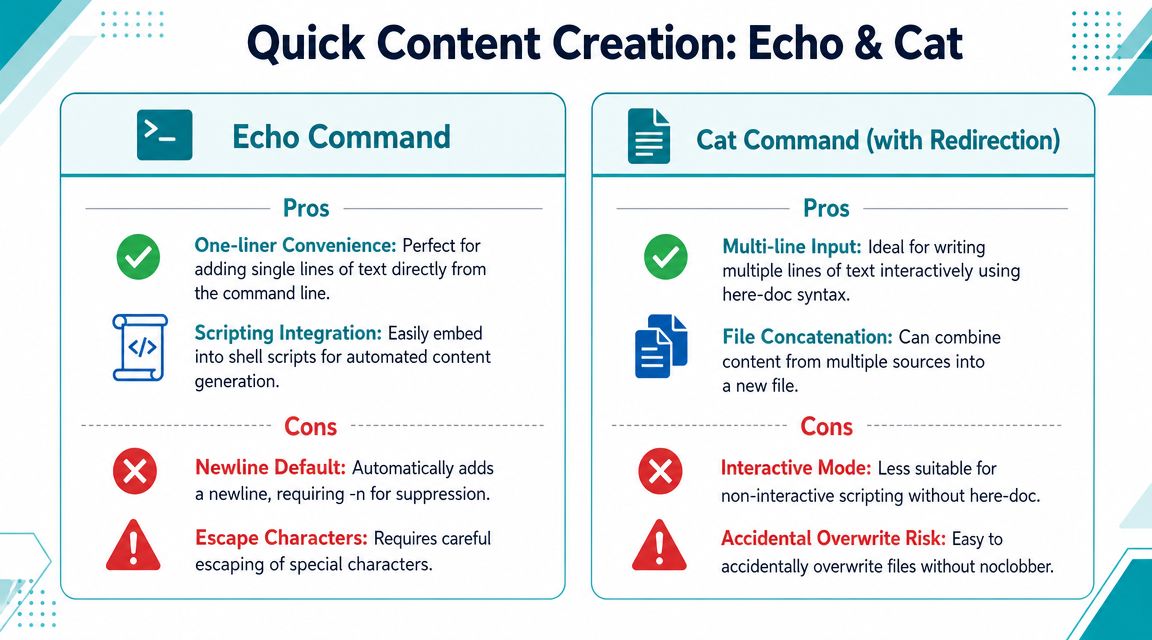
A lot of Linux file creation work is not about making an empty file. It is about dropping the right content into place, fast, without leaving partial files behind or overwriting something you meant to keep. In shell sessions and deployment scripts, echo and cat handle most of that work.
Echo for single-line files
For one setting, one token, or one environment variable, echo is usually enough:
echo "ENABLED=true" > settings.conf
echo "APP_MODE=production" > /etc/myapp/env.conf
This pattern is common because it is short and readable. It also fits well in provisioning scripts. The risk is the same one that bites people in production. > does not just create a file. It replaces the existing contents if the file is already there.
If the goal is to add a line and keep what is already present, use >>:
echo "LOG_LEVEL=info" >> settings.conf
That difference matters on shared systems and build runners. A careless > against the wrong path can wipe a config, an allowlist, or a state file in one command.
Cat for multi-line content
For multi-line content, cat with a here-document is usually cleaner than stacking several echo commands:
cat > deploy.sh <<'EOF'
#!/bin/sh
echo "Starting deployment"
date
EOF
That writes the file exactly as shown. Quoting EOF is a good habit because it prevents shell expansion inside the block. Variables like $HOME or command substitutions like $(date) stay literal instead of being expanded while the file is being created. In admin work, that is often what you want for config templates and script stubs.
Here is the same approach for a small config file:
cat > app.conf <<'EOF'
[server]
mode=production
workers=4
EOF
After writing a file this way, verify it before you hand it off to an application or service. If you want a quick review workflow, this guide on how to open a file in Linux is a useful follow-up.
Overwrite versus append in scripts
The main decision is rarely echo versus cat. It is whether the command should replace the file, append to it, or fail safely if the path already exists.
Use this mental model:
>replaces the file contents>>appends to the existing filecat <<EOFworks best when the file has several lines and should be created in one readable block
Examples:
echo "first line" > notes.txt
echo "second line" >> notes.txt
cat notes.txt
In automation, I prefer a here-document for anything longer than a couple of lines because it is easier to review in Git and less error-prone than a chain of quoted echo statements. For a single value, echo is still the practical choice.
Using Text Editors for Complex Files like Nano and Vim
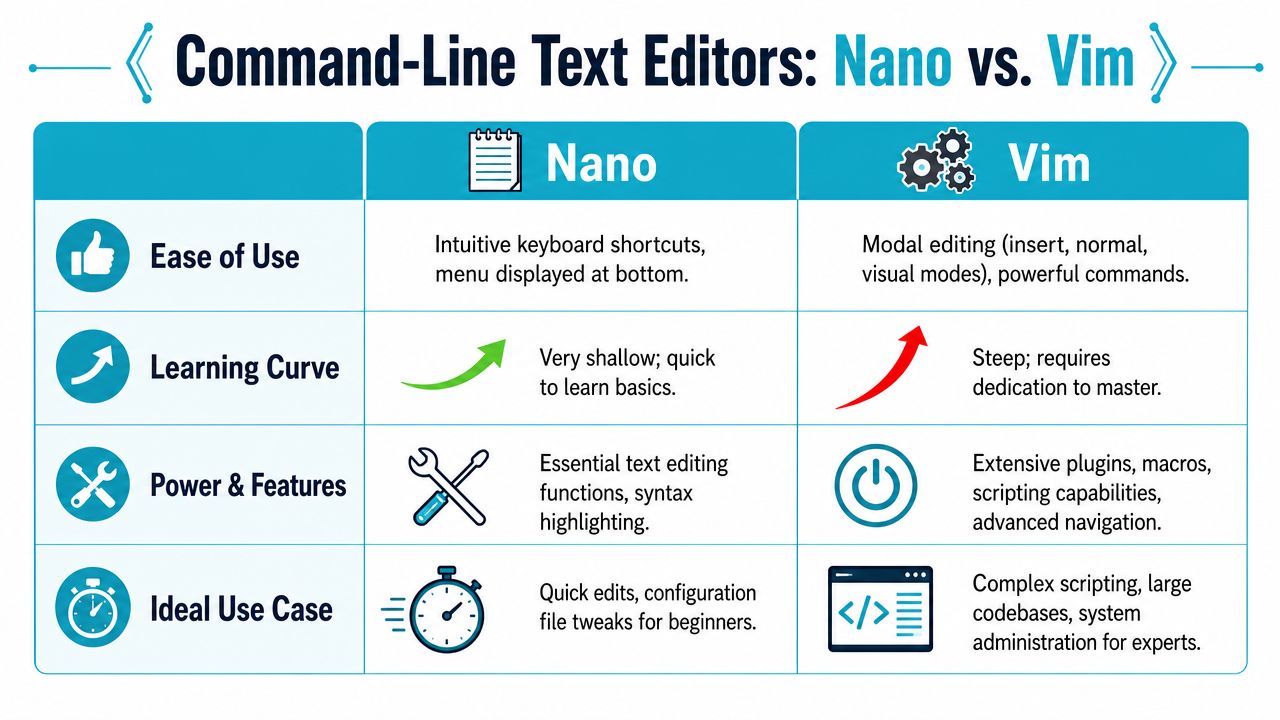
You log into a server to fix a broken config, and a one-line command is no longer enough. The file needs comments, clean indentation, and careful edits that will still make sense when someone else reviews it later. That is where an editor belongs in the workflow, especially on shared systems where a bad save can break a service or expose credentials.
Nano for straightforward editing
nano is the safer starting point for many junior admins. If the target file does not exist, opening it in nano lets you create it at save time, and the on-screen shortcuts reduce the chance of getting stuck in the editor during an SSH session.
nano myscript.sh
Type the content, then:
- Save with
Ctrl+O - Confirm filename with Enter
- Exit with
Ctrl+X
I usually recommend nano for quick config changes, cron helper scripts, and first-pass edits on systems where speed matters less than avoiding mistakes.
A simple workflow looks like this:
nano /usr/local/bin/backup-check.sh
chmod +x /usr/local/bin/backup-check.sh
That command sequence works, but in production you should pause before the chmod. Confirm the file owner, path, and contents first. Marking the wrong file executable in /usr/local/bin is a small mistake that can turn into a messy cleanup.
Vim for speed and repeat work
vim has a steeper learning curve, but it pays off on remote systems. It is fast, widely available, and efficient once you are doing repeated edits across logs, configs, and shell scripts.
Create or open a file:
vim app.conf
The minimum commands you need:
- Press
ito enter insert mode - Type your content
- Press Esc
- Type
:wqto save and quit - Type
:q!to quit without saving
On live servers, vim is often the better choice for repeat admin work because you can move through large files quickly and back out without saving if something looks wrong. That matters during incident response, where you may inspect several files before changing one.
This walkthrough is a useful visual primer before you start practicing:
Choosing the editor based on the task
Pick the editor based on risk and frequency, not personal preference alone.
| File task | Better choice |
|---|---|
| Quick config tweak | nano |
| Repeated admin work over SSH | vim |
| Multi-line script with review | Either editor |
| Single line value | Neither. Use echo |
For files that need careful structure, an editor also gives you one practical advantage over inline shell commands. You can review the whole file before saving it. In automation-heavy environments, that reduces accidental variable expansion, bad indentation in YAML, and broken config syntax that only shows up after a service restart.
If you want a broader editor walkthrough after file creation, ARPHost also has a guide on how to edit a file in Linux.
Use the editor you can control confidently under SSH, with root access, and under time pressure.
Managing File Permissions and Safe Scripting Practices
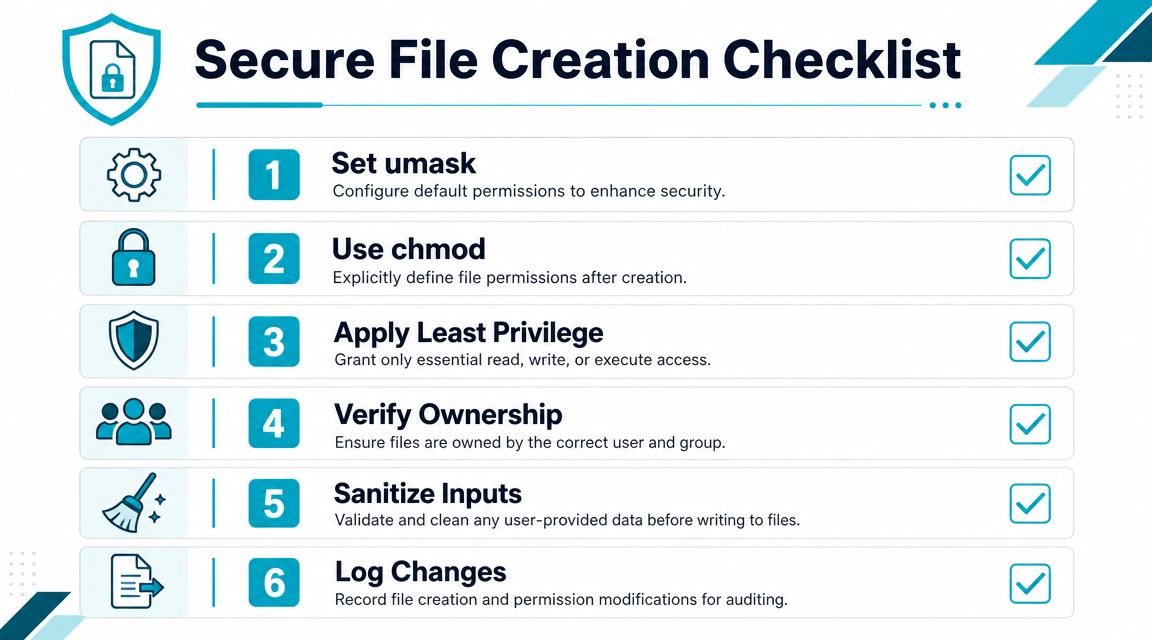
Creating the file is only step one. On real systems, the harder question is whether the right user can create it, whether the resulting permissions are acceptable, and whether your script can run repeatedly without destroying data. Most beginner tutorials barely touch this point, even though permission-aware file creation is a common problem in shared hosting and automated DevOps workflows, as highlighted in It's FOSS on Linux file creation gaps.
Start with the directory, not the file
If a command fails with permission denied, the first question isn't “what's wrong with touch?” It's “can this user write to this directory?”
Check the directory before you create anything:
ls -ld /etc/myapp
Then check who you are:
whoami
If the path belongs to another user or a protected system directory, your file creation command may be correct and still fail. In professional environments, that's normal. Service users, deployment users, and human admins often have different rights.
Control default permissions with umask
New files don't appear with arbitrary permissions. The shell process and system defaults influence them through umask.
See your current value:
umask
Create a file, then inspect it:
touch secret.txt
ls -l secret.txt
If the file needs stricter access, set it explicitly:
chmod 600 secret.txt
For scripts:
chmod 700 deploy.sh
Use least privilege. A private key file, environment file, and executable script should not all get the same mode.
Operational advice: Don't rely on defaults for sensitive files. Create them, then set mode and ownership intentionally.
Ownership matters too:
chown appuser:appgroup /srv/myapp/app.conf
That's often the actual fix when a service can see a file but still can't use it.
Write scripts that don't clobber existing files
A lot of broken automation comes from assuming the file isn't there yet. The safer pattern is to check first:
if [ ! -f "/etc/myapp/app.conf" ]; then
 touch /etc/myapp/app.conf
fi
If you need to write initial content only once:
if [ ! -f "/etc/myapp/app.conf" ]; then
 cat > /etc/myapp/app.conf <<'EOF'
mode=production
log_level=info
EOF
fi
That protects existing content from accidental replacement. It also makes scripts more idempotent, which is what you want when jobs are re-run during deployment, patching, or recovery.
A short checklist helps in practice:
- Check writability first with
ls -ldon the target directory. - Use full paths in scripts so the file lands where you expect.
- Prefer existence checks before writing configs.
- Set
chmodexplicitly when the file is sensitive. - Verify ownership if a service account needs to read or write later.
Scaling File Management with ARPHost Managed Solutions
The commands themselves don't get harder as infrastructure grows. The surrounding operational work does. Once you're managing multiple applications, shared directories, remote users, scheduled jobs, and compliance-sensitive configs, file creation becomes part of a larger discipline that includes access control, backup policy, drift reduction, and auditability.
That's one reason file handling belongs in infrastructure design discussions, not just shell tutorials. Teams thinking beyond one server should also pay attention to broader platform patterns such as future cloud computing architectures, because the way files are created, mounted, persisted, and protected changes once workloads move across virtualized and private cloud environments.
Where managed infrastructure helps
If your team wants root-level Linux control but doesn't want every admin task handled manually, one option is to pair these command-line practices with managed operations. ARPHost, LLC offers managed services around server administration, monitoring, updates, and operational support, which is the layer many SMBs and DevOps teams add when basic file tasks turn into recurring production responsibilities.
The practical benefit isn't that someone else runs touch for you. It's that file permissions, deployment paths, backups, and change handling become part of a repeatable operating model rather than a series of one-off fixes on live systems.
What to standardize internally
Before handing anything off to a provider or an internal platform team, standardize a few things:
Preferred creation method by use case
Usetouchfor placeholders,echoorcatfor initial content, and editors for structured files.Permission policy
Decide which files require explicitchmodand ownership settings.Script guardrails
Check for file existence before writes. Use append only when append is intended.Verification habit
Confirm path, mode, and ownership immediately after creation.
Those habits scale better than memorizing commands in isolation.
If you're building on Linux and want infrastructure that supports clean shell access, predictable server management, and managed help when operations get heavier, take a look at ARPHost, LLC. Their platform covers VPS hosting, bare metal, private cloud, and managed IT services for teams that need to create, secure, and maintain files as part of day-to-day production work.