


Knowing how to check if a port is open on a Linux server is a fundamental skill for any system administrator or developer. It's the first step in troubleshooting a misbehaving service and a critical part of any real security audit. Whether you're diagnosing why a web server won't respond or hardening a new machine, you must know which doors are open to the world.
Why You Can't Afford to Ignore Your Ports

Sure, when a website or database suddenly becomes unreachable, your first thought is probably a closed port. But if you only think about ports when something breaks, you’re missing the bigger picture—and creating a massive security hole.
Automated bots and attackers are constantly scanning servers for open ports. They aren't picky. They're looking for any easy way in, from a forgotten FTP port on an e-commerce site to an exposed database port on a developer's VPS hosting environment. Every port left open unnecessarily is a direct invitation for an attack.
The Real-World Cost of an Open Port
An unmonitored open port can cause damage that goes way beyond a bit of downtime. These gaps are gateways for some serious problems:
- Data Breaches: An exposed database port like 3306 for MySQL is a goldmine for attackers looking to dump sensitive customer data.
- Service Hijacking: Leaving management ports like 22 for SSH or 3389 for RDP open with weak credentials is like handing over the keys to your entire server.
- Brand Damage: One security incident caused by a simple, preventable port misconfiguration can destroy the trust you've built with your customers.
An open port is an open door to your infrastructure. If you don't know it's open, you can't control who walks through it. Proactive monitoring transforms port management from a reactive task into a powerful security measure.
While ARPHost’s fully managed IT services offer an expert safety net with proactive monitoring and firewall management, every admin should master these fundamentals. Learning to check your ports on Linux is the first step toward building a system that's both resilient and secure. It's a core practice in any serious security strategy, and you can find more techniques in our detailed server hardening checklist.
This isn't just a technical box to check; it's about safeguarding your digital assets and keeping your operations running smoothly.
Checking Local Ports with ss and netstat

Before you even think about firewalls or remote connections, the very first question you need to answer is: "Is my server even listening on this port?" It’s the most fundamental step in troubleshooting, and thankfully, Linux gives you the tools to find out instantly.
For years, netstat was the go-to command for this job. But if you're on any modern Linux system, you should be using ss (socket statistics). It's the faster, more efficient successor. While netstat works, ss pulls its data straight from the kernel, which means it runs quicker and provides information without delay.
Using ss to Check Listening Ports
The ss command is your best friend for a quick local port audit. For a fast, no-nonsense list of all listening TCP and UDP ports, just run ss -tuln.
Let's break that down:
- -t: Shows all your TCP sockets.
- -u: Includes the UDP sockets.
- -l: Filters the list to show only sockets that are listening for new connections.
- -n: Displays numerical port numbers instead of resolving service names, which significantly speeds up the command.
To get even more useful info, add the -p flag. The command ss -tlpn will show you all listening TCP ports and, crucially, the Process ID (PID) and name of the program using each one. This is incredibly handy for figuring out exactly what service is hogging a specific port. If you need a refresher on common port numbers, check out our guide on how to find a port number.
The Classic netstat Approach
If you find yourself on an older box or just prefer the classic netstat, the syntax is almost identical. Running netstat -tulnp will give you pretty much the same output as its modern ss counterpart.
Imagine you just deployed a new Python app on your ARPHost VPS that’s supposed to run on port 8080, but you can't connect. A quick ss -tlpn | grep 8080 will tell you everything. If nothing shows up, you know the problem isn't your firewall or the network—it's your application. It either failed to start or couldn't bind to the port.
Proactively checking which ports are open is a vital security practice. Recent research highlights that sophisticated port scanning attacks on Linux systems are on the rise, with attackers constantly probing for vulnerabilities. Taking a moment to run
ss -tulncan reveal unexpected open ports before they become a security incident. You can read more about the neural network-based methods used to detect these attacks.
Even with automated defenses in place, knowing these commands is essential. While ARPHost's secure web hosting bundles include powerful tools like Imunify360 to harden your server, having the ability to perform these quick manual checks gives you the power to diagnose and solve problems on your own.
Checking Remote Ports from an External Perspective
Just because a service seems to be listening on your server doesn't mean the outside world can actually reach it. Firewalls, network ACLs, and cloud security groups are all designed to stand in the way. This is a good thing, but it means you have to shift your perspective from an internal check to an external one to see what's truly exposed.
You need to think like an attacker.
Confirming External Access with Nmap
When it comes to seeing your server from the outside, the definitive tool for the job is Nmap (Network Mapper). It's the undisputed industry standard for network discovery and security auditing. It lets you scan your server from another machine to map out exactly which ports are accessible.
To get started, you can run a simple check on a single port. Let's say you want to confirm your SSH port (22) is open to the world. From a separate machine, you'd run:
nmap -p 22 your_server_ip
This sends a few probes to port 22 and reports back on its status. Simple enough.
But for a real security audit, you need to go deeper. A full TCP sweep checks all 65,535 possible ports. The -sS flag initiates a "SYN stealth scan," which is not only faster but also less likely to be logged by the target system, making it a favorite among sysadmins.
nmap -sS -p- your_server_ip
This is the workhorse command for any security professional. It gives you a complete picture of your server's exposed TCP services. This is where the unrestricted control you get with ARPHost's Bare Metal Servers really shines, giving you the power to properly harden your network perimeter.
Nmap reigns supreme as the go-to tool for checking open ports on Linux, with benchmarks showing it completes full scans in under one minute, uncovering ports like SSH on 22 and Apache on 80. This speed is a game-changer for customers managing bare metal or colocation setups, where quick port audits reveal exposures before attackers do. For SMBs deploying instant applications like WordPress, an open port 80 check prevents a significant portion of web attacks stemming from misconfigurations. Discover more details by reading the full vulnerability scanner comparison.
How to Read Nmap Scan Results
Understanding Nmap’s output is everything. You'll usually see one of three states for any given port:
- open: This is the one you’re looking for. It means the port is accessible and a service is actively accepting connections. Your web server should be open on port 80 or 443.
- closed: The port is reachable, but nothing is listening. Your probes got a direct response from the server's kernel saying, "Nope, nothing here."
- filtered: This is the tricky one. It means Nmap couldn't determine the port's state because something—almost always a firewall—is blocking the probes. If you expect a port to be open and you get this, a firewall rule is your likely culprit.
Choosing Your Linux Port Checking Tool
With so many tools available, it can be tough to know which one to grab for the job. This table breaks down the best tools for checking open ports, helping you decide which to use for any given situation, from local diagnostics to external security audits.
| Tool | Primary Use Case | Type | Best For |
|---|---|---|---|
| ss | Local listening services | Local | Quick, modern checks on your own server. |
| netstat | Local listening services | Local | Legacy systems where ss isn't available. |
| lsof | Identify owning process | Local | Finding which specific application has a port open. |
| nc/netcat | Quick remote connection test | Remote | A fast "can I connect?" check without extra noise. |
| telnet | Quick remote connection test | Remote | Simple TCP connection test, often pre-installed. |
| nmap | Comprehensive remote audit | Remote | Detailed security scans and network discovery. |
| ufw | Check firewall rules | Local | Verifying firewall status on Ubuntu/Debian. |
| iptables/nftables | Check firewall rules | Local | Inspecting low-level netfilter rules. |
Ultimately, ss is your go-to for local checks, and nmap is the champion for anything remote. The other tools are fantastic for specific, targeted troubleshooting when you need to dig a little deeper.
A Quick and Dirty Check with Telnet
If you don't need all the bells and whistles of Nmap, telnet is a classic tool for a no-frills TCP connection test. It’s been around forever and is perfect for a simple "Can I even get there?" check.
Want to test a web server on port 80? Just run this:
telnet your_server_ip 80
If the screen goes blank and you see a "Connected to…" message, it worked. The connection is open. If you get an instant "Connection refused" error, the port is likely closed. If it just hangs there and eventually times out, you're probably being blocked by a firewall.
Investigating Your Server Firewall Rules
So, your service is listening just fine on the server itself, but any connection from the outside world just times out. I’ve seen this a thousand times, and it almost always points to one thing: the firewall. It's the most common hurdle you'll face. Think of your server's firewall as a bouncer, and if a port isn't on the guest list, no traffic is getting past the velvet rope.
Let's figure out how to check that list.
Most modern Linux distros come with tools to make this less painful. If you're on Ubuntu or Debian, you're likely working with ufw (Uncomplicated Firewall). For CentOS, RHEL, and their cousins, the classic iptables or its successor, nftables, are running the show.
Checking Firewall Rules with ufw
On a server running ufw, getting a look at the rules is refreshingly simple. Adding the verbose flag gives you the full picture—default policies, specific rules, the works.
Fire this off to see what's active:
sudo ufw status verbose
The output is pretty self-explanatory. It will flat-out tell you which ports are allowed or denied. If you're trying to get HTTPS working on port 443, you better see a line that looks something like 443/tcp ALLOW IN Anywhere. If that line is missing, you've found your culprit. The firewall is just doing its job, and you need to add the rule.
If you want to go deeper into firewall management, we cover it extensively in our guide to setting up firewalls for Linux.
Reading iptables and nftables Rules
Now, if your server uses iptables or nftables, the output can feel a bit more cryptic, but it's where the real power lies. This iptables command lists all the rules for incoming traffic, showing port numbers and all the details.
sudo iptables -L INPUT -n -v
You'll need to scan this list for a rule with an ACCEPT target that matches your port and protocol (like dpt:443 for destination port 443). If all you find are DROP or REJECT targets, or worse, no matching rule and a default DROP policy, then you've confirmed the firewall is blocking you.
This level of control is fantastic for security, but it’s also where things can go wrong fast. I've seen a single, misplaced firewall rule take an entire production service offline. It's a stark reminder to always follow the principle of least privilege—only open what is absolutely necessary.
Manually wrestling with these rules can eat up your day. It’s one of the main reasons our ARPHost's Secure Web Hosting Bundles are so popular. They ship with Imunify360, which includes an intelligently managed firewall that takes the guesswork out of the equation and hardens your server from day one. And for those building complex, high-security network architectures, our Dedicated Proxmox Private Clouds provide the perfect, isolated environment to do it right.
A Real-World Troubleshooting Scenario
We’ve all been there: you just pushed a new app live on your ARPHost VPS Hosting plan, but your browser is just spinning, showing a connection error. It’s a frustratingly common scenario, but a methodical approach cuts right through the noise.
First things first, forget the network for a second. Is your application even running? SSH into your server and use ss to see if anything is actually listening on your target port—let’s say it's port 3000.
ss -tlpn | grep 3000
If that command spits out a line with your app's process name, you can breathe a small sigh of relief. It means the code started without crashing and successfully bound to the port. The problem isn't the application itself.
Is It a Local or Remote Issue
So, the app is running, but you can't reach it. The next question is: from where? Is it a local problem, or is something blocking outside traffic? The easiest way to find out is to test the connection from the server to itself.
I like to use nmap for a quick local scan.
nmap localhost -p 3000
If Nmap comes back with the port status as open, you've just narrowed down the culprit significantly. The service works perfectly fine on the local machine. This tells you the problem lies somewhere between your server and the rest of the internet—almost certainly a firewall or network configuration issue. Having full root access on an unmanaged VPS is invaluable here, as it gives you the freedom to run these checks without any restrictions.
This methodical process of elimination is second nature for any sysadmin. This flowchart breaks down the basic logic for when a port seems unreachable.
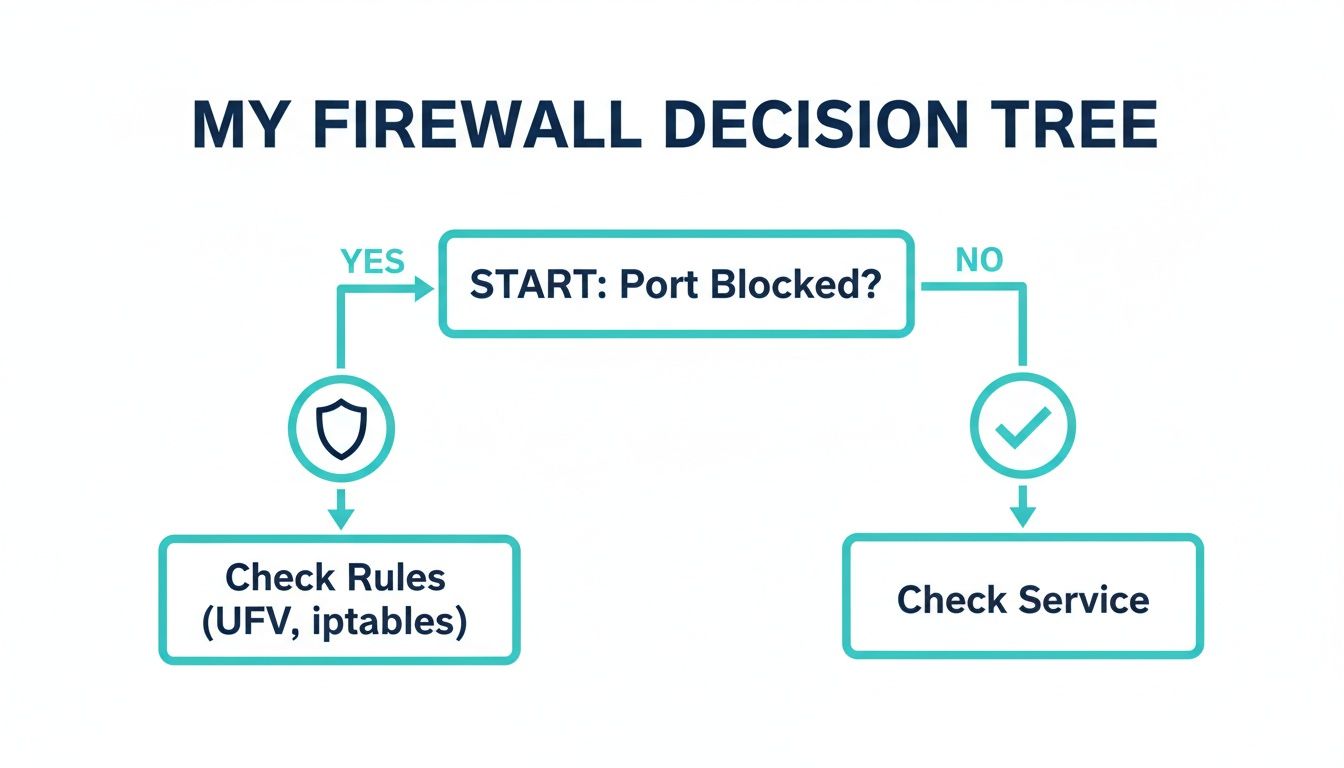
As you can see, if a port is blocked from the outside, the firewall is your prime suspect. If it's open locally but not remotely, it's time to check your rules.
Finding the Final Clue
The real tell-tale sign comes when you run the same scan from your own computer or another external server: nmap your_server_ip -p 3000. This time, you get filtered. That’s the smoking gun. As we’ve covered, a filtered status almost always means a firewall is silently dropping your connection attempts.
Now you know exactly where to look. Check your firewall status with sudo ufw status. And there it is—no rule to ALLOW traffic on port 3000. A quick sudo ufw allow 3000 and a firewall reload, and suddenly, your application is live for the world to see. This same troubleshooting logic applies to more complex setups, too, like verifying access when setting up a MikroTik RADIUS server.
In Q4 2025, honeypot logs revealed that 80.4% of all malware incidents on Linux SSH servers were driven by worms that start with port scans. For DevOps teams, quickly checking a port with
nmap -p 22 localhostcan stop attacks before they start. You can discover more insights about these malware statistics on asec.ahnlab.com. ARPHost's proactive monitoring, included with our managed IT services, helps ensure your infrastructure doesn't become part of that statistic.
Why ARPHost Excels Here: Proactive Security by Design
Knowing how to check a port on Linux is a great skill to have. But what if you never had to worry about it in the first place?
This is where we come in. While mastering the command line is empowering, the reality is that constant port management and security checks can pull you away from what really matters—growing your business. At ARPHost, we handle the nitty-gritty of infrastructure security for you, baking it right into our platforms from the start.
Automated Hardening with Secure VPS Hosting
Take our Secure VPS Hosting plans, for example. These aren't just empty servers waiting for you to configure them. They’re hardened environments running CloudLinux OS for top-notch user isolation and bundled with Imunify360, which acts as your automated security expert.
Here’s what it does right out of the box:
- Smart Firewall Management: Imunify360 deploys an intelligent firewall that automatically blocks IPs with bad reputations and shuts down common attacks like brute-force attempts before they even reach you.
- Automatic Vulnerability Patching: It keeps a constant eye on your server’s software and applies critical security patches, closing security holes before attackers can find them.
- Proactive Malware Defense: The system actively scans for and quarantines malicious files, stopping malware dead in its tracks.
All this means the tedious, repetitive work of securing ports and services is handled automatically, so you can focus on building your application.
Expert-Architected Private Clouds and Managed Services
For those with more advanced needs, our Dedicated Proxmox Private Clouds provide a completely isolated environment starting at just $299/month. Our experts design and build the network architecture specifically for your applications. We configure the firewalls, VLANs, and network routing to deliver peak performance and security from the moment you go live.
The ultimate hands-off experience comes with our Fully Managed IT Services. We become an extension of your own team. You get 24/7 proactive monitoring, port security management, disaster recovery planning, and direct access to our experts. While learning Linux commands is valuable, partnering with us ensures your infrastructure is always secure, stable, and ready to scale.
Common Questions and Quick Answers
Let's tackle some of the common questions that pop up when you're managing ports on Linux. Here are some quick answers to get you unstuck.
What Is the Fastest Way to Check If a Single Port Is Open?
For a quick local check on the server itself, my go-to is ss -tlpn | grep <port_number>. It's incredibly fast and tells you instantly if a service is actually listening.
When you need to check from the outside world (a remote check), Nmap is the professional's choice. A quick nmap -p <port_number> your_server_ip gives you a definitive "open," "closed," or "filtered" status, showing you exactly what an external user would see.
My Port Shows as Filtered in Nmap. What Does That Mean?
Seeing a "filtered" state in an Nmap scan almost always means one thing: a firewall is in the way. Nmap sent its probes, but something blocked them, so it couldn't tell if the port is open or closed.
Your immediate next step is to check the firewalls. Start with the server's local firewall (ufw, iptables) and then look at any network-level firewalls, like the security groups in a private cloud environment, that sit between your scanning machine and the server.
Can I Check UDP Ports the Same Way as TCP Ports?
You can, but you'll need to tweak your commands. Because UDP is a "connectionless" protocol, the tools need to be told specifically to look for it.
- For Local Checks: Use
ss -ulnornetstat -uln. Theuflag is the key here. - For Remote Checks: You have to tell Nmap to perform a UDP scan with the
-sUflag, like this:nmap -sU -p <port_number> your_server_ip.
Just be prepared for it to take longer. UDP scanning is often slower and can sometimes be less reliable than TCP scanning, simply due to how the protocol works.
How Can I Close an Open Port I Do Not Need?
The best and most secure way to close a port is to stop the service that's using it. Don't just block it; shut it down.
First, use a command like ss -tlpn to find out which service is listening on that port. Once you have the service name, you can stop it immediately with systemctl stop <service_name> and then prevent it from starting up on reboot with systemctl disable <service_name>.
If you actually need the service running but don't want it exposed to the internet, then a firewall is the right tool. Block the port from public access while allowing internal traffic. This is a fundamental part of securing any server.
At ARPHost, we simplify infrastructure security so you can focus on your business. Our Fully Managed IT Services include proactive server monitoring, firewall management, and 24/7 expert support to ensure your environment is always secure and optimized.