


An Active Directory Domain Services (AD DS) installation is more than a server role setup; it’s the architectural foundation for your organization’s identity and access management. For IT professionals managing environments from bare metal servers to complex private clouds, this process establishes the central nervous system for centralized authentication, authorization, and network resource management.
Why Active Directory Remains the Cornerstone of IT Infrastructure

Before executing a single command, it’s critical to understand why AD DS remains the cornerstone of enterprise identity management. AD provides the centralized authority that modern IT environments demand, whether securing a small office or managing a complex enterprise on bare metal, KVM virtual machines, or within a Proxmox private cloud.
At its core, AD serves as the single source of truth for identity and access. The alternative, managing local user accounts on every machine, is an unscalable and insecure administrative nightmare. With AD, a single user account is created and granted permissions across the entire network, simplifying administration, hardening security, and ensuring a consistent user experience.
Centralized Management and Security with Group Policy
A primary benefit of a well-planned Active Directory installation is the ability to enforce security policies universally through Group Policy Objects (GPOs). This allows administrators to manage thousands of endpoints from a single console.
- Password Policies: Enforce complexity, length, and history rules for all user accounts.
- Software Restriction Policies: Prevent unauthorized applications from executing on workstations, significantly reducing malware risk.
- Desktop Standardization: Ensure a consistent and secure desktop environment with pre-mapped network drives and printers.
- Security Baselines: Deploy critical security settings, such as disabling legacy protocols or configuring host-based firewall rules, to all servers and clients simultaneously.
This centralized control model is transformative, enabling administrators to implement changes once and have them propagate across the entire domain.
At its heart, Active Directory is the guardian that stands between most companies and total disaster. It uses the Kerberos protocol to authenticate users, a system that, while dating back decades, forms the basis of secure access to network resources.
The Foundation for Hybrid Cloud Environments
AD’s relevance has grown in the era of cloud computing. It serves as the authoritative on-premises directory that fuels hybrid identity strategies, synchronizing with cloud platforms like Azure AD (now Microsoft Entra ID).
This integration enables seamless single sign-on (SSO), allowing users to access local file shares and cloud-based applications with one set of credentials. For businesses running infrastructure on virtualization platforms like Proxmox VE or VMware, a local AD provides fast, low-latency authentication for internal systems while securely extending identity to the cloud.
Preparing Your Server for a Flawless AD DS Deployment
A successful Active Directory installation is contingent upon meticulous server preparation. Bypassing these initial steps is a common cause of complex, hard-to-diagnose issues post-deployment. The principles of building on a solid foundation apply directly to this critical infrastructure role.
Proper groundwork, including OS hardening, network configuration, and server identity, is the difference between a smooth deployment and days of troubleshooting.
Essential Pre-Deployment Configuration
First, assign a static IP address. The domain controller (DC) is the network’s nerve center, and its address must be predictable. A DC configured for DHCP could receive a new IP address after a reboot, breaking DNS resolution and causing network-wide authentication failures.
Use PowerShell to verify and configure the network settings.
# Check current network configuration
Get-NetIPConfiguration

# Set a static IP address, gateway, and DNS (replace with your values)
New-NetIPAddress -InterfaceAlias "Ethernet0" -IPAddress 192.168.1.10 -PrefixLength 24 -DefaultGateway 192.168.1.1
Set-DnsClientServerAddress -InterfaceAlias "Ethernet0" -ServerAddresses "192.168.1.10", "8.8.8.8"
Best Practice: The primary DNS server for a domain controller should always point to itself (or another DC) first.
Next, assign a descriptive and permanent hostname. A default name like WIN-R2D3P5Q7 provides no context. A name like CORP-DC01 immediately identifies the server’s role and location. Renaming a server after promoting it to a domain controller is a complex and risky procedure that should be avoided.
System Updates and Domain Naming Strategy
With the server’s identity configured, apply all available Windows Updates. This closes known vulnerabilities and resolves bugs that could interfere with the Active Directory installation. Deploying an unpatched server, especially for a critical role like a DC, is an unacceptable security risk.
Equally important is a well-defined domain naming strategy.
- Avoid using a public domain you own. Naming your internal AD domain
arphost.comwhen your public website isarphost.comcreates a “split-brain DNS” scenario, leading to resource resolution conflicts. - Use a dedicated subdomain. The industry best practice is to use a subdomain of your public-facing domain, such as
ad.arphost.comorcorp.arphost.com. This approach avoids DNS conflicts while maintaining a professional naming convention. - Do not use
.localTLDs. While once common, this practice is now deprecated as it conflicts with multicast DNS (mDNS) services used by Apple devices and other modern network protocols.
A well-thought-out server provisioning process is the bedrock of a stable IT infrastructure. It ensures that every server, whether physical or virtual, is deployed consistently and securely, meeting all prerequisites before critical services like Active Directory are even installed.
Choosing the Right Windows Server Version
The selected Windows Server version has long-term implications. Each release introduces new features and security enhancements, along with updated forest and domain functional levels that affect compatibility with older systems.
For example, Windows Server 2022 offers Secured-core server capabilities for enhanced security. However, introducing a new OS version into an existing environment requires careful compatibility verification with other domain controllers and domain-aware applications like Microsoft Exchange Server. Mis-matched schema versions or functional levels can lead to replication and operational issues.
Learn more about these foundational steps in our guide to server provisioning. This systematic approach ensures your new DC is built on a stable platform, ready for a successful Active Directory installation.
Installing AD Domain Services: A Step-by-Step Tutorial
With the server fully prepared, the next phase is the installation and promotion of AD DS. This process transforms a standard Windows Server into a domain controller, the authoritative source for network authentication and policy enforcement.
This tutorial covers two methods: the Server Manager GUI, ideal for initial setups, and PowerShell, the preferred method for automation and scalability.
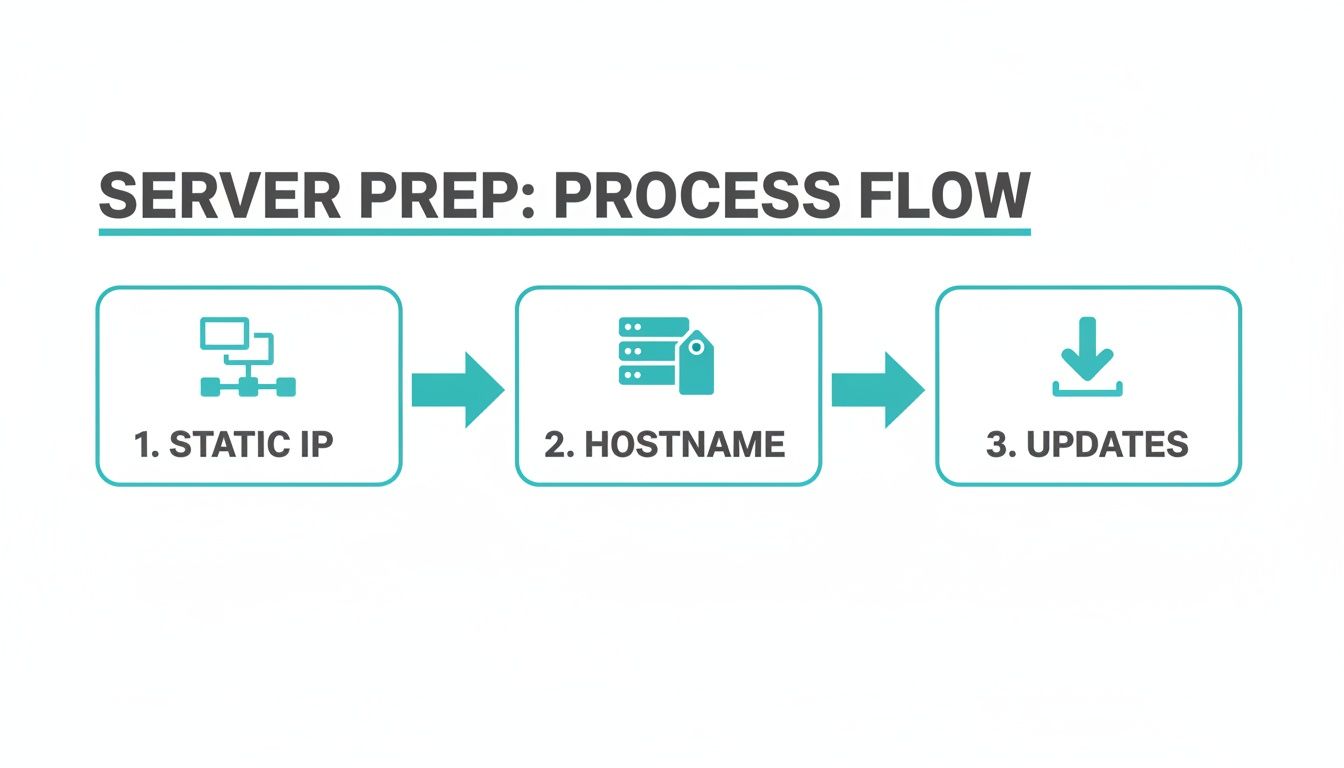
Adhering to the pre-deployment checklist—static IP, a proper hostname, and full patching—is crucial for avoiding the most common installation failures.
Method 1: Adding the AD DS Role with Server Manager (GUI)
For administrators who prefer a visual, step-by-step process, the Server Manager provides a wizard-driven experience.
- Launch Server Manager and select “Add Roles and Features” from the dashboard.
- Installation Type: Select “Role-based or feature-based installation.”
- Destination Server: Ensure the local server is selected from the server pool.
- Server Roles: Check the box for “Active Directory Domain Services.” A dialog will prompt you to add required features like the Group Policy Management Console. Click “Add Features” to accept.
- Confirmation: Proceed through the remaining screens and click “Install.”
This initial step only installs the required binaries. After completion, a notification flag will appear in Server Manager with a link to “Promote this server to a domain controller.”
Method 2: Promoting the Server to a Domain Controller
Clicking the promotion link launches the Active Directory Domain Services Configuration Wizard.
- Deployment Operation: Select “Add a new forest” for the first domain controller in your organization. Enter a Root domain name (e.g.,
corp.yourcompany.com), following the naming best practices discussed earlier. - Domain Controller Options: Set the Forest and Domain Functional Levels. For a new environment, select the highest levels available. Set and document the Directory Services Restore Mode (DSRM) password.
- Configuration: Proceed through the DNS options, confirm the paths for the database (NTDS.DIT), logs, and SYSVOL folders (defaults are acceptable for most deployments), and review the final configuration. Click “Install” to begin the promotion. The server will reboot automatically.
Critical: The DSRM password is your recovery key for the Active Directory database. It allows you to boot the DC into a maintenance mode to perform an authoritative restore from backup. Store this password in a secure, documented location.
Method 3: Automating Installation with PowerShell (CLI)
For repeatable, scalable deployments, PowerShell is the industry-standard tool. This is essential for managing virtualized infrastructure on platforms like Proxmox or VMware, where infrastructure-as-code (IaC) is paramount.
First, install the AD DS role and management tools.
Install-WindowsFeature -Name AD-Domain-Services -IncludeManagementTools
Next, promote the server and create the new forest using the Install-ADDSForest cmdlet.
Install-ADDSForest `
-DomainName "corp.yourcompany.com" `
-DomainNetBiosName "CORP" `
-DomainMode Win2016 `
-ForestMode Win2016 `
-InstallDns:$true `
-NoRebootOnCompletion:$false `
-Force:$true
This single command automates the entire promotion process, including setting the domain name, functional levels, and installing/configuring the DNS server role. You will be prompted to enter and confirm a secure DSRM password. After completion, the server reboots into a fully functional domain controller.
GUI vs. PowerShell: Choosing the Right Tool
| Attribute | Server Manager (GUI) | PowerShell |
|---|---|---|
| Speed | Slower; requires manual navigation through wizard screens. | Faster; a pre-written script executes in seconds. |
| Repeatability | Prone to human error; settings are entered manually each time. | Highly consistent; scripts guarantee an identical configuration every time. |
| Automation | Not designed for automation; requires direct user interaction. | Ideal for automation, scripting, and infrastructure-as-code (IaC). |
| Learning Curve | Low; intuitive for users familiar with the Windows interface. | Steeper; requires knowledge of PowerShell syntax and AD DS cmdlets. |
| Best For | First-time installations, single-server setups, or visual learners. | Large-scale deployments, virtualized environments, and experienced administrators. |
Both methods achieve a successful active directory installation. While the GUI is suitable for learning, mastering PowerShell is a critical skill for any modern IT professional responsible for managing enterprise infrastructure.
Essential Post-Installation Health Checks and Configuration
After the server reboots post-promotion, the installation is not yet complete. Proactive validation is required to ensure the domain is healthy and to prevent minor issues from escalating into major outages. These checks validate the core components of AD DS, from name resolution to service replication.
Validating Health with DCDIAG and Event Viewer
Your first validation step should be to run dcdiag from an administrative command prompt or PowerShell session. This command-line utility is the definitive health check tool for domain controllers, executing a comprehensive suite of tests covering replication, SYSVOL health, DNS, and more.
dcdiag /v
A successful result will show “passed” for all tests. Investigate any “failed” or “warning” messages immediately, as they often point to DNS or network connectivity issues that are easiest to resolve at this stage.
Next, inspect the Windows Event Viewer for logs related to AD DS.
- Directory Service Log: Confirm that the directory service has initialized successfully.
- DNS Server Log: Check for errors related to zone loading or dynamic updates.
- File Replication Service (or DFSR) Log: Verify that the SYSVOL share has been initialized and is ready for replication, which is critical for Group Policy functionality.
A clean bill of health from dcdiag and the event logs provides confidence that the new DC is operating on a solid foundation.
Configuring DNS Forwarders and Reverse Lookup Zones
The AD DS installation wizard sets up basic DNS, but you must configure forwarders. Without them, your internal DNS server cannot resolve external internet addresses.
In the DNS Manager console, right-click the server name, select Properties, and go to the Forwarders tab. Add the IP addresses of reliable public DNS resolvers (e.g., 9.9.9.9, 1.1.1.1) or your ISP’s DNS servers.
Next, create a reverse lookup zone. This enables the resolution of an IP address back to a hostname, a function critical for many network services and security tools. In DNS Manager, right-click “Reverse Lookup Zones” and use the wizard to create a new Primary Zone for your internal IP subnet. For a deeper understanding of DNS mechanics, learn what DNS propagation is.
Verifying FSMO Roles and Replication
In a new forest, the first DC holds all five Flexible Single Master Operations (FSMO) roles. These are unique roles responsible for specific tasks within the domain or forest.
Verify the FSMO role placement with these PowerShell commands:
# Get Forest-wide FSMO roles
Get-ADForest yourdomain.com | Select-Object SchemaMaster,DomainNamingMaster

# Get Domain-wide FSMO roles
Get-ADDomain yourdomain.com | Select-Object PDCEmulator,RIDMaster,InfrastructureMaster
The output should list your new DC as the owner for all five roles. To ensure long-term health, it is essential to implement actionable infrastructure monitoring best practices. Proactive monitoring can detect replication failures or FSMO role issues before they impact end-users.
A healthy domain relies on seamless SYSVOL replication. This is the magic that ensures all your Group Policy Objects and logon scripts are identical across every domain controller. If this breaks, policy changes won’t apply consistently, leading to unpredictable and incredibly frustrating behavior for users.
This entire post-installation phase is where a good managed service provider really proves its worth. At ARPHost, we streamline this entire process. Our instant provisioning of Windows Server VPS with root access lets DevOps teams knock out an active directory installation in under 30 minutes.
Running Active Directory in Virtualized Environments
The practice of dedicating physical servers to domain controllers is largely obsolete. Modern Active Directory deployments are well-suited for virtualized and cloud environments, offering flexibility and efficiency that physical hardware cannot match.
However, understanding the principles of server virtualization is crucial. Platforms like Proxmox VE 9 and VMware ESXi are excellent choices, but running a DC as a virtual machine (VM) introduces specific operational requirements and potential risks. Virtualization enables agility; a new DC for a branch office can be deployed in minutes, not days. This is where pre-configured templates and automation pipelines provide significant value.
Time Synchronization Is Non-Negotiable
Kerberos, the authentication protocol used by Active Directory, is highly sensitive to time discrepancies. If the clock on a client machine is out of sync with the domain controller by more than five minutes (by default), authentication will fail.
Best Practice: Disable time synchronization between the hypervisor host and the domain controller guest VM. This feature, often part of guest integration tools (e.g., VMware Tools, QEMU Guest Agent), can introduce time drift if the host’s clock is inaccurate. Instead, configure the DC holding the PDC Emulator FSMO role to synchronize with a reliable external NTP source (e.g., pool.ntp.org). All other domain members will automatically synchronize their time with the domain hierarchy.
The Dangers of VM Snapshots and USN Rollback
While VM snapshots are useful for creating temporary, short-term rollback points, they must not be used as a backup mechanism for domain controllers. Reverting a DC to a snapshot can cause a catastrophic failure known as a USN (Update Sequence Number) rollback.
The USN is a counter that tracks changes in the AD database. When a DC is reverted to an older snapshot, its USN is also rolled back. When it reconnects to the network, its replication partners detect the outdated USN and will refuse to replicate with it, effectively isolating the DC from the domain.
While modern hypervisors and Windows Server versions include safeguards like VM-Generation ID to mitigate this risk, the industry best practice remains unchanged: do not use snapshots as a backup for domain controllers. Use a proper, application-aware backup solution that is designed to correctly back up and restore Active Directory.
This virtualized approach simplifies deploying AD on bare metal or colocation infrastructure and integrates seamlessly into Proxmox-based private clouds for building scalable hybrid environments.
Common Questions About Installing Active Directory
Can I Install Active Directory on a Server Running Other Roles?
While technically possible to co-locate roles like SQL Server on a domain controller, it is strongly discouraged. A domain controller is a critical security component and should be isolated. Each additional application installed on a DC increases its attack surface, introduces potential resource conflicts, and complicates patching and maintenance.
For a stable, secure, and supportable Active Directory installation, best practice dictates using a dedicated server, whether physical or virtual.
What’s the Difference Between a New Forest and a New Domain?
- Creating a “new forest” is the foundational step performed once to establish the root of your organization’s entire AD structure.
- Adding a “new domain” or another “domain controller” occurs within an existing forest. This is done to expand the directory (e.g., adding a child domain for a subsidiary) or to add redundancy and load-balancing capacity to an existing domain.
Think of the forest as the entire tree. The first domain you create is the trunk. You can add more branches (child domains) or make the trunk stronger (more DCs), but it all starts with that single forest.
How Many Domain Controllers Do I Really Need?
The absolute minimum for any production environment is two. A single domain controller represents a single point of failure. If that server fails, network-wide authentication will halt.
The ideal number of DCs depends on several factors:
- User Count: More users generate more authentication traffic, requiring more DCs for load distribution.
- Physical Sites: Best practice is to deploy at least two domain controllers at each major physical location to ensure service availability during a WAN outage.
- Application Needs: Latency-sensitive applications that heavily query AD may benefit from a nearby DC.
Why Is the DSRM Password So Important?
The Directory Services Restore Mode (DSRM) password is a critical recovery credential. It allows an administrator to boot a domain controller into a special maintenance mode that bypasses normal domain authentication. This is the only way to perform certain disaster recovery tasks, such as an authoritative restore of the AD database (NTDS.DIT) from backup. This password must be unique, complex, and securely documented.
Managing Active Directory, from the initial setup to daily maintenance, requires real expertise. At ARPHost, LLC, we provide the high-performance infrastructure and managed services to keep your AD environment secure, redundant, and always on. Check out our reliable bare metal and virtual server solutions at https://arphost.com.